
Let’s learn about HandBrake, the free video transcoder. In this video tutorial, we’re covering the details about how to make good use of HandBrake.
When it comes to transcoding video, most of us likely turn to Adobe Media Encoder. However, HandBrake is a free, open-source transcoder that a lot of people may not know exists. In this tutorial, we’ll walk through how to use HandBrake and how it compares to other apps like Adobe Media Encoder.
What Is HandBrake?

HandBrake is a free, open-source video transcoder. It’s used to convert video from many different formats into more commonly used ones (such as MP4) and it’s really efficient at reducing a video’s file size. It can be downloaded from handbrake.fr, and it supports Mac, Windows, and Linux. The iconic HandBrake logo is quite unorthodox, featuring a tropical drink and pineapple.
Video Formats
While HandBrake can transcode video from many different formats, it can only output video to three formats currently. Those container formats are:
- MP4: Common multimedia format, typically for codecs like H.264 and H.265. (Note: HandBrake actually exports MP4 files as WAV files. We’ll take a closer look at this later on in the tutorial.)
- MKV: An open-source container format that can hold an unlimited number of video and other media tracks in one file. Also known as the Matroska format.
- WebM: An open-source container format specifically designed for playback on web browsers.
x264
What makes HandBrake so powerful is how it can encode MP4 files with the H.264 codec. It uses an open-source encoder known as x264. If that sounds a little confusing, to put it simply, HandBrake can compress MP4 files better than most other encoders.
Comparing HandBrake to Adobe Media Encoder
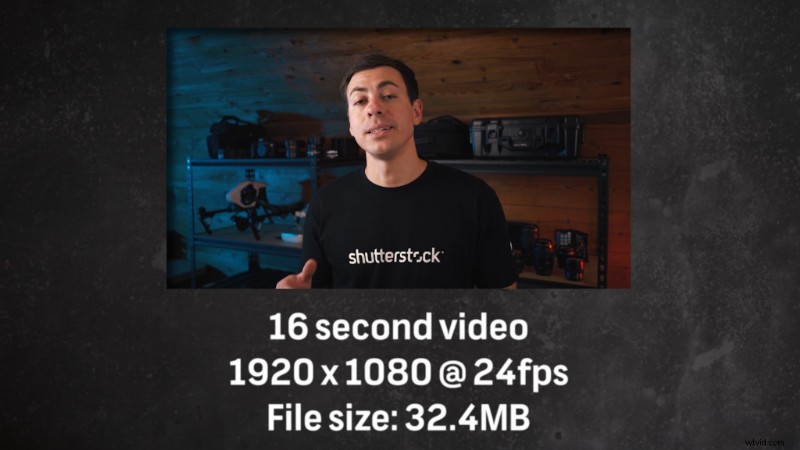
Let’s check out a quick comparison of an MP4 export between HandBrake and Adobe Media Encoder. I’ve got an example video clip of me talking on camera. The original clip is 0:16 long and the resolution is 1920×1080.
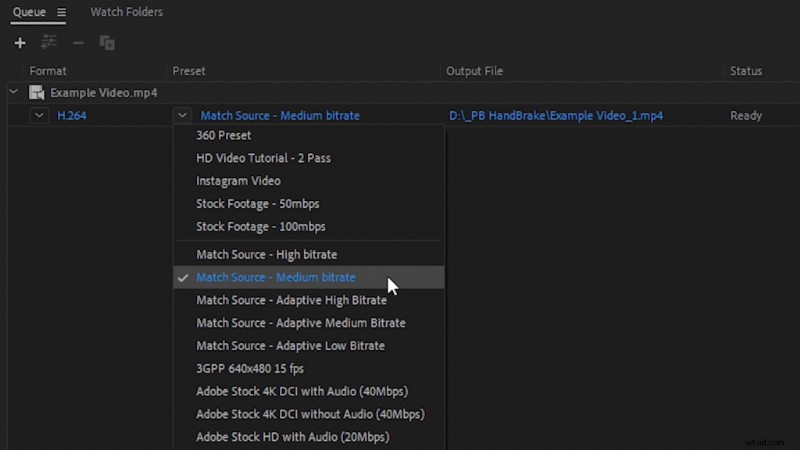
With Media Encoder, I exported an MP4 and used the preset Match Source – Medium Bitrate, which has a very low target bit rate of 3 Mbps and a max bitrate of 6 Mbps. The exported video file was 6.55 MB, which is pretty small.
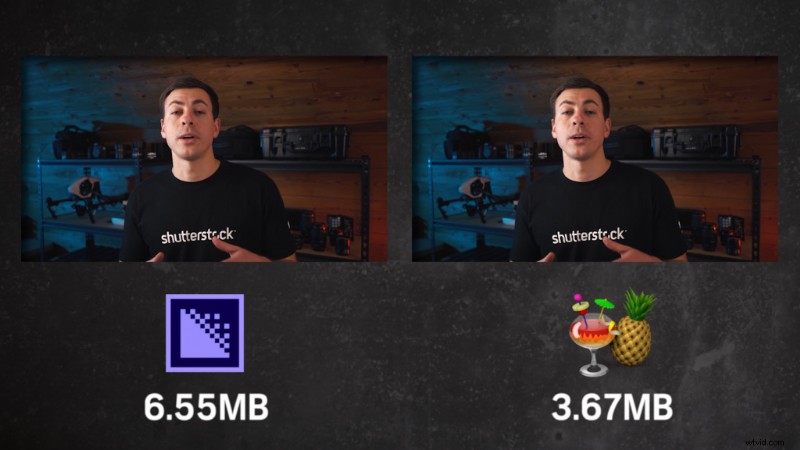
I then exported the example video through HandBrake, using its default Fast 1080p 30 preset. The exported HandBrake video was 3.67 MB, which is almost half as small as the export from Media Encoder. And the files showed no noticeable differences upon playback.
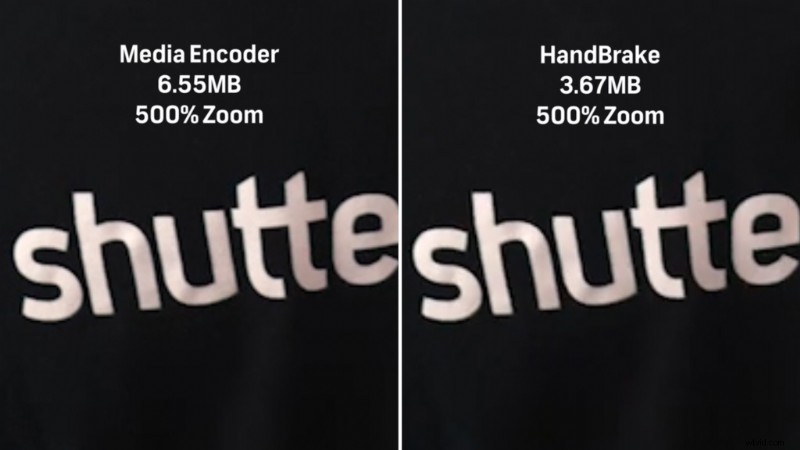
If you “pixel-peep” the HandBrake video frame-by-frame, you’ll start to see more noticeable compression. The important aspect is that the compression isn’t noticeable to the viewers during normal playback. I actually didn’t even notice it at all until I zoomed in on the video clip frame-by-frame.
Benefits of Compressed Video Sizes
The file size reduction you get using HandBrake makes it perfect if you’re hosting your own videos online or if you have a lot of looping video backgrounds on a website. It can really help cut down on loading times. Social media videos are another good use for HandBrake, as those platforms tend to prefer smaller video sizes.

Using HandBrake
Using HandBrake to transcode videos is pretty straightforward. Once you launch the app, you can drag-and-drop the video you want to compress.
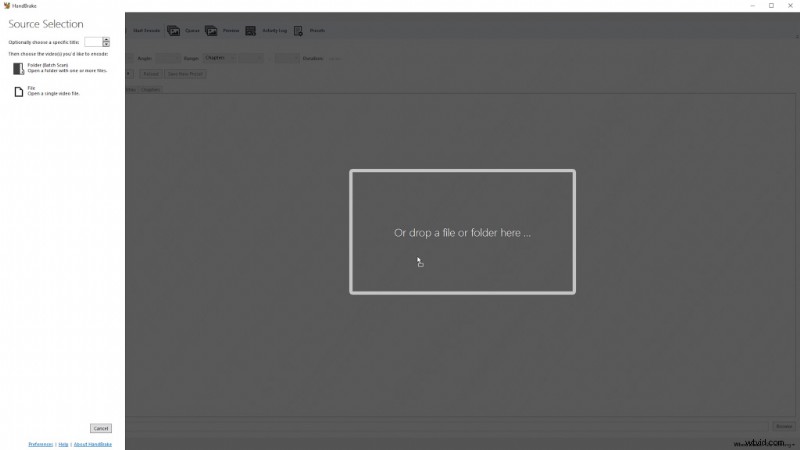
From there, you can select between the tab options to dial in various settings.
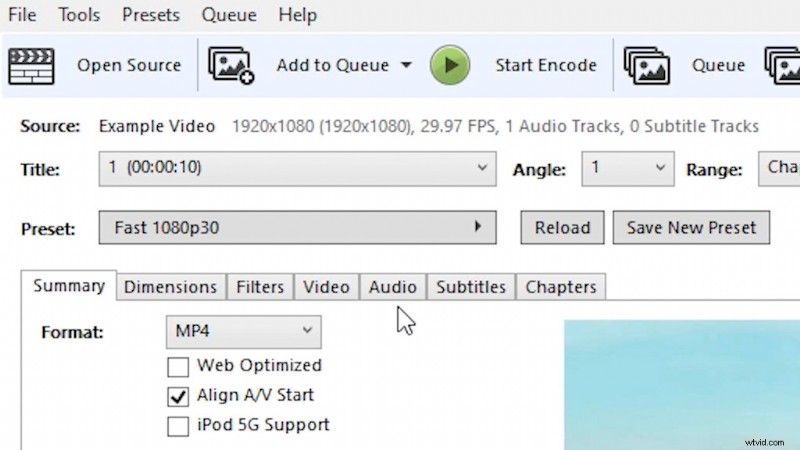
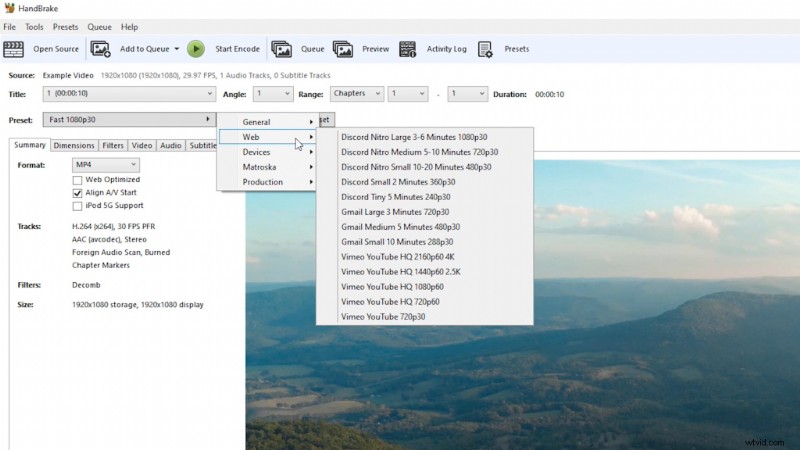
You can also select from many different built-in presets. The default preset is called Fast 1080p 30, and serves as an ideal starting point in most cases.
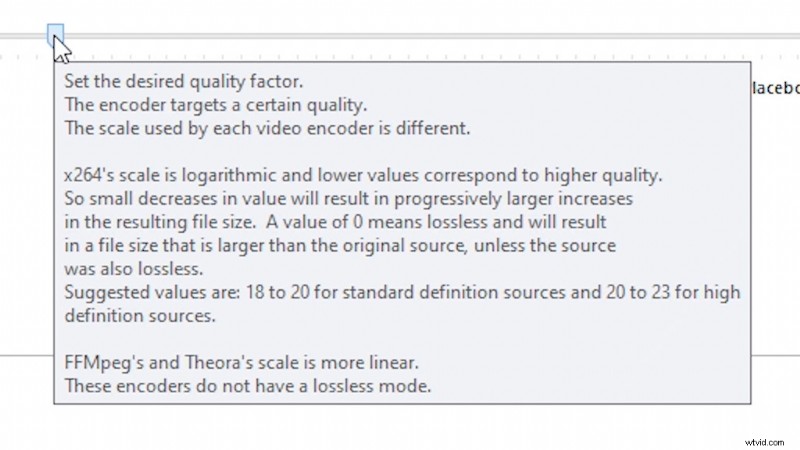
If you ever wonder what a specific setting does, just hover your mouse cursor over the setting and wait. An explanation text will usually appear.
MP4 Files Export as M4V
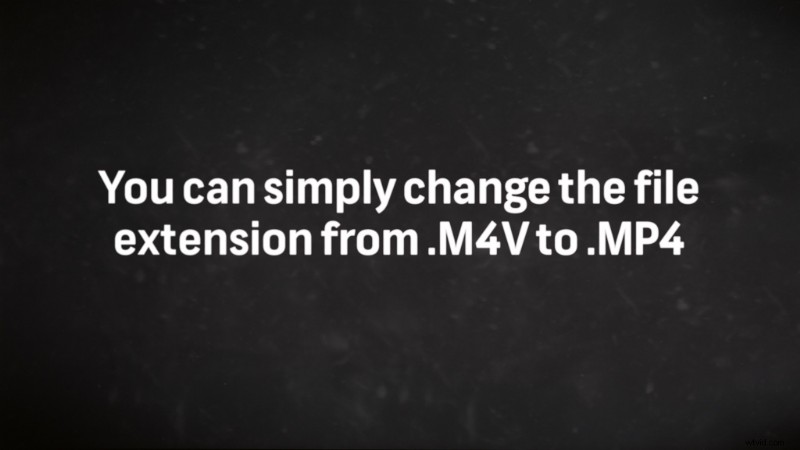
As mentioned earlier, HandBrake actually exports MP4 files with the extension M4V. The HandBrake documentation states that this makes the file compatible with QuickTime and QuickTime-based apps. HandBrake also states that the M4V file is exactly the same as an MP4, and you can simply change the extension on the file from .m4v to .mp4 if you prefer!
Too Much Video Compression?
If your video comes out looking too compressed with artifacts, check out another tutorial we have on the Shutterstock blog — Tips for Reducing Visible Video Compression in Video Uploads.
Cover image logo via HandBrake.
Interested in the tracks we used to make this video?
- “Rain Rain Go Away” by Cosmo
- “Lo-Fi Dreams” by Trending Music
- “Lo Fi Abstract Chillhop” by Trending Music
- “Bushido Belief” by Tonemassif
Up your video production values with these handy tips and tricks:
- How to Make Video File Sizes Smaller and What Software to Use
- Use These Inexpensive Hacks to Manipulate Your Video Lighting
- How to Attract Wedding Video Clients – A Demo Reel Won’t Cut It
- The Rundown on Creating Vertical Video
- How to Shoot and Edit Videos Using Instagram Reels