
What is vignetting?
If you’re in any way interested in photography, or you’ve at least delved deeper into the image-editing options on your mobile device or apps like Instagram, you might have seen an effect called “vignette”.
Many still don’t know what it means - so let us explain. Vignetting is, essentially, a reduction of brightness or saturation toward the periphery of an image compared to the centre, where a darker glow is added to the outer edges of a photo or video.
Stemming from the word “vine” and originally referred to as a decorative border in a book, the term “vignette” is still used today, only now we see it deliberately introduced for creative effect in vignetting software.
If used correctly, it can help draw attention to the center of the frame, or make certain images or scenes look more romantic than they were previously, adding a depth of nostalgia.
Now, if you’re happy with our vignette definition, it’s time to show you how to add it to your videos with our online tool, straight from your browser.
How to apply vignette onto your video
Upload your clip
To begin, head over to Clideo’s Vignette Video tool. To upload a file from the storage drive on your PC, mobile device or tablet, tap the large ‘Choose file’ button in the centre of the home screen.
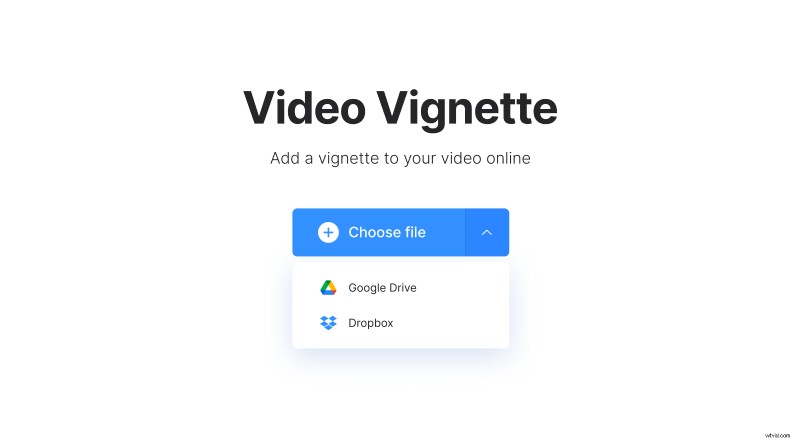
If your video is stored in a cloud account, hit the down-arrow on the right and you’ll be given the option to upload it from Google Drive or Dropbox.
Note, you can upload a file up to 500 MB for free.
Add a vignetting filter
Now, you can adjust your video’s colour effects and add your nostalgic-looking vignetting effect.
To do this, simply drag the ‘Vignette’ slider to the right and you’ll instantly see the effect take shape in your video.
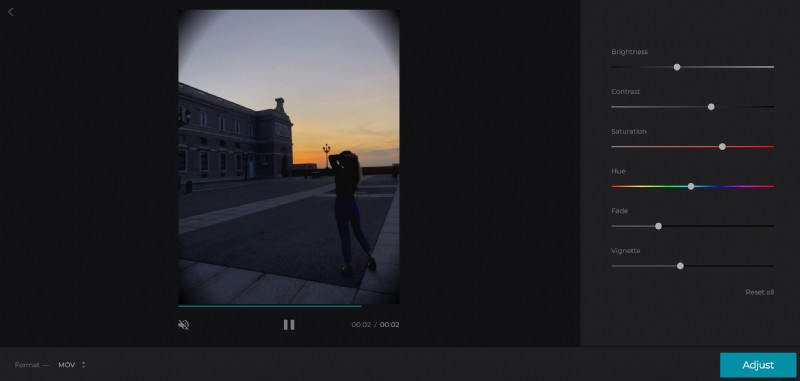
While you’re here, you can also adjust the brightness, contrast, saturation, hue and fade levels on your clip, if you’d like.
Once you’re happy with how it all looks, select a video output format. If you’re playing the file on a mobile device, we recommend MP4.
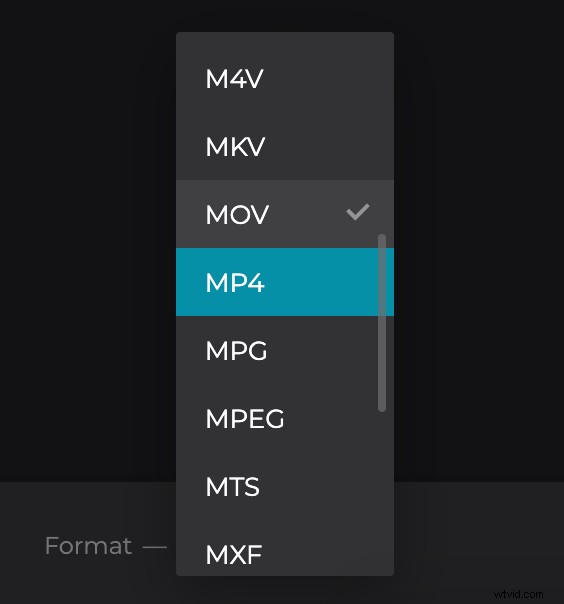
Now, just tap the ‘Adjust’ button and your video will begin its vignette transformation!
Check it, download it, save it
Once that’s been processed, your new movie can be previewed to check it’s to your liking. Do so by selecting the play preview option under the clip.
If you’re happy, hit the ‘Download’ button. Again, you have the option to save it back to your Dropbox or Google Drive account.
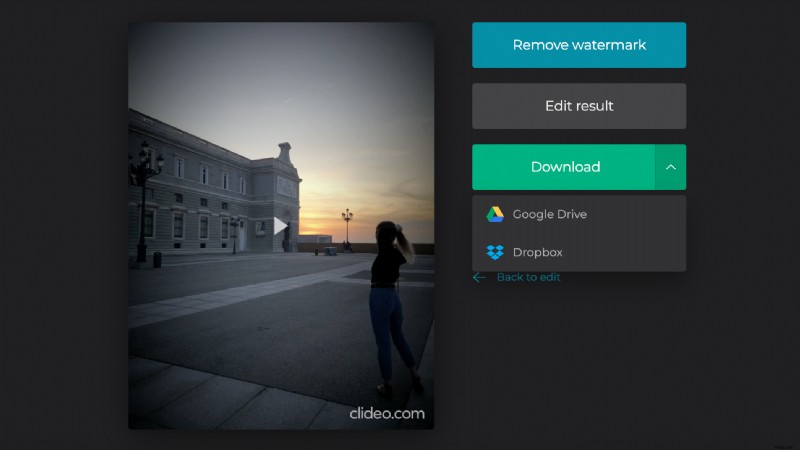
Not quite happy and need to make some edits before exiting? Tap the ‘Back to edit’ option and you’ll be taken to the editor page again without the need to start from the beginning. And hey presto! You’re all done.