What is Instagram Reels
As it is self-evident from the title, Reels is a new Instagram feature. To shoot a “reel”, you have to open Stories cam and scroll down to the new option. When it’s ready, you can share it with your followers on regular Feed or in the Explore section.
It may seem that Reels are similar to Stories, but in fact they have much more in common with TikTok. They are 15-second-long clips set on popular music with different features, filters and effects.
The feature was first released in Brazil in 2019 and it immediately proved to be successful. Instagram Reels release date was 5th of August for 50 countries including the USA, and lots of short videos have already gone viral.
Instagram now provides an option to download your reels, so if you want to share a part of a clip you like with a friend, let’s say via Whatsapp, you can use our special tool.
Add Reels to the tool
First go to the Reels tab in your Instagram profile and save your Reel. Then open Clideo Video Cutter in any browser.
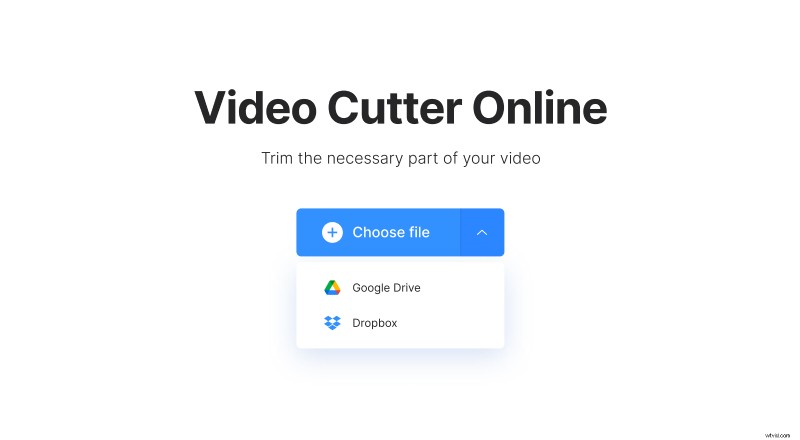
Upload the clip from your personal device or cloud storage accounts. For the latter option click a tiny arrow on the right side of the blue pane to call a drop-down menu. The video will be imported automatically.
Cut the Reels video and select a format
If you want to save the video without editing, move sliders to its beginning and end to select the whole clip.
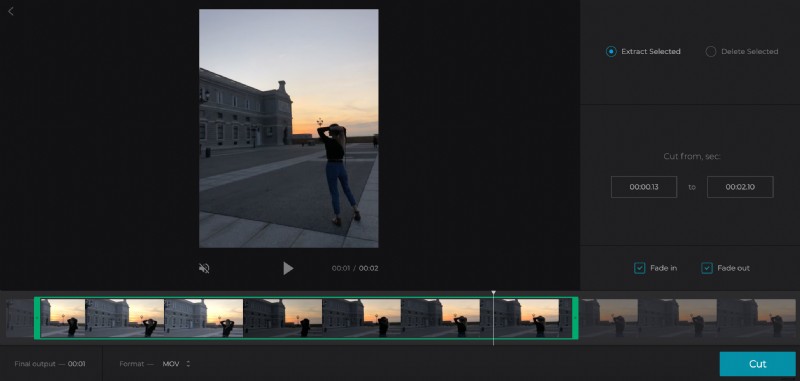
To cut the shooting, set the start/end timing manually or by moving the sliders.
If you extract the selected snippet, it will be processed as your new video. Ticked “Fade in” box will make it start gradually with a dark frame. “Fade out” option sets the opposite process – the video will smoothly go to complete darkness.
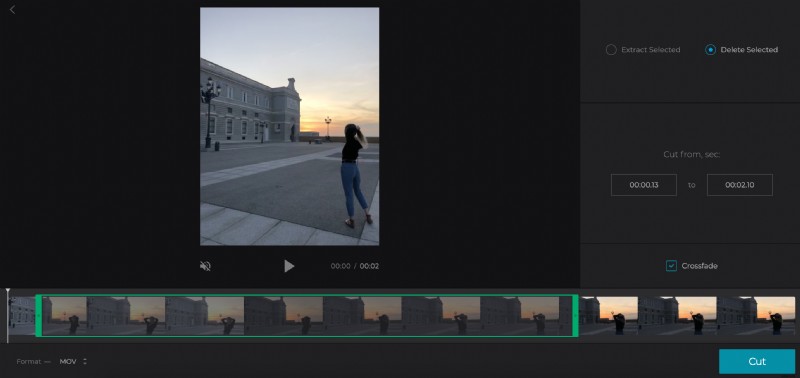
If you delete selected snipped, two parts of the video will be merged. Tick the box “Crossfade” to make the transition smooth and invisible.
Then choose the output format – our tool supports all the most popular ones and several less well-known extensions. The best choice for a mobile device is MP4.
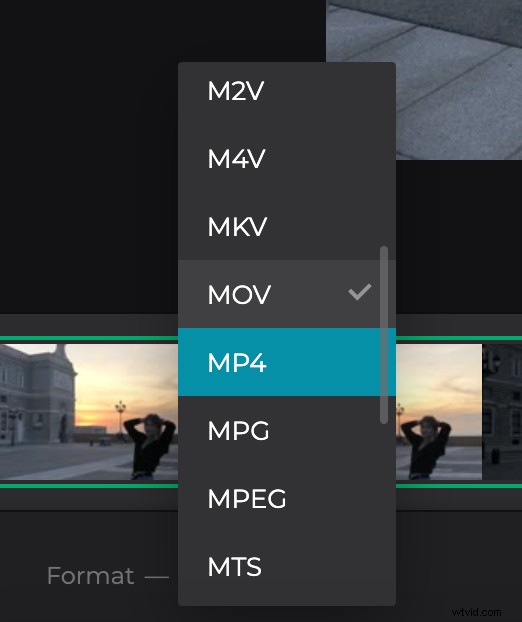
When you are done, click “Cut”.
Save the clip
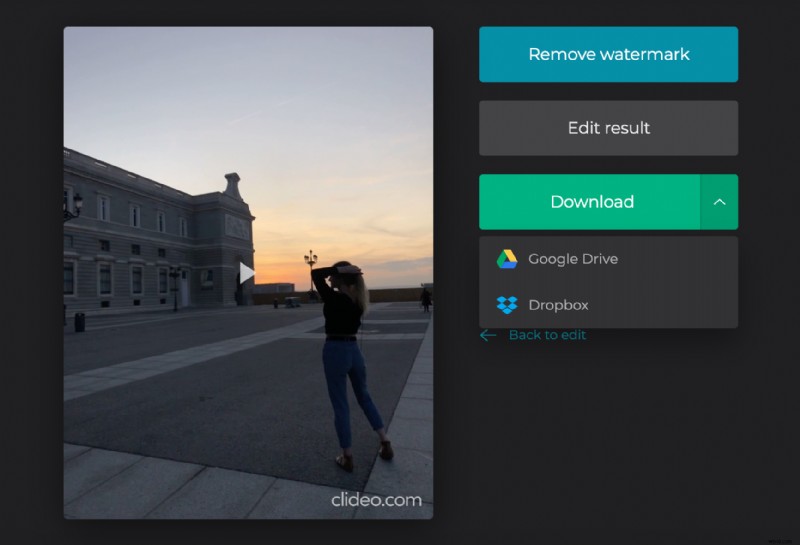
Have a short preview and get sure that you have what you want. Then save the recording to your personal device, Google Drive or Dropbox. If you want to change anything, return to editing.