
How to share a Vimeo video on Instagram
Another point to consider – social media specs, they are quite different, so you should adapt the necessary video for the Instagram requirements:
- Orientation: Horizontal, Square, Vertical
- Aspect ratio: 16:9, 1:1; 9:16 respectively
- Recommended resolution: 600 x 315, 600 x 600, 600 x 750
- Supported extension: MP4, MOV
If you want to post your recording on another social media, you can check its specs out in our complete guide.
And the most important is that you need to download the video from Vimeo first as the platform does not allow direct sharing. But it's not a problem if the owner allows it, you'll see the downloading option on the video's page.
Read on and get to know how to put a Vimeo video on Instagram in four easy steps.
Add a Vimeo video
Open the Vimeo video you need and download it to your device.
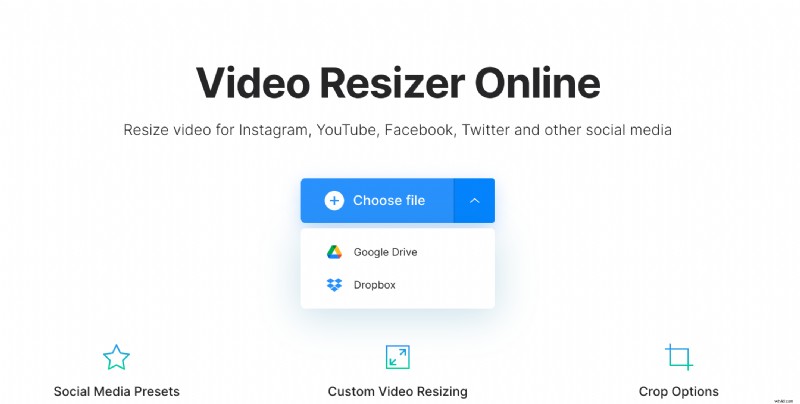
Open Clideo’s Video Resizer in another browser tab, click "Choose file" and upload the video to the tool.
Resize your video for Instagram
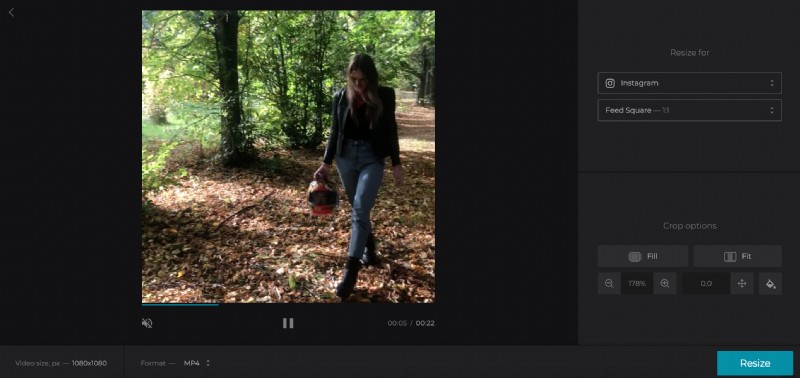
There are two fields on the right of the player: for the social media and for the post type. Hit the “Instagram” option in the first and select one of 15 presets in the second.
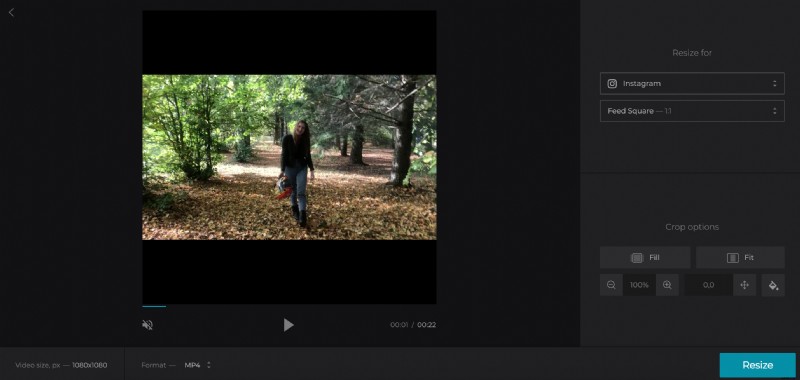
There are about 100 ready aspect ratios for other social media like Facebook, YouTube, and Twitter.
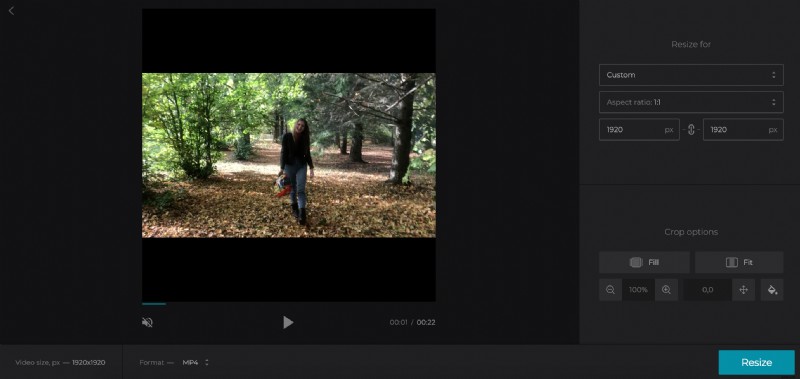
If you want to resize the video manually, choose the “Custom” option, then select one of the aspect ratio patterns or the “Source video” option to keep the initial aspect ratio. Then set either width or height in the corresponding boxes and the second parameter will be calculated automatically.
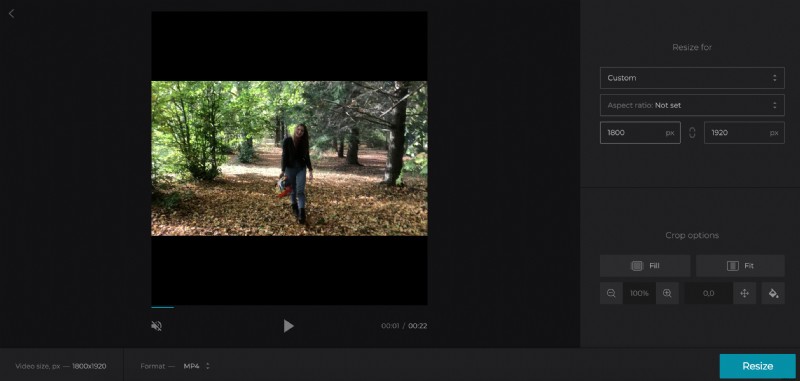
If you need maximum customization and want to set both video dimensions manually, choose the “Not set” aspect ratio or just “untick” the chain sign between the boxes.
Crop the recording if needed
There are two crop options available:
- Fill the frame with the image completely. There will be no sideboards left, but the video is likely to get cropped. You may zoom it in and out to find the perfect position.
- Fit the image in the frame. The whole video will be kept but the sideboards will appear. You can move the image in all four directions using the arrows below the “Fit” button. You may also want to change the background colour: select it from the standard palette or set a hex code manually.
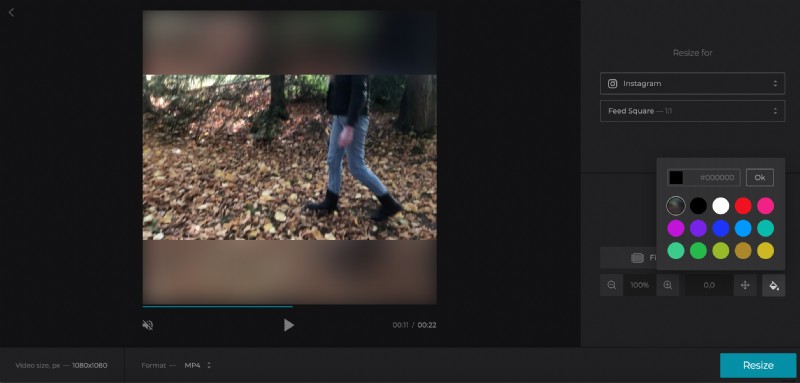
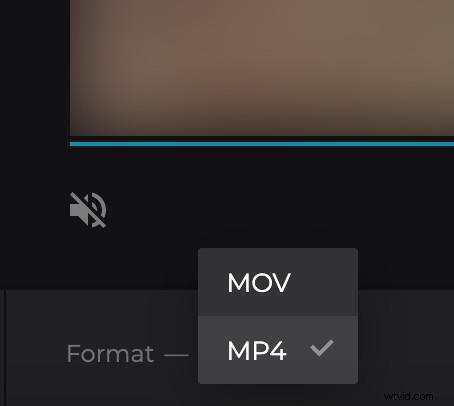
The tool allows you to convert the recording to another format. For Instagram you'll have two options: MOV and MP4.
When you are done, click on “Resize” and give the service several seconds to do its job.
Download Vimeo to Instagram
Save the resized video to your personal device or one of two cloud storage accounts, then post it on the chosen social media.
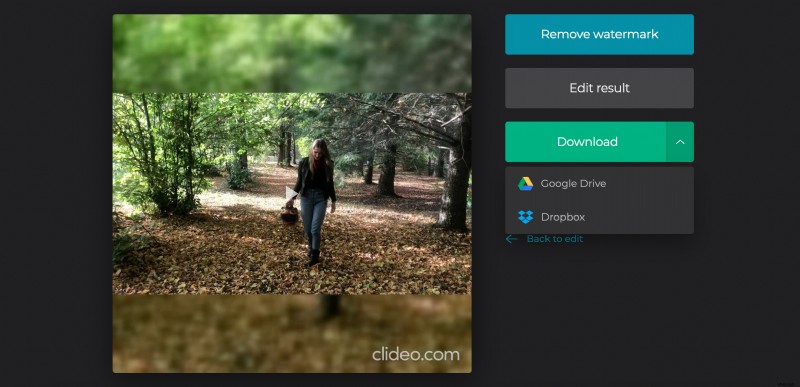
Don’t forget to take a quick final preview before saving the file as there is still a possibility to edit the project if you find some imperfections by clicking on “Back to edit”.