
In addition to photos, Instagram is also well-suited to share video content. You can post any video you recorded to your feed and stories. Here’s how to upload video to Instagram. Before uploading, you may need MiniTool MovieMaker - a professional video editor to help you polish your video.
By now, you may have seen a lot of movie videos on the Instagram feed. This article will introduce how to upload video to Instagram from your mobile phone or computer.
How to Upload Video to Instagram from Android/ iPhone
Instagram is a popular photo-sharing application that allows you to quickly post photos and videos on the go, but you must use the official Instagram mobile app to post videos. Now, let’s learn how to upload video to Instagram via mobile phone.
Step 1. Open the Instagram app on your Android or iPhone phone.
Step 2. Tap on the + icon at the bottom center of the screen.
Step 3. Then you can either select a pre-recorded video from your library or shoot a video at the moment.
- If you choose the former, click Library at the bottom of your screen and then tap on the video you want to post.
- If you choose the latter, select Video and press the circle at the bottom of your screen to start video recording.
Step 4. Once you prepared the video, tap on Next at the top right corner of your screen.
Step 5. Now, you can make some desired changes. Click Next to save all operations.
Step 6. Optionally, you can add a caption, select a location, tag someone, and simultaneously post the video to another social media network.
Step 7. Once you’ve completed all settings, tap on Share to post the video to your feed.
Related article: The Best Instagram Video Format and Specification in 2020
How to Upload Video to Instagram from PC
Although you can browse your feed and watch Stories on a PC, Instagram works as a mobile-only app. That means you can’t upload photos or videos directly to Instagram on a PC. To upload video to Instagram from your computer, you will need a third-party application, such as Gramblr.
Step 1. Free to install and launch Gramblr on your computer.
Step 2. After entering the main interface, you will be asked to create an account and enter your Instagram ID and password.
Step 3. Drag-and-drop the video onto the main interface. Now, you will see there is a horizontal line that you can drag back and forth to trim the video.
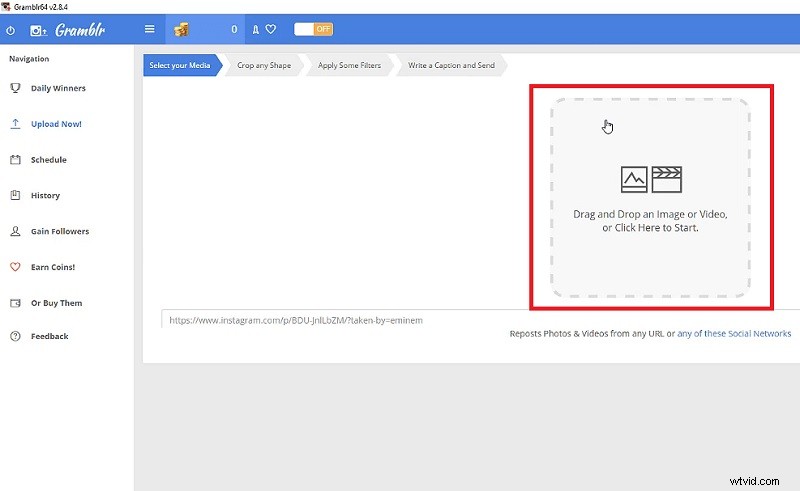
Step 4. After trimming the video, click the red thumbs-up button on the upper right and you will be taken to a new page. Here, you can write a caption and choose to post the video on Instagram immediately or schedule it to publish later.
Step 5. Once finished, hit the big green Send button and the video will be uploaded on your Instagram account.
Bottom Line
Have you mastered how to upload video to Instagram using your phone or without a phone after reviewing this post? If you have any questions or suggestions, please let us know via admin@wtvid.com or share them in the comments section below.