
There are times you want to cut MP4 files. The reason maybe cut the large MP4 file into small-size clips for or uploading to YouTube (small size allowed). No matter what reason you have, to cut MP4 files, you need a reliable MP4 cutter. Here, I advise you to use Filmora Video Editor. It allows you to cut a MP4 file to any length you want with the original video quality. Read on and get the details.
Download and install this MP4 video cutter, and then select 16:9 or 4:3 ratio option to enter into its main interface.
Step 1: Import MP4 files to this MP4 cutter
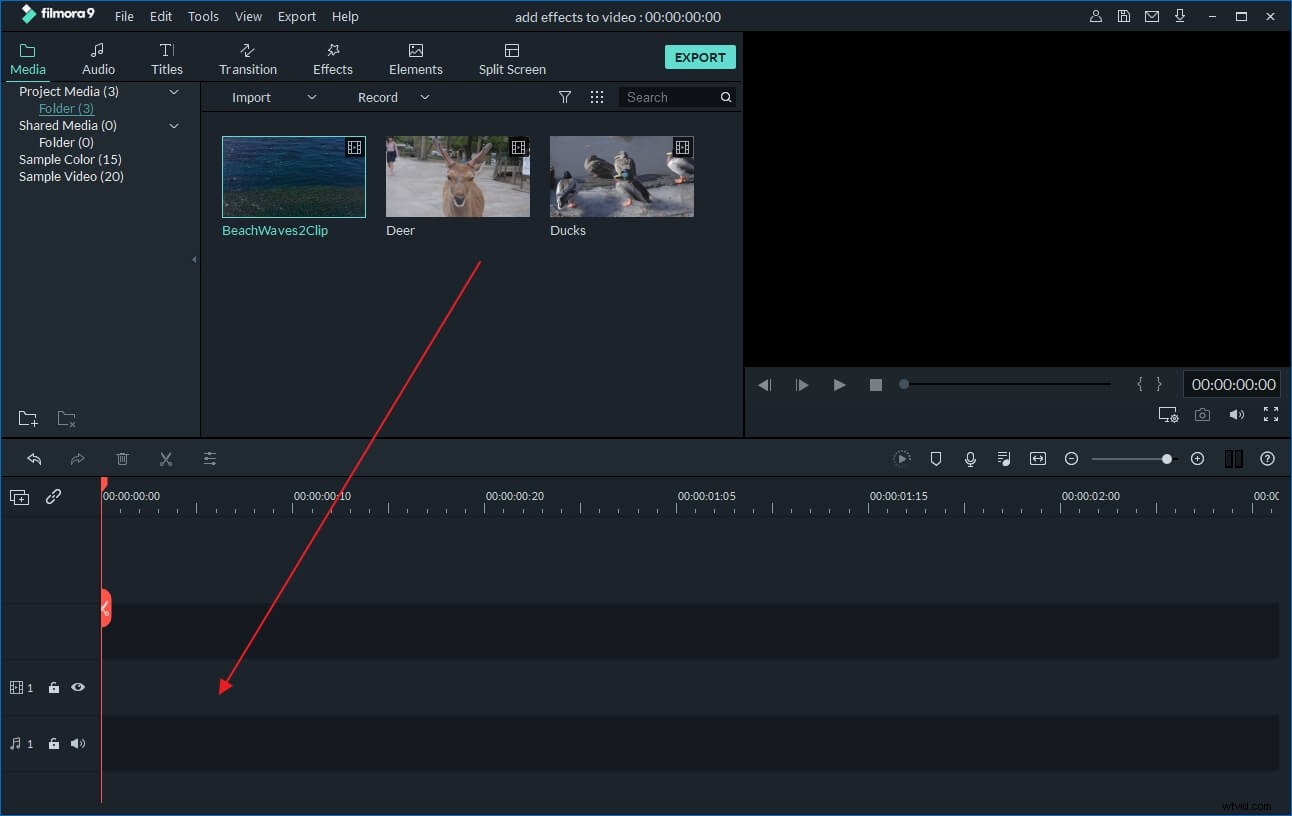
You have two optional ways to import your MP4 files from the computer to the album of this MP4 video cutter. One is to click "Import" option to add MP4 files; the other is to drag MP4 files to your album. And then drag the imported MP4 files from the album to the Timeline at the bottom.
Step 2: Cut MP4 files
Move the Time Indicator to the exact position you want by dragging the top of the red Time Indicator and the slider bar. And then click the Scissor button.
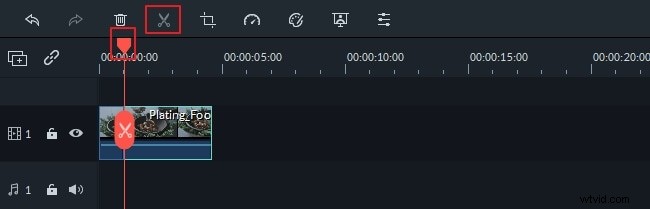
Just delete your unwanted MP4 clips by right clicking it -> "Delete" option. Of course, you can re-arrange these MP4 clips by a simple drag-and-drop if need. But don't drag one clip to another, if not, you'll split the video.
At this time, you'd better save the project for backup purpose. Just click the button in the top left corner of this smart MP4 video cutter, and then select "Save as" option.
Step 3: Export the new MP4 video
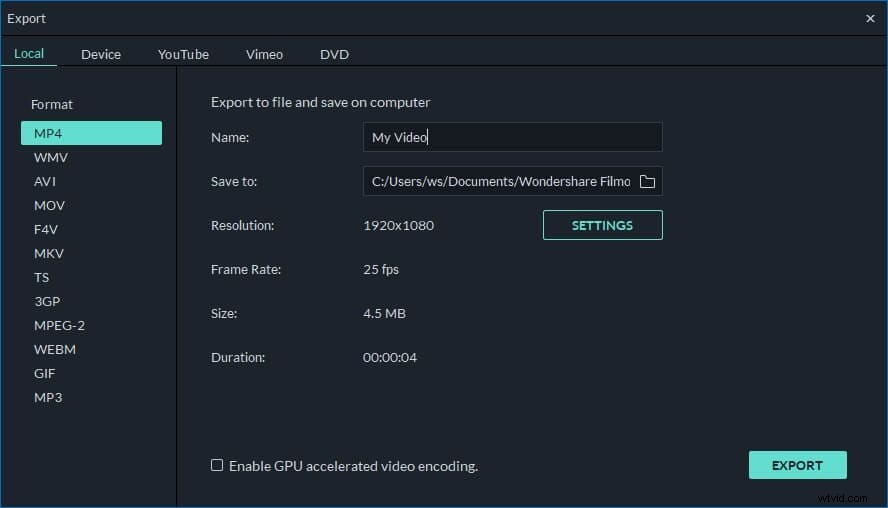
Click the "Create" button to pop up the Output window. You'll have four output options: Device, Format, YouTube, and DVD. Just select the proper one according to your need. Just hit the Device tab to find the model of your device, such as iPhone, iPad, iPod, HTC etc. Or click YouTube tab to directly upload the video creation to YouTube, Facebook, Twitter for sharing.
Conclusion
If you want to have an online solution, Filmora video trimmer is a free online tool that can help you trim video instantly. You can upload your video from computer and video link with drag-and-drop. It is easy to use with the slider or just input specific start and end times for precise trim. It also supports various importing and exporting video format, including .mp4, .mov, .wemb, .mpeg, .flv. More importantly, the exported video is free of watermark. It is definitely worth a try to cut MP4 videos!