
If you have some MP4 files that are too big and want to break them up into smaller files, you can actually choose to split MP4 files. A reliable MP4 splitter can make the job much easier than you think. Wondershare Filmora can be such a powerful MP4 video splitter, which enables you to split a large MP4 file into clips easily or exactly extract selected segments of your MP4 file to new files without re-encoding. After that, these smaller MP4 files will make more convenient for you to use, for example, on space-limited devices like Xbox 360. Please check the video tutorial about how to split/trim/crop/rotate MP4 video files here first.
Now, download and install this intelligent MP4 splitter first. And then learn how to split MP4 files with it step by step.
Step 1: Import MP4 Files
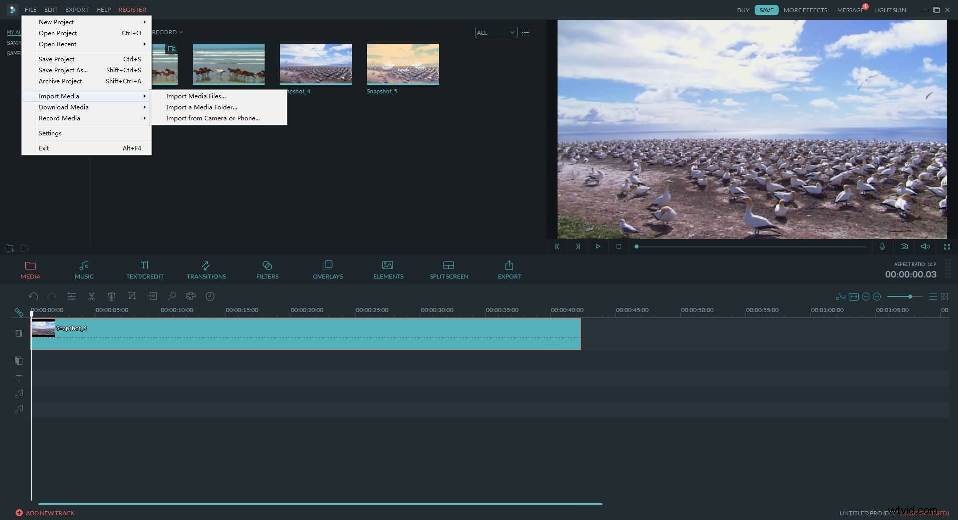
After launching Filmora, select the Full Feature mode and then import your MP4 video files. You can click the Import option in the Menu or drag and drop your video clips to the Media Library window directly.
Step 2: Split MP4 files
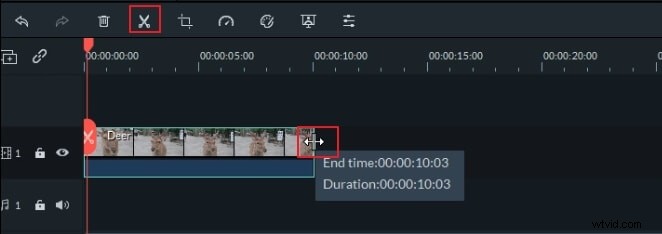
If there are some unwanted MP4 clips, just delete them by right-clicking -> "Delete" option. If you need to re-arrange these MP4 clips, simply drag and drop clips to change the order. But don't drag one clip to another, if not, you'll split the original video clip.
Save the project for backup purpose. To do it, just click the button in the top left corner of this smart MP4 video splitter, and then select "Save as" option.
Step 3: Export the new MP4 file
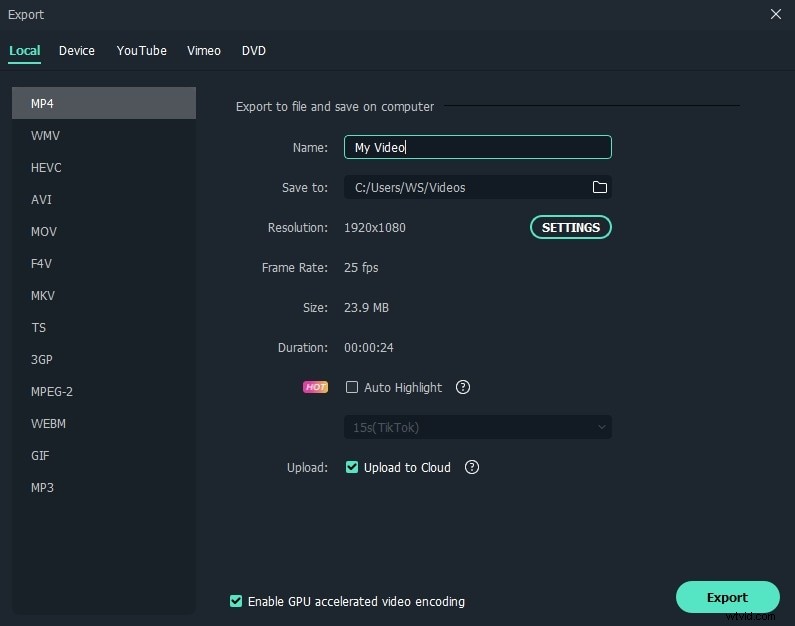
Click the "Create" button to pop up the output window. Here, you can go to "Format" tab > "MP4" format. Next, name the output file and select the output path you want if necessary. At last, press the "Create" button again to export the new file.
You may also like: How to Split MKV video files