
Splitting files is usually pretty simple, but things can get more complex if the files contain unwanted or unnecessary elements. Avi videos are usually large because they come with a lower compression ratio which retains the quality to a great extent. If you want to split the AVI files to reduce their file size so they can be a bit more easily shared or stored. If you want to quickly split an AVI file into multiple pieces with no quality loss, then look no further than this easy-to-use AVI Video Splitter - Wondershare Filmora.
Why choose Wondershare Filmora
- Intuitive interface
- Split a large AVI file into smaller AVI files
- Trim unwanted parts and join the selected segments
- Save the new video in various formats to share online or burn to DVD.


How to Split/Cut/Trim AVI Files Easily
1. Import AVI files
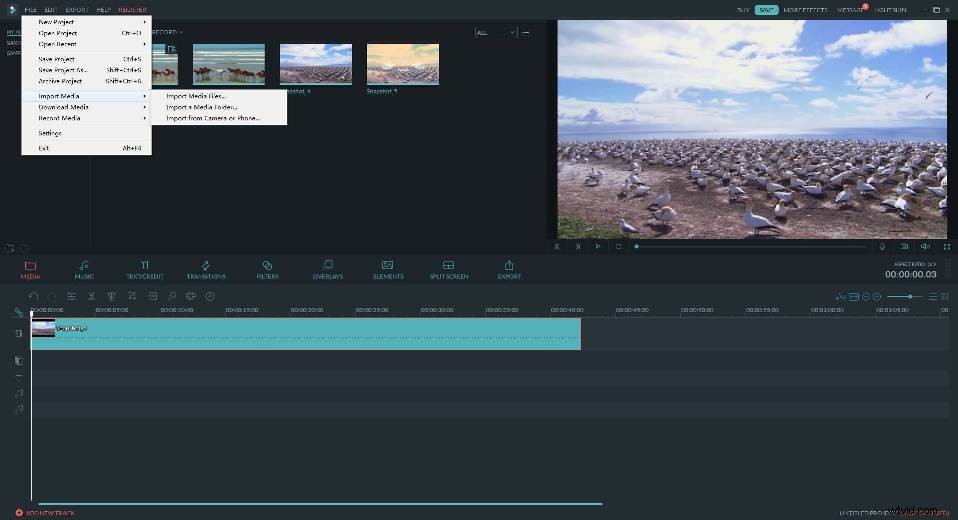
Click "Import" to load your AVI files to the program. All files loaded will be displayed as thumbnails in the left pane. Then drag and drop a clip onto the Timeline.
2. Split AVI files with one click
Highlight the video, and drag the slidebar in the previewing window to go to the point where you want to split. Click "Pause" abd hit the scissor icon in the toolbar to split your AVI clip into two parts.
Now get rid of the unwanted part by simply hitting "Delete" on your keyboard.
Tip: You can click the Timeline Zoomer for precise location and video editing.

3. Save the split AVI file
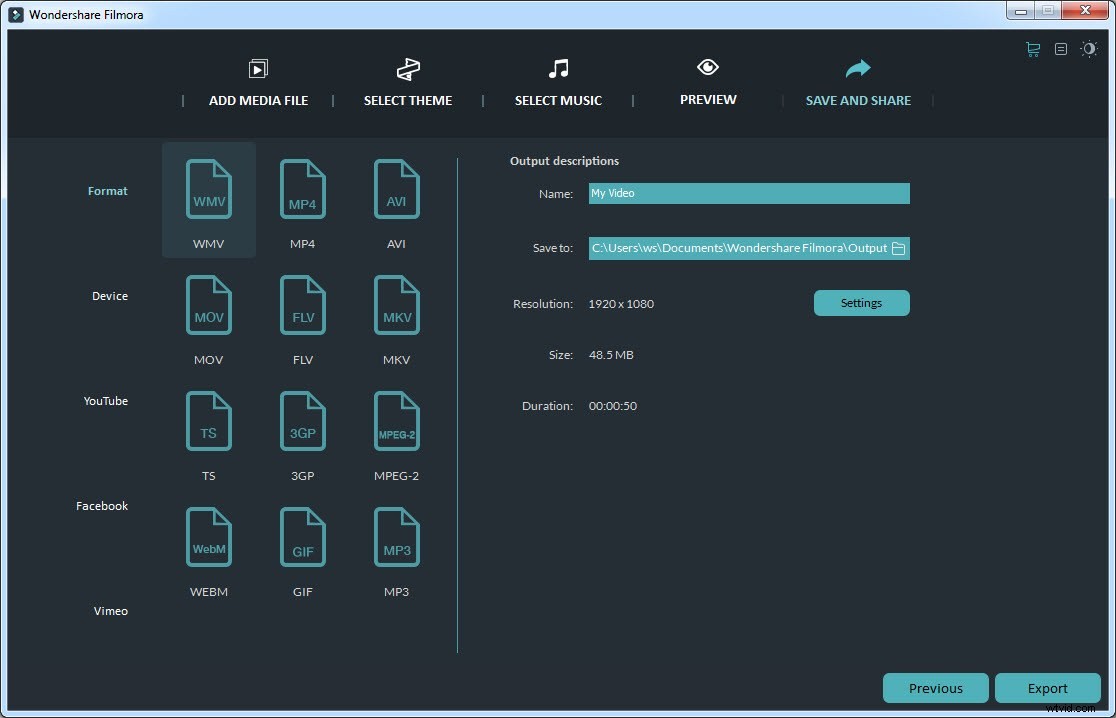
When you get your wanted AVI segment, click "Create" to access the output window. Here, you can choose a video format like AVI, WMV, MOV, MP4, etc. to save on your computer. Or export directly to your device by picking the optimized preset. If you want to share your creation on YouTube, just go for the option.
Video Tutorial: How to Cut/Split/Trim AVI Videos