
This is a step-by-step tutorial to teach you guys how to cut Xvid files with a very easy-to-use and practical Xvid cutter. And the whole process is just a few simple steps. With this smart XviD splitter shared here- Wondershare Filmora (originally Wondershare Video Editor) , you can cut off any segment you don’t want, or cut the Xvid file to the specific length quickly and easily, or cut a big Xvid file into several small-size files.
First, download and install this app and then follow the tutorial below step by step. Note that it’s on basis of Window platform. If you’re a Mac user, please go to another step-by-step tutorial: Mac users’ guide.
1 Add Xvid files to Filmora
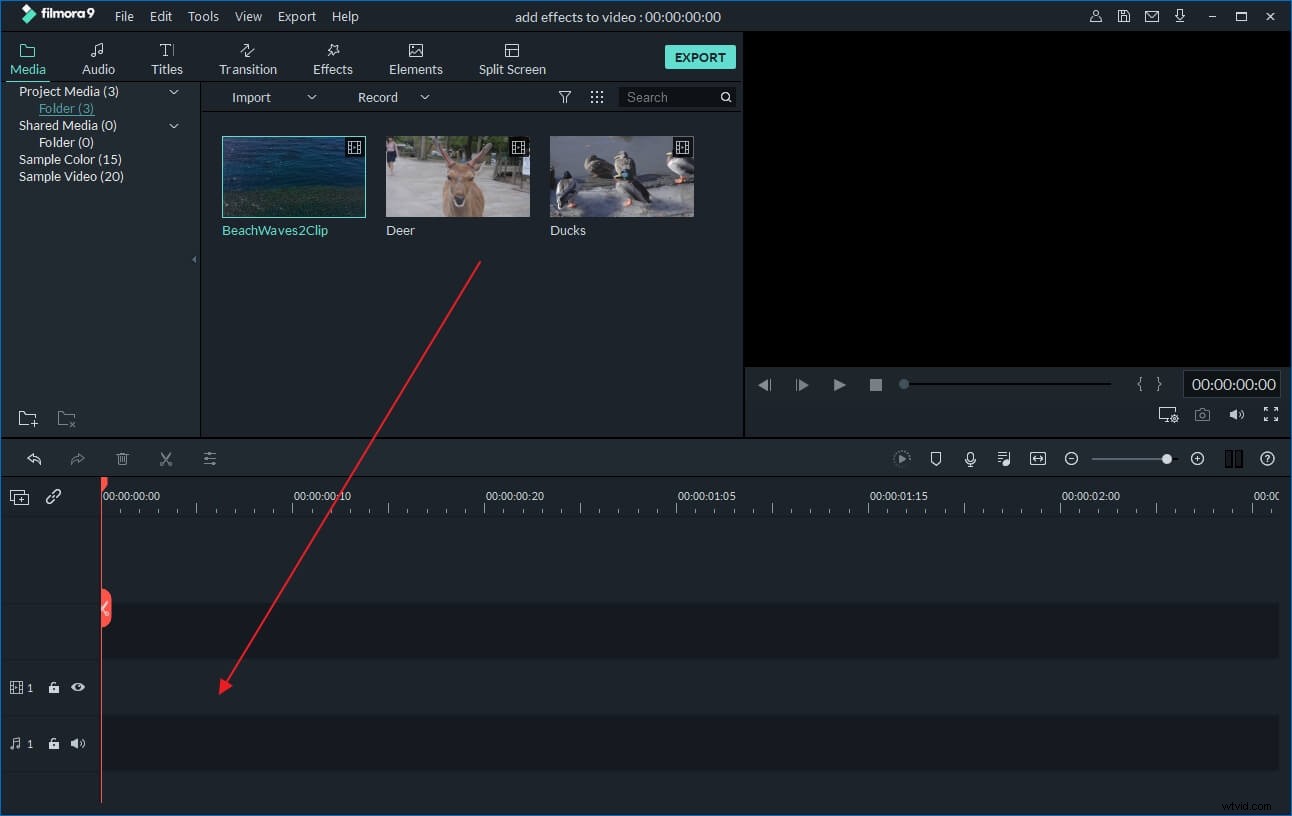
Add the Xvid file you want into this app’s album. You can easily and quickly do it by hitting the “Import” option on the main menu of the interface, and then navigating to your wanted Xvid files to import. Or directly open the folder where your files are stored on the computer, then directly dragging them into this app’s album.
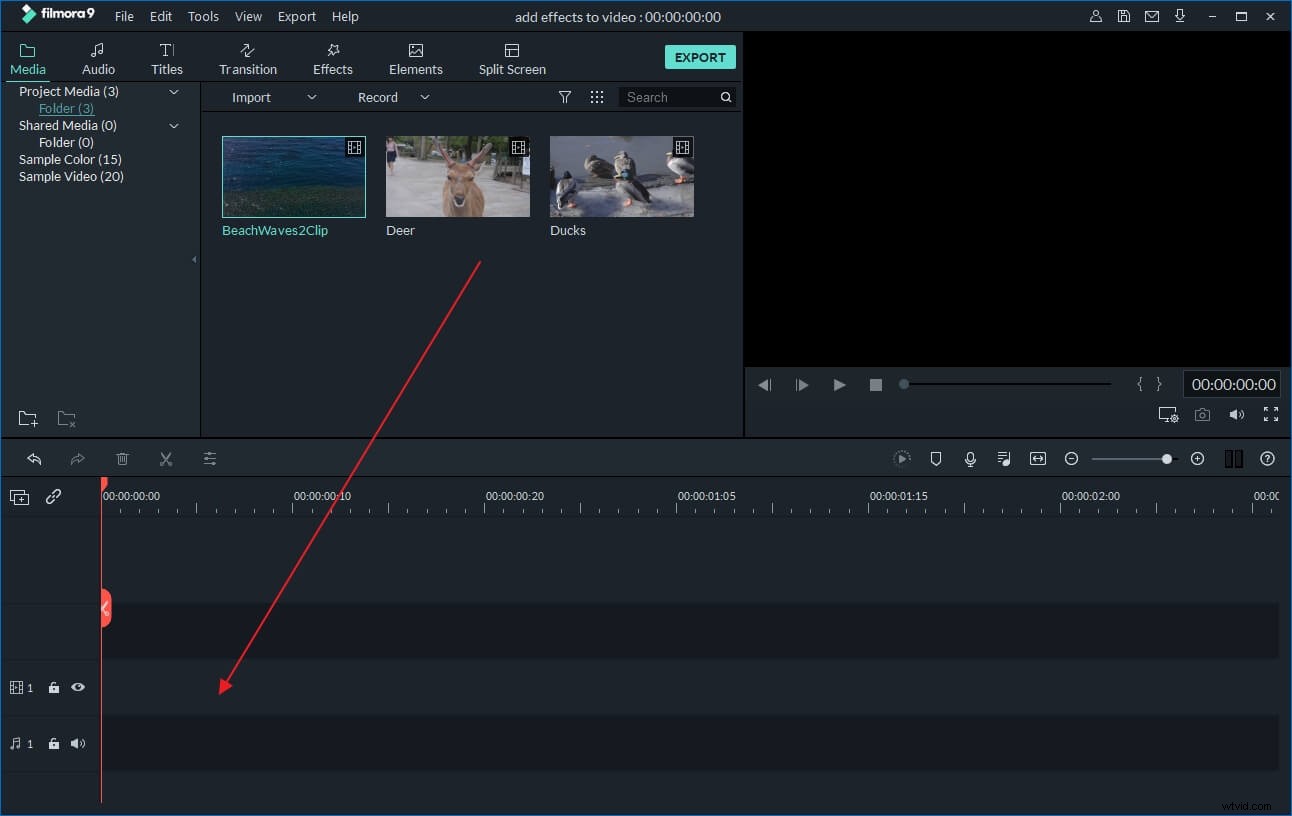
2 Cut Xvid files
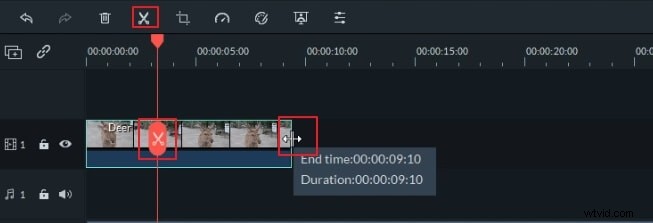
Drag the file to the Timeline and then separate the Xvid file at any point you want. To do it, you can drag the top of the red Time Indicator to put it at one of the positions you want, and then click the Scissor button. Now, you’ve split the Xvid video into two parts. After you’ve split the Xvid file into all of your wanted clips, you can delete your unwanted clips and then import the rest ones into a single file. In this way, you can cut off the segments you don’t want, or cut the Xvid file to the length you want exactly.
If you want to cut a big Xvid file into several files, you need to save the whole project for backup purpose when you finish all splitting jobs. Then, import the saved project again and again to delete any other clips and just export the only one clip each time.
3 Export the rest Xvid clips into a new file
Click the “Create” button and then select an output method in the popping-up window to export the new file. If you still want to keep the file in Xvid format, just go to Format > AVI and then click the “Advanced settings” option below to select Xvid as its encoder (Note: Usually a Xvid file is a AVI format file with Xvid codec).
Check the video below to check more details about how to cut videos in Filmora.
How to Cut Xvid Files Using VLC
Xvid file format is no ordinary one – it is a Xvid-encoded video file format which uses the Xvid codec. Unlike some other media players that may require that the Xvid codec be installed to compress and decompress the content properly, VLC can decode Xvid without any additional software. So, to play and “play around” with Xvid files, VLC media player is a great one. Since this format can be played on your computer with no problem, we should assume that you can also edit Xvid files with no problem in VLC, since, except playing them, this media player gives us the opportunity to edit our videos, too. Therefore, if you have some Xvid files you want to cut to your liking, this article will touch upon on how to cut them using VLC – follow along!
So, to cut the video files, first, from VLC screen, find View using the menu bar and find Advanced Controls;
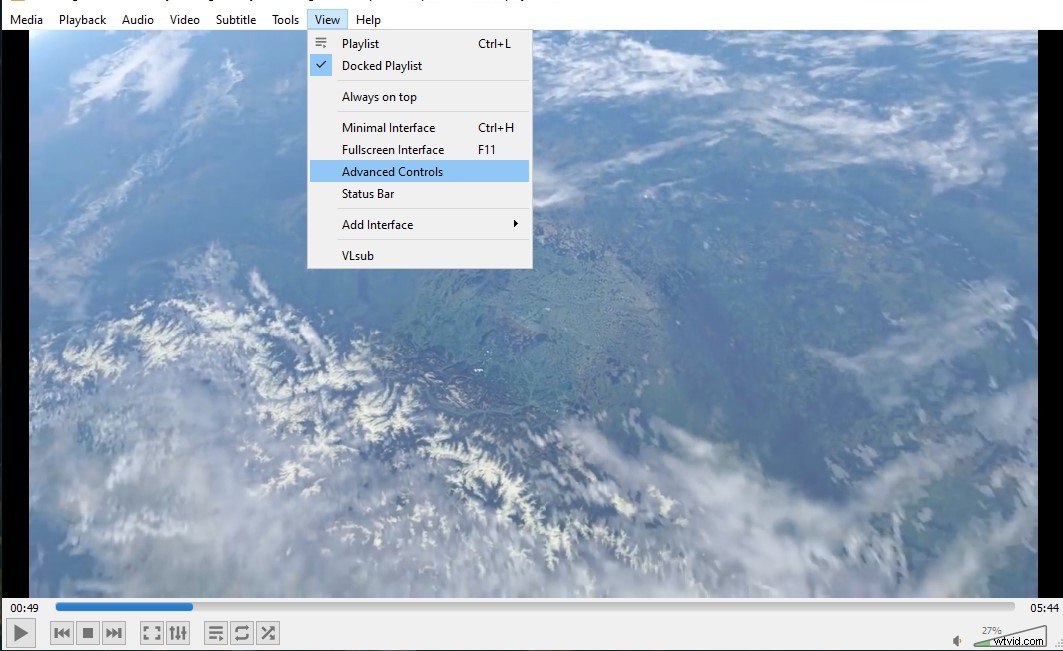
Recording buttons will appear above your player control buttons; open up the footage that you are going to cut; then, play the video or scroll around to the starting point from where you want to trim. At the starting point click on the record button and play the video or move it frame by frame using the “Frame by Frame” button.
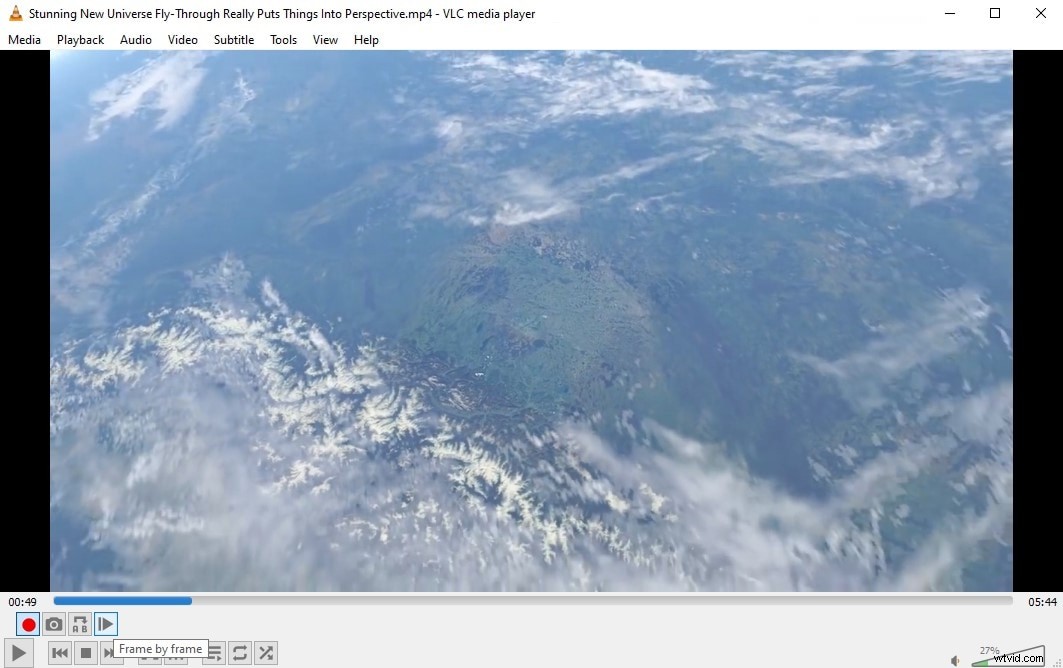
After you reach the ending point, hit the record button again.