
If you've got large MP3 files that you want to cut into smaller pieces that are more manageable. Or you may just want to leave out the unwanted parts, or, cut MP3 to the length you want exactly. To cut MP3 files, you need a reliable MP3 cutter.
Filmora Video Editor (Filmora for Mac) can be your best MP3 audio cutter. This intelligent MP3 file cutter makes it super easy to cut MP3 file to any length, cut off any unwanted segment, or insert different audio clips and more. Plus, this app works at high audio quality. Rest assured, you wouldn't need to worry about audio quality loss with Wondershare Filmora (originally Wondershare Video Editor).
Easy-to-use MP3 Cutter step by step guide
Wondershare Filmora
To begin with, get a free trial copy of Filmora.
- Easily cut MP3 file into different parts with no quality loss.
- Add sound effects to enrich your MP3 file.
- Convert your MP3 file to other formats.
- Supported OS: Windows (Windows 8 included) & Mac OS X (above 10.6).
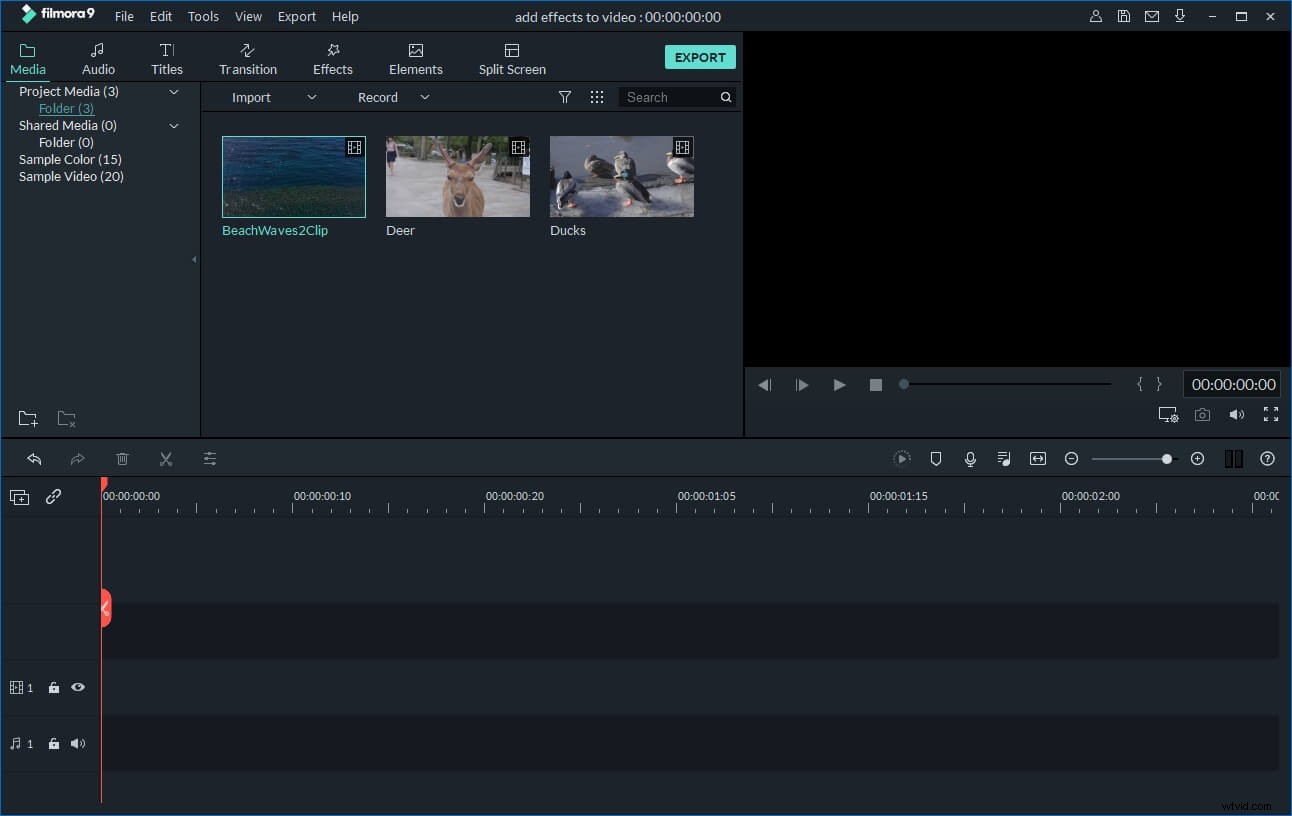
1. Import MP3 files to this MP3 cutter
You have two optional ways to import your MP3 files from the computer to the album of this MP3 audio cutter. One is to click "Import" option to add MP3 files; the other is to drag MP3 files in your album. And then drag the imported MP3 files from the album to the Timeline at the bottom.
2. Cut MP3 files
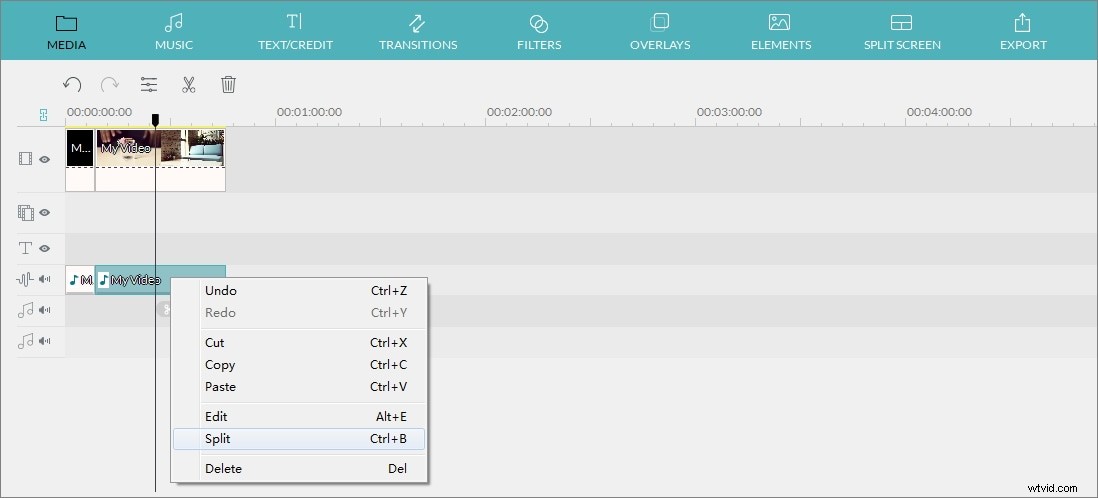
Move the Time Indicator to the exact position you want by dragging the top of the red Time Indicator and the slider bar. And then click the Scissor-like button.
Just delete your unsatisfied MP3 clips by right clicking it -> "Delete" option. Of course, if need, you can re-arrange these MP3 clips by a simple drag-and-drop. But don't drag one clip to another, or you'll split the audio files. You can save the project for backup purpose anytime.
3. Export the new MP3 file
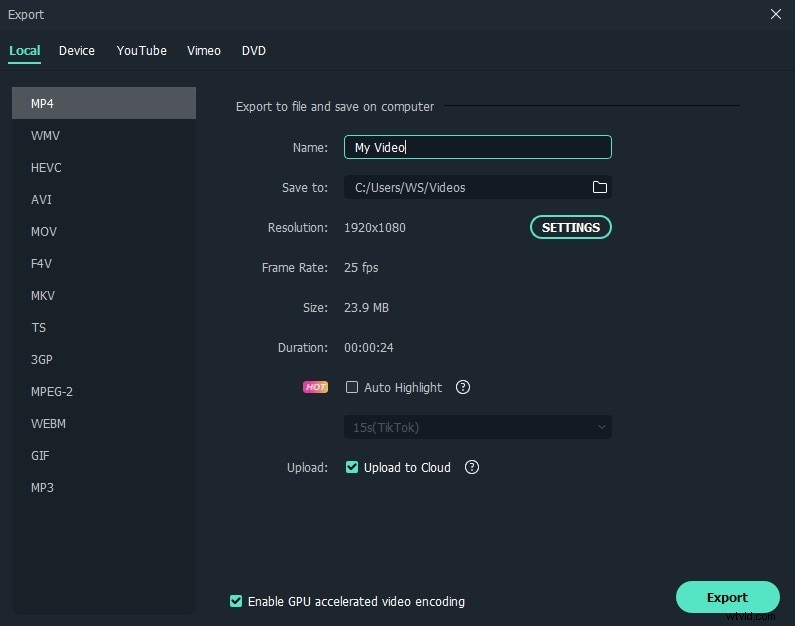
Click the "Export" button to pop up the Output window. You'll have four output options: Device, Format, YouTube, and DVD. Go to "Format" tab and then select "MP3" as the output format.
If you need to export each MP3 clip as a single file, just import the saved project a few times, delete all MP3 clips but one clip each time you save, at last, export it. Repeat the process until you have get all the clips.
Bonus Tip: Best Free Video Cutter: