Trim MP3 files in an online audio trimmer
Sometimes we don’t want to listen to the whole song and need just a piece of it, for example, for a ringtone. Another case – we want to change a default volume, cut a snippet out of the track or edit it in other ways. Luckily, Clideo services can do all this and even more.
All our tools work online, hence they are not developed for a precise OS and function perfectly on mobile devices, tablets, Macs, or PCs. What is more important, you can upload and process audio files up to 500 MB for free, and you can start as many projects per day as you need.
Clideo service is intuitively comprehensive, and you don’t have to read lengthy manuals to master it. But just in case, if you like detailed instructions, read on and get to know how to cut MP3 files step by step.
Upload a track to trim
Make sure your Internet connection is safe and sound, as otherwise there may be interruption while processing your project. Then open Clideo’s Audio Trimmer for MP3 in your favorite browser and choose a way to upload your file.
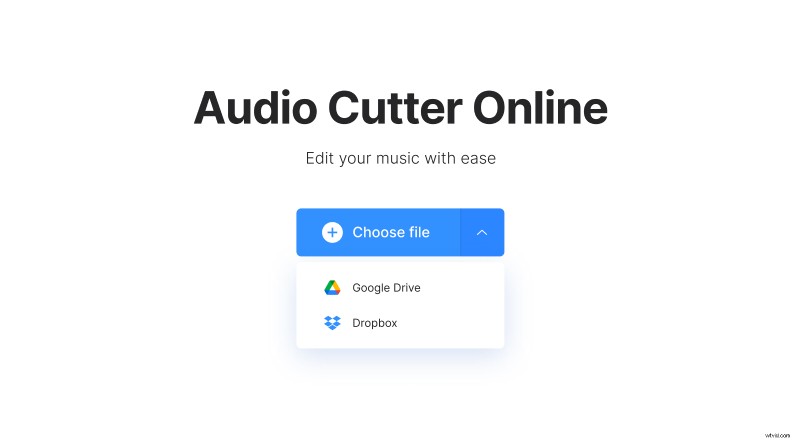
- Hit the big blue "Choose file" button and select an audio track from your personal device.
- Hover the cursor over the tiny arrow on the right side of the pane to call a drop-down menu and select a cloud storage account to import a file from it: Google Drive or Dropbox.
Trim the track
Select the snippet you need with the help of yellow handles. Then you can either extract or delete it. Your actual soundtrack will be highlighted on the timeline, while the deleted part will be faded. You may also set timestamps manually in the corresponding boxes on the right pane.
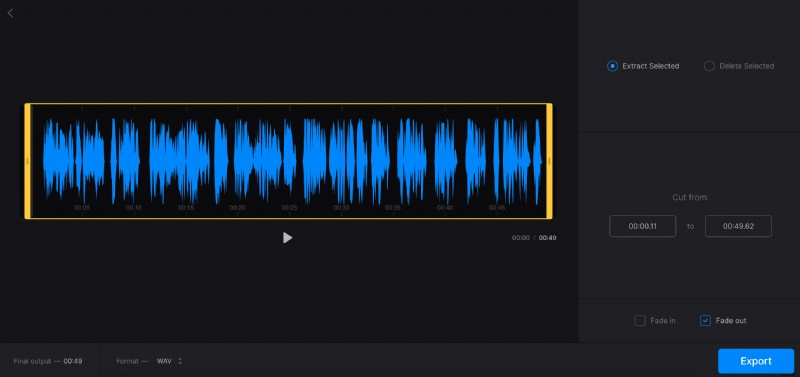
"Fade in" and "Fade out" boxes will make the sound appear and disappear gradually. "Crossfade" makes the transaction between merged parts smoother.
If you want to change an output format, you can do it in the bottom left corner of the screen. However, MP3 is one of the most compatible extensions, so it may be worth keeping it as it is.
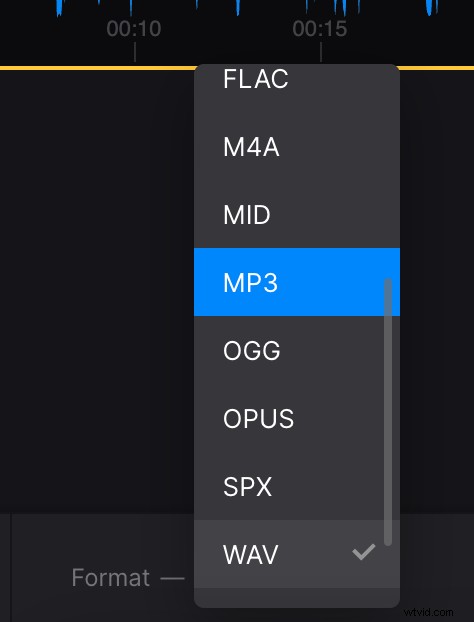
When you are fully done, hit "Export" and get ready to evaluate the result.
Save the result
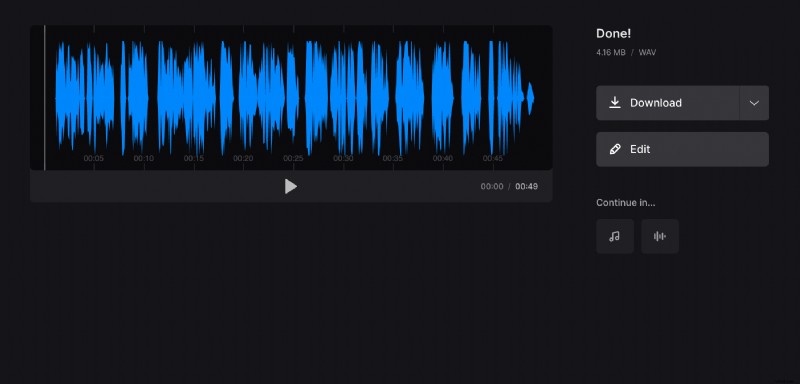
Listen to the audio one more time and make sure you got exactly what you wanted. If so, save it to your personal device or cloud storage. If you want to change anything, click the "Edit" button.