How to turn video into audio on iPhone
Sometimes we just don’t have time to watch a clip and need to extract audio from a video. That’s when Clideo’s converter comes in just handy!
All our tools, including this one, work online from any spot with a stable internet connection. You don’t have to install any software, purchase licenses, and decide which application you should delete as there is no more memory left.
Next point – Clideo service is free for files up to 500 MB each, and you can process as many projects per day as you need. There are no freemium modes, obligatory ads, or any other limits for unregistered users. Just open the link – and start video converting to audio! Here are the steps:
Upload a clip
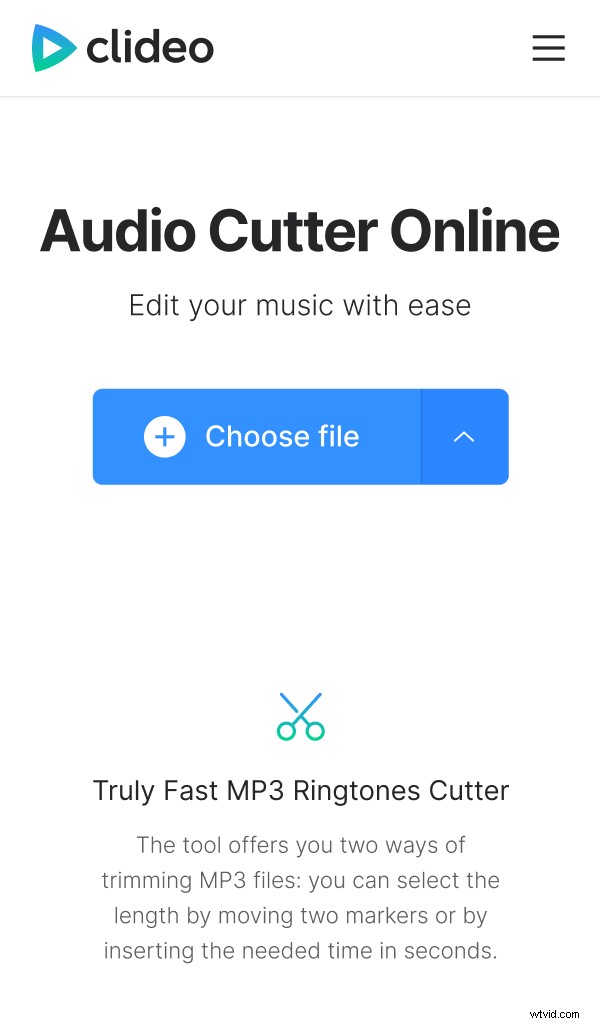
Tap the following link and open Clideo’s Audio Cutter on your iPhone. If you want to select a video from the library, just hit the "Choose file" button. You can also upload files from Google Drive or Dropbox by calling the drop-down menu on the right of the pane.
Convert video to audio
You don’t have to separate an audio track and footage manually, the tool will do it automatically. All you need to do is to cut the extracted audio – drag yellow handles along the timeline or set the timestamps manually in the boxes.
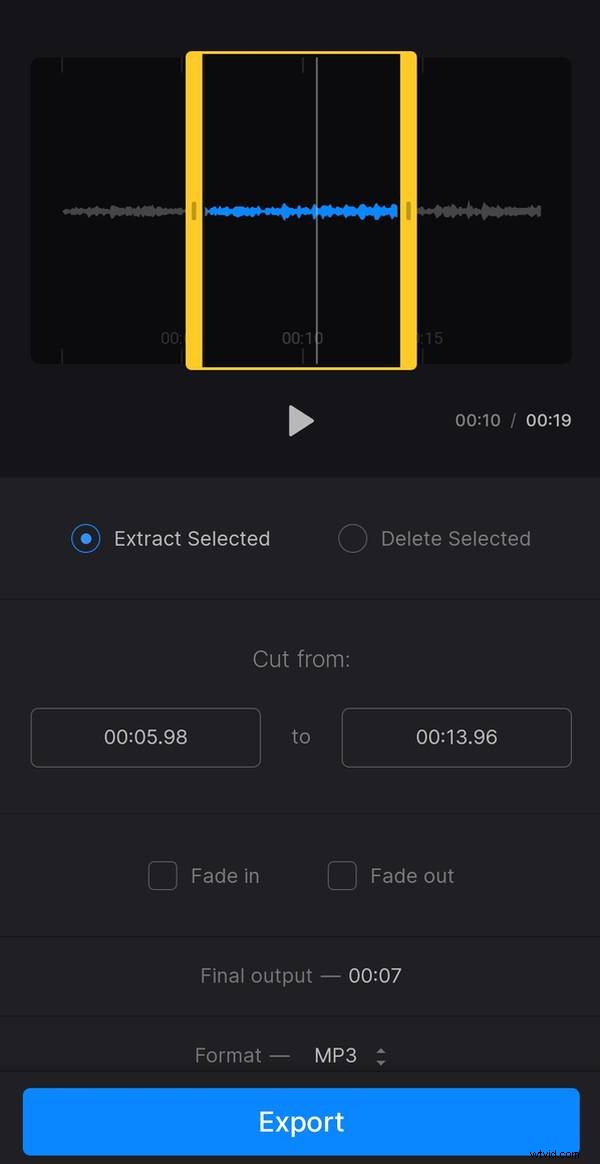
You can either extract the selected snippet or delete it. If you want to make your audio more melodious, tick the boxes "Fade in", "Fade out", or "Crossfade", depending on the previously chosen option.
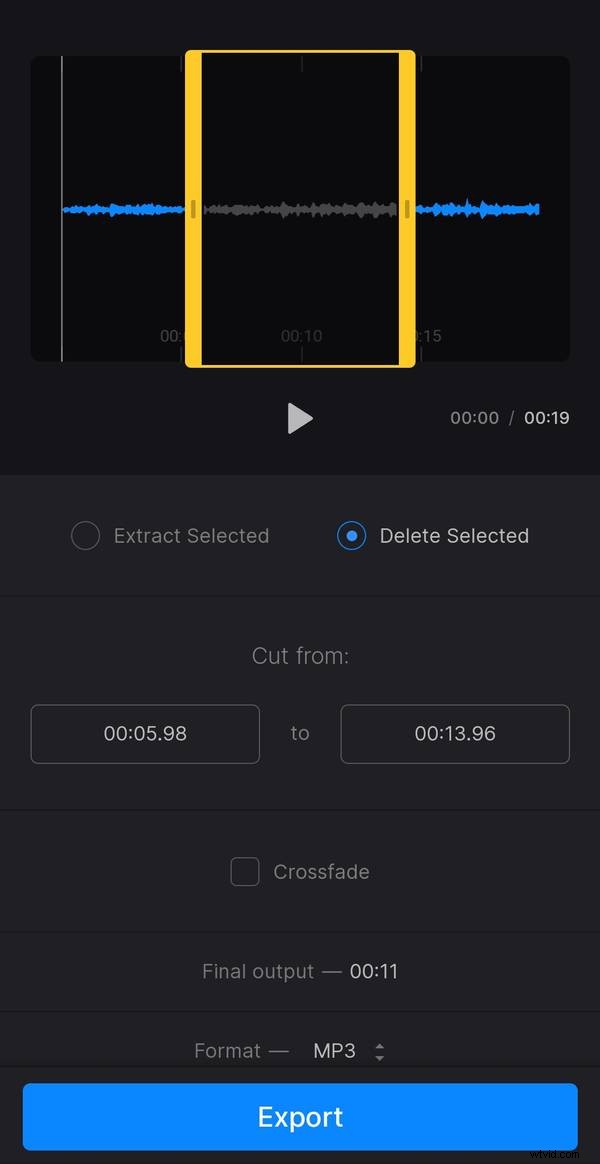
If you don’t want to change anything, set the start timestamp to 00:00.01 to make an "Export" button active. Don’t forget to choose an output format or keep the default one.
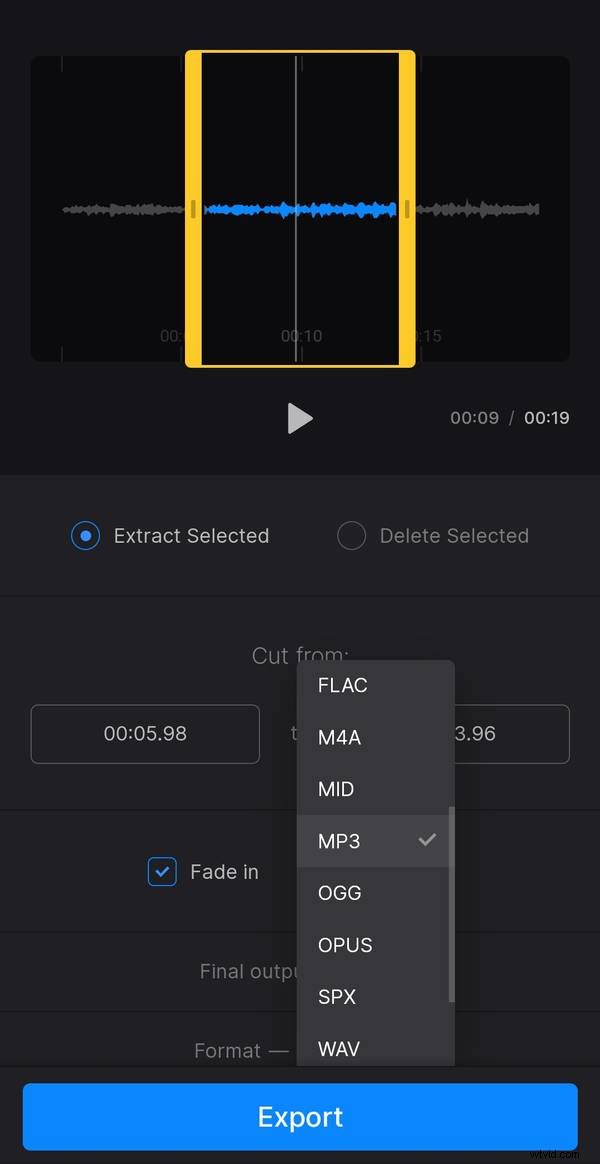
When you are done, tap "Export" and wait while your project is being processed. Don’t worry, it will not take much time.
Save the project
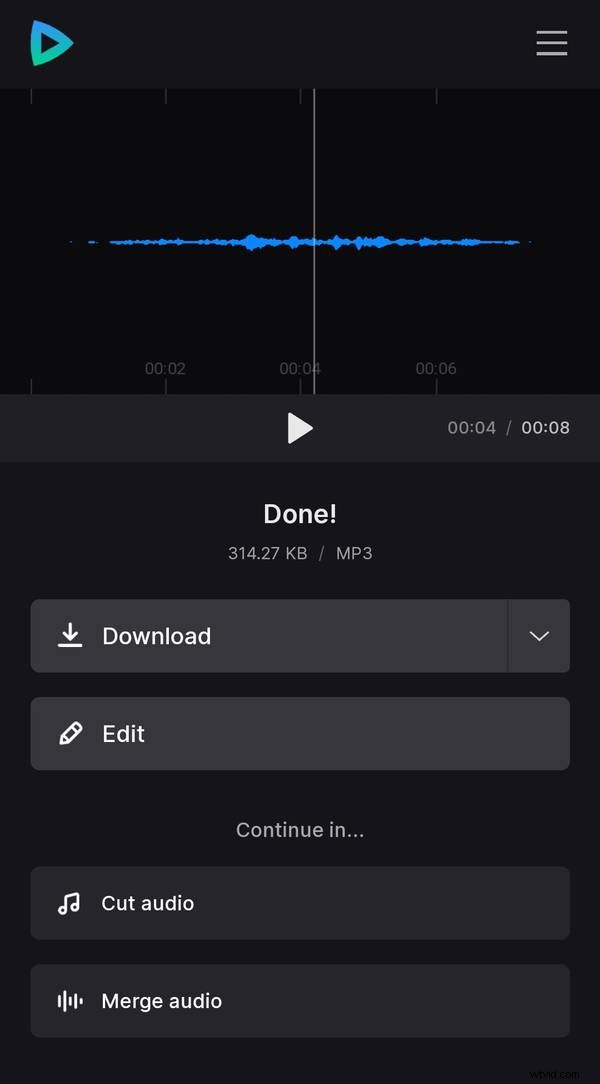
At the last screen, you can give your soundtrack the final run to make sure that you have exactly what you wanted. Then download it to your personal device or cloud storage. If you want to change anything, hit the "Edit" option. To continue editing the same project in other tools, upgrade your account to Clideo Pro.