Make a ringtone from a video file on iPhone
If you’ve ever tried to create your own iPhone ringtone, you know what a hassle it is. You had to have a computer available, do complex procedures with iTunes, and then synchronize with the phone.
Fortunately, times have changed. If you want to download a ringtone for iPhone from a video, today it can be done much faster, without using a computer but still free of charge. With our tool, you only need to have Internet connection to easily turn audio from video into a ringtone right away on your iPhone!
The rest is simple, just follow the instructions below.
Upload a video
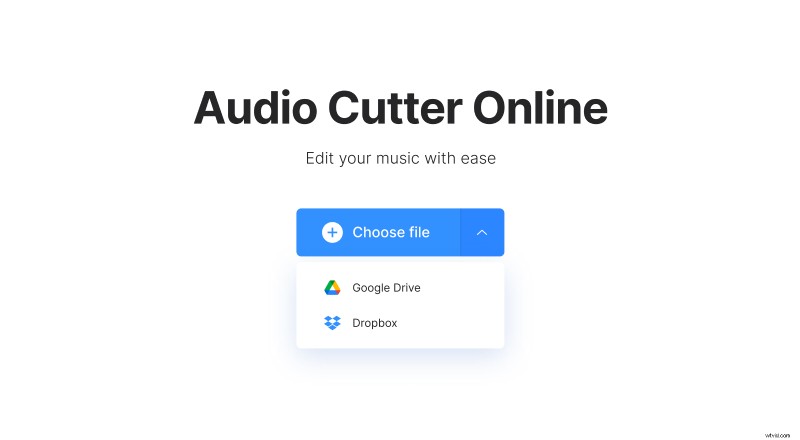
Open Clideo’s Audio Cutter.
Tap "Choose file" to upload a file from your device. To pick a clip from Google Drive or Dropbox account, tap the arrow on the right and choose the cloud storage you need.
Cut the sound
In the editor, you will see the audio track timeline. The "Extract Selected" option under the player is set by default. It means that the tool will cut the selected audio segment. "Delete Selected" will remove this segment instead.
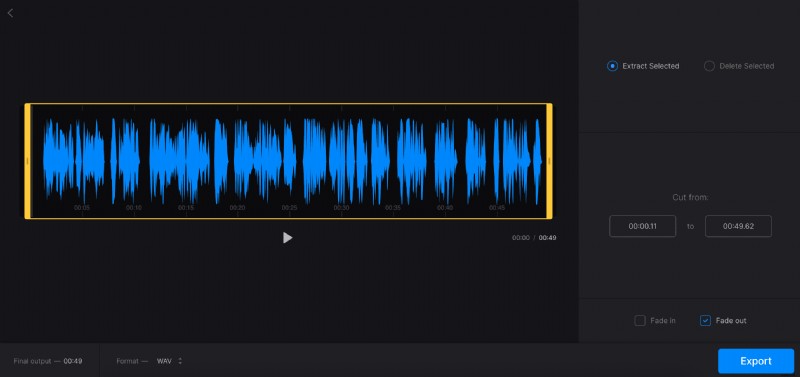
To set the length of audio you want to cut, drag the sliders or write timestamps in the boxes under the “Cut from” section. If you want the sound to start gradually and fade away towards the end, tick "Fade in" and "Fade out". When you choose "Delete Selected", you will see the "Crossfade" option. Use it to make a softer transition between the two parts.
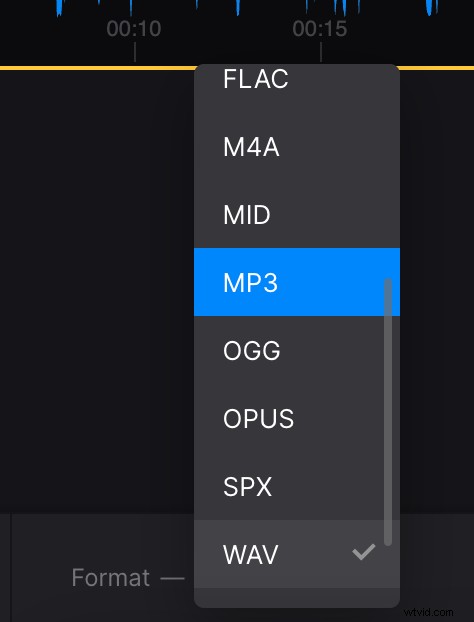
You can also change the audio format if you need – just tap the option at the bottom and pick the format you want.
When you finish editing, tap "Export".
Download the ringtone
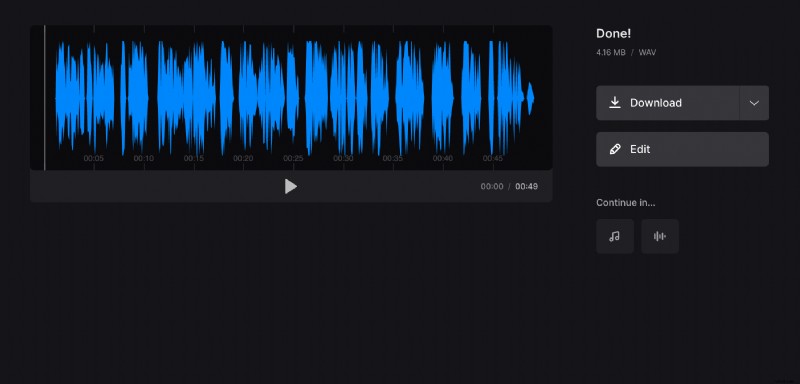
Listen to the preview to make sure you cut the right part of the video. If you need to make changes, tap "Edit". If everything sounds ok, tap "Download" to save the track to your device or upload it to your cloud storage account.