
How to make a video with different clips online
With our camera rolls teeming with short clips and selfies, you might be looking for a way to create a longer movie made up of shorter videos.
If so, making one isn’t always easy. You’d have to find a video editor, which might not be cheap, and it may require you downloading software from an unknown source.
Our service works online from any browser, it not only means you don’t have to download any third-party apps but it makes the process faster and more secure. So if you’re looking to make a YouTube video with clips from movies or just a video that will combine all your favourite moments, then you’re in the right place. Here’s how:
Upload clips
First off, head over to Clideo’s Online Video Creator. Just tap the big blue ‘Choose files’ button and you’ll be able to upload files from any device.
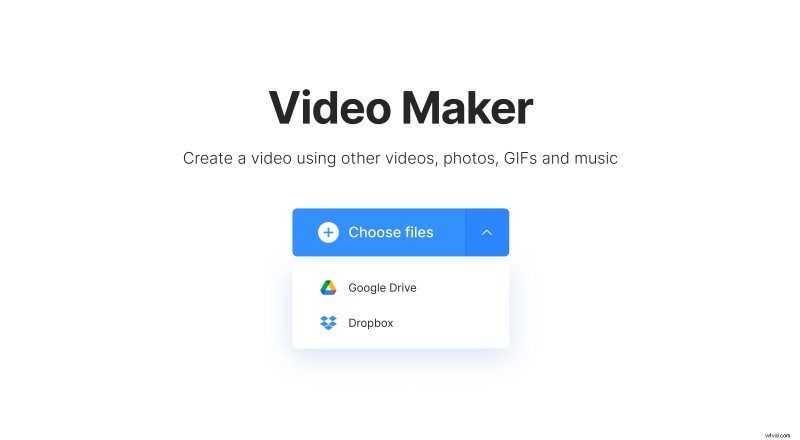
Or, if you prefer, you can tap the down-arrow on the right and a drop-down menu will appear where you can upload directly from Dropbox or Google Drive.
Make a movie with video clips and music
Once your media has been uploaded, you’ll be taken to the tool’s editor page.
Here you can add more files if you like, which don’t just have to be videos. They can be GIFs or images, too, if you like. You can upload anything below 500MB for free.
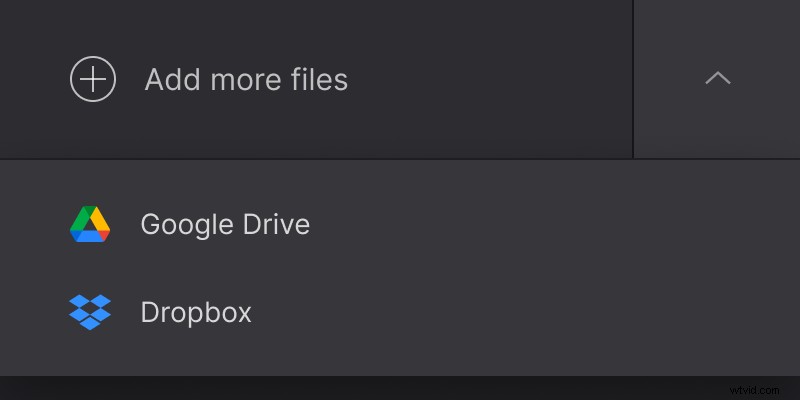
Once that’s done you can change their order via the timeline at the bottom to create your own narrative and then add smooth transitions between files by checking the crossfade box.
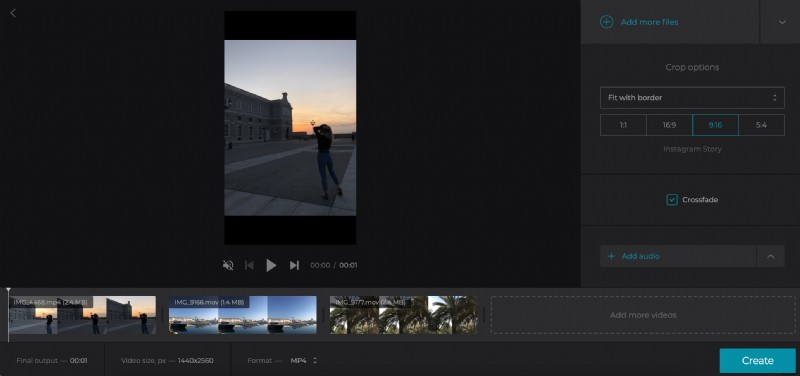
You can also add audio to give your movie a backing track. If you do, please be aware of the ‘Trim audio’ option, which allows you to cut the music to the desired video length.
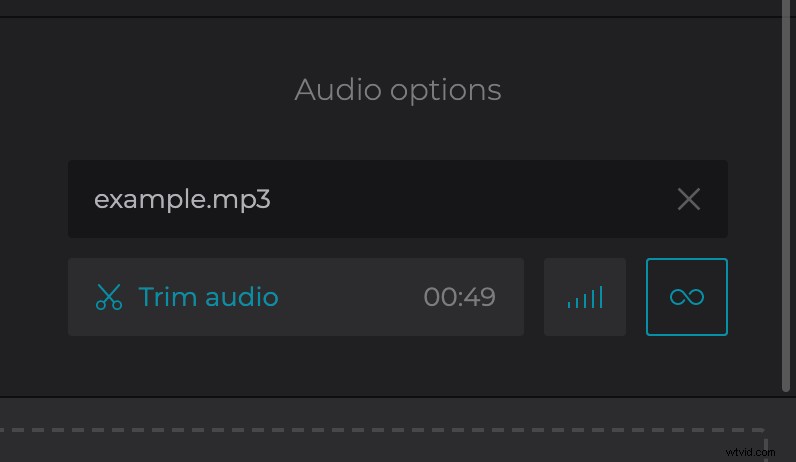
Next to this option is a small volume button, which you can tap to mix with the audio of any video clips you might have put in your movie.
Before finishing, choose an output format. We recommend MP4 if you plan to play these clips back on a mobile device.
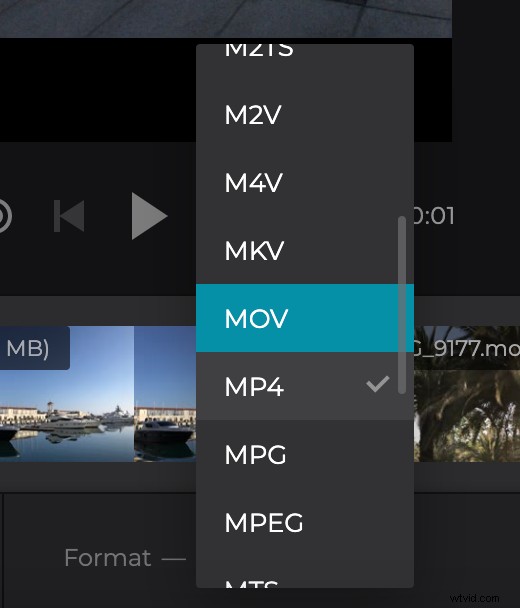
Now, click the ‘Create’ button.
Preview and download
After a few moments your new movie will be ready to save back to your device, or - again - you can save it directly to your cloud storage account if you prefer.
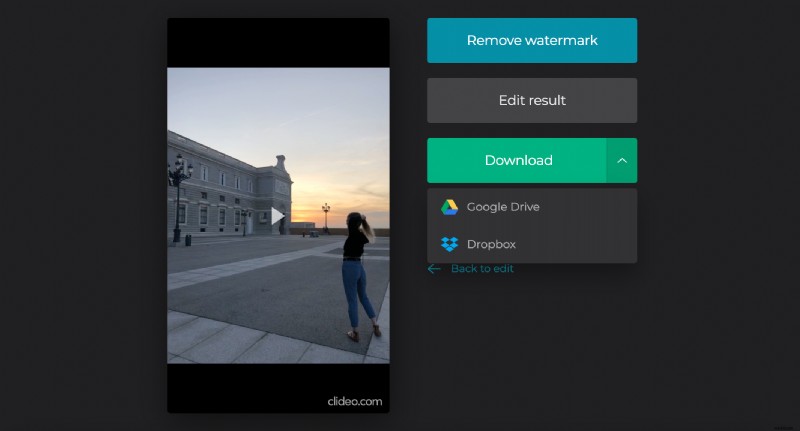
Before you do that, however, give it a preview. If you need to make a few alterations, just tap the ‘Back to edit’ text and you’ll be taken back to the editor without having to start from scratch.