
Crop video to square online
Instagram square video size is absolutely the same as Facebook or YouTube square video size – 1:1. That resolution fits perfectly a newsfeed at mobile versions of popular social networks, look pretty and neat.
Getting back to the subject of cropping, let us introduce you our convenient and free online Square video maker by Clideo. Follow the steps:
Upload a video for cropping
Open the tool and click the big blue button to select a file from your personal device or just drag&drop the needed clip from the folder.
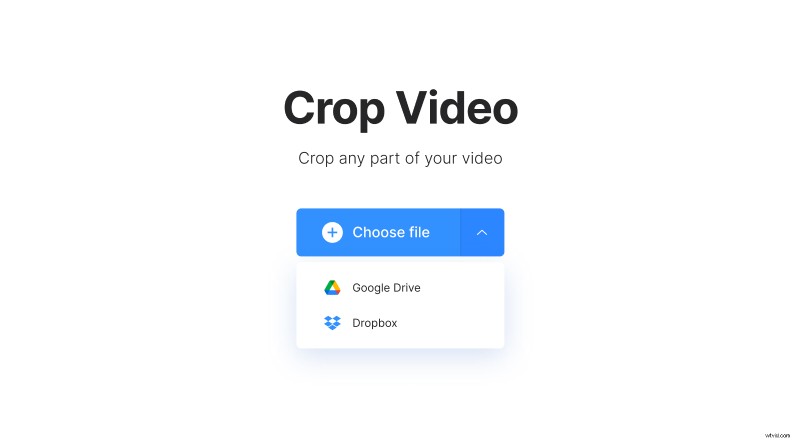
Alternatively, upload a previously saved visual from the cloud system (Dropbox or Google Drive).
Our square video editor works perfectly in any browser, on Mac, Windows, Android and iPhone. It’s not an app, which needs extra space and memory, so it will stay quick and efficient under any circumstances.
Crop the video to square
The tool, in fact, offers several presets for all the formats. You’ll need “1:1”, which is marked “Instagram” (don’t worry, it works for all the social media).
Then expand the area to set the exact dimensions in pixels and frame the needed visual. Choose the output format – if you don’t, the initial one will be kept.
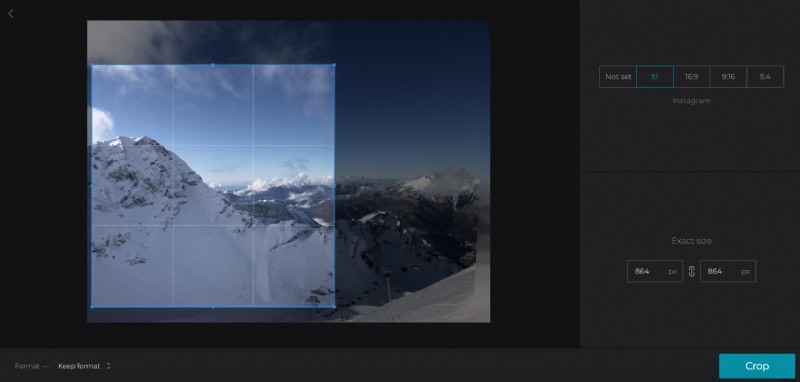
Making a video square fit is often used as a means to get rid of unnecessary details and frame a clip. On the other hand, if you want to keep all the elements, just resize your recording.
When everything is ready, hit the “Crop” button.
Save the square video
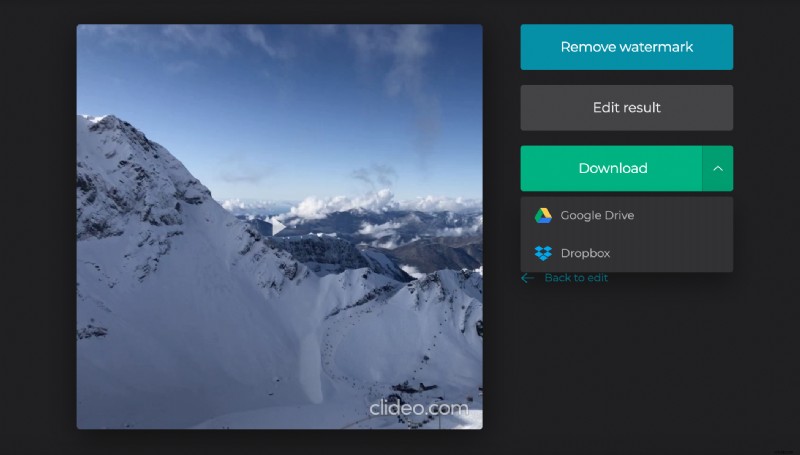
Have a quick preview and if you have nothing to complain of, save the clip to your device or upload it back to the cloud. Post the brand new masterpiece to your account and get ready to collect likes.