
How to make a video slow motion on iPhone
Slow motion is a visual effect when the action, literally, slows down and everything is happening much slower than in real life.
The question is - how to make a normal video slow motion on iPhone without expensive licensed software and specialized apps? The answer is – with the help of our free online tool!
All tools by Clideo are compatible with all the operating systems, including Android, iOS, Windows and Mac, they do not store private data and allow to upload and edit up to 500 MB for free!
Upload a regular video from iPhone
Open Video Speed Changer by Clideo in any browser. Make sure your internet connection is stable and fast. To upload a file from your camera roll click a big blue button “Choose file”.
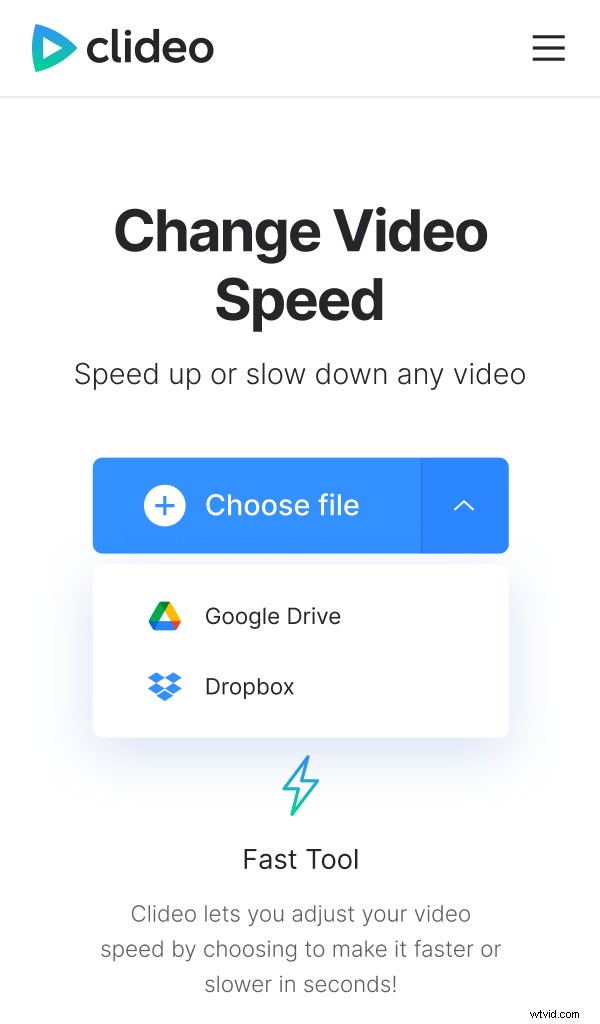
To export it from the cloud storage hit an arrow on the right side of the pane and call a drop-down menu.
Slow down a video on iPhone
Choose one of the six the most popular speed patterns, from 0.25x to 2x. Alternatively use the slider to set the speed manually – the output may range from 0.25x to 4.00x. Mind, that the final timing will change accordingly.
Exactly the same applies to the sound. If you don’t need any, turn it off ticking a “Mute video” box.
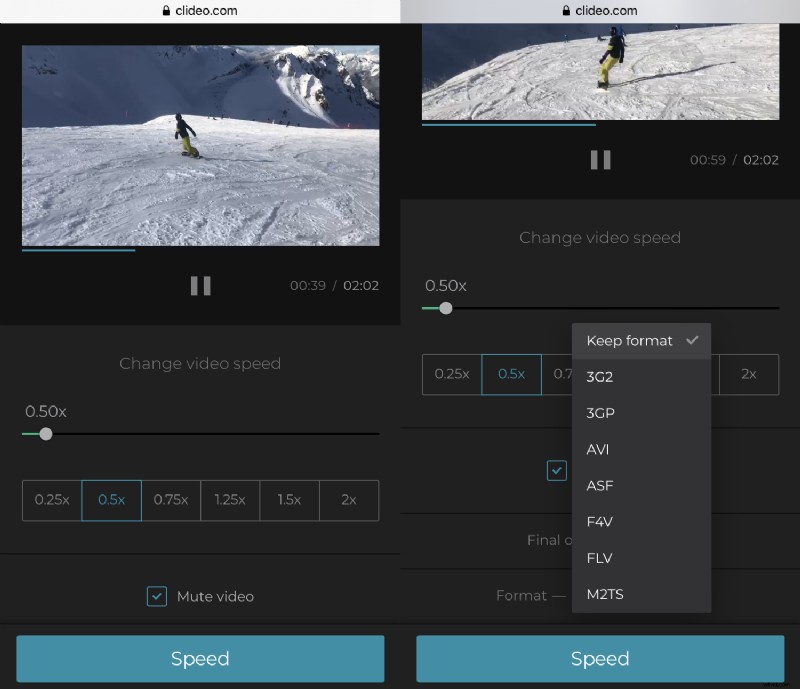
Choose the output format. The tool supports all the most common ones, including MP4, FLV, AVI, etc. You may also keep the initial one.
When you are happy with the result tap “Speed” and wait several seconds while the video is processing.
Save the slowed-down video
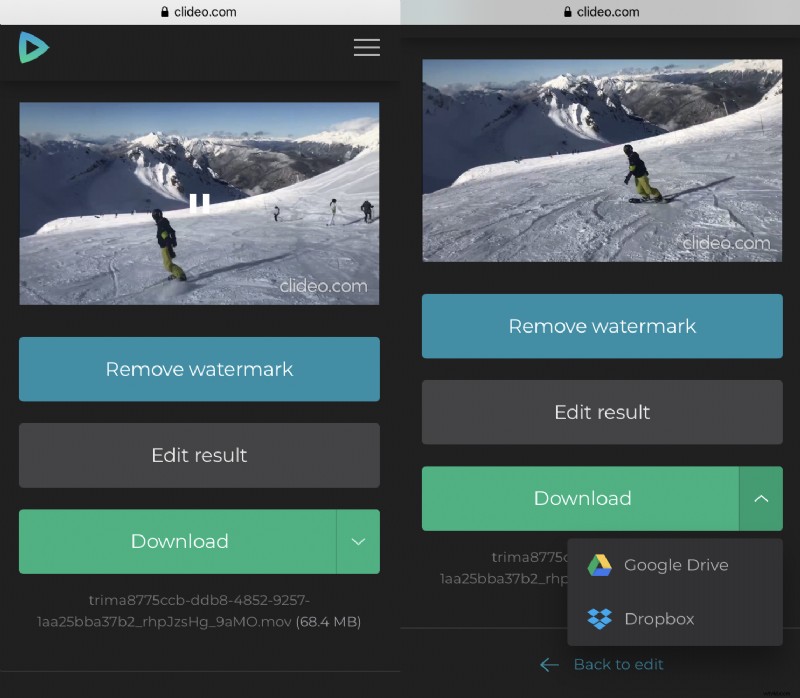
Playback the clip and get sure that you have what you want. If you still need to alter something, go back to editing, if you don’t – hit a “Download” button and save the recording to your personal device or to Google Drive/Dropbox.