
How to make a video with pictures on iPhone
But if you want to create something more fascinating and stand out from the peers, you’ll need a special tool to merge your favourite pieces into one unique clip. Luckily, there is one.
It’s free, user-friendly and safe, and what is even more important, works online in the browser.
Perform three simple steps and get to know how to make a music video on iPhone.
Upload you best memories
We mean – files for future content. Open Video Maker by Clideo in any browser, just get sure that your Internet connection is stable and it’s not going to fail.
If you are working from a PC or Mac, use the drag and drop option to upload a chosen file. Dealing with iPhone or any other mobile device, hit the Choose file button and select photos or videos from your camera roll.

Alternatively, call a drop-down menu on the same blue pane and export files from Google Drive or Dropbox.
Add more files
Click the Add more files button below the player to upload all the files you need, and then change their order as you wish.
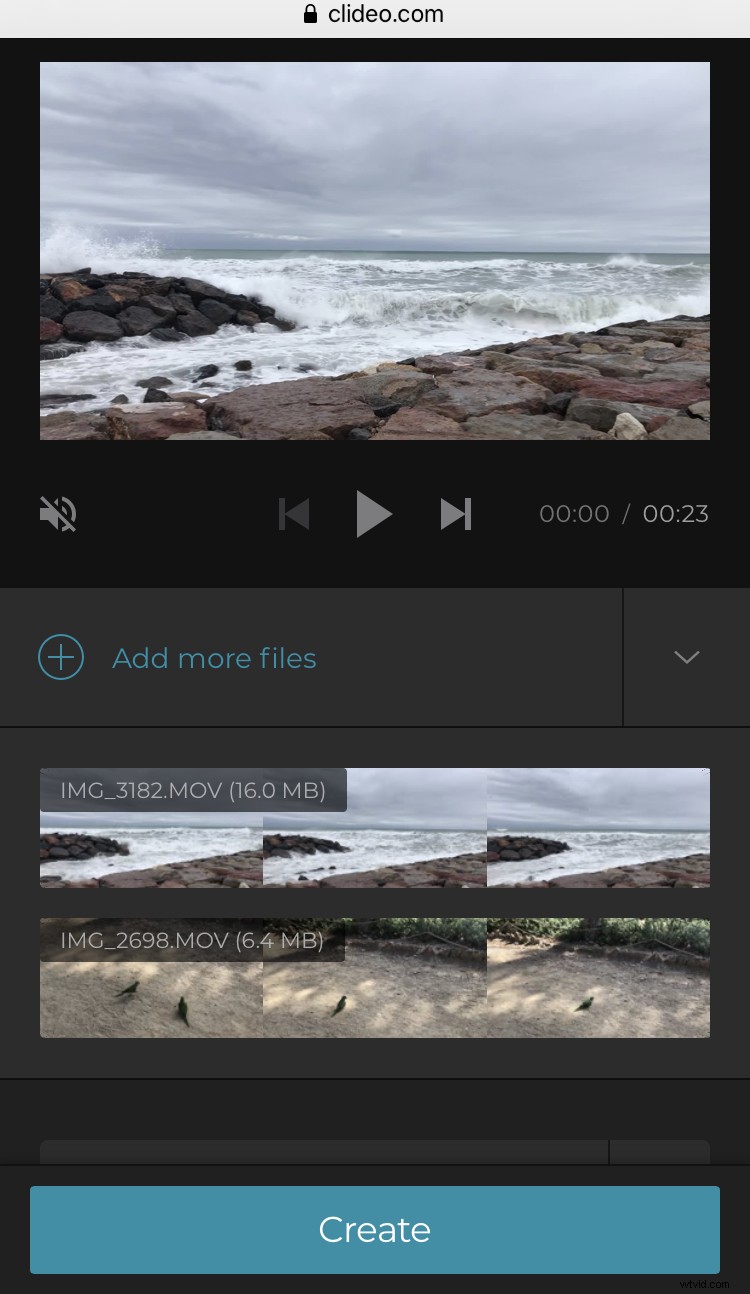
Add a soundtrack and trim it to fit the visual. You may also keep the original audio if the uploaded video has one.
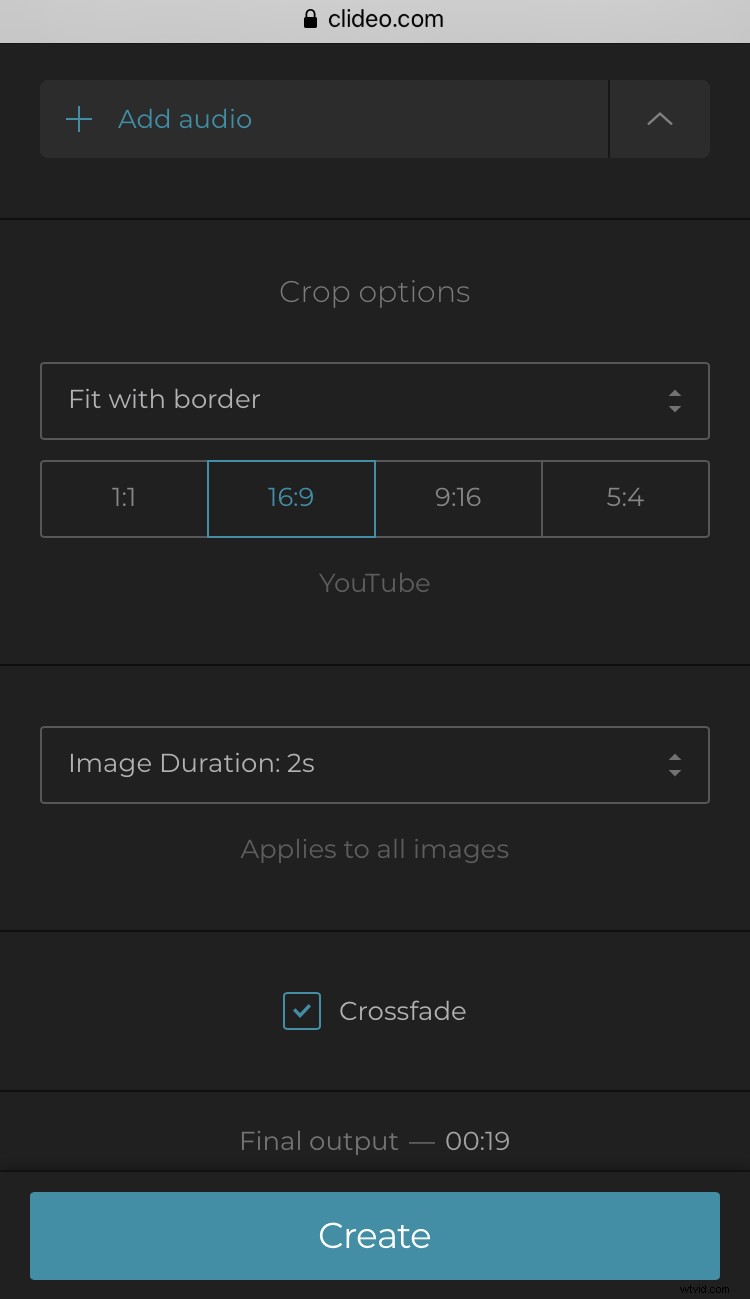
Choose one of the ready crop presets to make the result fit any popular social media like Facebook, Instagram and others. Use the Zoom & Crop option if you want to focus on a certain frame.
If you’ve used static images for your video, you should set their duration in the clip-to-be, from 0.1 to 10 secs. Note, that it will be applied to all the images without exceptions.
Check the Crossfade box to make the transition between the frames smoother.
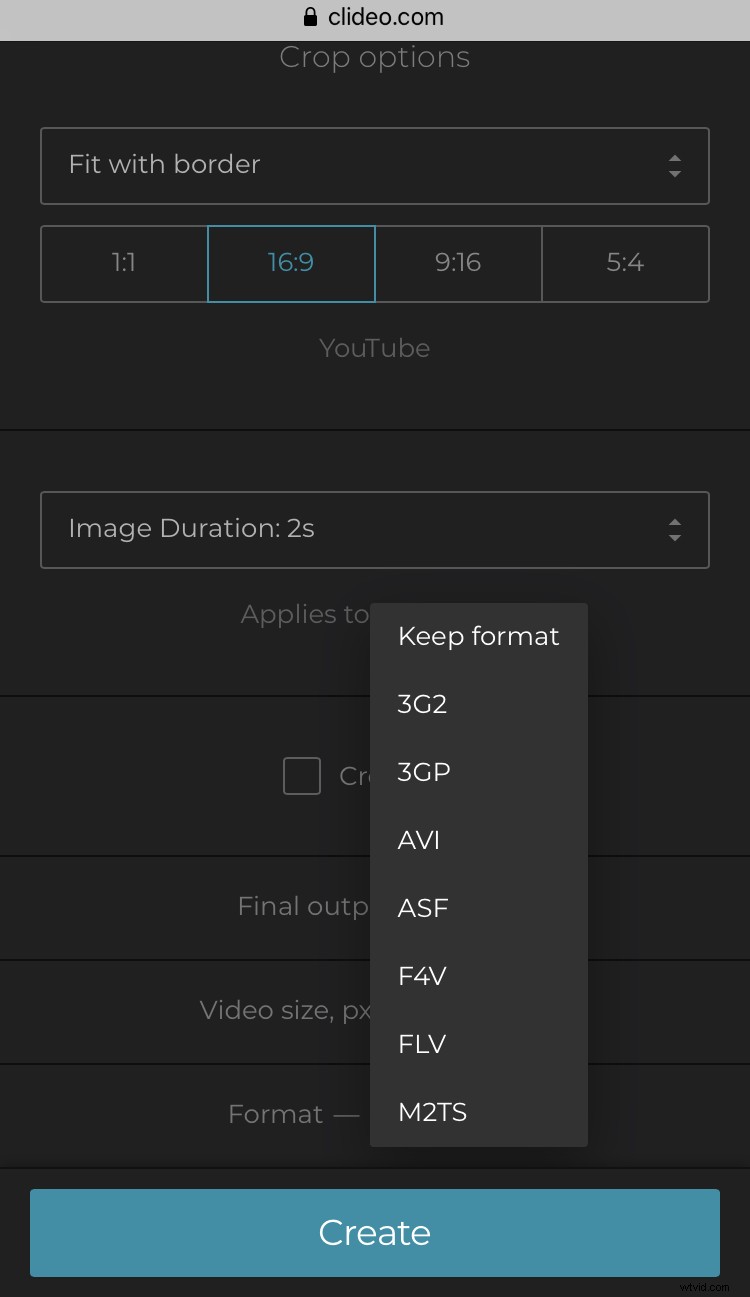
Don’t forget to select the format of the final output, or keep the initial one. If you’re going to share the created video on social media, select the MP4 format.
Click “Create” and wait several moments.
Enjoy the result
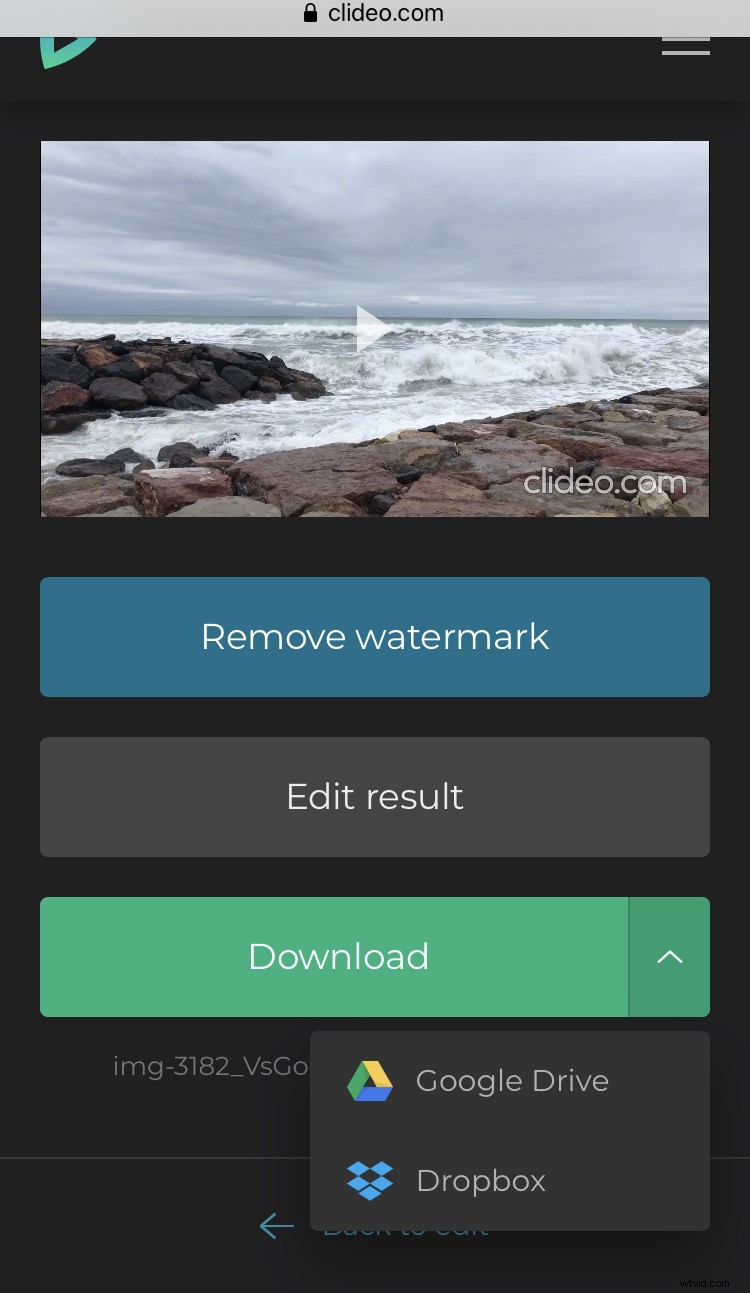
When you are done, check, if you are happy with the result. Most likely, you will be, but if you are not – return back to edit. Download the ready clip to your iPhone or upload it to cloud storage.