
How to extract any part of a video for YouTube
Our tool allows you not only cut your video but also convert it to the appropriate format for YouTube. Also if you've recorded your video on a phone, it's probably of the 9:16 aspect ratio, so it's better to resize it first. The best aspect ratio for YouTube is 16:9 but it also depends on the post type.
Among all the other advantages and peculiarities, our tool is free and works online, which means that you don’t have to download anything or buy licensed software. The user’s information is stored for 24 hours only and then it is deleted forever, so our service is safe.
Let’s go further and learn how to download a portion of a video for YouTube.
Upload a video recorded for YouTube
Open Video Cutter by Clideo, hit the blue button in the center of the homepage and upload a video you want to share on YouTube from your device.
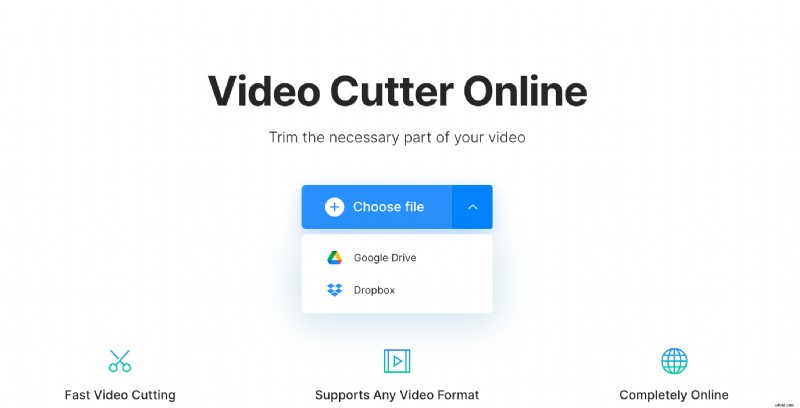
You may also choose a recording from one of two cloud storages – Google Drive or Dropbox.
Work from your mobile device, PC or Mac, it doesn’t matter. Just get sure that your Internet connection is stable and fast.
Choose a specific part of the video
Cut a piece of the clip using sliders or setting an exact start/end time. That will be the only part to proceed editing – you may both extract it (and make an actual clip), or delete (then frames before and after excluded area will be merged).
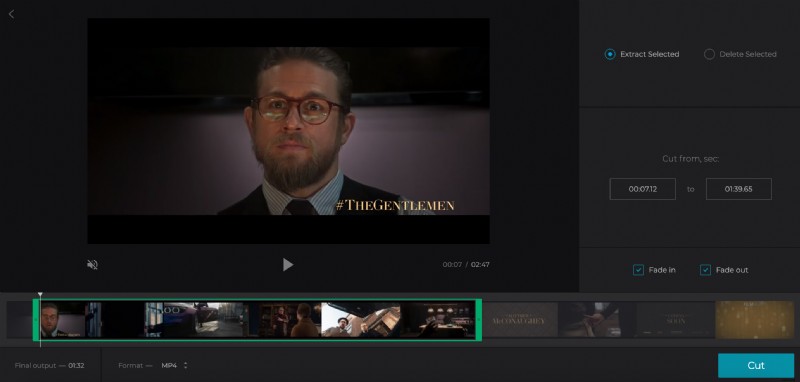
Check the Сrossfade or Fade in and Fade out boxes to make your visual more spectacular and smoother.
Choose an output format. Our video cutter allows different extensions, but for YouTube we would recommend choosing MP4.
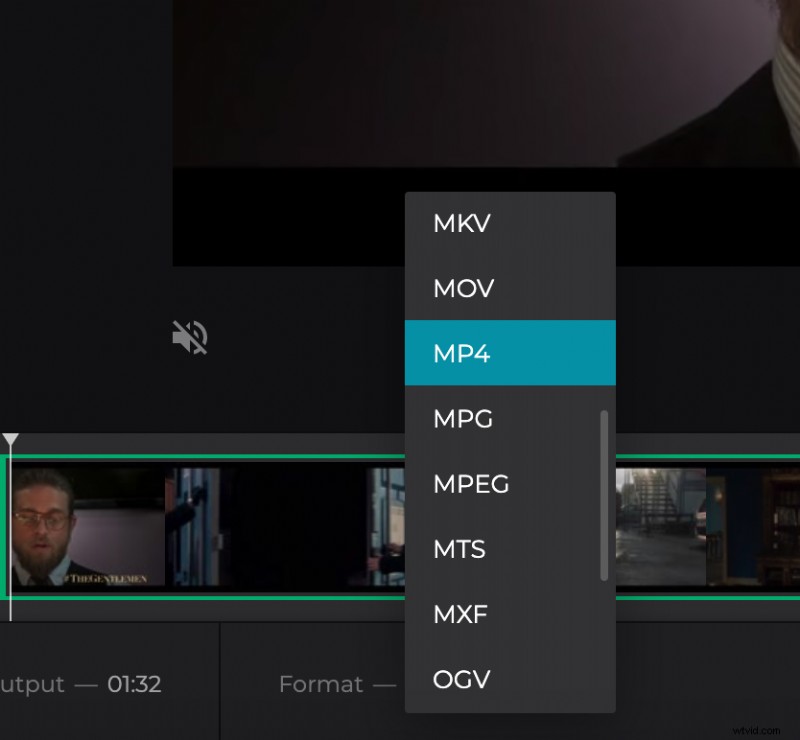
Click “Cut” button and wait several seconds.
Download the result
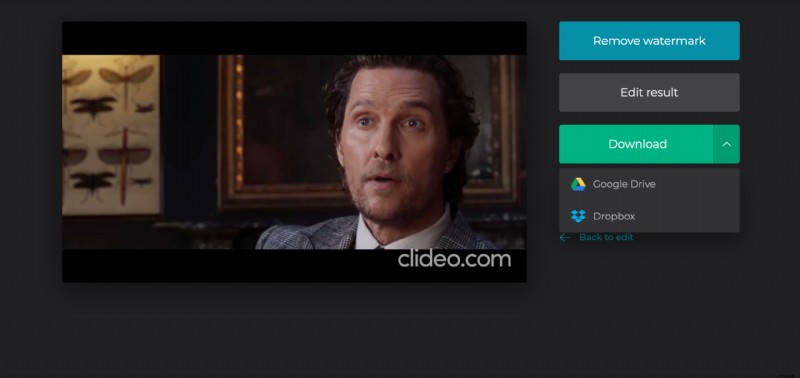
Have a quick preview to check if you are happy with the result. When you are done, save the clip to your phone, computer or upload it to cloud.