
How to put subtitles on your videos for YouTube
This is because video captions are indexed by YouTube to act as metadata, ensuring your clips are easier to find via searches with the potential to boost your viewership and Google ranking.
While traditionally you’d need some sort of professional editing software to do all this, now adding your own subtitles to a YouTube video can be done online and for free.
Add a video
Open your browser and head over to Clideo’s Video Subtitle Maker. This can be accessed from anywhere with an Internet connection - from iPhone or Android devices to Windows or Mac computers.
To upload from your device’s storage drive, just click the ‘Choose file’ button. To add a video directly from Dropbox or Google Drive cloud storage accounts tap the down arrow on the ‘Choose file’ button and you’ll see a drop-down menu with the options you need.
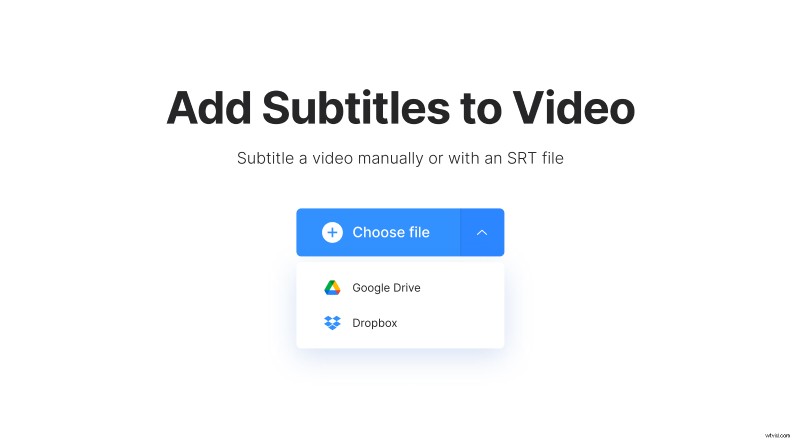
Be aware that the tool accepts files up to 500 MB in size and supports all major formats, including MP4, MKV, AVI, MOV, and many others.
Subtitle your video for YouTube
You’ll be presented with the options to input the captions or with a subtitle (.SRT) file, if you already have subtitles created for your video. If this is not the case, click to add them manually.
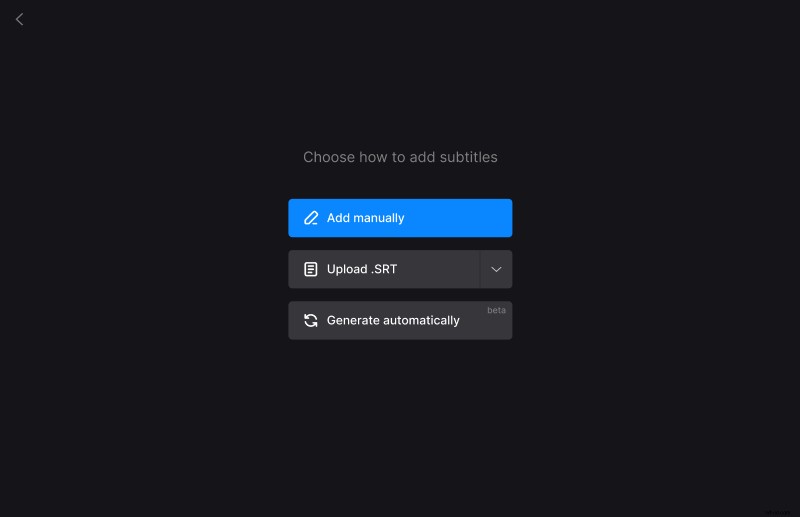
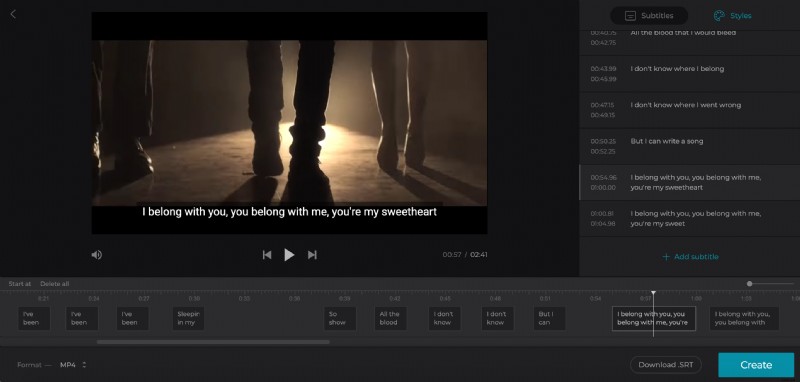
When the editor is opened, add the captions and the timing within the clip that you want them to be displayed on the frame.
Once you’ve done writing your subtitles, tap on the ‘Styles’ tab on the top right to select a font, its color, background, size, and alignment.
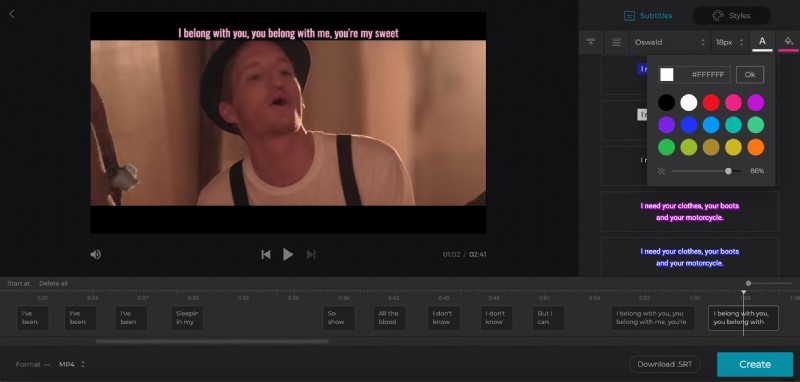
In the bottom right corner, you’ll see a ‘Download .SRT’ option. Use this if you want to save your captions as an SRT file separately.
Ready to make your new video? Hit the blue ‘Create’ icon on the bottom right.
Please note that the tool adds hard subtitles only. Hard subtitles are burned in, or hard coded, as an overlay over your video and cannot be turned off or on later in a player.
Download your subtitled clip
Once complete, you can preview it to make sure it's as desired and then save it to your device by tapping the big green ‘Download’ button.
Again, you can upload straight to Dropbox or Google Drive via the down arrow if you prefer.
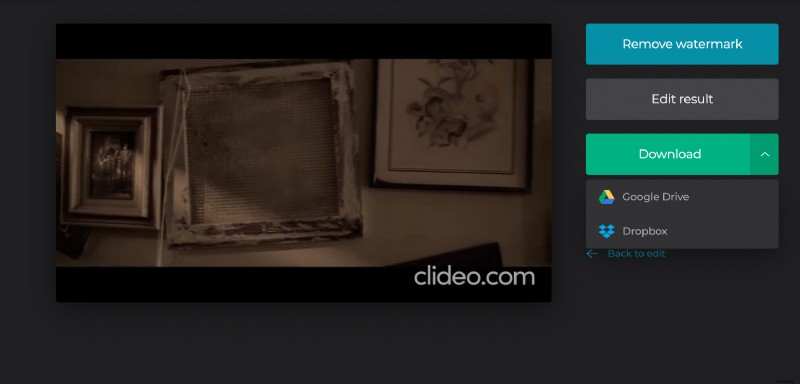
Want to make some more edits? Just select the ‘Back to edit’ link to go right back to the editor without starting from scratch.