
There are 2 methods to add subtitles to a video introduced in this post. One is using a free video editor while the other is using Windows Media Player.
Videos have become the backbone of media these days. Whether entertainment, education, or even business, every domain heavily relies on it for its assignments. You will find online and offline videos in dozens of different languages, often in varying accents and dialects.
It would be much easier to understand the content of the video with a subtitle. And viewers will not miss a single moment of the video with the subtitles on them. Fundamentally, there are two easy ways to add subtitles to a video. We will start with the easier one then moves on to the second one.
Use a Free Video Editor to Add Subtitles to a Video
Imagine a video editor that could add subtitles. Sounds like a regular day at the office for an application of that caliber, right? FilmForth is a free video editor with a dedicated Batch Subtitles menu for adding subtitles, frame by frame, using the timestamps.
You can also use fancy animations for the scenes that warrant it through the text options.
Step 1. Launch the Free Video Editor – FilmForth
Launch FilmForth and quickly create a new project for your video. You can do that by clicking on the New Project button on the home screen of the application. Alternatively, if you want to add subtitles to an existing project on the editor, refer to the Open a Project button.
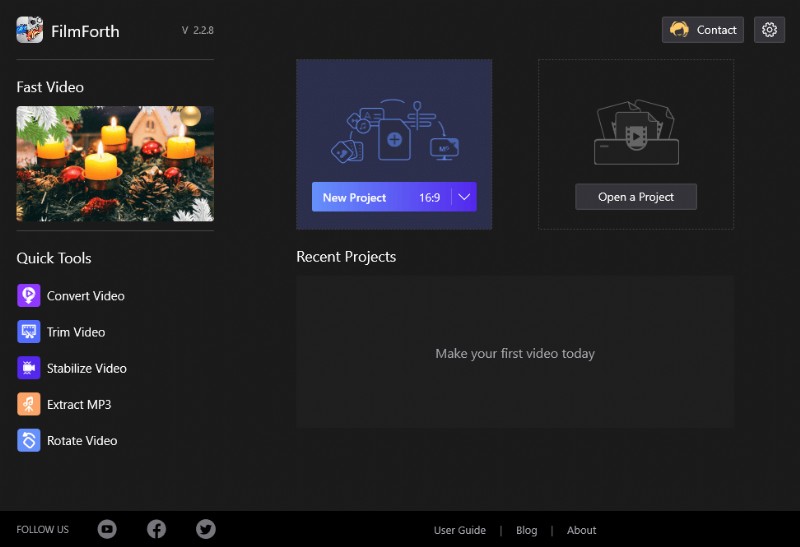
Choose New Project on FilmForth
After that, import the video that needs subtitles. You can either drag and drop or use the conventional Add Video/Photo Clips button for the same.
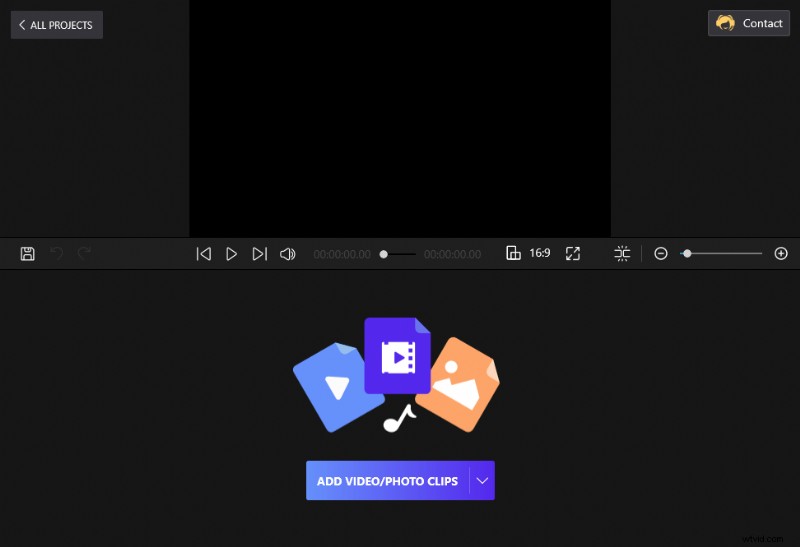
Drag and Drop the Video Clips to FilmForth
Step 2. Right to Batch Subtitles
Time to move right into the Batch Subtitles option. There are two ways to access it. The easier way is to click on the shortcut located in the video timeline. The other way is through the button present on the project’s homepage.
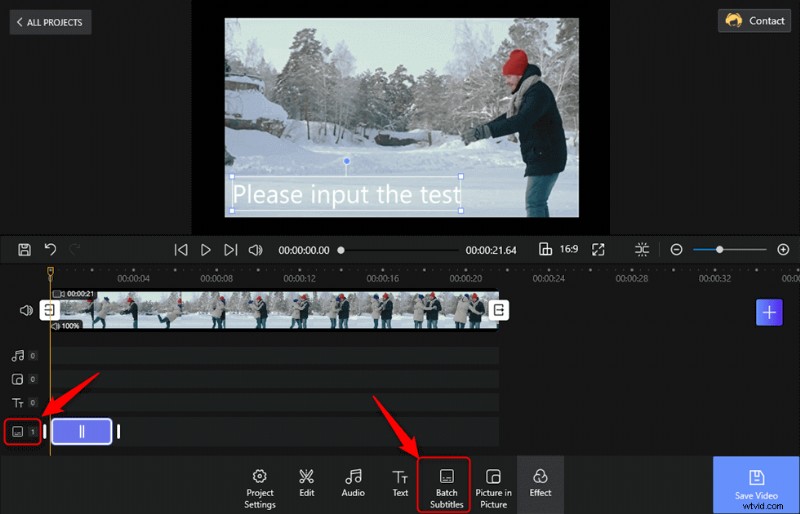
Tap the Batch Subtitles to Add Subtitles
Step 3. Add Subtitles to the Video
Once inside the Batch Subtitles menu, seek the frame from where you want to start adding subtitles. Then, click on the Add from the current frame button.
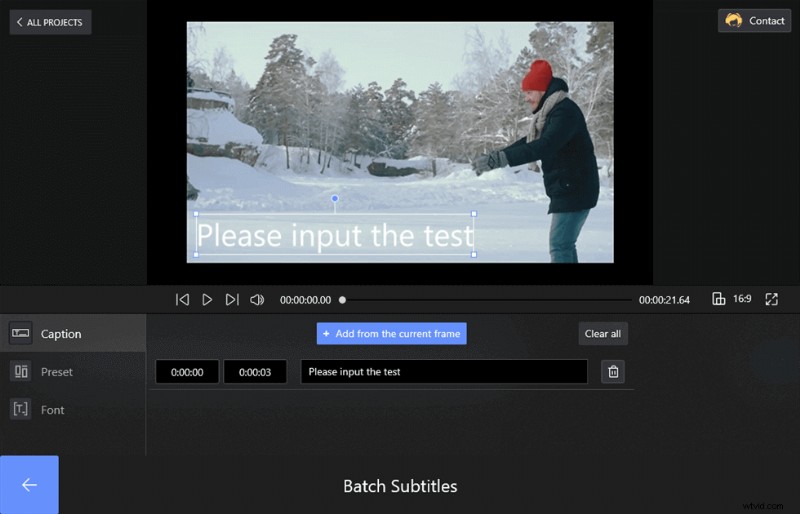
Add Subtitles by Clicking the Add Button
Two timestamp boxes will appear on the screen, followed by a text box. You fill in the subtitle for the frame in the text dialogue box. Go to the left side of the section and find the timestamp boxes. The left box represents the start, and the right is the specific caption’s end time.
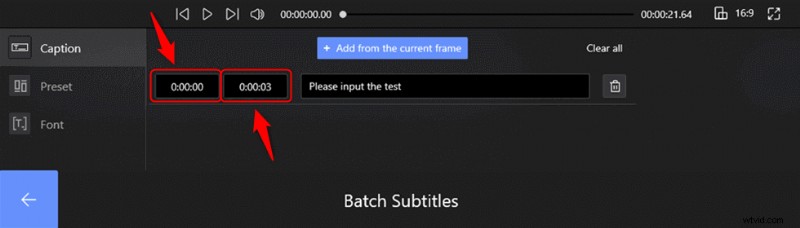
Set the Start and End of Each Line
You can repeat the process for individually adding frame-by-frame subtitles.
- Fonts: A dedicated section to choose the font that suits the theme of your video. All the system-installed fonts are available here for use. Along with that, you have the option to change the color, add borders and shadows. Furthermore, you can include an opaque background behind the subtitle for better visibility.
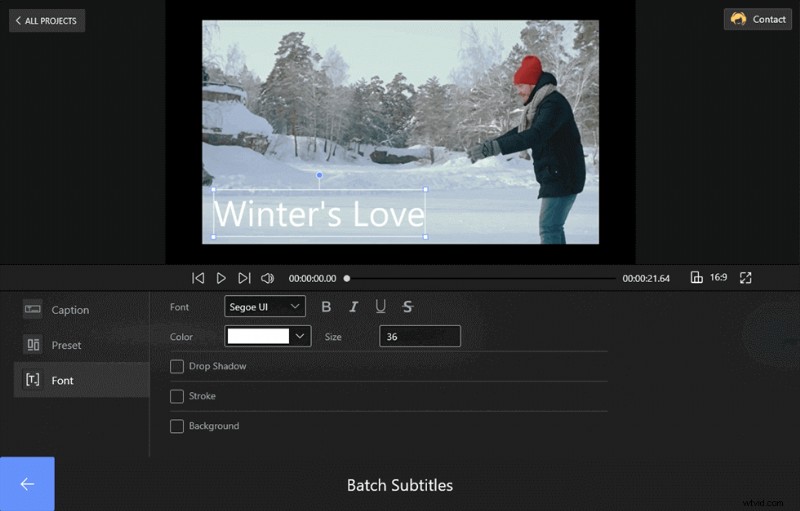
Set Font in the Subtitle
- Presets: Go one floor up, and you will open the door to the presets section, containing different preset settings for the subtitles text. Over a dozen choices are available.
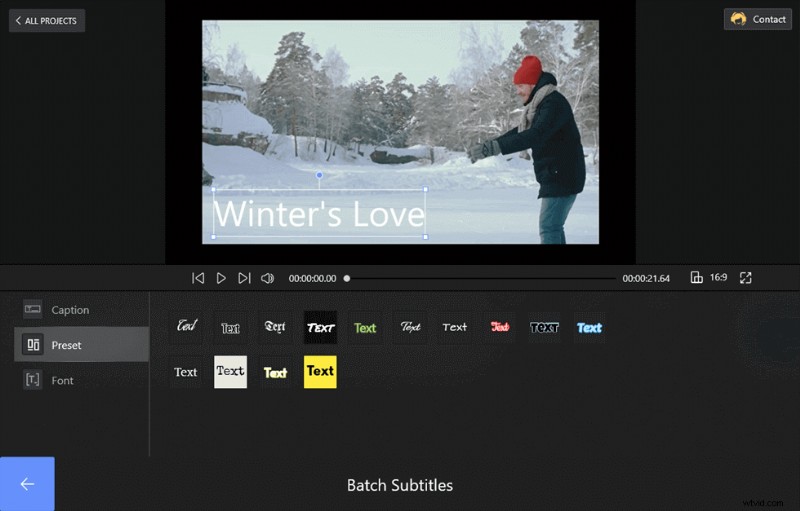
Set Presets on FilmForth
- Proofreading: There is an in-built proofreader that checks the spellings of your subtitles. So far, we could check spellings of English and Spanish words. Also, you can change, copy or cut the titles on FilmForth.
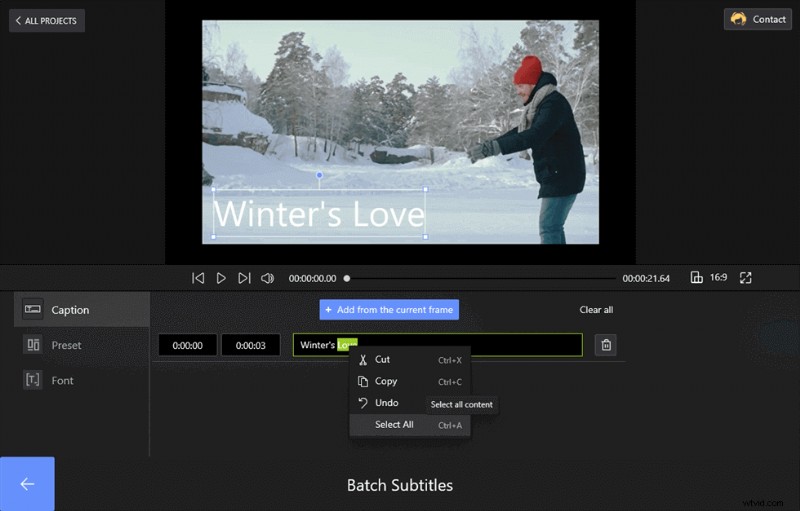
Set the Titles on FilmForth
Step 4. Save and Export the Video
Now you can back to the video and check the video subtitle. Hit the Save button to export the video and save it to the computer. Or you can directly share the video to YouTube by tapping the YouTube Share button.
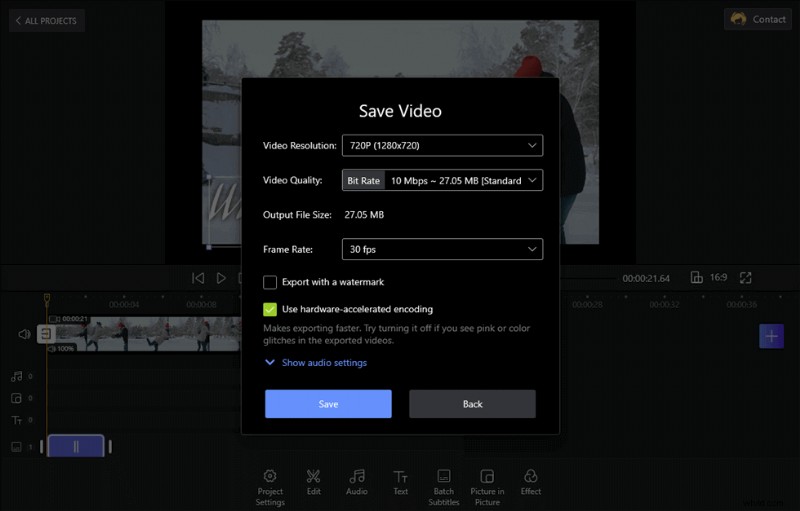
Save and Export the Subtitled Video
BTW, if you got .srt files to upload, you can directly add the files to your video by tapping the Import the Subtitle file button. So far, FilmForth supports .ass, .srt, .Irc formats.
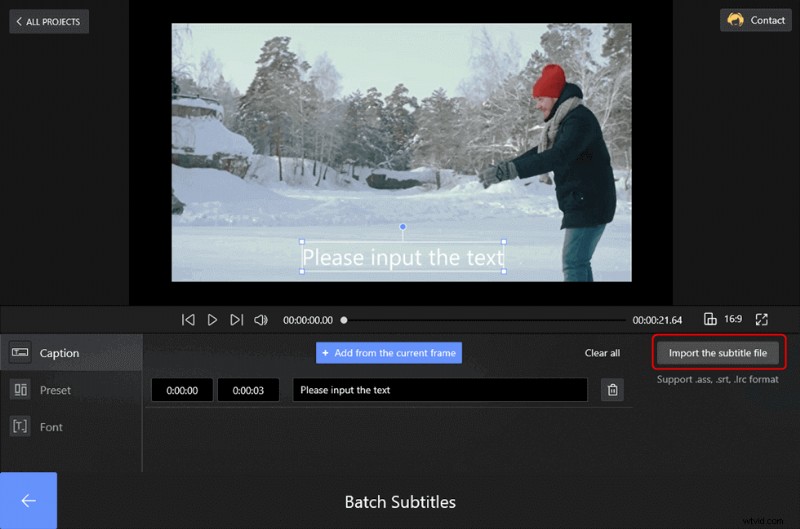
Import the Subtitle File to the Video
This video tutorial will show you how to add subtitles to the video in 2 individual ways. You can follow its steps to make your video with nice subtitles.
Add Subtitles to a Video via Windows Media Player
The second is a rather lengthy process that requires some file names to make it work. As you know, Windows Media player is shipped with all the recent Windows OS installments. You can play most video and audio formats on it.
Similarly, adding subtitles to a video on Windows Media Player is not that difficult. For instance, when playing a video on the Windows Media player, you can add subtitles to a movie for watching it. They will not permanently be added, but you can watch videos with subtitles, given you have a subtitle file to with it.
Here is how to add subtitles to a movie or a video in general when using Windows Media Player.
Step 1. Prerequisites to Add Subtitles on WMP
Windows Media Player does not support a lot of the subtitle formats, primarily.SRT, which is the most popular type on the Internet.
You can solve that problem simply by installing Advanced Codecs by Shark. Run the setup and do a full installation before launching the media player.
Step 2. Launch Windows Media Player
Launch WMP and head to the menu bar located at the top. For many Windows 10 users, it is hidden by default. Make it visible by pressing Ctrl+M on your keyboard.
Step 2. Add Subtitles to the Video
Head to the Play > Lyrics, Captions, and Subtitles and select On if available.
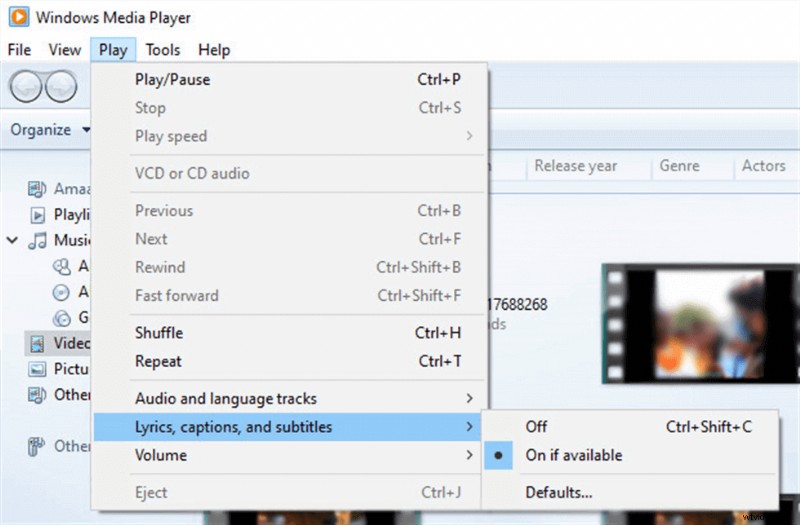
Add Subtitles to the Video on Windows Media Player
This will allow the media player to seek subtitle files while playing a video. However, three are conditions that need to be fulfilled to make it work:
- The Subtitle file is present in the same folder as the video.
- The subtitle file’s name is the same as that of the video.
Step 3. Change Subtitles Name
We take an episode of the FRIENDS TV show to demonstrate this. Here are the subtitle and video files are carrying different names.
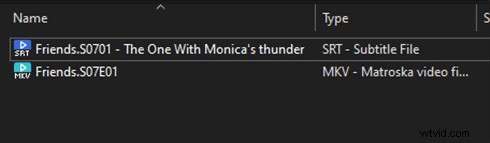
Rename the File
Take a second to rename them precisely the same, and they will look something like this.
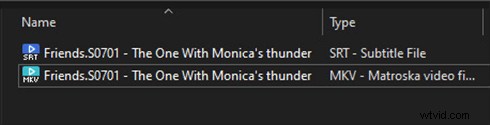
Rename the File
Conclusion
You had to install special codecs for making the subtitles work on Windows Media Player. That’s the tip of the iceberg concerning users’ issues on different devices while playing videos with separate subtitle files.
This wouldn’t be free when the subtitles are added directly to the video, as we did use FilmForth. Play the video on any device without a second thought about subtitles compatibility.