
Adding audio or music to a video may make the video different. So how to add audio to a video? To solve this problem, this article explains how to add audio to video using different tools. MiniTool MovieMaker, developed by MiniTool, is the most recommended.
The background audio or music of a video can have a huge impact on how we perceive it. Therefore, let’s learn how to add audio to video on different devices.
How to Add Audio to Video on Windows
If you want to add audio to video on Windows, then here recommend you a free video editor without watermark – MiniTool MovieMaker. It is a free yet professional video editor with countless advanced editing features. To add audio to video, follow the steps below.
Step 1: Free download, install and run MiniTool MovieMaker on your PC.
Step 2: Close the templates window to enter its main interface.
Step 3: Click on Import Media File button to import the video and audio files, and then drag and drop them to the timeline.
Step 4. Now you can edit the video clip, such as splitting, trimming, rotation, color correction and edit the audio clip like cutting, fade in & fade out, etc.
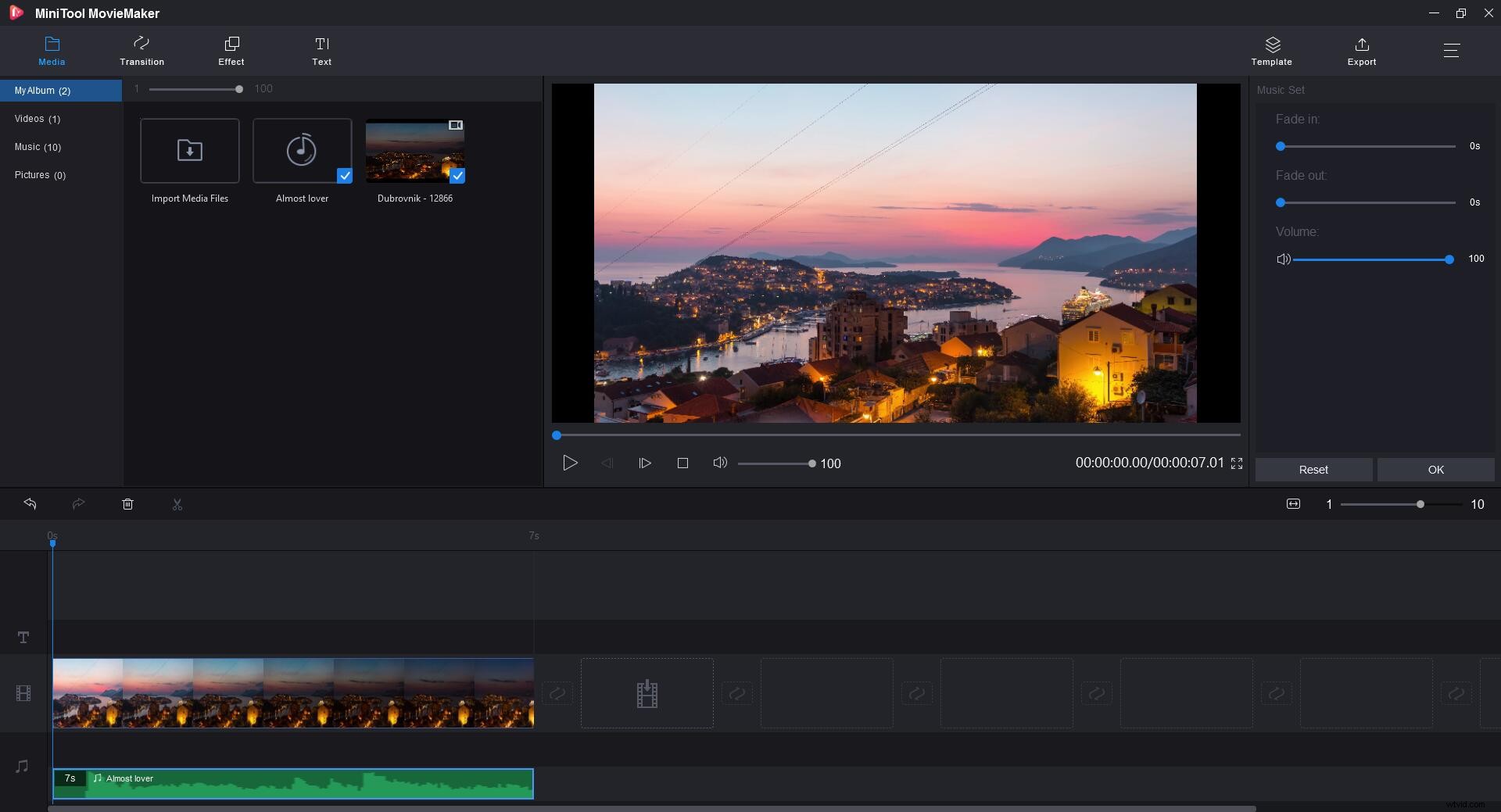
Step 5. When all is done, tap on Export in the top right, give a name, choose an output format, specify the destination folder for the new video file and hit Export to save it.
Related article: How to Sync Video and Audio
How to Add Audio to Video on Mac
If you want to add audio to video on your Mac, there is no better choice than iMovie. iMovie is a great video editor that’s included with macOS and iOS.
Step1. Download iMovie from the Mac App Store and install it.
Step 2. Create a new project and then drag and drop the video file into the iMovie window.
Step 3. Click Audio on the top toolbar, import your audio clip and then add it to the timeline.
Step 4. Then you can trim the unwanted part by dragging the handles at the start and end edges of the audio clip, adjust the audio volume and apply sound effects.
Step 5. Once finished, export the video to your computer.
You might be interested in: Convert Video to Audio
How to Add Audio to Video Online
If you don’t want to download any software or you’re looking for the simplest way to add music to video, Clideo is what exactly you need.
Step 1. Navigate to clideo.com and select Add music from its online tools.
Step 2. Click the + Choose file button to import a video file from your Windows, Mac, Android or iPhone to the program.
Note: If you want to add music to YouTube video, click the arrow icon to open the drop-down menu and then paste its URL or choose it from your Google Drive or Dropbox account.
Step 3. When the video is uploaded, click Add audio to import the audio clip. Then you can trim, loop and adjust video sound volume and audio track volume.
Step 4. Select a format for the output video file and click Create.
Step 5. Then you can preview the video. If you are happy with the result, click Download to save the new video.
Bottom Line
Have you mastered how to add audio to video after reading this post? It’s pretty easy, right? If you have any questions or suggestions about it, please let us know via admin@wtvid.com or share them in the comments section below.