
How to remove the unwanted audio tracks from MKV videos? This guide provides you with 4 free and easy solutions to remove audio track from MKV. Moreover, all of them are free and safe to use. Check out these methods and pick the one that suits you best.
Looking for a solution to remove audio track from MKV? Just check this article. Here we list 4 programs to remove audio tracks from MKV videos, including MiniTool MovieMaker.
Solution 1. MiniTool MovieMaker
MiniTool MovieMaker is a free video editor with watermarks. Apart from the powerful video editing tools, you can perfect your audio files, including adjusting volume, trimming audio, merging audio files, applying fade in/out effects, and of course, removing audio track from MKV video.
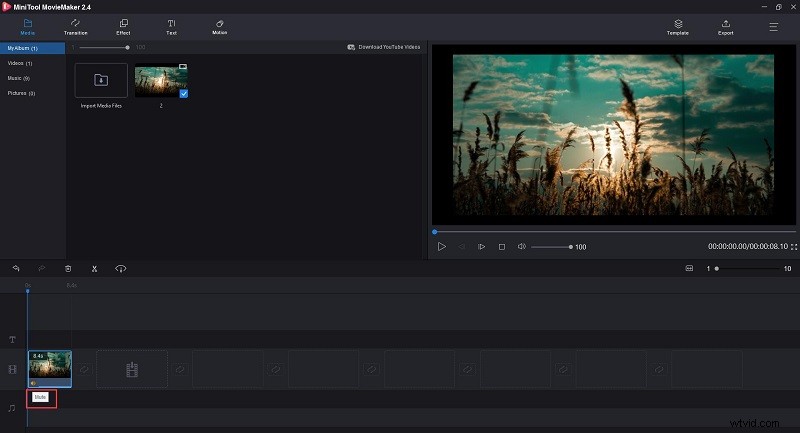
- Download, install and run MiniTool MovieMaker on your PC.
- Hit Import Media Files to add the target MKV files to the program.
- Drag the thumbnail of the video onto the timeline.
- Click the Mute icon located below the video clip on the timeline.
- Tap on Export to save the MKV file.
Solution 2. VLC Media Player
VLC Media Player is a free cross-platform media player that can play video files in almost any format. However, only a few people know that it also has many other functions, such as cutting video, rotating video, extracting audio track from video, removing audio track from video, etc.
- Open VLC Media Player on your PC.
- Go to the Media tab and select Convert/Save.
- Hit Add to import the MKV file you want to remove audio from.
- Click Convert/Save from the small box.
- Select the wrench icon within the popup window.
- Switch to the Audio codec tab and uncheck the box next to Audio.
- Press the Save button to keep your changes.
- Click the Start option in the Convert window.
Solution 3. Audio Remover
Audio Remover is an online tool that runs on Windows and Mac through a web browser. This is a free program that allows you to remove audio from videos without re-encoding. However, you can only upload videos within 500MB.
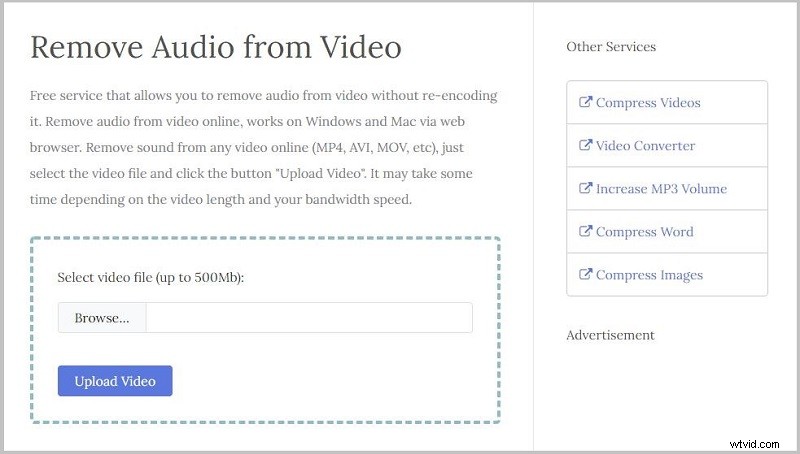
- Go to audioremover.com on your browser.
- Click Browse to search for the MKV file that you’d like to remove audio from.
- Once selected, click Upload Video.
- Wait a moment and it will automatically remove the audio track for you.
- Click Download File to save the MKV file on your device.
Solution 4. Kapwing
Kapwing is another free online tool that can be used to remove audio track from MKV videos. It also offers many other free video tools, such as Trim Video, Resize Video, Add Music to GIF, etc. However, there is a 250MB file upload limit and you have to sign in to remove the watermark.
- Navigate to kapwing.com on your browser.
- Click Tools to select the Mute Video
- Upload your local MKV file or paste the link to the MKV video to get started.
- Click the Mute icon under the VOLUME option.
- Tap on the Export Video button.
Bottom Line
Have you mastered how to remove audio track from MKV after reviewing this guide? If you have any questions or suggestions when using MiniTool MovieMaker, please let us know via admin@wtvid.com or share them in the comments section below.