
2 ways to remove sound from iPhone video
- Online Audio Remover by Clideo
- iMovie
There are millions of reasons why you don’t need any soundtracks: a low sound quality, irritating voices, disappointing dubbing. The most likely case – you just need this footage as a base for another voice-over or want to make a slideshow out of it.
The good news is, modern technologies and tools make this process super easy even for amateur users. So, keep reading and get to know how to remove sound from an iPhone video in several short steps.
Online Audio Remover by Clideo
A free online tool that enables you to mute any iPhone video in one click.
Step 1: Select the necessary clip
Open Clideo’s Audio Remover in any browser. Get ensured you have a stable internet connection – the faster it is, the sooner you’ll get the result.
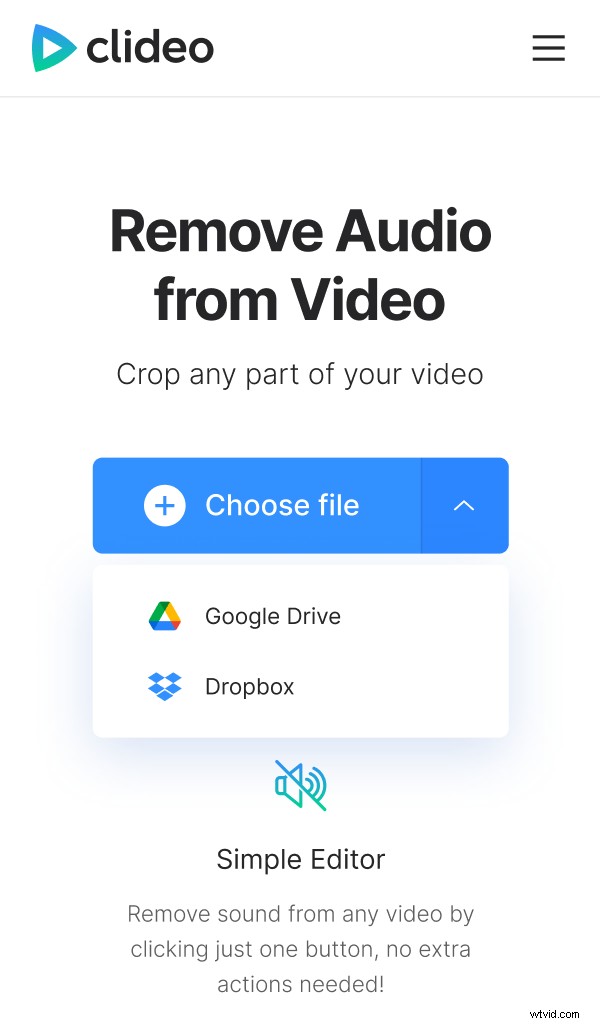
Upload a video by hitting a broad blue button “Choose file” and picking a recording from your camera roll. Alternatively, you may tap the arrow on the right side and upload a file from cloud storage (Dropbox or Google Drive).
The service accepts all the main formats: MP4, VOB, WMV, etc. You may upload up to 500 MB for free!
Step 2: Wait for a while
The tool will mute your recording automatically, you don’t even have to change any settings, choose or click any buttons. Make a cup of tea and take a deserved break in the meanwhile.
Step 3: Save the muted result
Supposedly, you’ll deal with your iPhone, but you may also download the renewed clip to any other device or save it to the cloud.
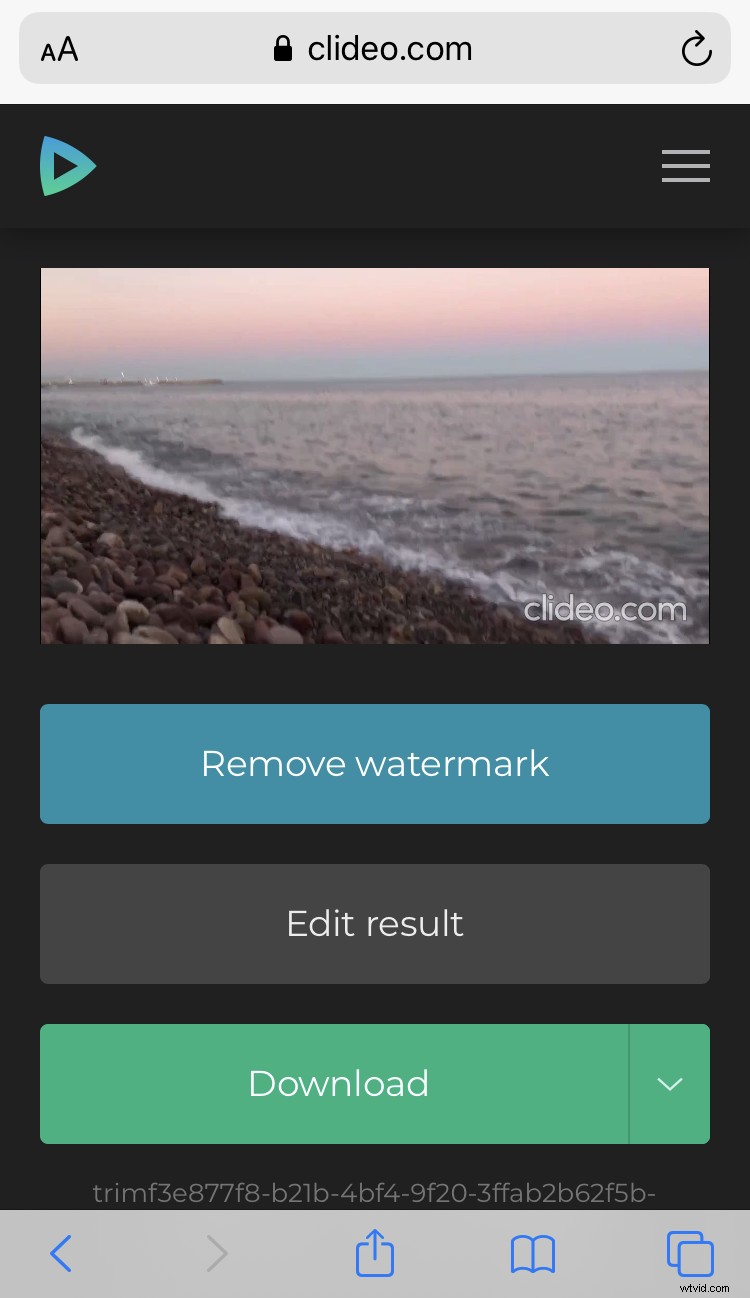
Easy, isn’t it? But what if you are cut off the Internet? Read on how to mute a video on iPhone in the offline mode.
iMovie
iMovie is a free Apple application, which enables you to edit your recordings in any way you need – rotate them, combine with other videos and photos, etc.
Step 1: Open iMovie
Find iMovie on App Store and install if you don't already have it on the phone.
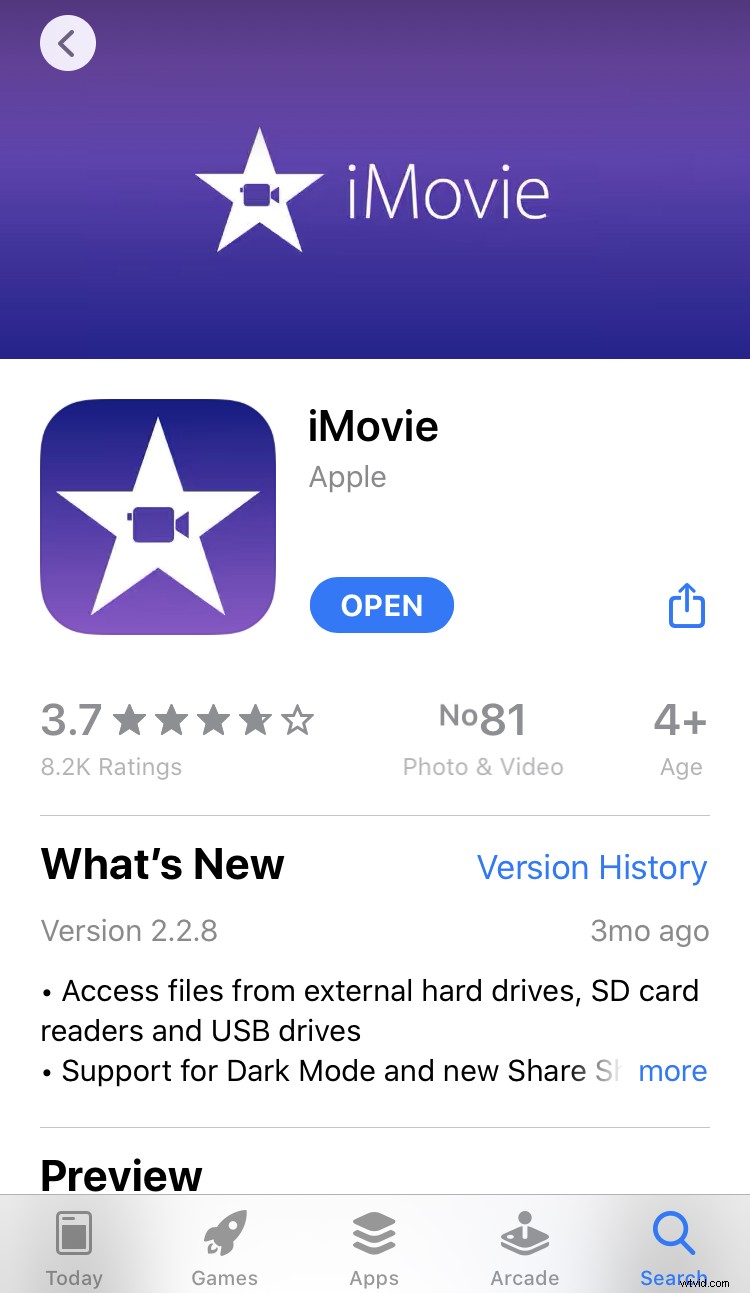
Open it, tap sequentially “+”, then “Movie”. Choose a video and tap “Create Movie” at the lower part of the screen.
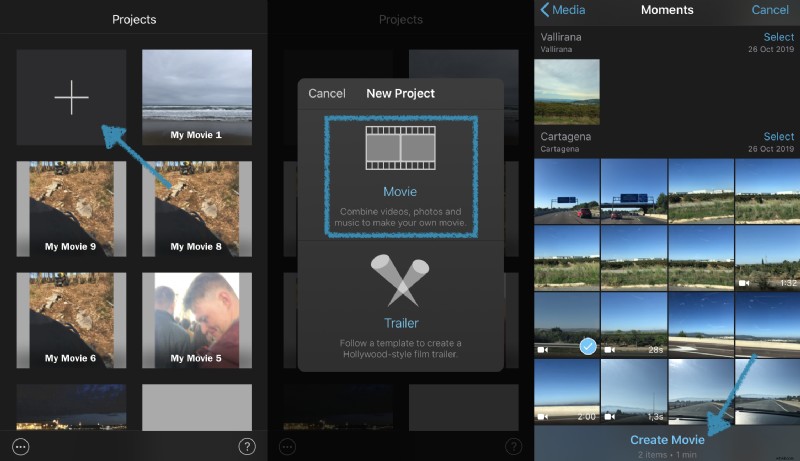
Step 2: Remove sounds
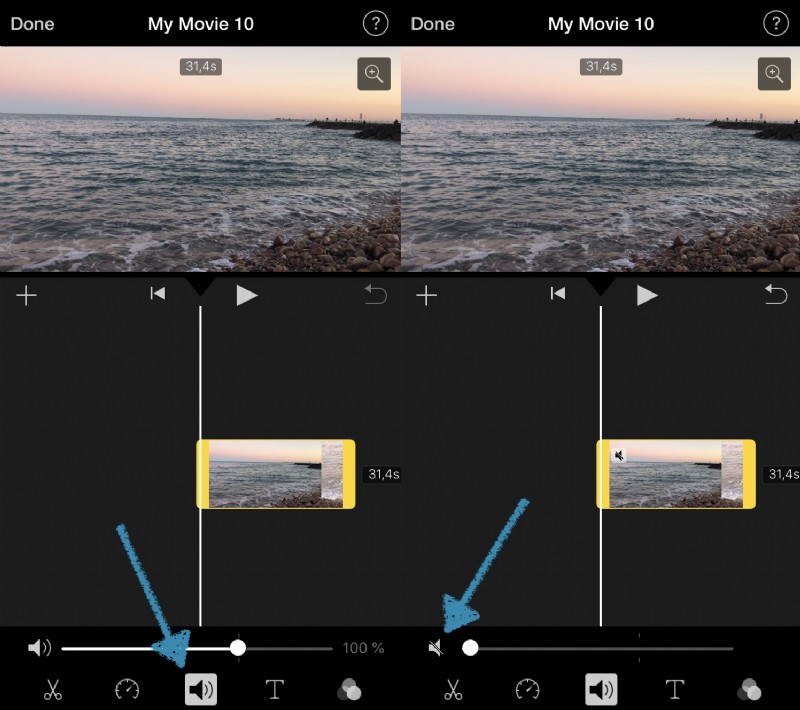
Select the video track by tapping on it. Find the audio sign at the bottom menu to open settings. Here move the slider until it’ll show a zero volume level or tap on the left audio sign to get it crossed out. Tap “Done”.
Step 3: Save your voiceless video
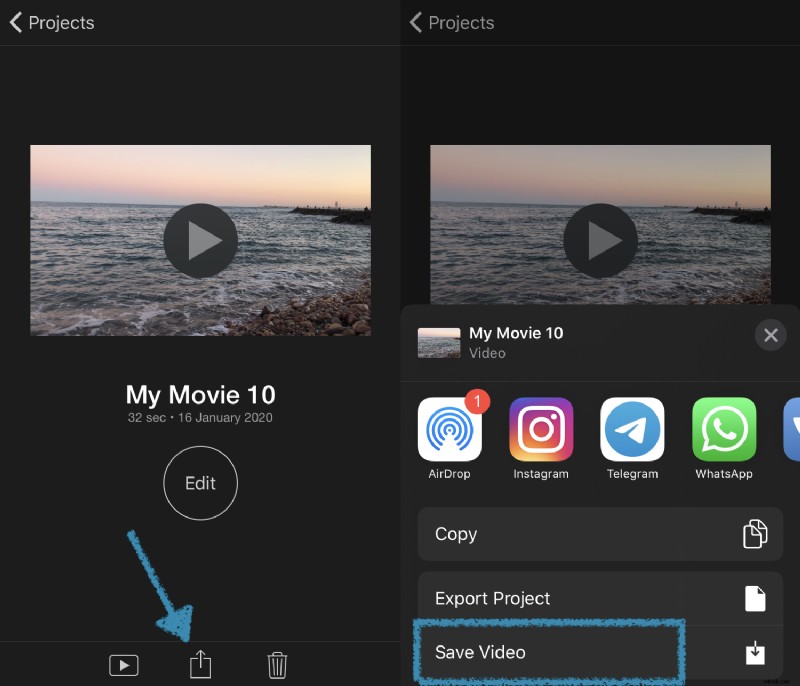
Click the Share sign, it doesn’t mean that you should post the recording immediately, you may save it to your device — just select the needed option.