
On this page, you’ll learn how to convert any videos to MP4 without cost, whether it’s a video stream over the internet or an actual video file on your PC or mobile. 6 fast and easy methods are provided.
If you often deal with video, then it is not difficult for you to find that there are countless video formats now. Different video formats have distinct features. However, it is still the MP4 format that is prevalent on various programs and streaming platforms. MP4 is the earliest video format, so it has better compatibility with many systems and platforms. That is also the reason why numerous users love it. In this guide, you can access free and fast ways to convert video to MP4. Solutions for various platforms are introduced here in detail.
How to Convert YouTube Videos to MP4
Suppose you are a YouTuber yourself or often watch videos on YouTube; it may not be challenging to find that videos on YouTube only support viewing, forwarding, or favoriting but cannot be downloaded directly. If you want to convert your favorite YouTube videos to a standard MP4 format and save them to your computer, you can try to use a dedicated YouTube video downloader and converter.
Among numerous YouTuber video downloaders in the field, I’d like to give a preference to Yt1s. This online YouTube video downloader allows you to convert YouTube videos to MP4 without installing desktop software. Yt1s helps you download high-quality video and audio files from YouTube without any cost. What you need to do is just paste the hyperlink to the video. But the fly in the ointment is that batch conversion is not possible using this method; you can only operate one video at a time.
Check out the detailed steps to convert YouTube videos to MP4 with Yt1S.
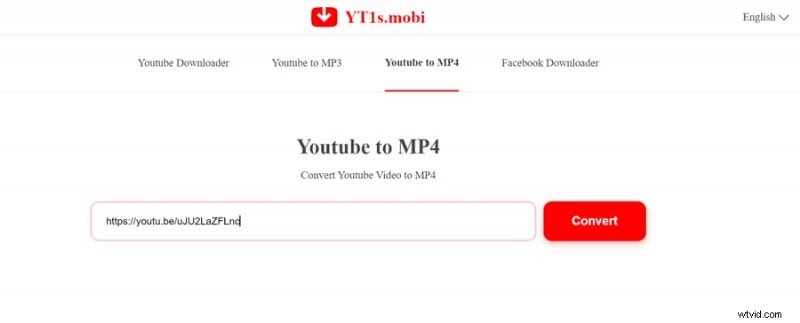
Step 1. Copy the link to the YouTube video. Run to the Yt1S video downloader website: YT1s: Youtube Downloader – Online Youtube Video Converter. Then select YouTube to MP4 and paste the link to it.
YouTube Video Downloader
Step 2. Press the Convert button, then select the export format as MP4 and tap Download Now.

Convert YouTube Video to MP4
How to Convert Video to MP4 on Windows
Suppose you prefer to convert video to MP4 on the desktop in Windows; this Duo Video Converter can give you a hand. It is a multi-functional video converter that is suitable for novices. It supports multiple video formats, like MP4, MOV, M4V, MKV, AVI, WMV, FLV, etc. You can effortlessly use it to convert your video to the commonly used MP4 format. Moreover, it allows users to convert high-quality videos, like 4K, HD1080p, HD720p, 480p, and more. What’s more worth mentioning is that its conversion speed is also very fast. It can convert multiple video files in seconds, no matter how big the video files are. It won’t put you in an endless wait. It is free to download and use right now. All in all, it’s a pretty good choice if you’re looking to convert video to MP4 on Windows. Let’s have a look at how to convert video to MP4 with Duo Video Converter in the following.
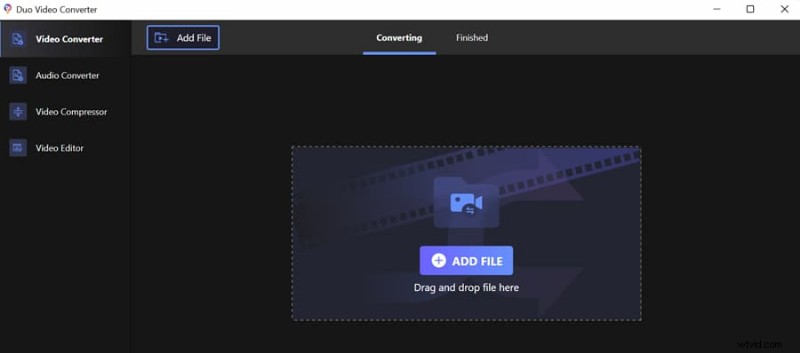
Step 1. Upload Videos to Duo Video Converter
Launch the software on your PC and add files to it from your folder or drag and drop files to upload.
Import Video to Duo Video Converter
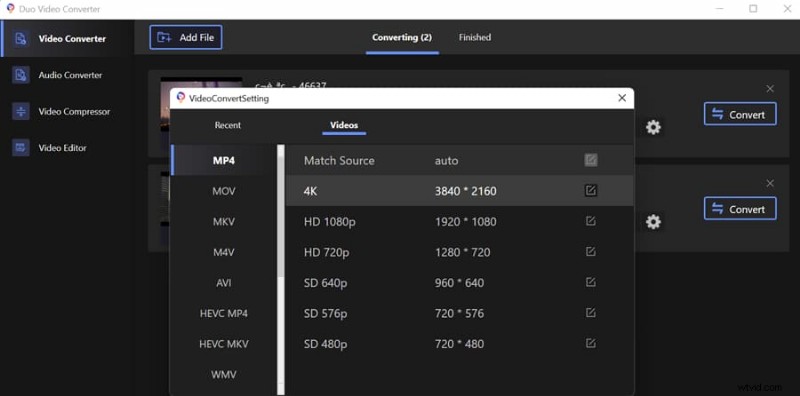
Step 2. Customize the Conversion
Press the Settings button and determine the export video format and solution.
Customize the Conversion
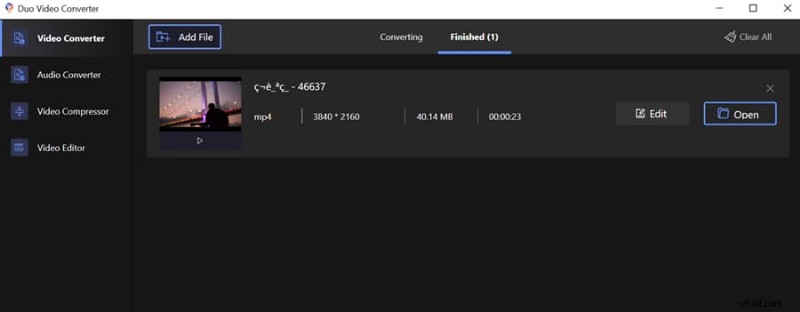
Step 3. Convert to MP4
Press the Convert button. Within seconds, you can get the converted MP4 videos, then tap Finished on the top menu bar and open the converted video to check the results.
Check Converted File
How to Convert Video to MP4 Using VLC
VLC is a versatile media player compatible with Windows and Mac. It is free, portable, and open source. In addition to playing files, it is also in favor of the conversion among various video formats. Since it supports playing nearly all video formats, you can use it to convert less-compatible video files to MP4 with it. Furthermore, it also enables you to transform streaming videos to MP4. In comparison, it is easy and fast to convert videos. But with its relatively complicated user interface, beginners may spend some time learning how to use it. You can refer to the step-by-step tutorial if you are a new user of VLC.
How to convert video to MP4 with VLC:
For Digital Video Files:
Step 1. Open VLC Media Player, select File> Convert/Save and add a video file from your computer. Then click Convert.
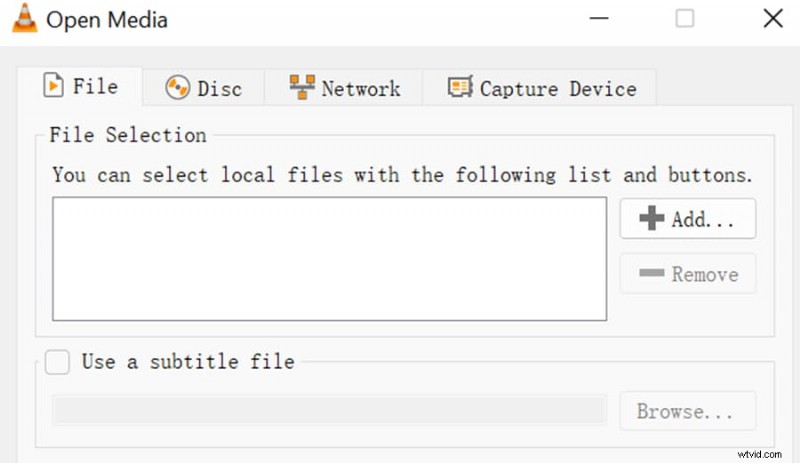
VLC Video Converter
Step 2. Click Profile and select Video for MP4 as the export video form. Then select a saving path of the new video. At last, press Convert to save the converted video to the target folder.
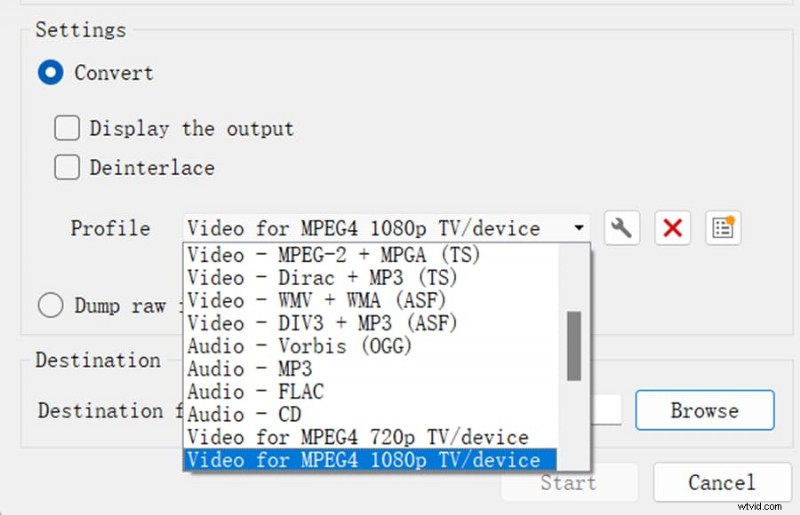
Convert Video to MP4 with VLC
For Streaming videos:
Step 1. Click Media> Open Network Stream and paste the hyperlink of the streaming video. Drag down the Play button in the bottom right and select Convert.
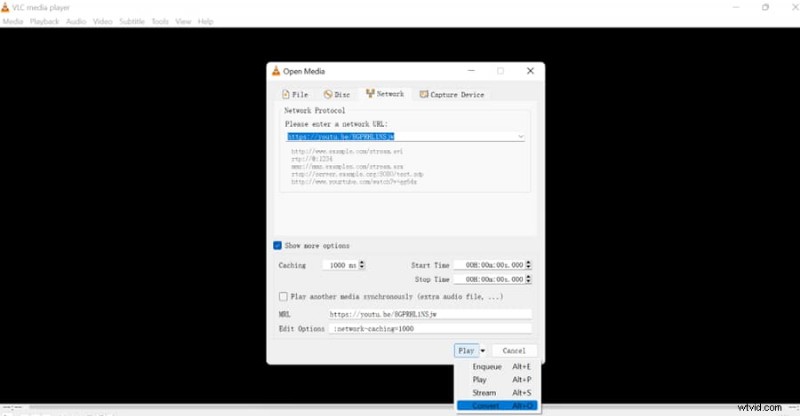
Convert Stream Video with VLC
Step 2. Select Video for MP4 as the export format, set up the new file location, and then press Start.
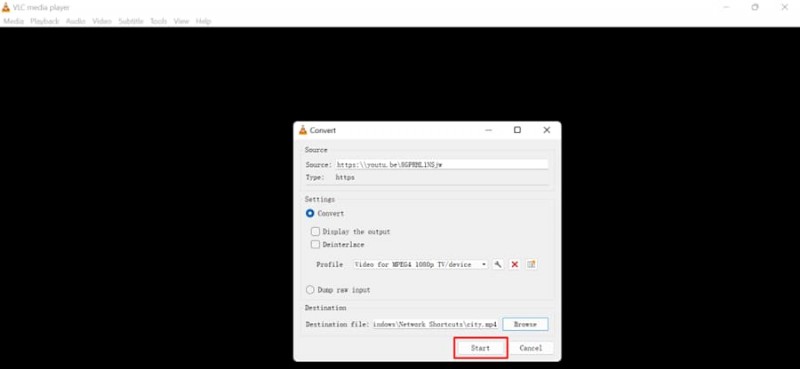
Convert Stream Video to MP4 with VLC
You can download VLC from its official website: https://www.videolan.org/vlc/.
How to Convert Video to MP4 on iOS
To convert video to MP4 on your iPhone, you can install a powerful video converter compatible with the iOS system. The Video Converter explored by Float Tech, LLC is one of the best choices. Within a few simple steps, you can effortlessly convert your video to MP4 without any cost. It supports importing and exporting MP4, MP3, MOV, WEBM, GIF, and more. Admittedly it can satisfy most of the users’ needs when changing video formats. You can access it from Apple Store. Here is the link:https://apps.apple.com/us/app/the-video-converter/id893347665.
Have a look at how to convert video to MP4 on your iPhone.
Step 1. Open the application on your iPhone and input your video from the files.
Step 2. Select to convert it to MP4 and wait for seconds. After transforming, open it or share it with others.
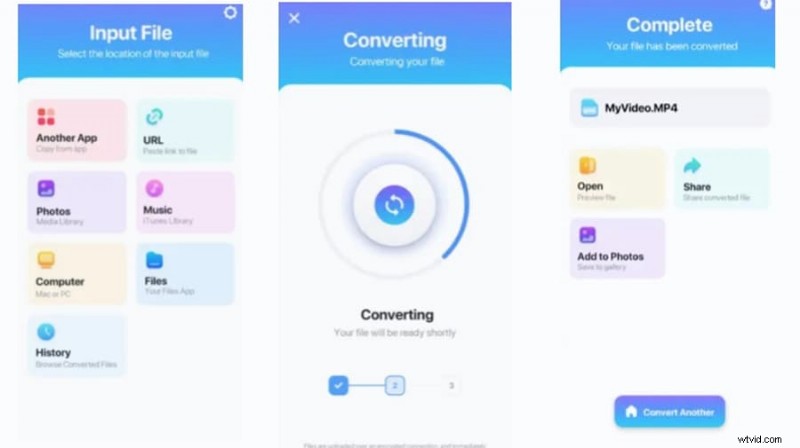
Convert Video to MP4 in iPhone
How to Convert Video to MP4 on Android Phone
Video Converter, launched by VidSoftLab, is efficient and free to convert video to MP4 on your Android phone. It has a straightforward user interface that allows you to batch convert videos simultaneously. It is comprehensive, supporting nearly all mainstreaming video formats at this time. What’s more, it provides you with plentiful high video resolutions to select from, such as 1080p, 1440p, 2160p, 4320p, etc. In general, it can make video conversion on Android a piece of cake. Check out how to use it on your mobile phone.
Step 1. Download and install it from Google Play: https://play.google.com/store/apps/details?id=jaineel.videoconvertor&hl=en_GB&gl=US.
Step 2. Select Video Converter on the main page and import your video file. Then select the export format, resolution, etc., and click the check mark. In seconds, the new video wi; be saved in your photo album.
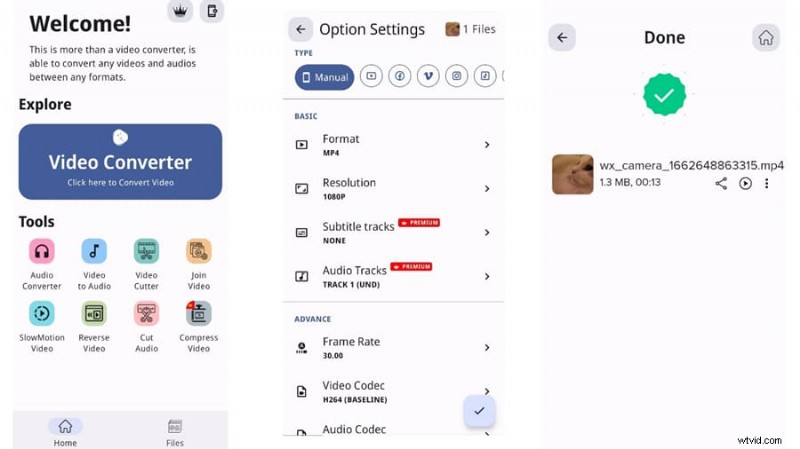
Convert Video to MP4 in Android
How to Convert Video to MP4 Online
In comparison, an online video converter is easier to access and operate. It is available for users on both PC and mobile. However, the online converter requires a stable internet connection, and it may have several limits on the imported file size. This Convertio is free and effective for converting other video formats to MP4. With it, you can fulfill the conversion of multiple video formats anywhere and anytime. It supports importing various video formats, like MP4, WMV, MOV, AVI, and other more rare ones. But you have to notice that it allows you to convert files within 100 MB for a free trial.
Step 1. Open the Convertio Online Video Converter page: https://convertio.co/video-converter/. Then import your video files to it.
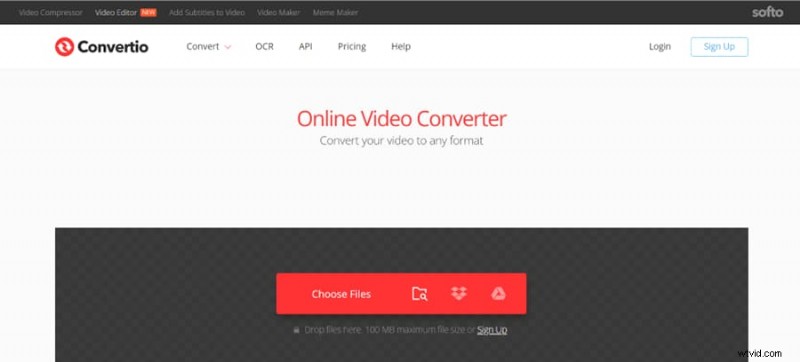
Convertio Online Video Converter
Step 2. Select MP4 as the target file format and click Convert. Lastly, press Download to save the new video to your PC.
Convert Video to MP4 Online
FAQs on How to Convert Video to MP4
- How do you copy YouTube videos to MP4?
To do so, you can find the YouTube video and click the share button to copy the hyperlink of the video. Then paste the link to a YouTube video downloader and select MP4 as the output format.
- How to convert large video files to MP4?
A desktop video converter can settle this problem. Generally, the video converter desktop software, like Duo Video Converter, doesn’t have restrictions on the imported video file size. You can use it to change large files into MP4.
- How to convert videos to MP4 in bulk?
Some video converters support batch converting. Just import multiple videos at a time, and then it can help you convert to MP4 in one go.
Summing Up
This guide offers six free and quick ways to convert video to MP4. Video converters for all systems and platforms are available here, including tools for Windows, Mac, iOS, Android, and an online tool. All of these video converters are effective and efficient. But they still possess different focuses. You can select one of them according to your device. Or you can choose from them based on your practical needs.