
With which tool can I add audio in an avi container? Because VDMod, Nandub and Avi-Mux is useless for this process...
Sometimes you may want to add audio to AVI but find many programs don't support this. So here I recommend a powerful video editing tool –Wondershare Filmora (originally Wondershare Video Editor). With it, you can easily add audio to AVI or other video formats such as MP3, WMA, OGG, or FLAC format and save it as a new file. Now download Wondershare Filmora (originally Wondershare Video Editor) and learn how to combine audio and video using the simple steps below.
1 Add the files to the program
Install and launch Wondershare Filmora (originally Wondershare Video Editor). Then import both the AVI file and audio track to this program. To do this, click the “Import” button or directly drag and drop them to the Media Item. Then select these added files and drop them to the corresponding tracks on the timeline panel below. The video file should be placed on the video track and the audio file on the audio track.
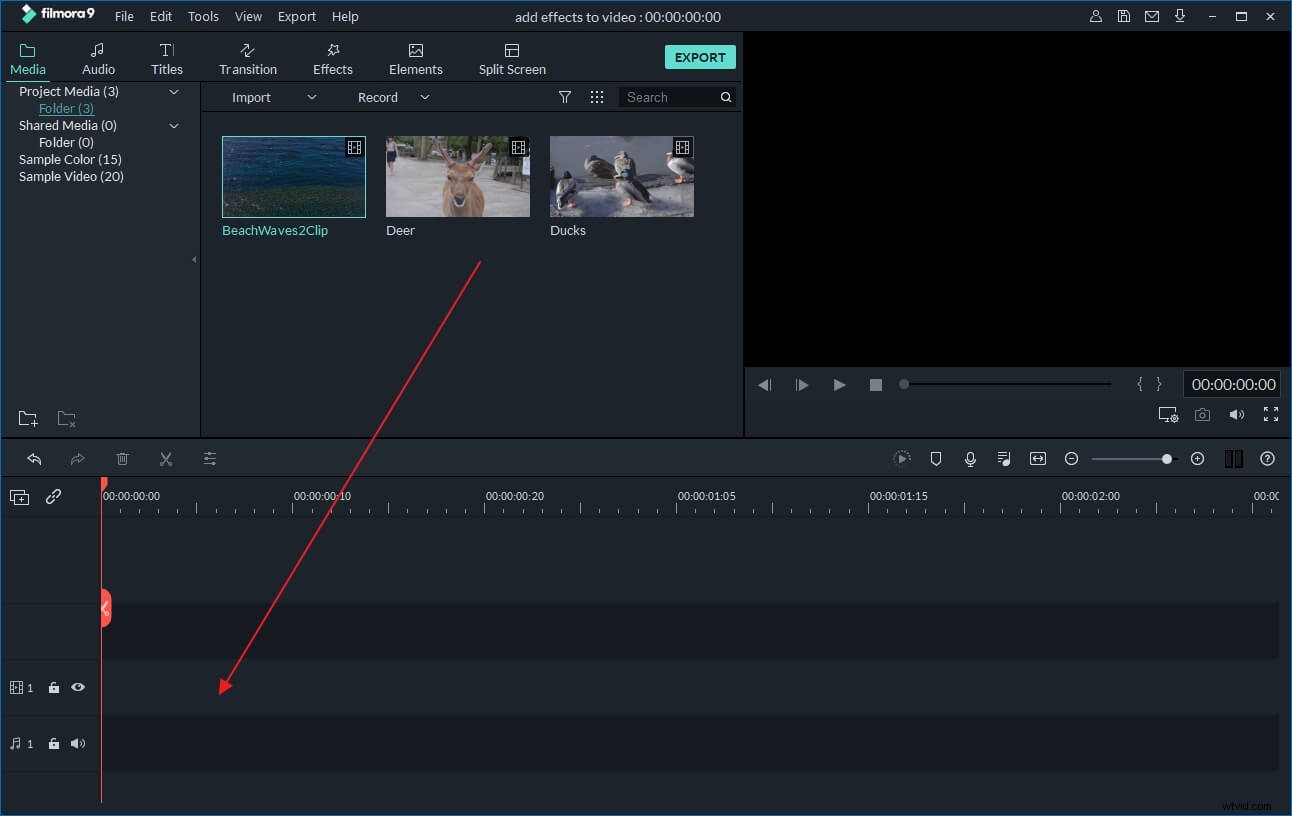
2 Adjust the audio file
If the video and the soundtrack lengths do not match, you may need to edit the audio. For example, if the audio file is longer than your video, move the slider to the end of the audio, and drag it to fit the length of the video. If the video is longer than the music track, you can copy and paste the audio file and place the copied files side by side on the same track.
If you want to further edit the original audio file, double click it and change the settings of speed, volume, pitch, fade in/out as you like.
Note: if your AVI file already contains an audio track, you should remove it first. To do this, right click the AVI file and choose “Audio Detach” to separate the original audio from video. Then press “Delete” button on the keyboard to remove it.
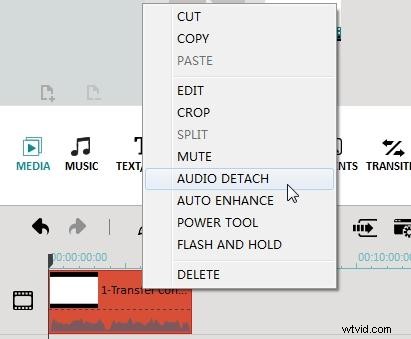
3 Save the new file
After adding the audio and combining it with the video, you can export it as a new file. Click “Create ” and select “Format” tab. In the output window, select the required format. You can also go to the “Device” tab and export with the ready-made preset for your mobile device. Of course, you can also directly upload it to YouTube for sharing with the world or burn to DVD for playing on home TV.
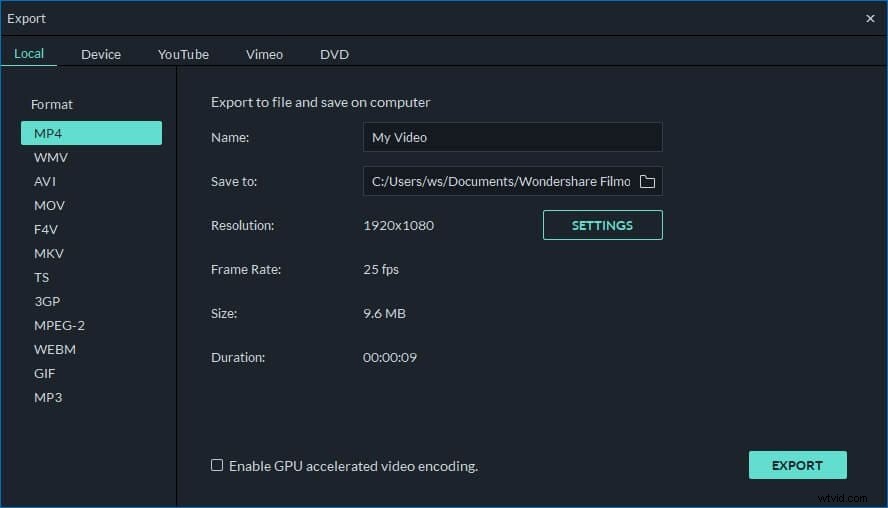
Watch this video tutorial to learn how to add audio files to video:
You may also like: Tutorial of How to Convert YouTube to AVI Using Best Converters >>