
How to make subtitles online
The first question is - what is a subtitle? That’s a transcript of the visual’s soundtrack, which appears on the screen simultaneously with the audio. It’s essential for the deaf or people who are hard of hearing. Subs may also provide some additional information never mentioned in the audio.
Besides, we need subtitles when we watch serials or movies in foreign languages – no matter if they were never translated, or we just want to improve our listening skills.
Briefly speaking, we need them indeed. But how to add subtitles to MP4 or videos of another format?
Usually, we need some special licensed software, experience and time. But not with Clideo – let us introduce you a brand-new, online and free tool, created to work with captions.
Read on and learn how to add subtitles to a video file fast and easily!
Upload your video
Open Subtitle Maker by Clideo from your mobile device, PC or Mac. It works in any browser you like – just get ensured that your Internet connection is stable and fast.
To select any previously recorded or downloaded movie from your device, just hit a large blue button “Сhoose file” (it’s really hard to miss it, there is only one button on the tool’s homepage).
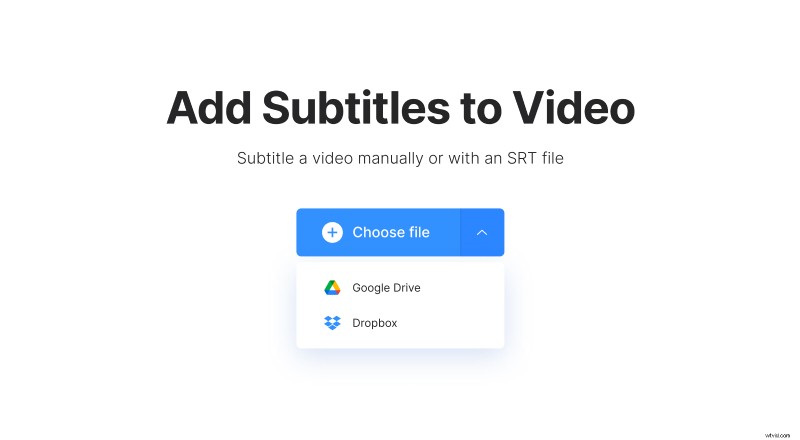
If you want to upload a clip from Dropbox or Google Drive, click on the arrow on the right side to call a drop-down menu.
Put subtitles on the video
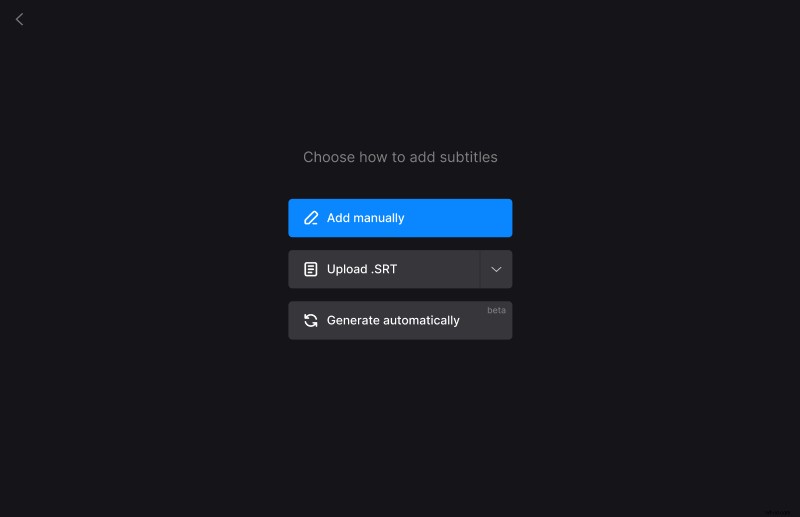
There are two options available: you may merge the SRT subtitle file with a video or insert them manually. Let’s focus on the first way, as it seems to be the most complicated one.
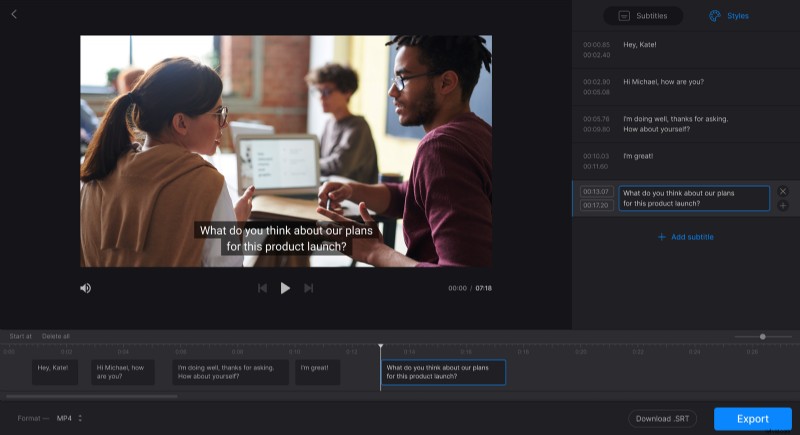
Find an empty field on the right side from the uploaded video. Set the beginning/end time and write a subtitle. Run the video to get the exact timing first. When you are done, click on “Create” and embed the next one. Repeat the process as many times as you need.
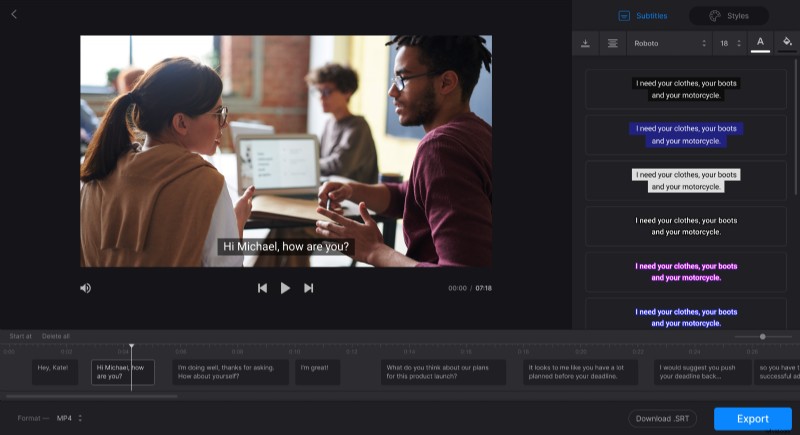
No matter how you added the subs, manually or with an SRT file, click the “Styles” tab to alter their font size, color, painting, style, etc.
You may also edit ready entries, change their order or delete them. To delete all the subtitles in one click, hit “Delete all” below the video. Press “Download .SRT” if you want to get the separate file with subtitles.
Choose the output format. The default one is the same as it was in the initial file, but you may set any extension you want, including AVI, MKV, MP4 and others.
Feel happy with the result? Hit a blue button “Create” and wait until your video is ready.
Please note that the tool adds hard subtitles only. Hard subtitles are burned in, or hard coded, as an overlay over your video and cannot be turned off or on later in a player.
Download the result
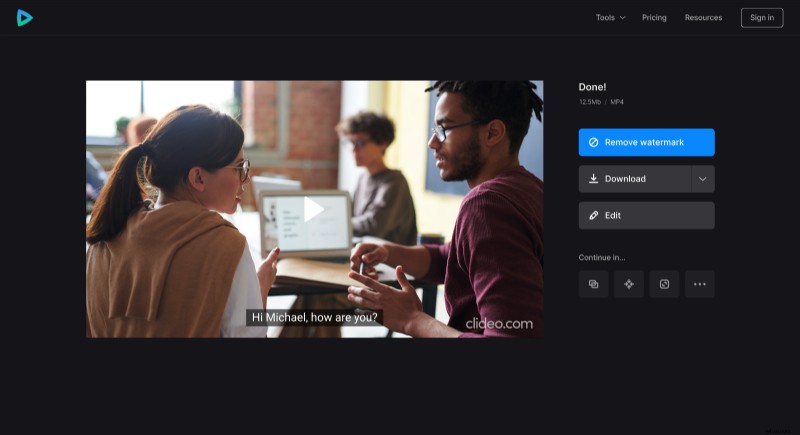
Save it to your personal device or a cloud storage. Enjoy your new movie with captions by yourself or share with others on the Internet.