
Creating a great video and editing it so that it’s optimized for social media can be a long (albeit rewarding) process. Once you’ve spent so much time on producing quality content, you probably want everyone who sees it to associate it with your brand. The best way to accomplish that is by adding your logo to every one of your videos.

Adding your logo allows you to brand your video in an obvious way, helps make a lasting impression on your viewers, and ensures that your content will always be immediately recognizable to your audience.
Here at Zubtitle, we make it simple to add a logo to a video. Just follow this step-by-step walkthrough:
How to Add a Logo to a Video
1. Create a Zubtitle account
Sign up or log in to your Zubtitle account here.
2. Upload your video
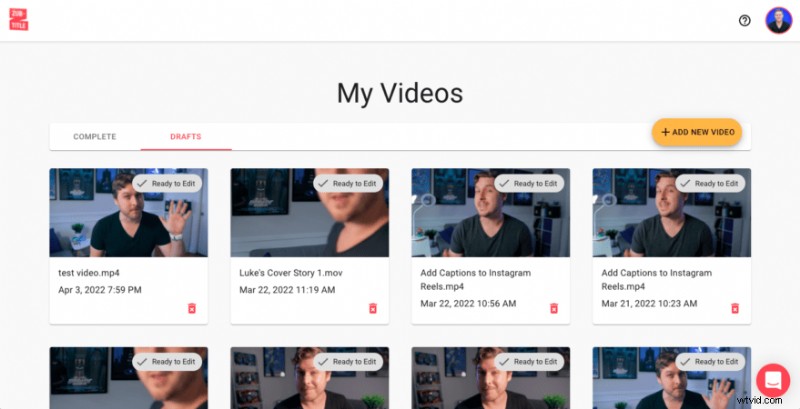
Click the yellow “Add New Video” button on the right-hand side of the screen.
3. Select “Logos”
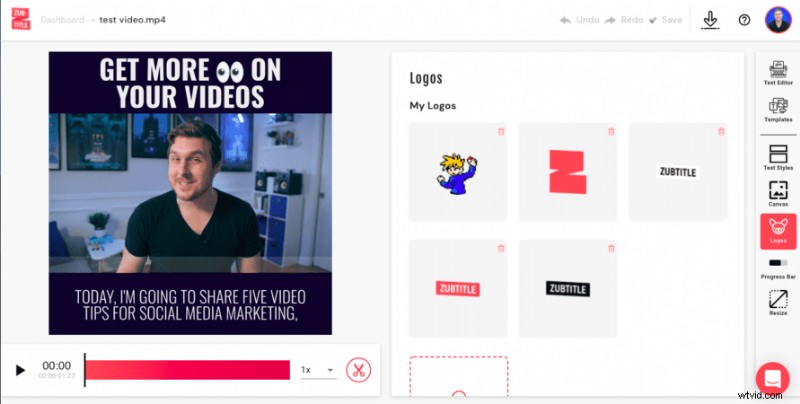
You’ll find it in the grey menu bar on the right-hand side of the screen.
4. Add a logo
You can add your logo image by either dragging and dropping your logo file into the appropriate section or clicking to select your file to upload (it must be a .png image).
6. Adjust sizing and placement
Once you’ve uploaded your logo, you can easily resize and place your logo by clicking and dragging it directly in your video.
Pro tip: If you’re using subtitles in your video (and you definitely should), try placing your logo in one of the upper corners. Having your logo in an upper corner throughout the video can remind viewers of your brand’s identity without being obstructed by subtitles.
7. Download your video
Just click the Download symbol (the down arrow) near the top of the screen to render your new video and download it to your computer or device.
Are you ready to add a logo to your video?
Sign up for a free Zubtitle account today to get started! With our free plan, you can create two videos per month. To create up to 10 videos per month (and remove the Zubtitle watermark), check out our standard plan.