
Adding logo to your video can prevent your work from being stolen or misused as well as promote your brand or company. How to add logo to video? Here are 3 excellent online tools that are capable of adding logo to video. If you want to add logo to video using a desktop program, MiniTool MovieMaker is recommended.
Adding a logo as a watermark can protect your video and promote your brand. Now, let’s learn how to add a logo to your video online.
How to Add Logo to Video Online
Abraia
Abraia is an online platform dedicated to optimizing and editing photos and videos for use on the web and social media.
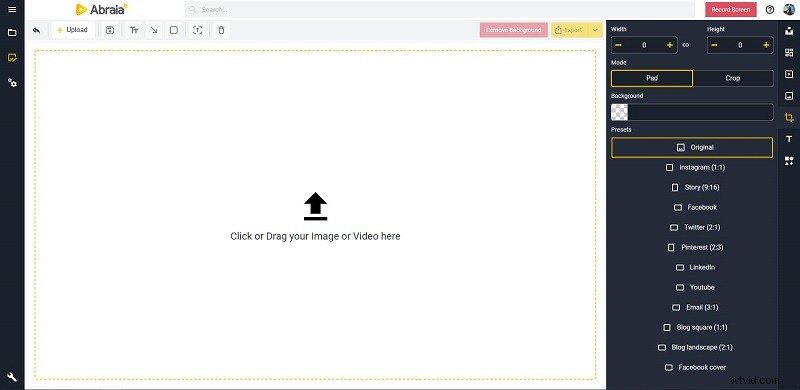
- Visit abraia.me on your browser and click Tools > Add Logo to Video > Start adding a logo.
- Click Upload to add your video from your device and set a custom size or choose a preset.
- Add your high-quality logo, icon, or graphics, preferably an SVG or transparent PNG file.
- Scale the logo, place it anywhere on the video, and drag the slider to adjust the opacity.
- Preview your video and then open the Export dropdown list to choose an output format.
Related article: How to Add Emojis to Videos in 2021
FlexClip
FlexClip is a simple online video maker and editor that comes with 1,000+ pre-made video templates and millions of royalty-free stock media.
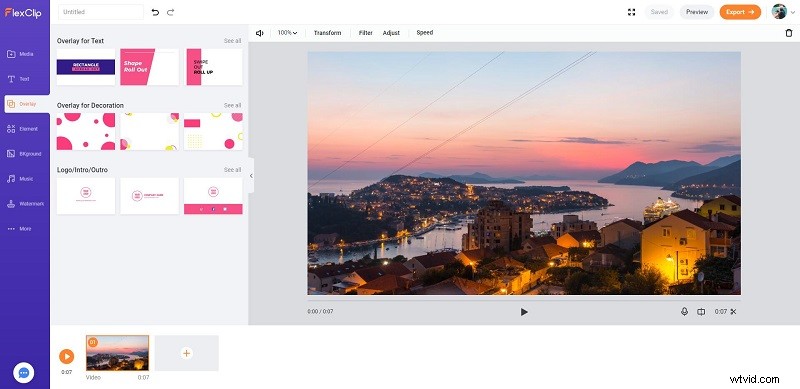
- Go to flexclip.com and log in to your FlexClip account.
- Select the Start From Scratch option, and then choose an edit mode and a suitable video ratio.
- Click Local Files to upload your video to the editor.
- Hit the Overlay option from the left panel and click See all behind Logo/Intro/Outro. Then select the one that you’d like to show your logo in the video.
- Double-click the circle logo icon to upload your logo and enter the basic information in the text box.
- Tap on Export and choose your preferred video resolution.
ClipChamp
ClipChamp is an online video creation and editing suite with all the features needed to create great videos.

- Navigate to clipchamp.com and log into your ClipChamp account.
- Tap on the Create a video button in the upper left corner and choose an appropriate ratio for your video.
- Click Browse files to import the video that you’d like to add a logo to and click the + icon to add it to the timeline.
- Select the Logo option from the left side menu, click Upload a logo, and then add it to the timeline.
- Drag the ends of the logo to adjust the time it appears in the video and click the Transform option to customize the video logo.
- Hit the Export button, choose your desired resolution, and then click Continue.
How to Add Logo to YouTube Video
To add logo to YouTube video, just use the Branding option built into YouTube.
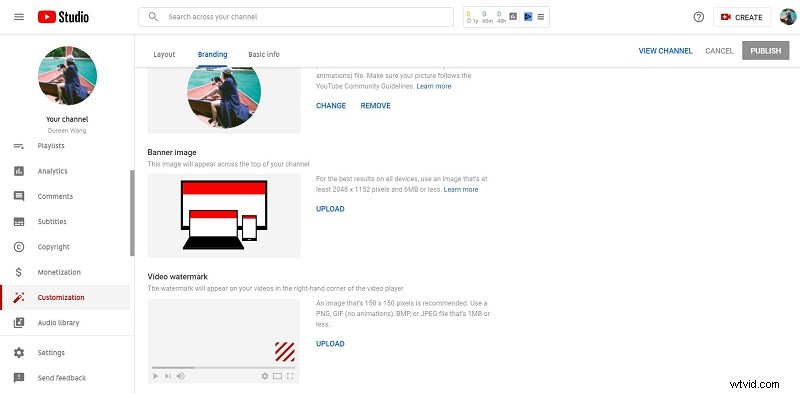
- Sign in to your YouTube account and click your profile picture to select YouTube Studio.
- Select Customization from the left menu and then switch to the Branding tab.
- Click UPLOAD under the Video watermark section and select an image (square image less than 1 MB in size).
- Adjust the size of your image (minimum 150 x 150 pixels), then click DONE.
- Select the display time of your logo and click PUBLISH.
Bottom Line
After reviewing this guide, adding logo to video or YouTube video would be a piece of cake for you. However, please note that When your video file is large or the network is unstable, we recommend you to use desktop software to add logo to video, such as MiniTool MovieMaker.