
Scrolling through social media, there’s a good chance you’ve come across countless social media videos that feature cool progress timing animations. So if you’ve ever wondered how you can add a progress bar to your video, we’ve got just what you need to do this quickly and easily.
Adding a progress bar animation can actually help you get more eyes on your video — and we know that’s what you want after you’ve spent valuable time creating an awesome video. Many social media platforms (such as LinkedIn, Instagram, or TikTok) autoplay their native videos. A progress bar can be a great extra visual element for grabbing your audience’s attention and clue them in that your video is auto-playing. And in the fast-paced world of the internet, those with shorter attention spans will be able to know that watching your video won’t take up too much of their time.
Here at Zubtitle, we make it easy to add progress bars to a video. Just follow this step-by-step walkthrough:
How to Add Progress Bars to a Video
1. Create a Zubtitle account
Sign up or log in to your Zubtitle account here.
2. Upload your video
Click the yellow “Add New Video” button on the right-hand side of the screen.
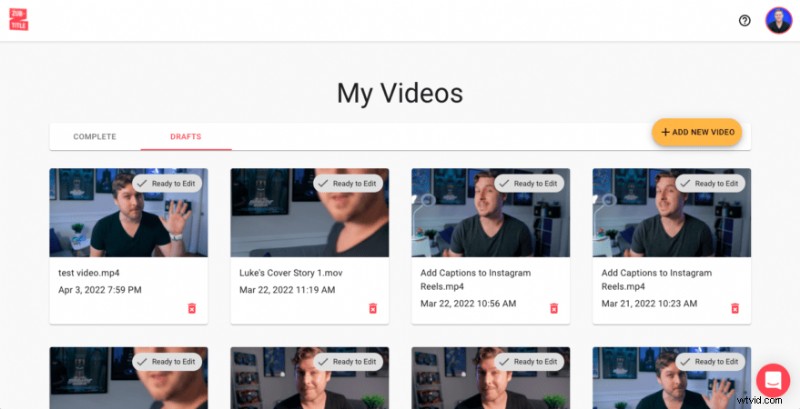
3. Select "Progress Bar"
You’ll find it in the menu bar on the right-hand side of the screen
4. Add progress bar
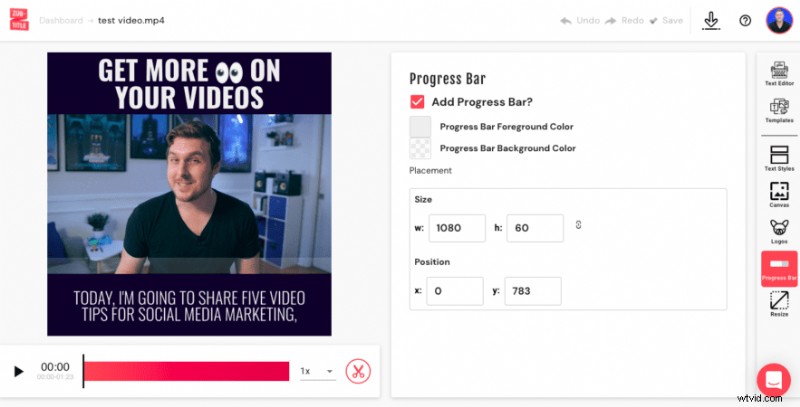
Click the checkbox next to the “Add Progress Bar” option, which by default will add your progress bar to the very bottom of the video.
6. Customize your colors
Once you’ve checked the progress bar box, you’ll have the ability to select color options for the background and foreground of your progress bar. Choose from any of the available colors or add your own custom, branded color.
7. Adjust sizing and placement
You can easily change the size and placement of your progress bar by changing the width and height in the Size boxes and adjusting the x and y numbers in the Position boxes.
8. Download your video
Just click the downward arrow Download symbol at the top of the screen and download it to your computer or device.
Are you ready to add progress bars to your video?
Sign up for an account and start creating for FREE!