
Adding progress bars to video is a trend that has risen on social media and for a good reason. I am going to show you how you can easily add and customise progress bards on your videos.
Why add a progress bar to your video?
Many influencers across all social media platforms have adopted the progress bar hack. But it is most commonly found on instagram as instagram does not have a native progress bar. The reason why influencers are adding progress bars to their videos is simple, so the viewers knows how long the video is going to last.
Additionally the progress bar is an important indication for the viewed with shorter attentions spans as it lets them know the duration of the video.
Let's now get to it and lean how you can add a progress bar to your videos online using VEEDs online video editor.
1. Upload your video
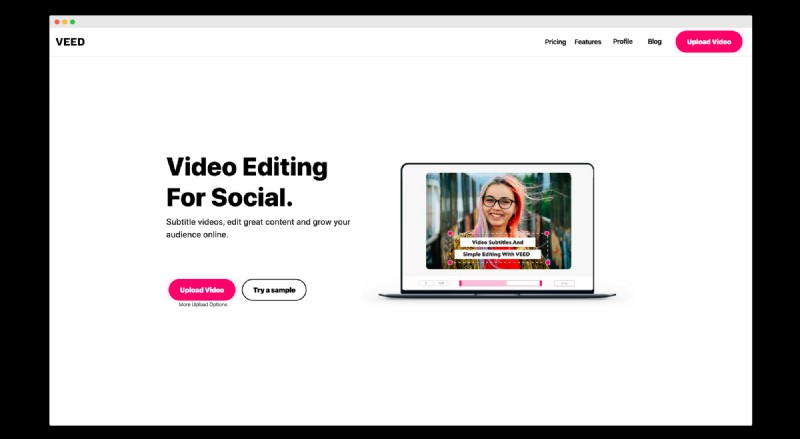
Head to our online video editor and on the main page, click upload video. You can upload all major video file formats like Mp4, Mov and you can also pull in video from dropbox and google cloud.
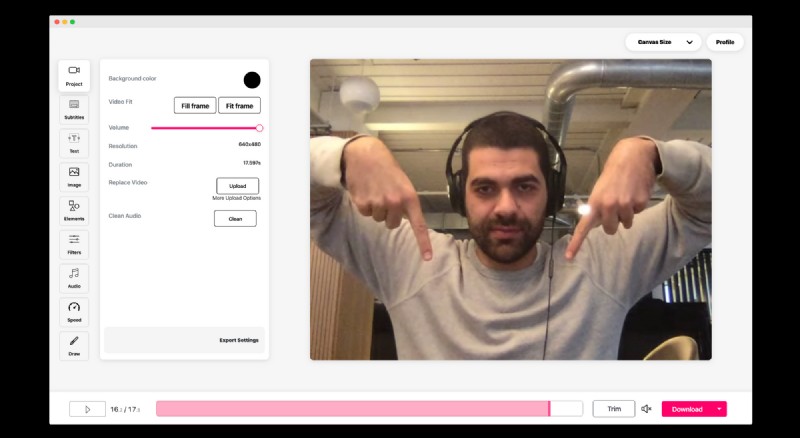
Once you have uploaded your video, the editor will open. On the left hand side are your editing features. At the bottom of the page is the timeline and download button.
Add progress bar
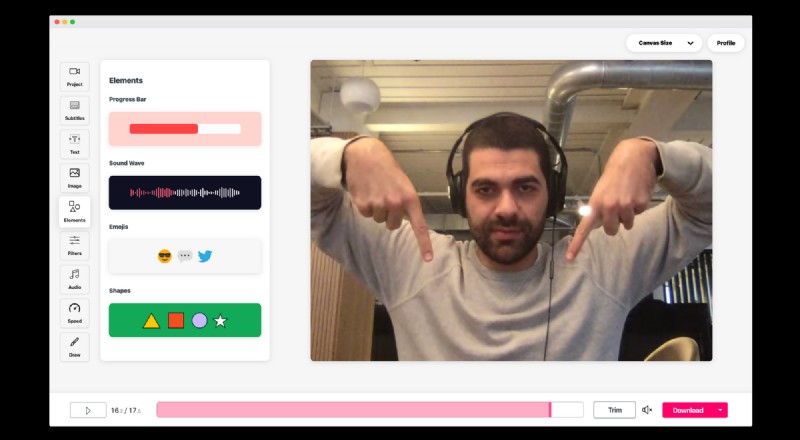
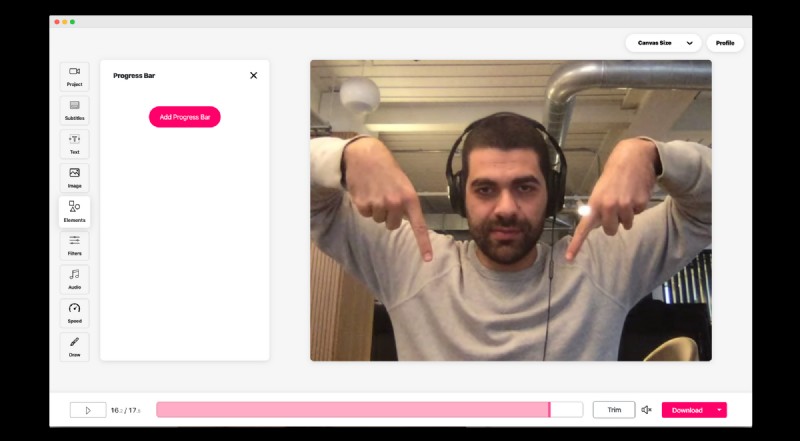
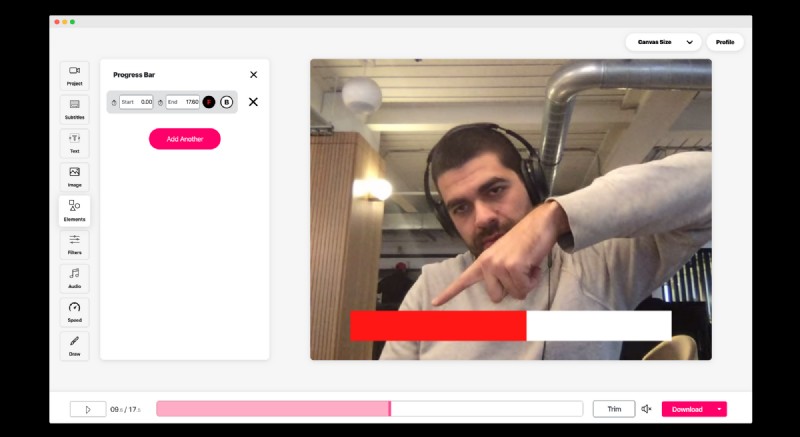
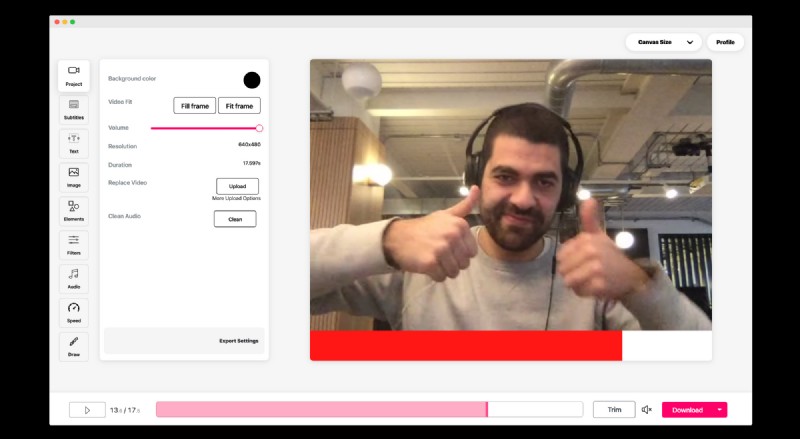
Now in the bottom right hand side, click on the progress bar tab and then click "add new" This creates a new progress bar that you can now see on your video. By default the progress bar is black and white and lasts for the entire duration on the video. For this example I am going to change it to yellow and change the background of the progress bar clear by removing the opacity. You can click on the progress bar and move it to where ever you want.
Download Video
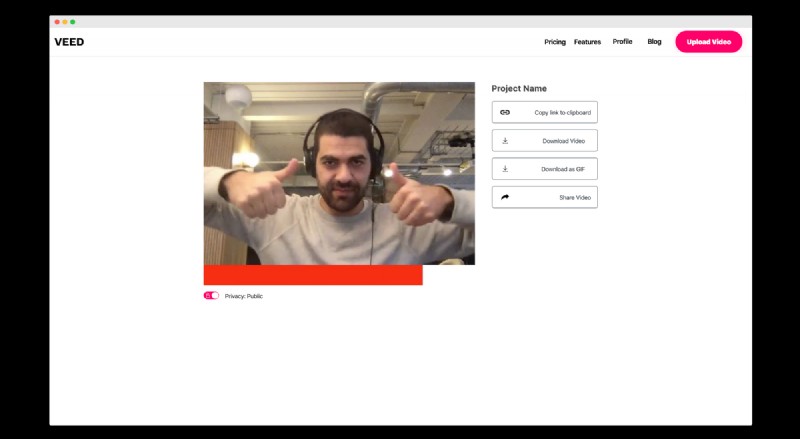
Now you are happy with your video, simple press download and your video will start rendering. Once the render is finished, you can download your video.
You can do much more with VEED that just add a progress bar to a video. Take advantage of our popular subtitle tool, video effects and also podcast to video tool.