
Add a text box in the middle of your video
It doesn't sound so difficult, as you can simply make a picture with text and paste it in the right place through the video editor. But if it turns out that the text is in the wrong position at this stage, you will need to fix the picture separately and add the corrected version again. And if you use the subtitle function, the number of settings varies from one editor to another, and you will have to spend time finding the right one. So how to add text in the middle of a video without such complications?
We have a tool that will help you with that! It works online as a video editor on any device, including Windows (10, 8, and 7), Mac, Android, and iOS, so you only need a stable Internet connection for it to work.
And the rest is pretty simple, follow the steps below:
Upload a video
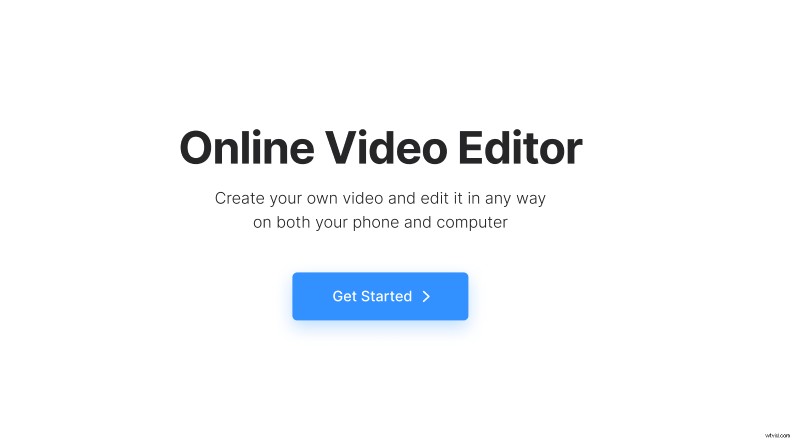
Open Clideo’s Online Video Editor and click "Get started".
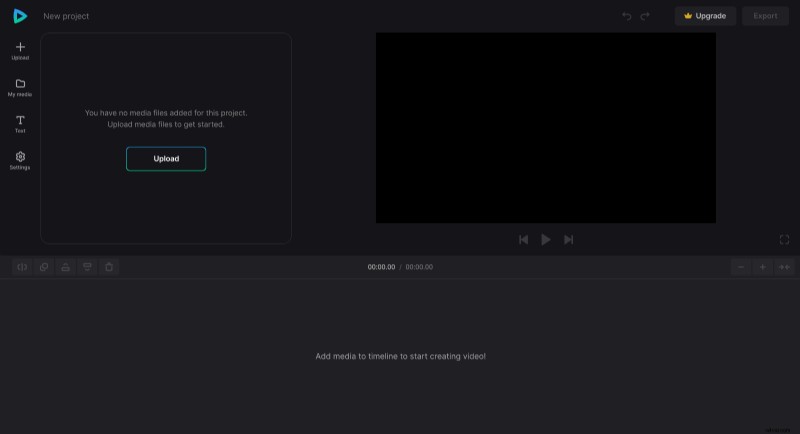
In the editor, click "Upload" and add the media files needed from your device or cloud storage account. You can add additional files anytime in the same way.
Create a video with text transitions
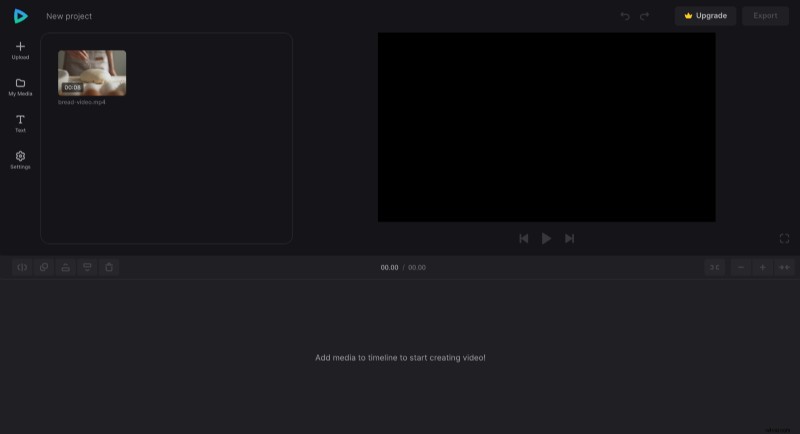
Uploaded files are in the "My Media" tab. To add media files to the timeline, click on the "+" sign or manually drag them there.
Place the playhead where you want to split the video into parts and then move them across the timeline, leaving space for the text transition. The option to split a file is at the far top left of the timeline, along with the options to duplicate it, place it on the front/back, and delete it.
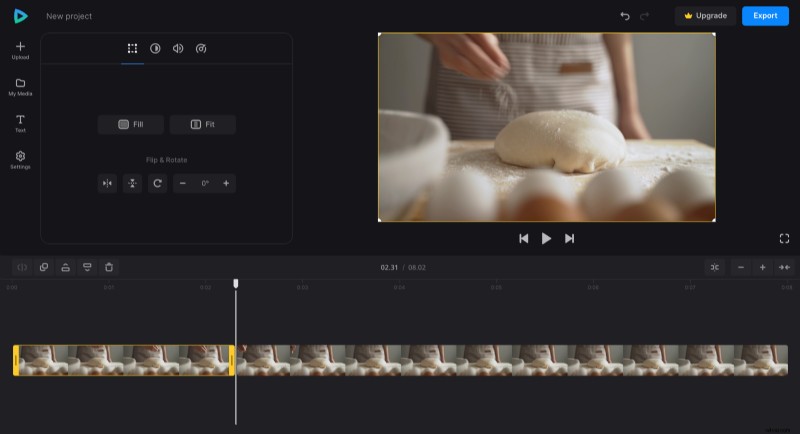
You can edit each element separately by clicking on them and adjusting different crop, saturation, and other settings. Video and audio files also have options to change their speed and volume.
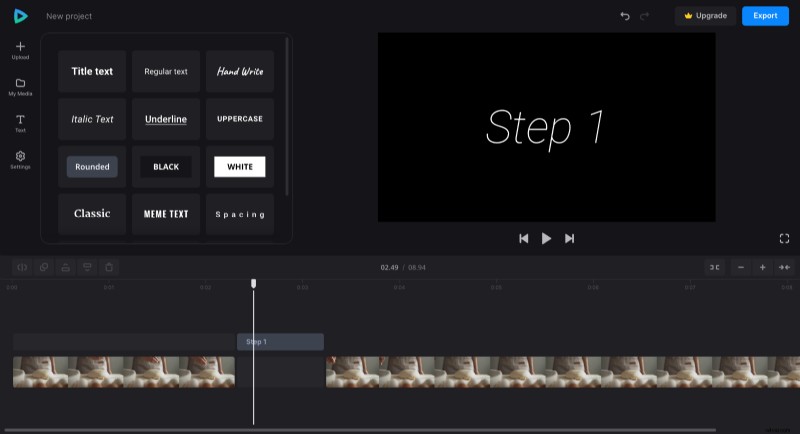
Now, to create a text transition, put the time marker between video splits, click the "Text" tab and add the preset you like. Then, click the text element on the timeline to change the wording and customize font, size, boldness, color, background, and alignment. If it's shorter or longer than the break between the video parts, drag its right or left handles to adjust it properly.
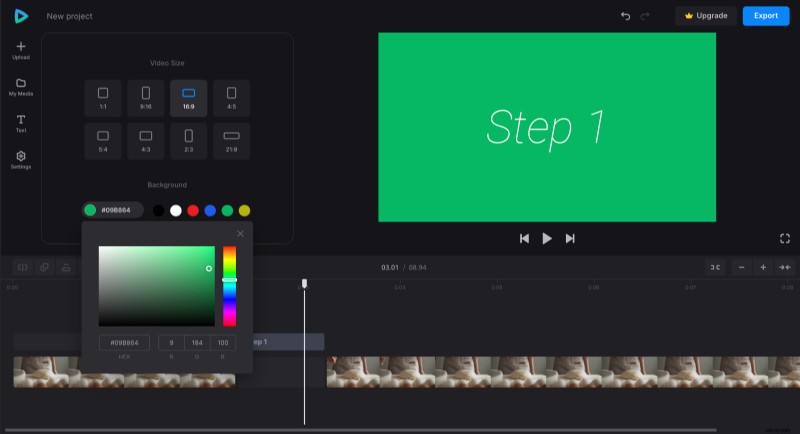
In the "Settings" tab, you can change the video's aspect ratio by applying the preset that suits your needs and also change the background color if the video won't cover the whole space.
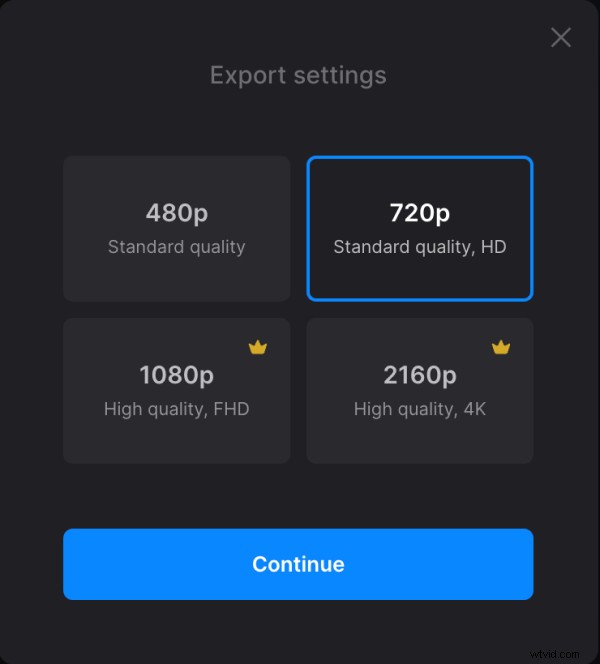
When editing is finished, click "Export" and choose one of the export options. Note that the exporting process may take some time, depending on the project size.
Download the video
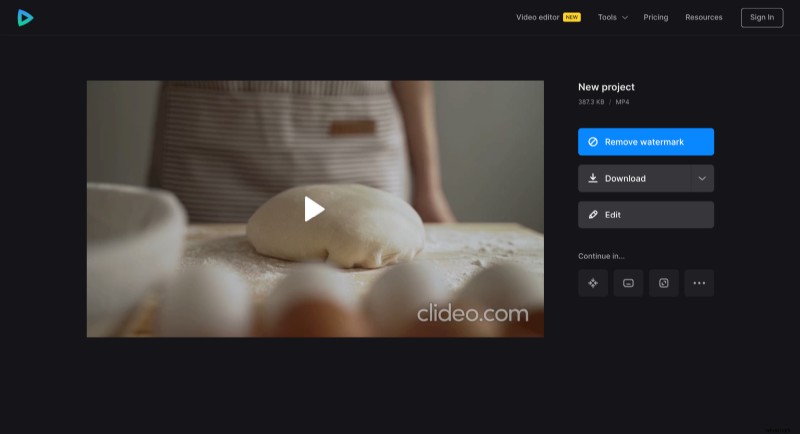
After processing, watch the preview to see if the result looks like what you wanted. If you need to add some changes, click "Edit". Otherwise, click "Download" to save the video to your device or upload it to the cloud storage.
Are you interested in even more, then explore Video Editor Help Center to get acquainted with all our tool's options and features.