
In this post, you can learn the steps to add text to a video with screenshots via a free no watermark video editor. There are 3 free and easy methods. Moreover, the 3 most outstanding video editors that can help complete video text adding are also introduced.
How to Add Text to a Video for Free on Windows 10/11How to Use iMovie to Add Text to Videos on Mac
How to Add Text to Video Online Free No Watermark
3 Recommended Video Editors to Add Text to Videos
Frequently Asked Questions about Video Text Adding
It would be a problem when watching a video when the videos have linguistic differences or odd accents. Then the text to a video can be really necessary as text/subtitles/captions provide clarity and help users understand the undertone message which is being conveyed. So how to add text in videos for free? Generally, a good video editor will complete adding text to a video. Here in this article, you can easily learn how to add text to a video on Windows, Mac, and online.
Related Posts: How to Add Text to YouTube Video, How to Add Text to Video Online, How to Add Animated Text to Video
How to Add Text to a Video for Free on Windows
Well, there are lots of video editors who are capable to add text to videos for free. But most of them are asked for skills badly. In this part, FilmForth is introduced as it is totally free to use and has no watermarks exported. FilmForth is a versatile video editor that also adds stickers to videos and adds animation to videos, the best part of FilmForth is it is really easy to use. Let’s take a look at how to add text to a video via this free video editor.
Step 1. Install and Run Video Editor
FilmForth is currently available on the Microsoft Store that you can trust 100%. Directly install it on your computer by tapping the following button.

Then launch FilmForth and the home screen of the video editor will appear. Click on the New Project button to create a fresh project for the new video.
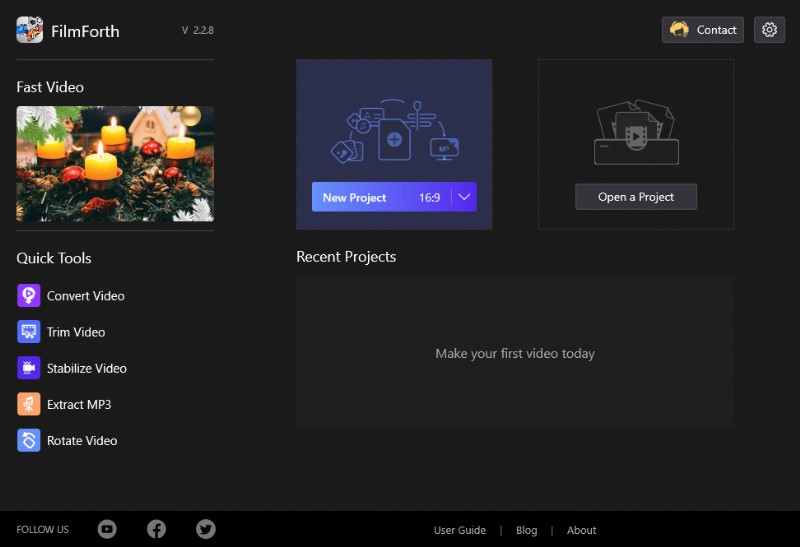
New Project on FilmForth
Then hit the Add Video/Photo Clips to add the video you wish to add text. You can either drop and drop the video into FilmForth or manually browse it.
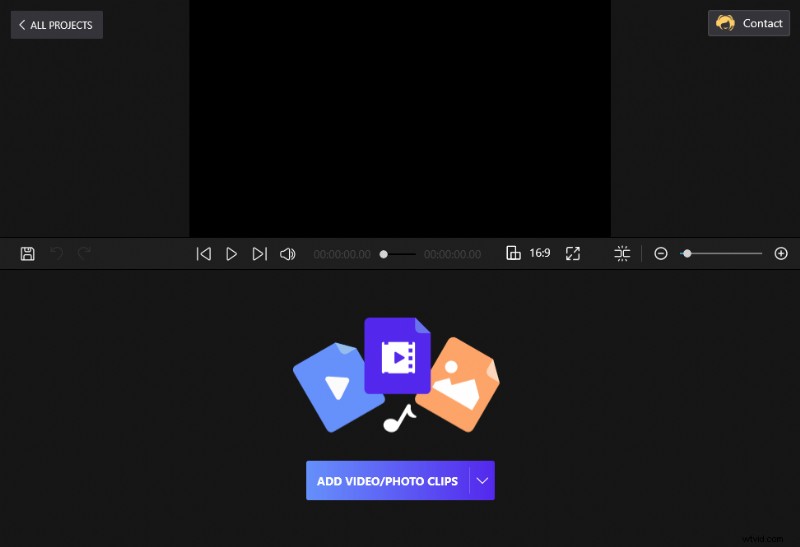
Drag and Drop the Video to FilmForth
Step 2. Add Text to the Video
Click on the Text option from the dashboard. Alternatively, you can click on the icon from the video feed as well.
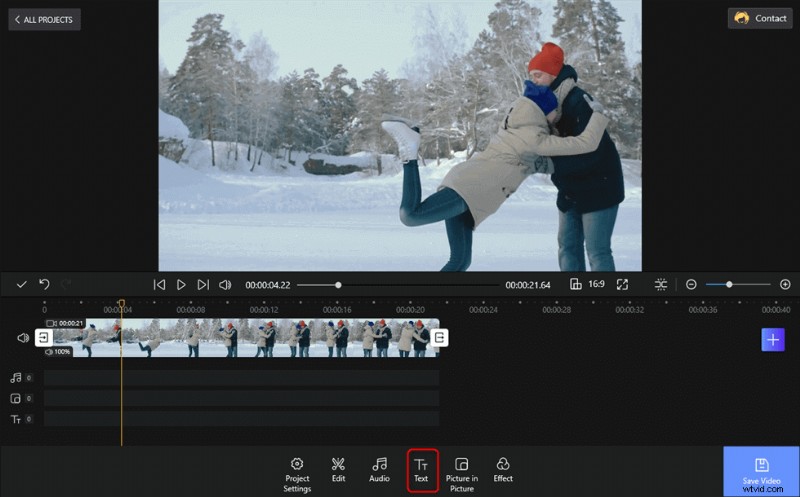
Add Text on Your Video
After that, a new toolbar will show up. It contains the Add Text, Edit Text, Set Start, Animation, Duplicate and Delete. C lick on the Add Text button, accompanied by a plus button. You can see there is a new Text box popped up.
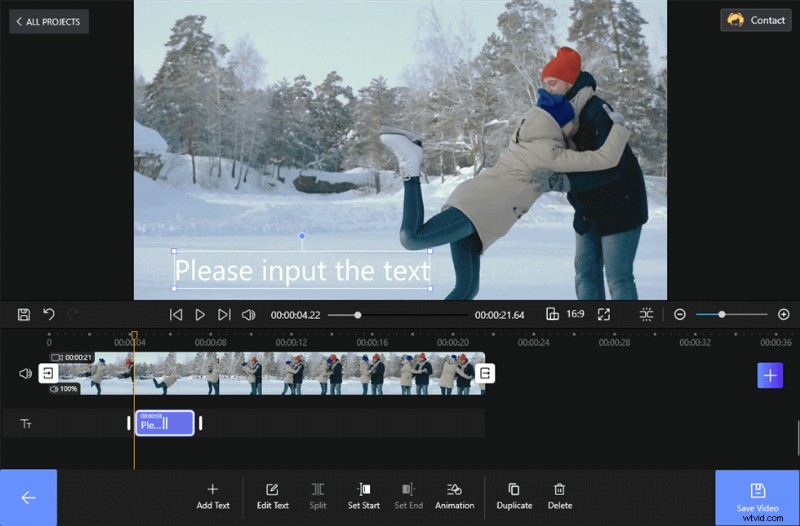
Add Text to the Video
Step 3. Edit the Text
You can directly click on the textbox on the video. Then you will see the text editing tools. Add the text of choice along with the option of over a dozen fonts. Different colors, alignments, and sizes are also available.
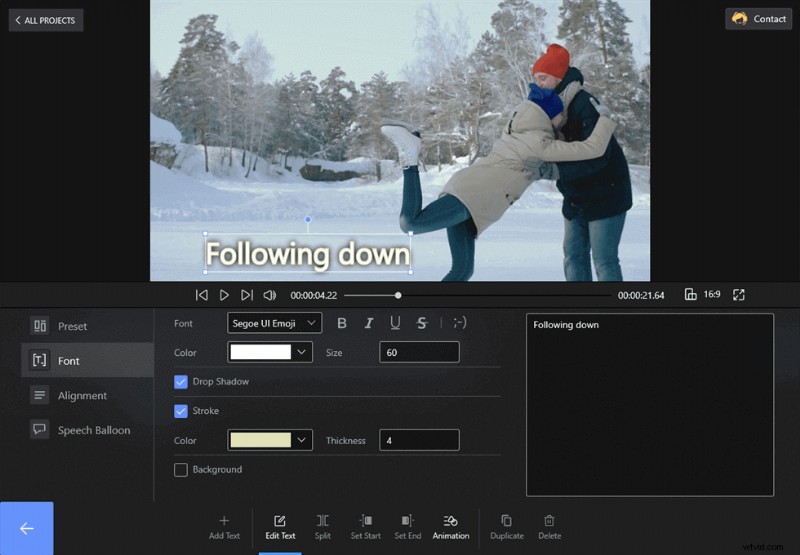
Edit the Video Text
Add text to videos and edit the text as you need. Setting a proper Font, Preset, Alignment, and Speech Balloon will make the text funnier. Also, the Animation will help you add special Entrance, Exit, and Emphasis to the text. The Duration will determine the length of the animation.
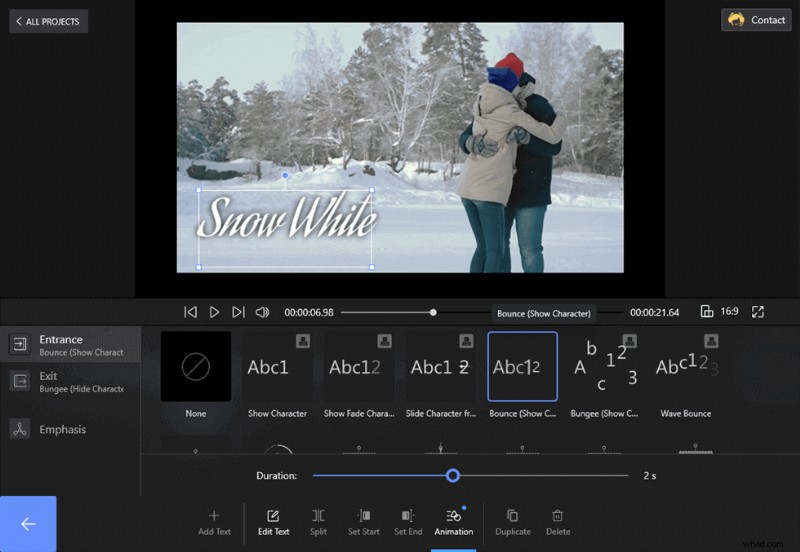
Animate Text
You can determine the length of time for which a particular text will appear on the video. Click on the handlebars of a specific feed of text and resize it according to your needs. The other way is to use the Set Start and Set End buttons. Seek your video.
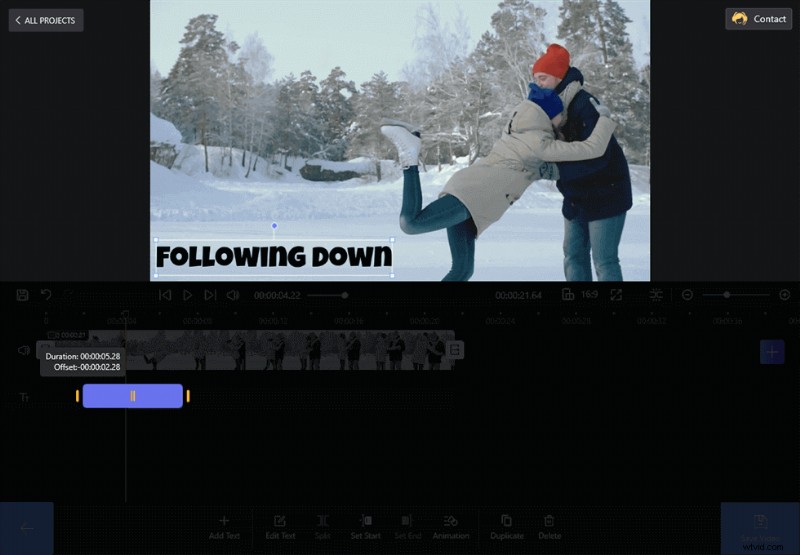
Set the Text Duration and Offset
Step 4. Save the Video
Once all the relevant texts have been added to the video, click on the Save Video button. Go through the basic frame rates, resolution, etc. and you are done.
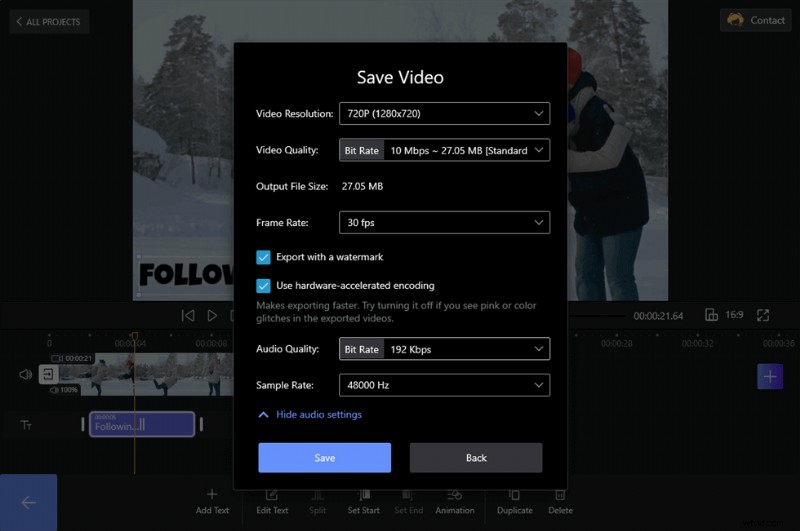
Save the Video
This video tutorial also reveals the steps to add text to a video. Can’t miss it.
How to Use iMovie to Add Text to Videos on Mac
For macOS users, iMovie video editor can be the best bet while adding text to videos on MacBooks. iMovie makes it possible to easily add text to videos on iPhone. Known for all, iMovie can complete lots of work when the users are editing the movie. So let’s meet the steps to add text to a video via iMovie.
Step 1. Upload Video Clip to iMovie
Tap the Import Media button to add the video. You can preview changes you made to the video on the right panel. Later, you need to drag the video and drop it to the track below.
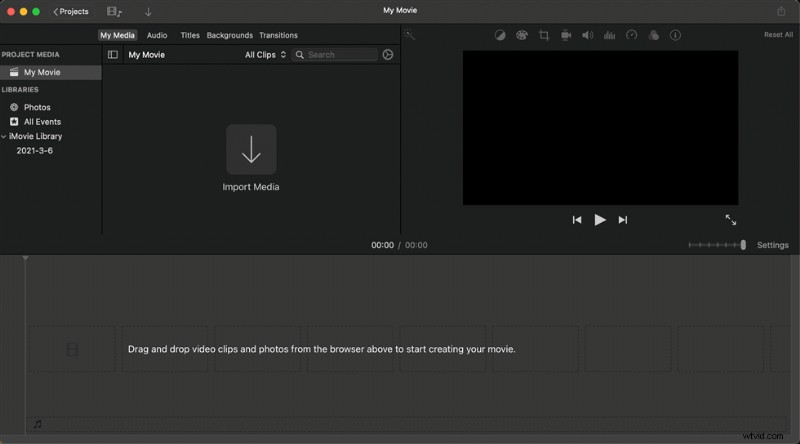
Upload Media Clips
Step 2. Select Titles
Different from FilmForth and Photos text adding on Windows 10, the Titles from the toolbar is on the top of the main interface. Hit the Titles to choose a text theme. There you have to know you can’t change the theme style but you can choose different themes to meet your needs.
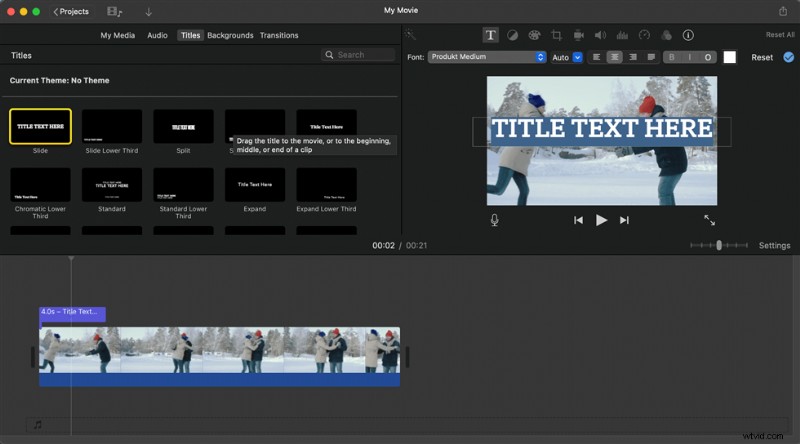
Hit Title to Add Text
Step 3. Adjust the Text
Double click on the text you had added and you can easily reset the text with different front, sizes, positions, etc.
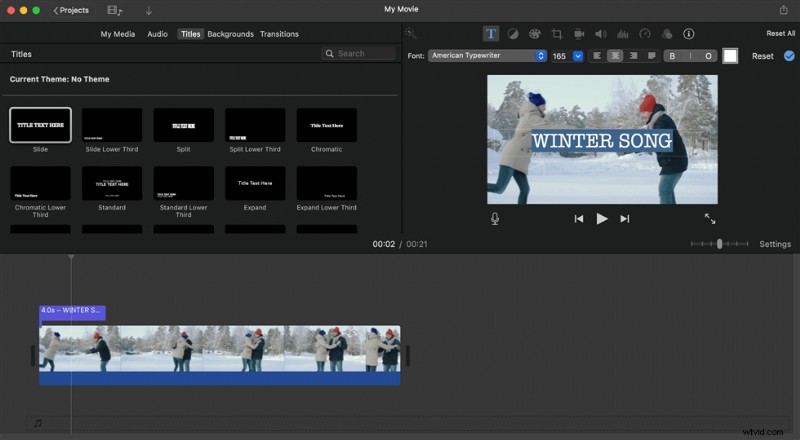
Adjust the Text
Once you complete all the settings, you will own a video with the text you want on your MacBook. Except for FilmForth and iMovie you can use to add text to videos, there are quite a lot of video editors out there supporting text adding. Let’s take a quick look.
How to Add Text to Video Online Free No Watermark
VEED is a free online video editor that doesn’t even require you to create an account. You can easily add text to your video and then change its font, color, and style within a few simple clicks. It’s perfect for creating captivating videos for social media, and below shows you the detailed steps on how to add text to your videos with VEED.
Step 1. Upload the Video File
To upload your video to VEED, click on “Choose Video” and select your file. Alternatively, you can drag and drop your video from your folder into the editor.
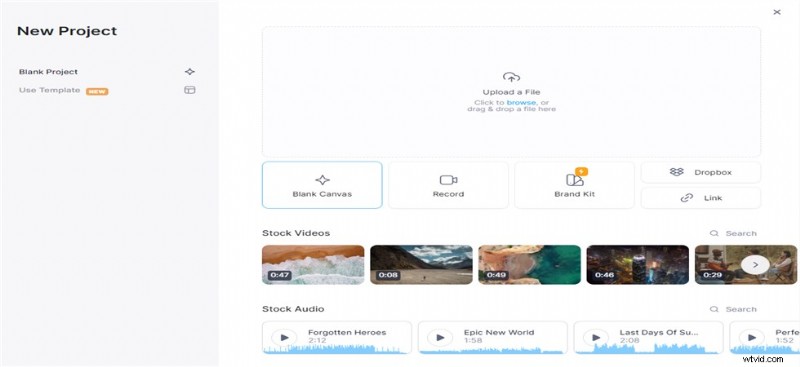
Upload Your Video File
Step 2. Add Text Online
Click the “Text” button on the left menu to start adding text. There are many options for you to customize the text, you can choose the font and thickness and even set the animation, effects, and duration for the text.
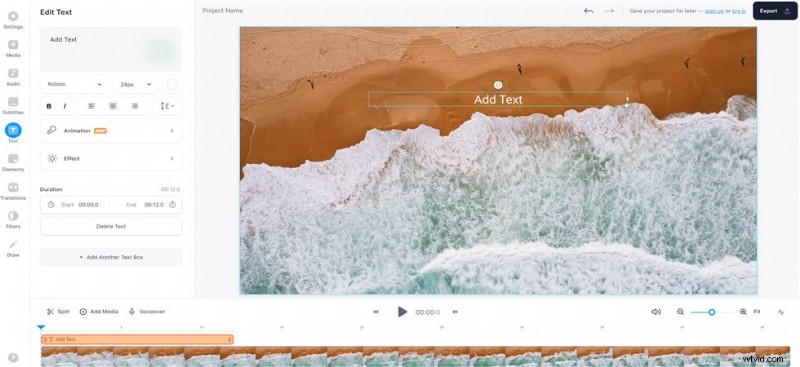
Add Text to Video Online
Step 3. Exported the Video
The text you typed will be saved with your video when you click on “Export”. The video will be saved as an MP4 file.
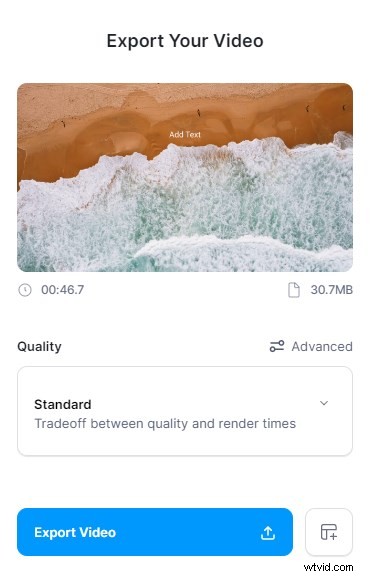
Exported the Video
3 Recommended Video Editors to Add Text to Videos
We can go through 3 more video editors that can add text to videos. All of them are open-source, free of charge. Therefore, you wouldn’t have to worry about it making a hole in your pocket. And here you can learn about Top 7 Free Video Text Adders in 2022.
#1. Shotcut
Shotcut is all about offering all the features while using minimal computer resources. Shotcut video editor offers intuitive options for you to add text to videos, just hit the button and make your edit. Since Shotcut is a free, open-source, and cross-platform video editor, you can make any adjustments of the software, whatever operating system your PC is on.
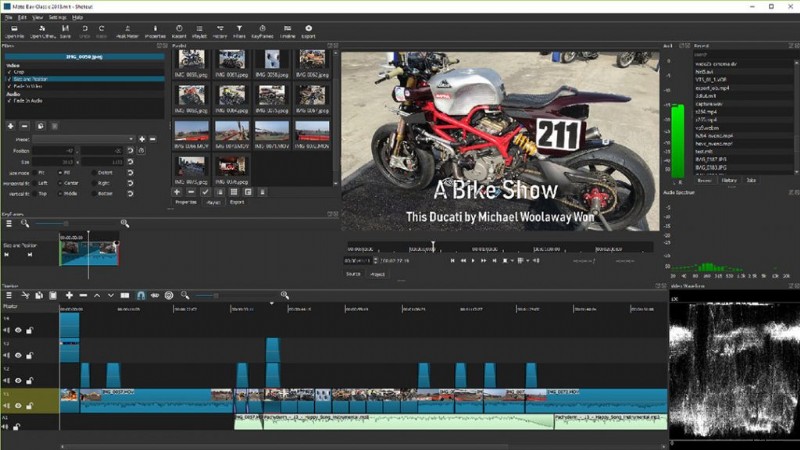
Use Shotcut to Edit Your Video
Features
- Match different frame rate videos in one project itself.
- Over four dozen video filters to make your video stand out.
- Easy-to-add elements such as text to the video.
PROS
- Network stream playback(HTTP, HLS, RTMP, RTSP, MMS, UDP).
- Supports a wide variety of media formats(video, audio, and photos).
- Intuitive interface that facilitates efficiency.
CONS
- Complex for amateurs and newbies.
#2. VideoPad
When you are looking to start editing videos, Videopad can be the best pal to have around. It’s quite easy to add text to video with VideoPad, and it offers many great fonts and sizes for your customizations. Other VideoPad features are as follows.
See the VideoPad Review
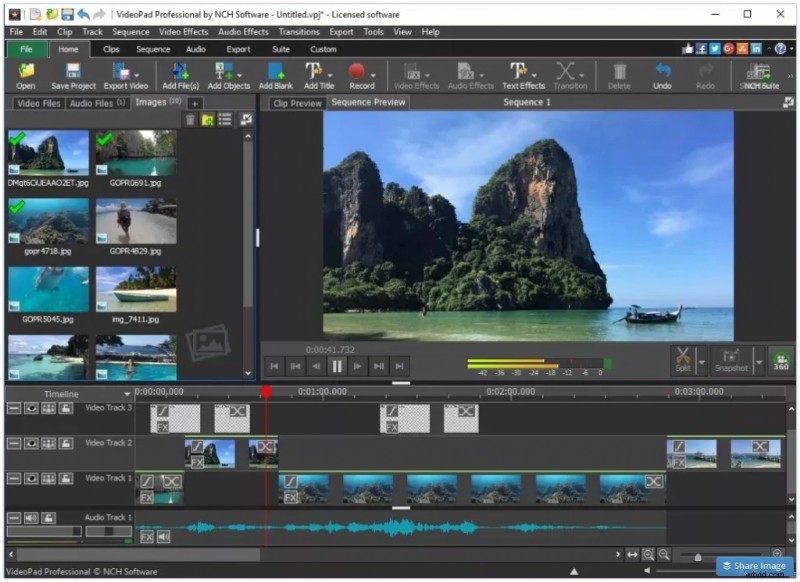
Use Videopad to Add Your Text
Features
- Tailored presets for exporting videos to platforms- such as Twitter, YouTube, and Facebook, amongst others.
- 3D, 360-degree video editing tools.
- State-of-the-art video stabilization for shaky content.
PROS
- Easy to use for beginners as well.
- Different audio effects along with powerful tools to aid them.
- Lossless export quality with the inbuilt renderer and encoder.
CONS
- Lacks the advanced features that might have made it a complete package.
#3. Blender
Leaving the big guns for last. Blender has virtually endless possibilities with its advanced-level editing suite. To add text to video with blender, you can simply go to the text editor, select text and click “Tab” to get text mode on, Shift A and Add text. As you can see from the below Blender features, you can achieve many more things with Blender as well.
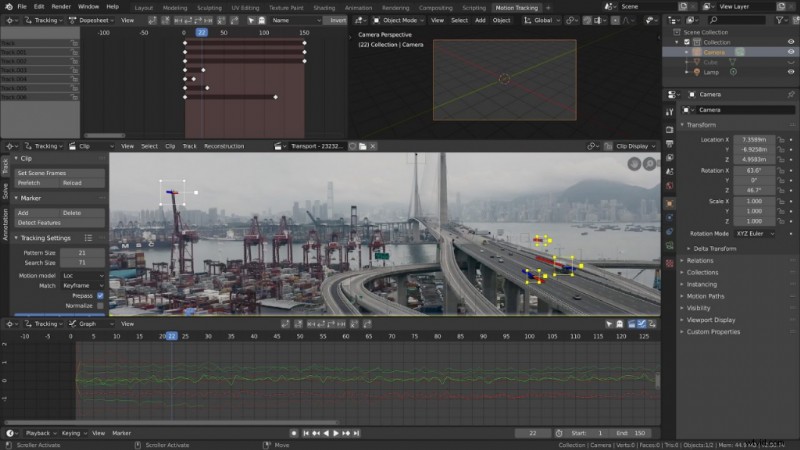
Text on Video Editor
Features
- Use scripts of Python API, and automate your mundane, routine task.
- Basic video editing tools to get around.
- Modeling, animation, and VFX toolset to go into full-production mode.
PROS
- Up to 32 slots for adding videos and other media content.
- Professional-level color-grading options with add-ons.
- Extensive library of vignettes and effects(visual).
CONS
- Complex for novice computer users.
How to Add Text to Video FAQs
How to put text on a video?
It is the same to add text to a video. You can follow the 4 steps above to add text to a video directly on FilmForth.
Run FilmForth > Import the video you are going to add text > Edit the text > Save the video.
How to add text to YouTube videos?
There are 2 methods you can use to add text to YouTube videos. One is using FilmForth to add text to videos before sharing the video to YouTube. The second one is using YouTube itself.
Go to youtube.com and sign in to your Google account > Click your avatar and then select Creator Studio> Hit the Video Manager tab > Select the video > Select Subtitles/CC after clicking Edit button > Add Captions/Subtitles.
What’s the best video editor to add text to video?
There are lots of video editors who support adding text to the video. You can choose the one you prefer if it’s available on video text adding. For most users, a free and no watermark video editor would be the best bet. So FilmForth would be your choice as it also provides many powerful and advanced video editing features.
Conclusion
You can also add text over a video while uploading to different platforms such as YouTube, Facebook, and more. However, the level of customization for text is conservative compared to what is offered by video editors.
As a free and no watermark video editor, FilmForth would be the best bet to make movies, no matter you want to add text to the video or just want to add some great effects to your movie.