
This page shows you how to make a video from animated text using video editors and online tools.
A study by Verizon says that around 70% of the users watch videos on mute, relying on captions and subtitles. Adding animated text to the video can undoubtedly make the videos captivating. Animated text usually involves texts in different sizes, fonts, laced with a variety of effects.
They can make an entrance and exit in the video in an attempt to engage the viewers. All of this sounds fancy and hectic, but that’s not the case with the right set of tools. You need a video editor such as FilmForth, Adobe Premiere Pro, text to be added, and a few minutes in hand. That is all that it takes to create animated text.
Add Animated Text to Videos With FilmForth
Adding animated text should be a hectic task reserved for trained professionals. Use editors like FilmForth, which is designed for editing videos on the go while adding different effects, elements, and flabbergasting captions.
Its Features
- Advanced text options for every kind of demographic. Add animated animation from the text menu.
- Add fonts of your choice to the video. The app has over a dozen fonts, but that’s not all. Use the system fonts without a hiccup.
- All are entirely free to use! No post-installation or hidden charges to take you by surprise.
Go to Microsoftware to download the FilmForth client directly. Do not download from any third party in case of scams.

Step 1. Create New Project and Add Video Clip
Launch FilmForth and create a new project by clicking on the New Project button.
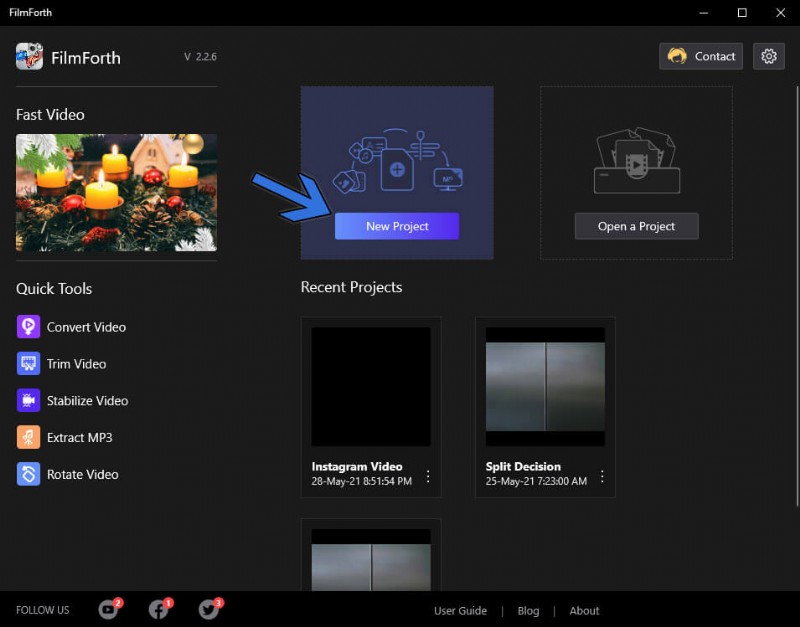
Create Project
Import a video using the drag and drop feature. You can also use the Add video/photo clips button.
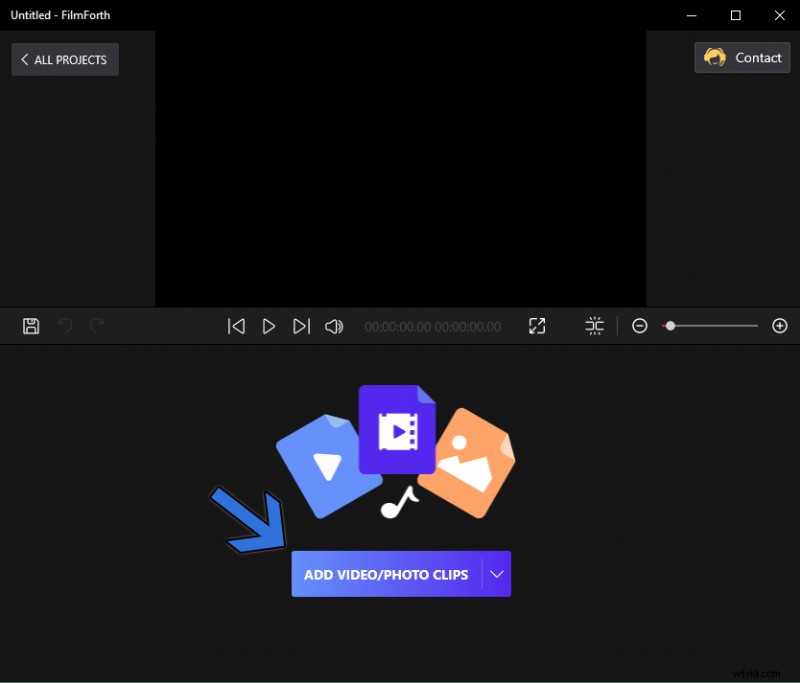
Add Video/Photo Clips
Step 2. Add Text and Enter Text Menu
Now, we will add text to the video. Head to the text menu through the shortcut, which is located in the timeline feed.
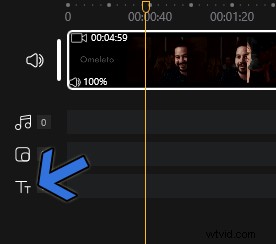
Text Menu Shortcut
Click on the Add Text button from the tool’s dashboard. It will add a text box on the screen. After that, on the right, click on the Edit Text button, which will open the text editor.

Add Text
Here, we have a text editor with a variety of options.
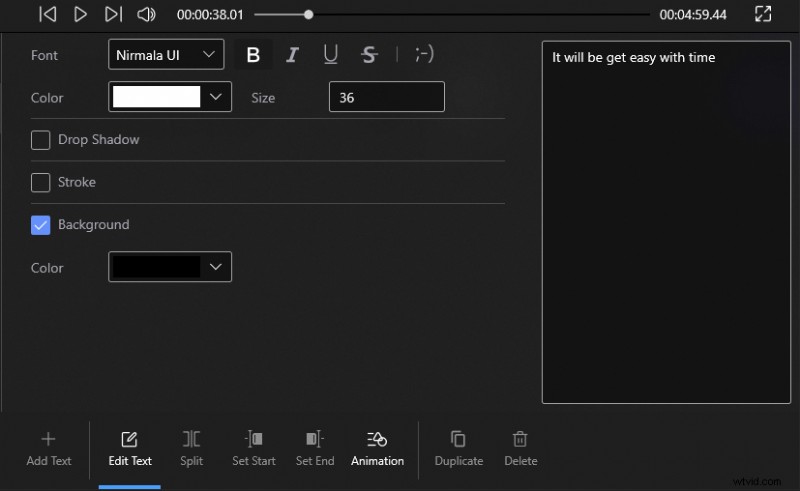
Text Editor
- Font – Apply app’s inbuilt as well as system fonts for the caption.
- Color – Give any color in the RGB spectrum to your animated text.
- Drop Shadow – It will add shadow behind your text. Shadows help in making the text distinguishable from any colored background.
- Stroke – Add a border to the text and provide a definition to it. You can set the stroke in any color and thickness between 0 to 100.
- Background – Provide a background color to you when the strokes and drop shadows are not enough. They create a solid color(of your choosing) bar behind your text.
- Alignment – Align your text in different styles, and calibrate text, line spacing.
- Presets – Text is already available in different styles. Select the one which is suitable for your video.
Step 3. Add Animation to Text
Head to the Animation menu from the tool’s dashboard, located at the bottom of the window.

Click “Animation”
Inside the animation menu, you will have three different sections
- Entrance: The text will make an entrance and appear on the screen. You can select different ways for the text to enter the screen from the dozen plus entrance options.
- Exit: Make the text appear for a brief period, and then it will vanish. You get 11 ways for your text to make an exit.
- Emphasis: Have an important text message that needs to be read and not missed by the viewers? Use emphasis to present the text animatedly.
The animation will keep on happening, depending on the interval speed, which can be set between 0.2 to 2 seconds.
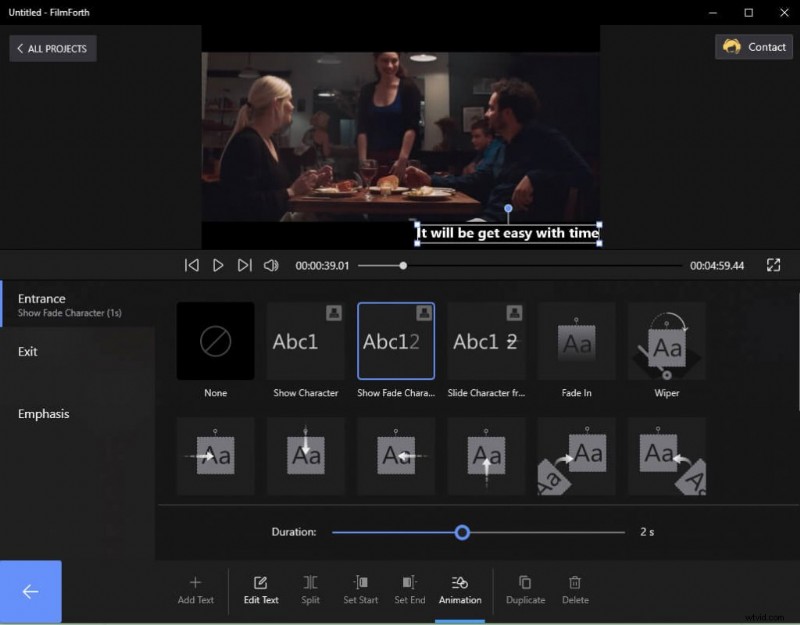
Animation Menu
Once all the animated texts have been added, and it’s time to wrap up and save the video. You can do that by clicking on the Save Video button located at the right bottom corner of the screen. Go back to the editing menu from the text editor, and you will find the button.
Or you can follow the video tutorial which detailed introduced how to add animated text to video with FilmForth.
Add Animated Text to Videos With Online Tools
When you don’t want to install an editing application, there are few online tools for your needs.
# 1. Kapwing
Kapwing provides a full-fledged editor, where you can also import video from a URL.
Step 1. Drag and drop to upload your video.
Step 2. Head to the text menu from the shortcut given on the leftwards toolbar.
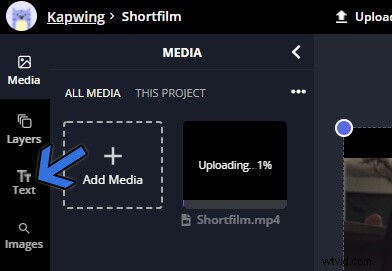
Text Menu Shortcut
Step 3. A text box appears on the screens. On the right side of the screen, the text menu will pop up. Head to the Animate tab and select the animation that you want to apply to your text.
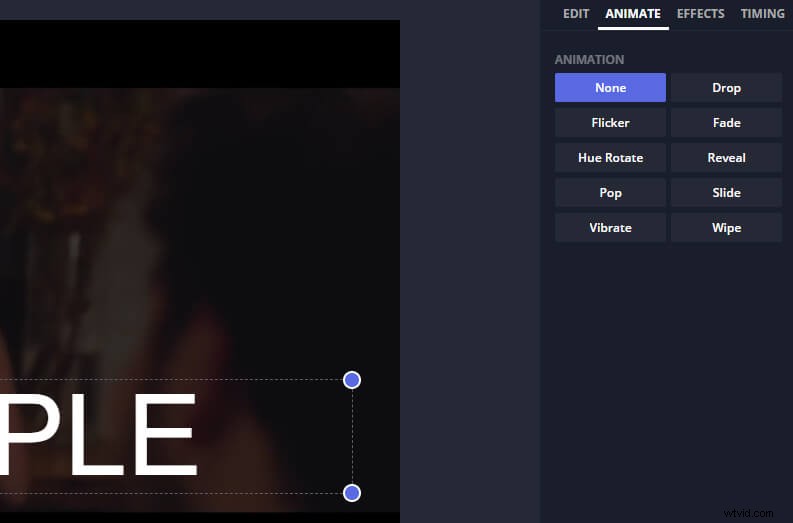
Animation Option
Lastly, export the video by clicking on the green export button located at the top corner.
#2. Animaker
Animaker requires you to log in using an account or use Facebook, Google authentication.
Step 1. Select a blank canvas from the dashboard and import a video through drag and drop.
Step 2. Head to the text editor as denoted by the arrow A.
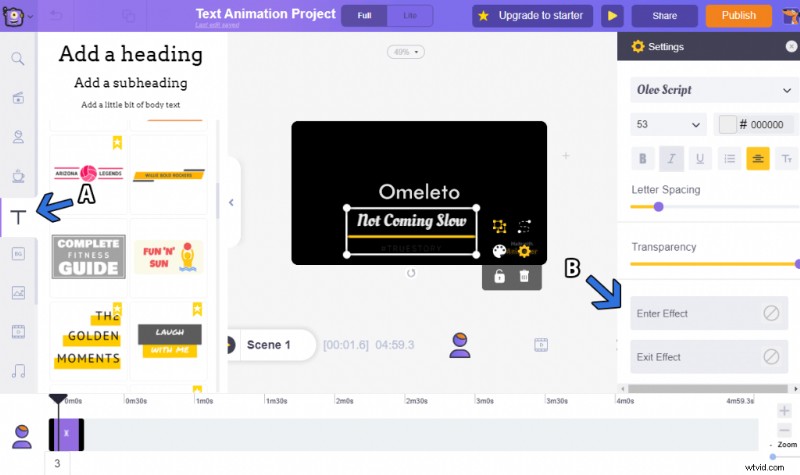
Animaker Editor
Step 3. On the left side of the screen, select the Add a little bit of body text option.
Step 4. Then, we move to the right side of the screen. Select the font, color, and size.
Step 5. Select the Entrance and Exit effects individually. Between them, you have over two dozen different animations to choose from.
Step 6. Hit the Publish button for exporting the video once you are done adding animated text.
Conclusion
Add the text of your choice and the accompanying animation using any editor of your choice. Many videos make it incredibly complex to add animation. FilmForth, on the other hand, is all about easing video editing. You can use it to jazz up the text in your video with animation, effects, and more.