Add a voiceover to your video online
Our service provides a wide choice of different tools, so before adding a voiceover, you can cut, crop, loop your video, merge it with other recordings and perform various other actions.
Our add audio to video tool works online, it’s compatible with all the devices, including iOS, Android, and Windows. It allows trimming the added soundtrack, adjusting its volume and volume of the video, saving the result in any format.
Keep reading and get to know how to add a voiceover to YouTube or any other video.
Upload a video first
Open Audio Editor by Clideo in any browser. To work with a video from your camera roll or a computer folder, hit the big blue button in the centre. To import files, stored on Google Drive or Dropbox, call a drop-down menu and choose the respective cloud storage account.
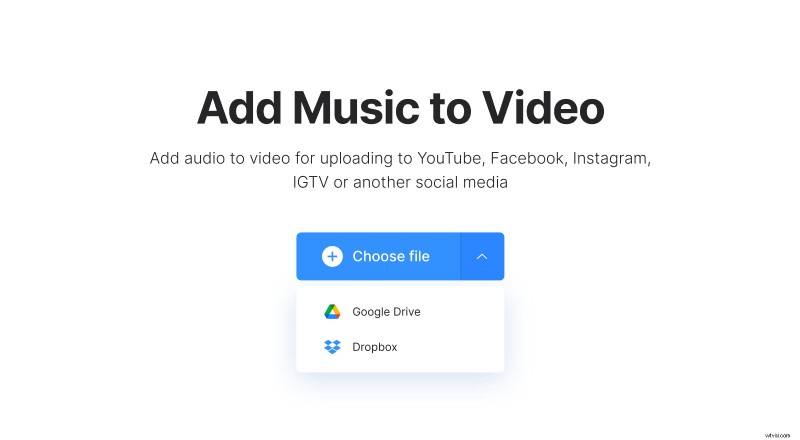
Uploading will start immediately and automatically.
Add an audio file
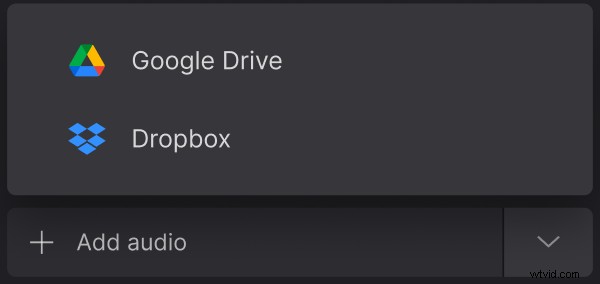
Add a voiceover, using the same three options as at the previous step.
You can set a start time at the precise moment and keep the rest as it is. Or hit the “Trim” button and cut the audio length with the help of sliders or by inputting the necessary time in the boxes.
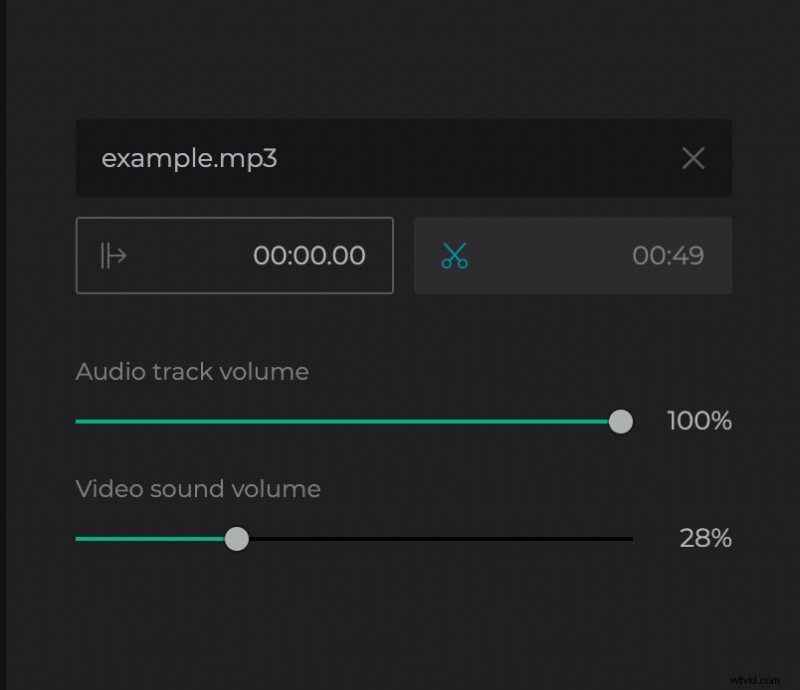
There are two volume sliders below the audio setting bars: for the initial sound and the added one. Adjust them as you need.
When you are done, decide on the output format. Our tool has a wide range of different extensions, including as exotic as M2TS, OGV, RMVB and others.
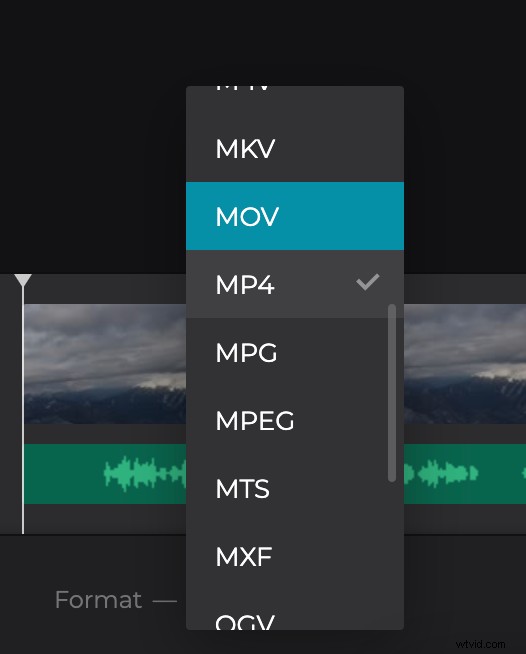
At the end click on “Create” and give the tool a minute to work on your project.
Save the renewed clip
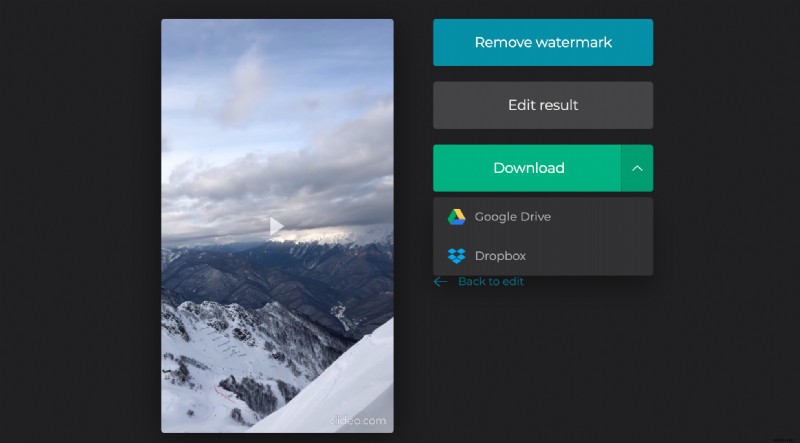
Save the result to a cloud or to your personal device. If you’ve changed your mind and think that another sound will fit here better, click on “Back to edit” and try another voiceover.