
How to put a watermark on a video online
Therefore, it is annoying when, after publishing a video clip, you see your creation used by someone else without mentioning authorship. Luckily, such situations can be prevented! In particular, the most common way is to insert watermarks in videos.
What is a watermark on the video? It is a translucent text or picture that partially overlaps the video, which is associated with its creator. Watermark logos are useful not only for protection but also can be used to increase the visibility of your channel, for example, when you upload a clip to Instagram with the logo of your personal YouTube account. Custom watermarks are even more appealing and memorable, as they show the creator’s individual style.
A watermark can be embedded in a video sequence in any advanced video editor, but how can you do it without having to learn complex professional software? The Clideo video editing tool will help you with that! It works online on any device, so you can start editing anytime and anywhere.
If you want to have your own watermark on your video only, you might need to buy a Clideo Pro plan. Otherwise, free users will also have a transparent Clideo logo placed at the bottom right as a small tribute to our service.
Clideo video editor is simple to use, just follow the steps below:
Upload files
Watermark background looks better when transparent unless you want to use some color there, so prepare your logo file in PNG with transparency. Then, open Clideo’s Online Video Editor and click "Get started".

In the editor, click "Upload" and add your video and logo files either from the device or from your cloud storage account. Should you need to upload additional files, you can do so anytime.
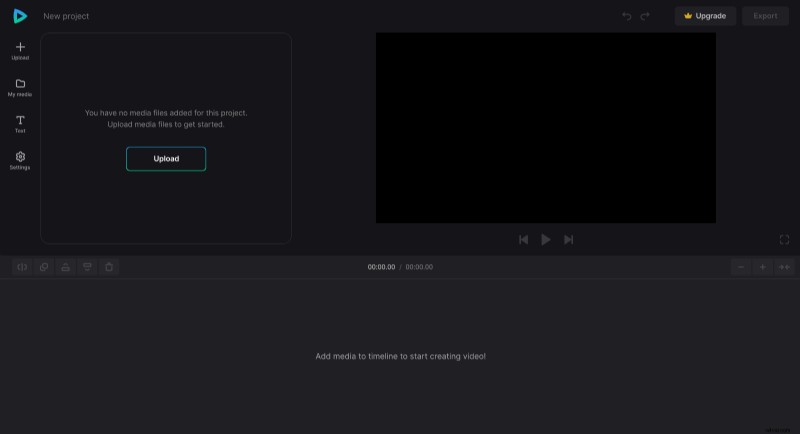
Add watermark to video
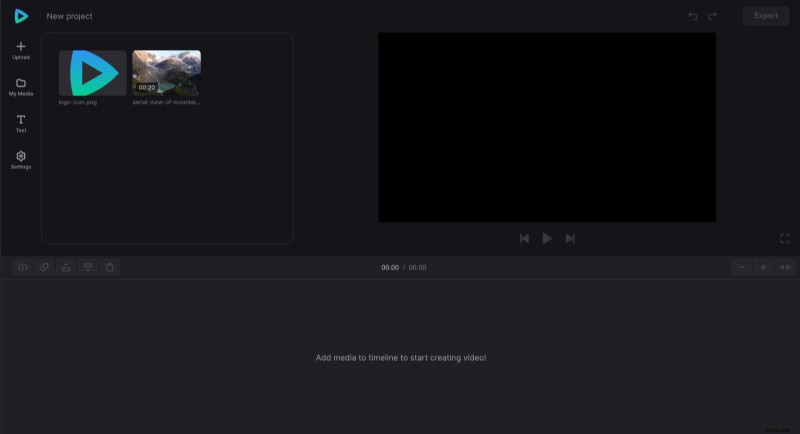
Open the "My Media" tab and add the files to the timeline by manually dragging them there or by clicking the "+" icon on their thumbnails.
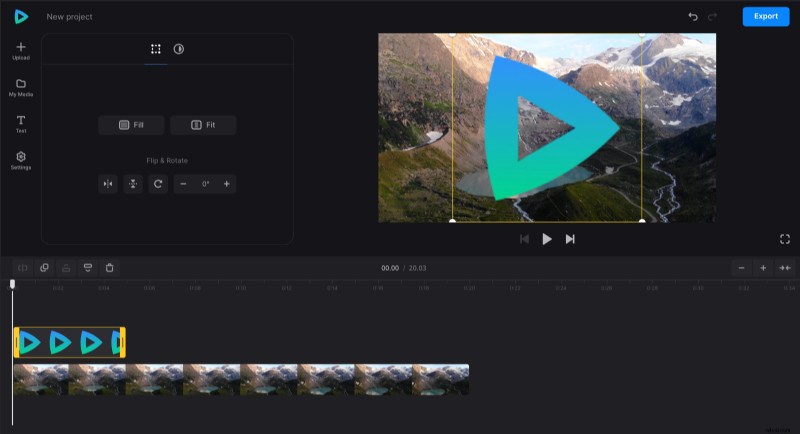
In the timeline, make sure the logo is above the video. Drag it to the top track if required.
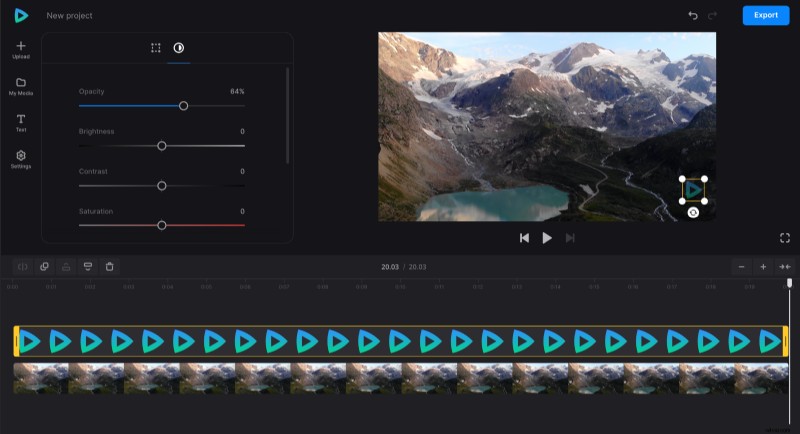
Resize the logo in the player, then, to set transparency, open the "Adjust" tab above the timeline, and set the opacity level you want. Don't forget to match the logo’s duration with the video by dragging yellow bars on its file in the timeline.
If you want to use a text label instead of an image, select the "Text" option from the navigation sidebar.
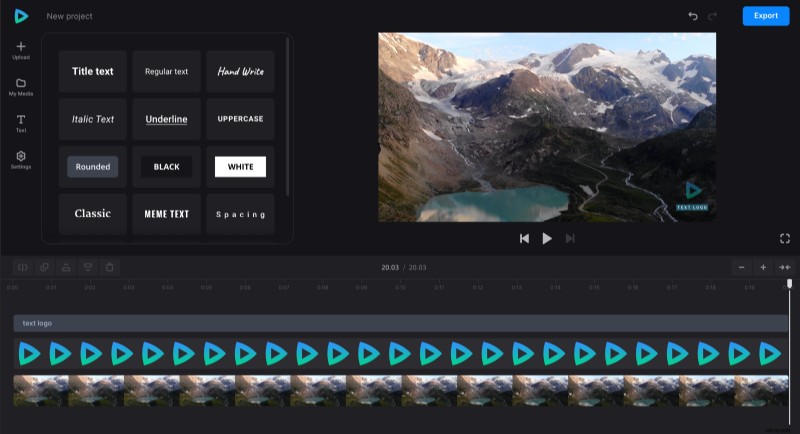
And if you need to change the video’s aspect ratio, you can do so via the "Settings" option.
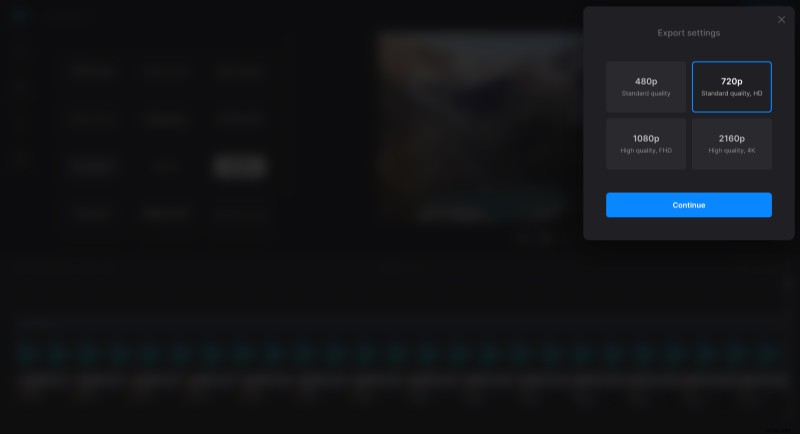
When you finish editing, click "Export" and choose the export option. Make sure you have a premium plan purchased if you do not want to have a Clideo watermark added.
Download the video
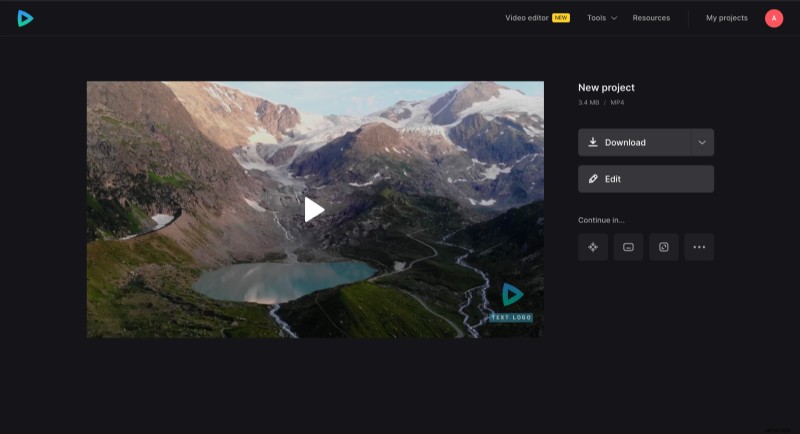
Watch the preview to see how the final result looks. To make changes, click "Edit". Otherwise, click "Download" to save the video to your device or upload it to the cloud storage.
You can also refer to our help center to read detailed instructions on how to add a watermark to your own video.