
Professional video makers don’t play music as they record video. So you may need to add video to MP3 after the video is shot. That will take your video to the next level. With a powerful yet easy-to-use video and sound editing tool, you can easily add MP4, AVI, or any other format video to audio file in MP3, WMA, OGG, or FLAC format and save it as a new file.
Now download Wondershare Filmora (originally Wondershare Video Editor) and learn how to add video to MP3 with three simple steps below.
1 Add video and MP3 files to the program
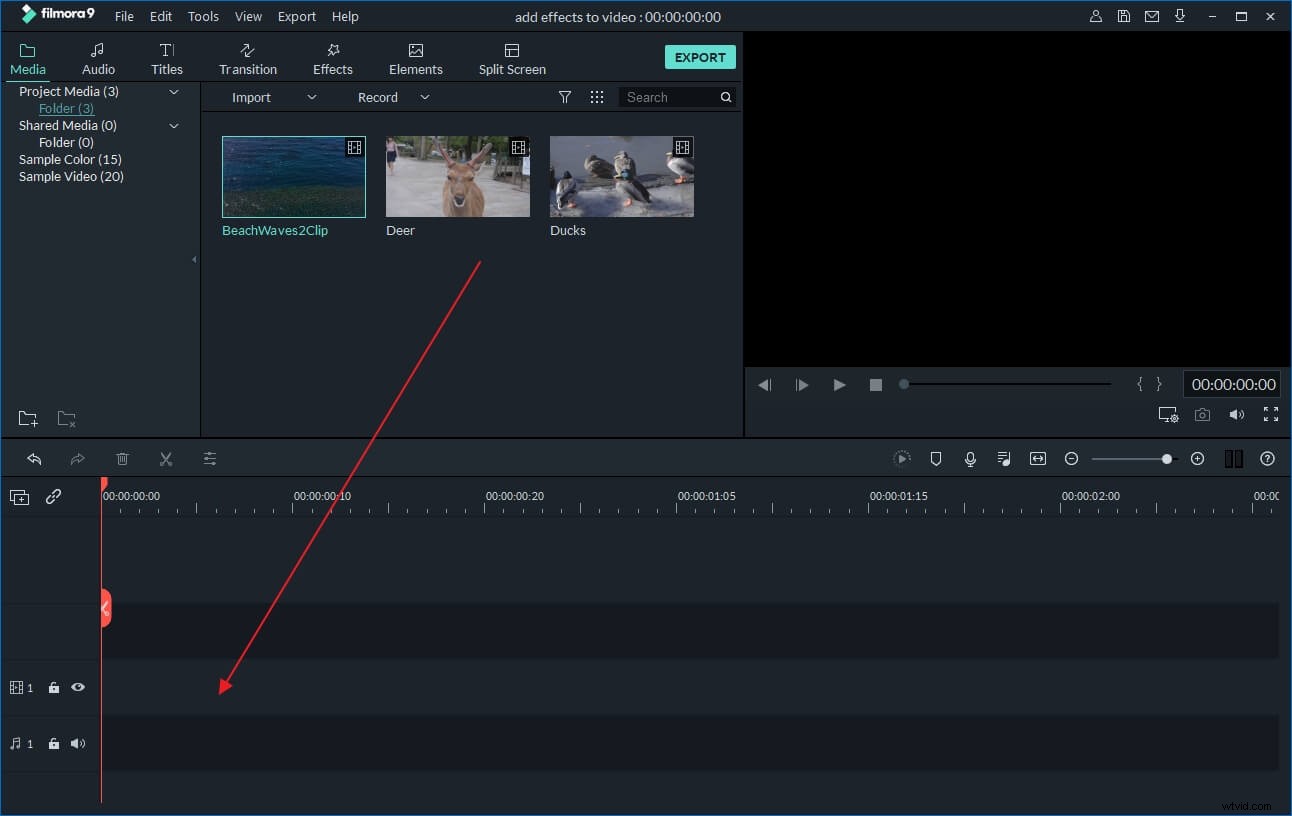
Install and run Video Editor. Then click the “Import” button in the upper left corner of the program to import the video and MP3 files that you want to merge. This video editor also features a drag-n-drop function so that you can directly drag and drop your files to the program. After that, select these added files and place them to the corresponding tracks on the timeline panel below. The video file should be placed on the video track and the audio file on the music track - marked with the musical note icon.
2 Adjust and edit the MP3 file
After that, adjust the length of MP3 file to make it match the video. If the MP3 is longer than video, move the red slider to the end of video, and click the Split button (it's like a scissor in the tool bar) to cut the unwanted part. If shorter, you can double the audio and place the copied files side by side on the same track.
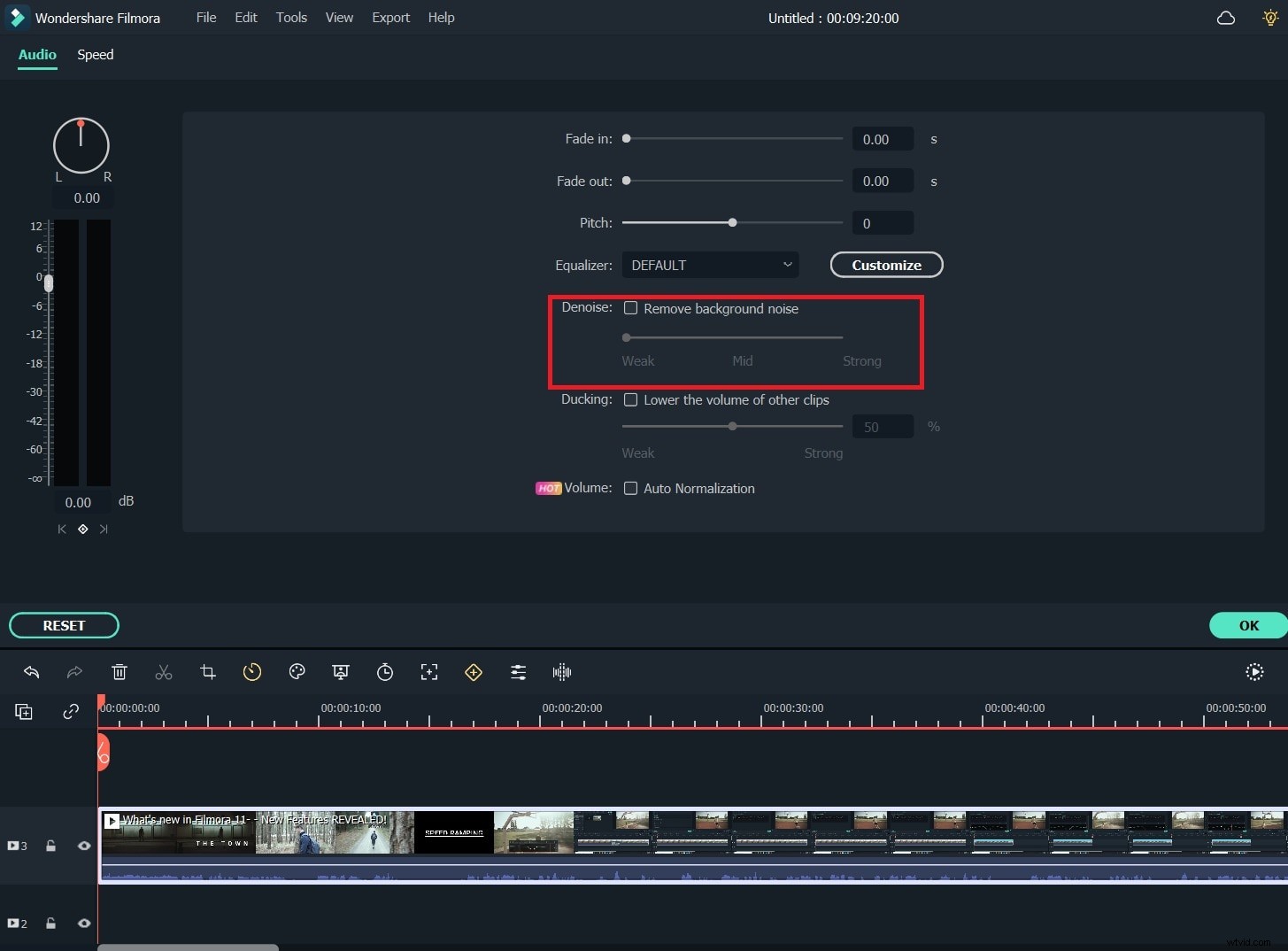
Besides that, you can edit the MP3 or video file to make it more magic. To do this, double click the target file and change the video and audio settings according to your desire. You can also add more special video effects, such as Intro/Credits, Titles, Sound, Jump Cut, Mosaic and more. With Filmora, you can also detach the original audio of the video and add the desired one. What's more, in audio editing panel, you can change the audio settings, like speed, pitch, and volume. With Filmora, you can remove the background noise easily with just one click.
3 Export the new file
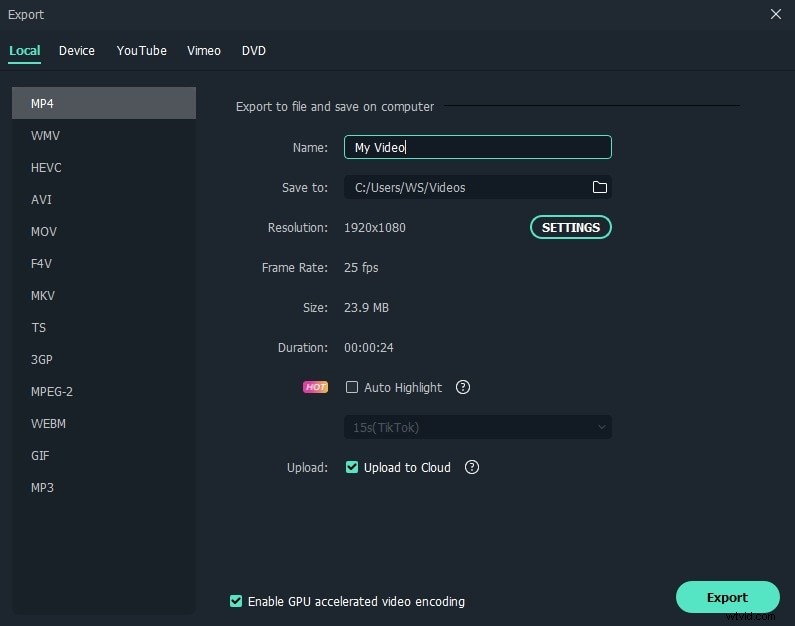
After adding video to MP3, you can export it as a new file. Click the “Create” button and choose from several output options as you like. In the “Format” tab, select the required format such as MP4, AVI, MOV, FLV, WMV, MKV and more. You can also choose the ready-made preset for your mobile device in the “Device” tab, share it with friends on Facebook or YouTube or burn it to DVD.
Watch the video below to get more detailed information about how to edit videos in Filmora