Audio can greatly enhance the quality on the perception of a video – no matter whether it’s a movie, a commercial, or a video presentation. So if all your video is silent, just add video to audio to make it more interesting. With Wondershare Filmora (originally Wondershare Video Editor), you can easily add various format video to an audio track in MP3, WMA, OGG, or FLAC format and save it as a new file.
Free Download Wondershare Filmora (originally Wondershare Video Editor) and learn how to combine audio and video in a few steps.
1 Import your video and audio files
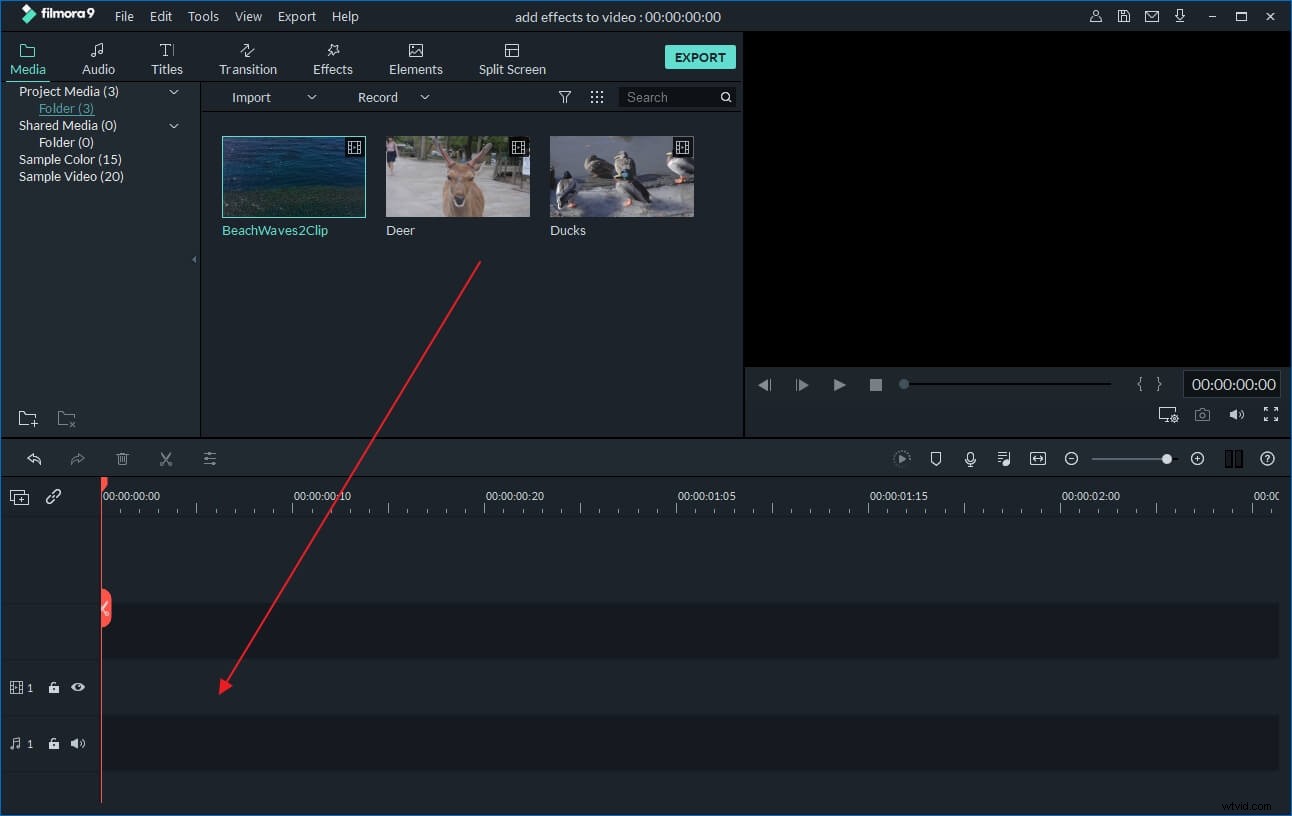
Import your video and audio files into this editing software. Wondershare Filmora (originally Wondershare Video Editor) makes it easy by searching for your video and audio files. Just click the “Import” button and use the file menu and select the target file. You can also directly drag and drop your files in to the program.
2 Start adding your video to audio
Drag and drop your video files to the video timeline. Before adding video to audio, your video files may need editing. You can use this video editor to add clips together, trim sections or change any other features.
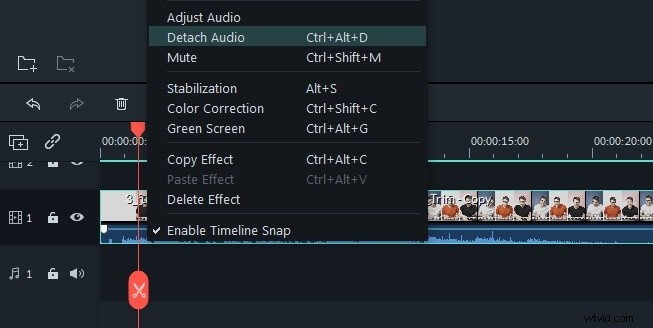
Then add the audio file to the audio timeline. Crop and arrange the music to make it fit your video. To further edit your audio file, double click it to set fade in/out effects, speed up/slow down it, and adjust volume in the pop up window.
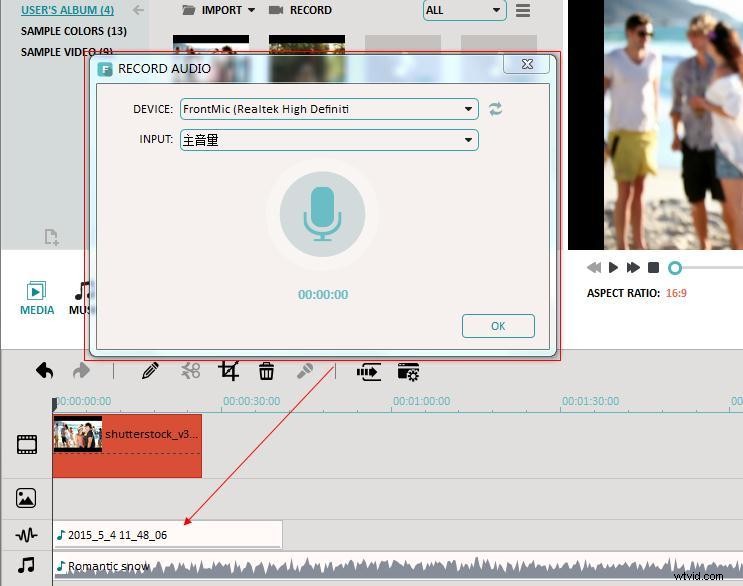
You can also record voiceover narration directly into your video. To record a voiceover, click the “Record” button, designated by a microphone icon in the Toolbar, to open the Voiceover window. Then choose your recording device from the drop down menu and click the red button start recording your voiceover. Click OK to save it and return to the main interface. You will find the voiceover will automatically be added to your video files and you can adjust its position, volume, etc. just like any audio files.
3 Save or export your new video
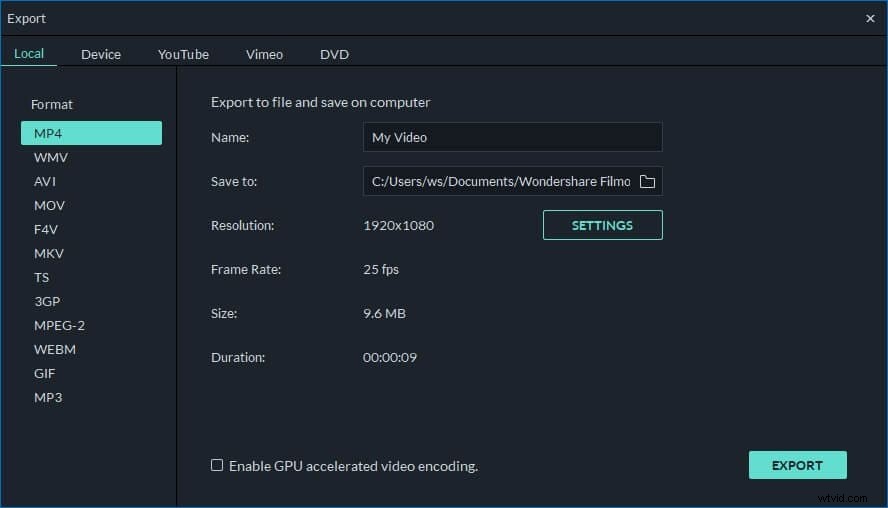
Click the “Play” button to preview the result. If satisfied, click the “Create” button to enter the Output window. As you see, four export choices are provided for you: save the video in regular video formats of your choice, export the video to play on different mobile devices, burn video to DVD disc or share the video to YouTube or Facebook instantly. Choose an output way and click the “Create button to export your new video.