Change default audio track in a video file
Here comes the question, how to replace the original audio with your own file without losing any video quality?
We have just a tool to help you with that! It works completely online, so you don’t have to download any software. The tool is also compatible with any device, meaning you can easily replace audio in MP4 without re-encoding on your Mac, Windows (7, 8, and 10), Android, or iPhone.
It’s also very simple to use, just take a look at the steps below.
Upload a video
Open Clideo’s Add Music to Video tool.
Click "Choose file" to pick a file from your device. You can also select a file from your Google Drive or Dropbox account. To do that, hover over the arrow on the right side of the button and choose the option you need.
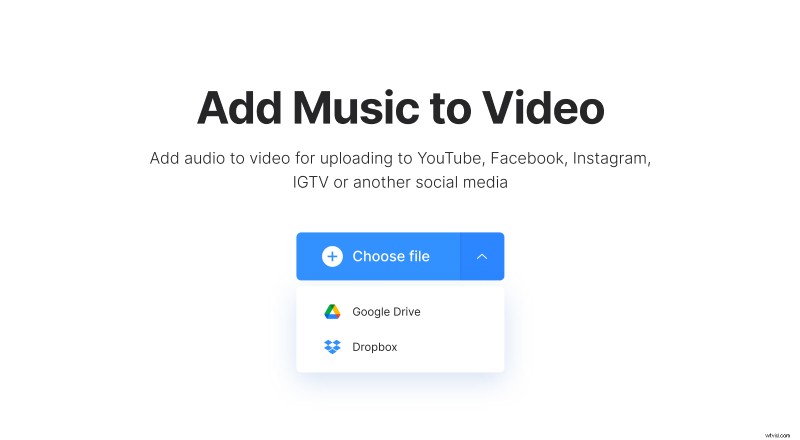
Change audio in video
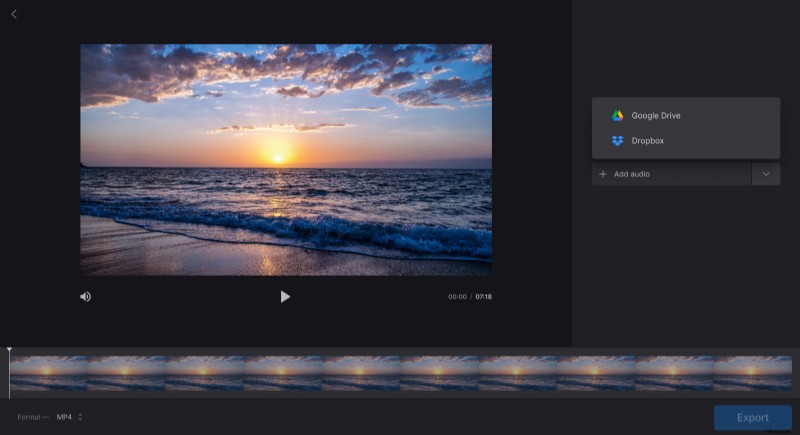
After processing, click "Add audio" on the right side of the editor and pick an audio file.
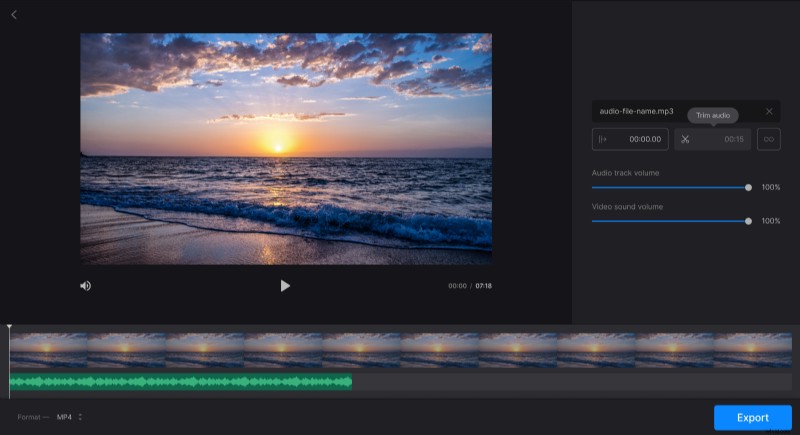
When it’s uploaded, you will see a few options appear there. In the "Start at" box, you can specify the time when the song will start playing. If it’s longer than the video, use "Trim audio" to shorten the track; if it’s shorter, click "Loop", and the song duration will adjust to the video’s length. Under these options, you can change the volume of video and audio separately by dragging the sliders – to replace the audio, simply drop the video sound volume to 0%.
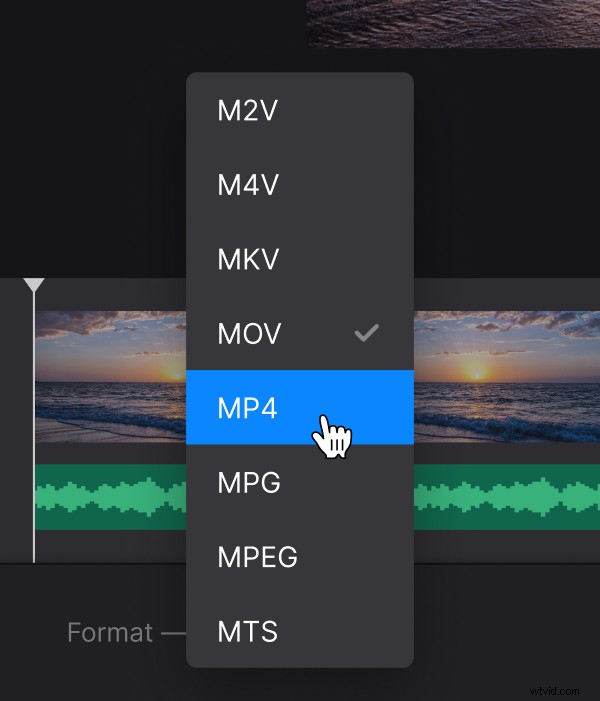
If you want to convert your video, click "Format" under the player and pick the one you need. The tool supports common formats like MP4, WMV, VOB, AVI, and more.
When you finish editing, click "Export".
Download the result
Watch the preview to make sure everything sounds good. If you like it, click "Download" to save the video to your device or upload it to your Google Drive or Dropbox account. And if you need to make changes, click "Edit" to return to the previous step.