
Sometimes you want to merge an new audio track to the source video or overlap the original audio of the video. Then Wondershare Filmora might come in handy. This video editing application supports various video formats like MP4, FLV, AVI and MKV and has an ability to add/replace the audio in a video file without requiring any extra codec. You can even record your own voiceover and add it to the original video. This article introduces how to merge video and audio with this powerful tool.
To begin with, get a free trial of Wondershare Filmora.
1. Import the video and audio files
Wondershare Filmora has a simplistic and intuitive interface. You can either drag and drop files to the media library directly or click “Import” button to load as many audio or video files as you need. This video editing tool supports a vast range of formats, so you don't need to worry about any loading problems.
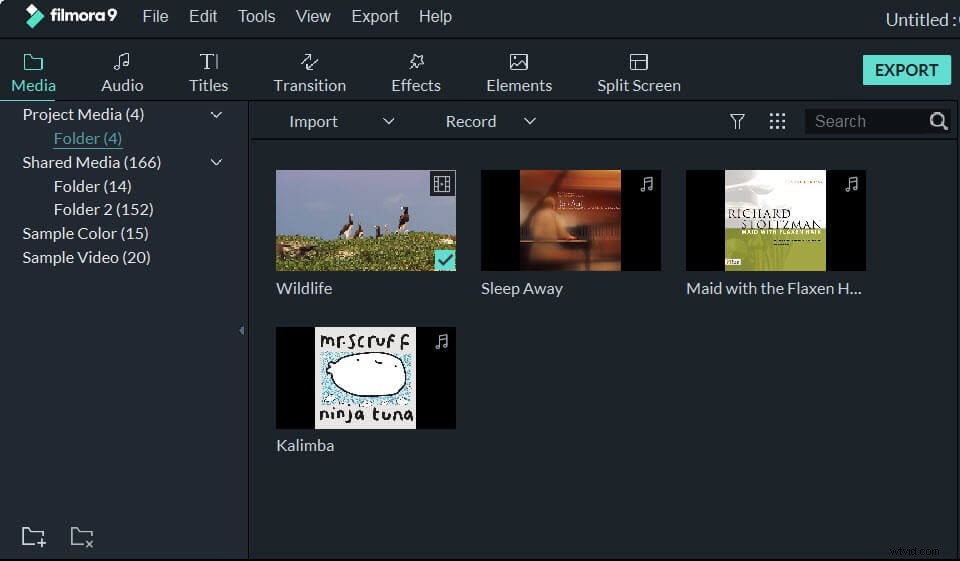
2. Merge Video and Audio
After importing your videos to the media library, you can drag-n-drop the video and audio files to the video and audio track respectively. After that, you can align the video with the audio file on the timeline to merge them. Or if you want to replace the audio in the source video with the new audio file, you can right click the video on the track, select Detach Audio, and the original audio from the video will be detached out to the audio track. Then you can delete the detached audio from the track, add your new audio file to the audio track again, and finally align it with the video.
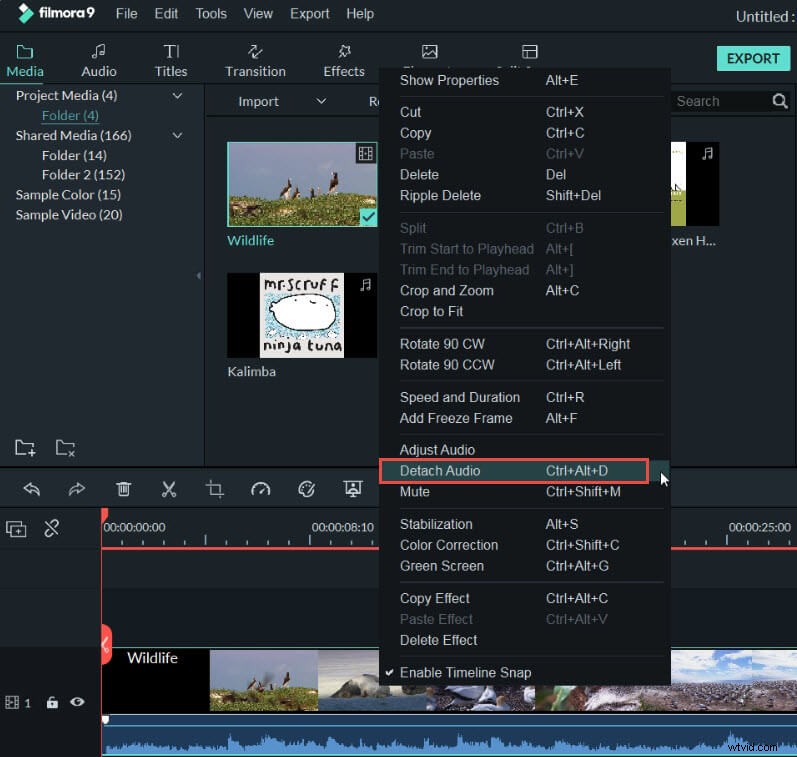
Tip: If the audio file needs further editing, just double click it on the audio track, and the audio editing panel will pop up. Then you can adjust the volume, set fade in/fade out, tune the pitch and denoise the audio as you like.
3. Export the file
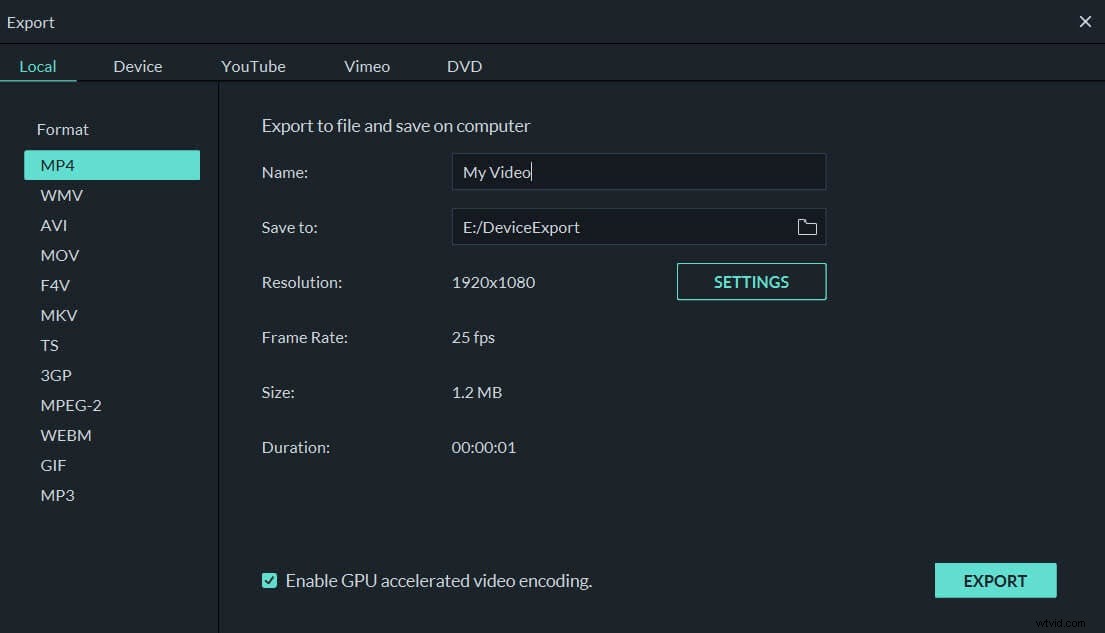
After aligning the video with the audio on the timeline, hit “Export” to merge them together. You can save it as any file format you like. Besides that, you can also upload the merged video to YouTube directly, or burn to DVD.
So if you need an audio or video merger for your media files, give Wondershare Filmora a try and see what it does for you.