
Want a program that can change audio volume so that it won’t be too loud or too quiet? Though many media players or speakers have volume control during playback, it still can be an annoying problem and it takes time to set it. And some downloaded files are rather low to listen to even you raise the volume to the maximum level on the computer. So it's advisable to normalize the volume permanently.

Thanks to Wondershare Filmora, a professional video editing tool that makes it remarkably easy to increase/decrease the audio level to a professional sound. Below I’ll describe how to do this in a few clicks.
Note: This program is available on both Windows and Mac platforms. Below guide, I’ll take the Windows screenshots. For users who want to adjust the audio volume on Mac, just follow the same steps using Wondershare Filmora for Mac.
1. Import your media files
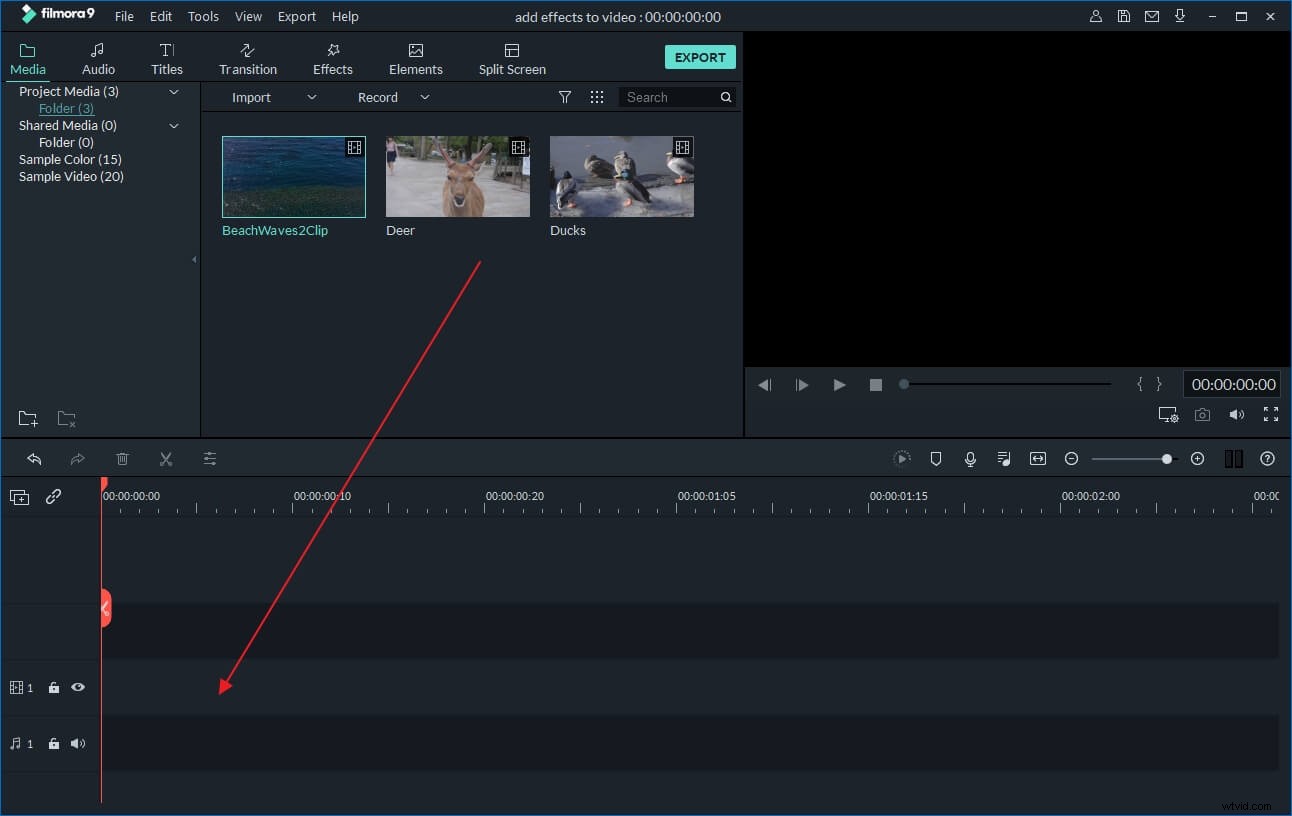
After downloaded and installed this increasing volume software, simply drag and drop audio & video files to the primary window. Alternatively, you can click "Import" to browse your file folder and load them all. After that, drag and drop them into the Video Timeline.
Note that almost all video & audio formats supported, including WMV, MOV, AVI, MKV, MP4, MPG, MPEG, MOD, DV, MTS, avchd, M2TS, TS, MP3, AAC, MKA, and so on.
2. Change audio volume with ease
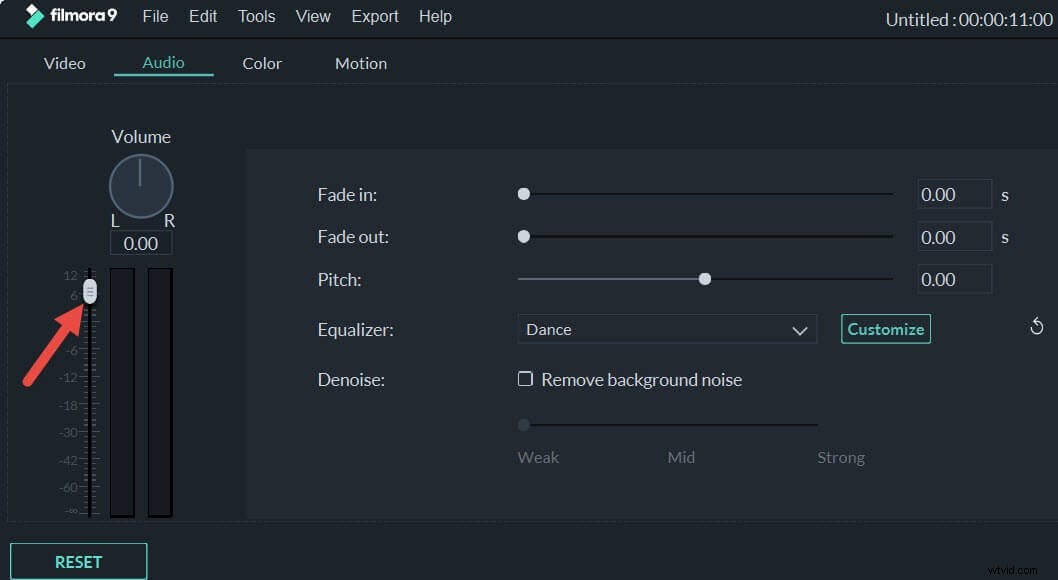
When the video file is in place, double click it to reveal the editing panel. This panel contains both video and audio editing. To edit the audio file only, just click the Audio column at the bottom to access the audio editing window. In the voice volume control submenu, move the Volume slidebar left or right to increase or lower down the volume. When you adjust it, you can listen to the real-time audio effect by clicking the play icon.
Just as shown in the image window, you can also set Fade in/fade out, fine-tune the pitch, etc.
3. Save the changed audio(video) file
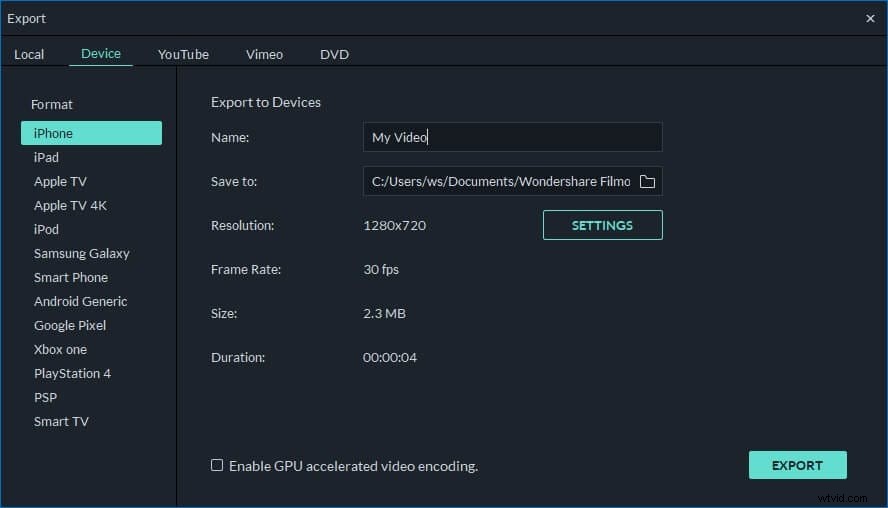
When you're satisfied with the result, simply hit "Create" to save your changed audio(video) file. In the output format window that shows, choose your wanted format to save it on the specified folder on your computer.
Besides export video to your computer, you can export to presets for your device like the iPhone 5, iPad mini, iPod Touch, Xbox 360, PS3, directly upload a video to YouTube, or burn to DVD.
Bonus Tips: How to Use Audio Ducking in Filmora?
Besides adjusting the audio volume, you can do more with this versatile video editor software.
Did you heard of audio ducking and have any idea about it? As a matter of fact, audio ducking means turning down the volume of background music to make your vocal to be heard more clearly. Here is the ultimate guide of audio ducking in Filmora.
Learn More about Video Editing
- Picture-in-picture: Put multiple videos in the same frame to tell several threads of one story.
- Freeze a frame: Focus on a face in the crowd, and set zoom in and out motion to make fun!
- Auto scene detection: Seek and split the scene changes to easily find the right shots.
- And more...