
Have you ever come with this situation: even with the volume in the highest level, your recorded media file sill sound very slight? Or you may want to increase volume in video or audio so as to enjoy it even in noise environment. As a matter of fact, it can be every easy as long as you use a powerful video editing tool- such as Wondershare Filmora. With it, you can increase volume of media files in various formats no matter it is in MP4, MP3, MKV, MOV, WAV etc . In this article, we will show you how to increase video volume with Filmora video editor. Now follow the steps below to see how to achieve it.
To begin with, click the Free Download button below to get a free trial copy of Wondershare Filmora on your Windows or Mac computer.
Learn more details about How to Adjust Audio Volume in Videos [4 Ways]
1. Add files that are in low volume
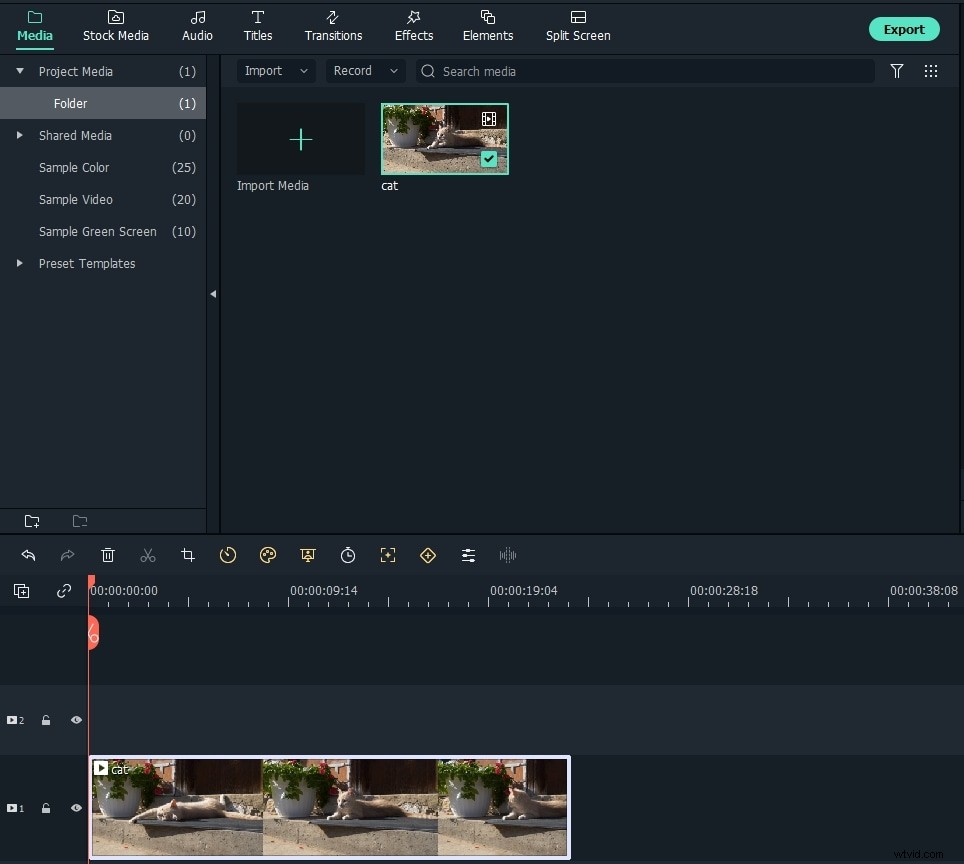
Free download Wondershare Filmora or Filmora for Mac (Originally Wondershare Filmora Video Editor), install and run it. Then click New Project to enter the main screen to import and add files that are in low volume to Filmora. You can also directly drag-n-drop the target media files to the primary window. Wondershare Filmora supports almost all video & audio formats supported, including WMV, MOV, AVI, MKV, MP4, MPG, MPEG, MOD, DV, MTS, avchd, M2TS, TS, MP3, AAC, MKA, and more. So there will be no obstacle to increase MP4/MP3/MKV/MOV/WAV/AVI video volume at all.
You may also like: How to Normalize Video Audio
2. Increase audio volume and prelisten
Drag-n-drop the Video file to the video track and then double click the clip in the timeline to enter the editing panel. Switch to Audio tab to adjust the audio settings such as volume, fade in and fade out, pitch, audio equalizer and remove audio noise. To increase the video volume, move the Volume slide bar up to increase the volume. Filmora also allows you to crease the left channel volume or right channel volume as well. If you want to listen to the real-time audio effect, just click the play icon.
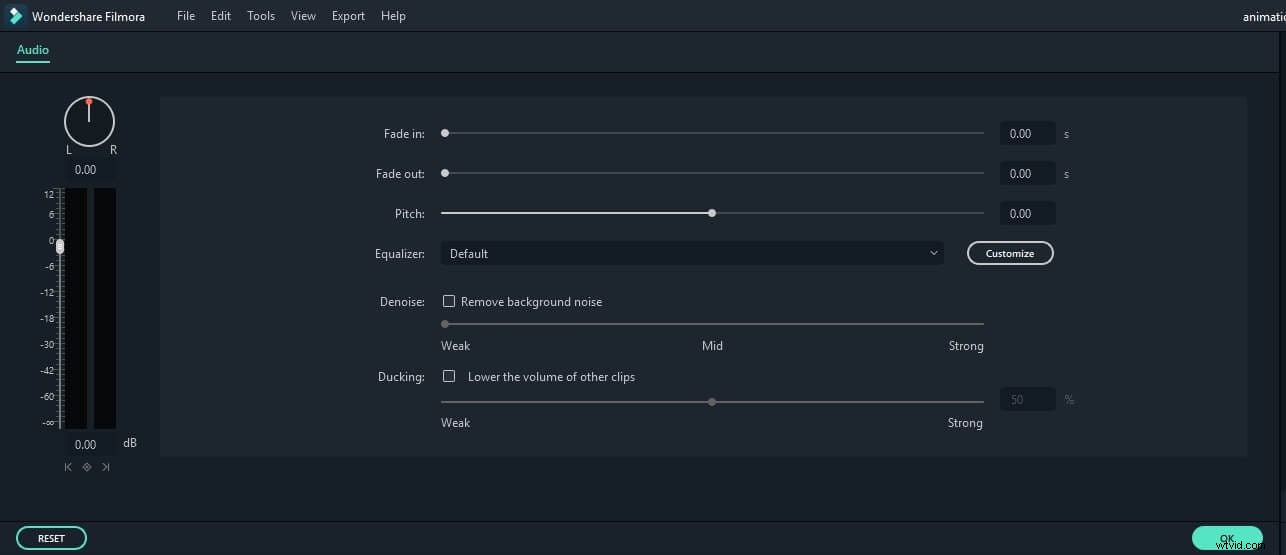
Besides that, Filmora also allows you mute the audio and change the audio speed. To remove the audio background, you can use the Denoise feature. You can also set Fade in/fade out to increase the audio volume louder or lower at the begining or at the end, fine tune the pitch, etc. in the Audio tab or switch to “Video” column to rotate, adjust contrast, saturation, brightness, nue and speed of the video.
In case that you want to add your own voice over to video which has audio sounds already, you can drag your voiceover file to the audio track and then click it to enter the audio editing panel. To make your voice louder, you can increase the volume of it and lower down the video audio a little bit.
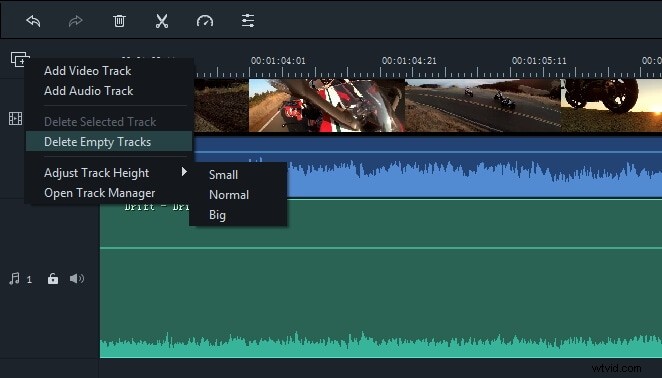
You can adjust the height of tracks based on your needs by clicking Adjust Track Height; it is recommended to set the track height to Big to edit audio more visible.
3. Set output video/audio formats
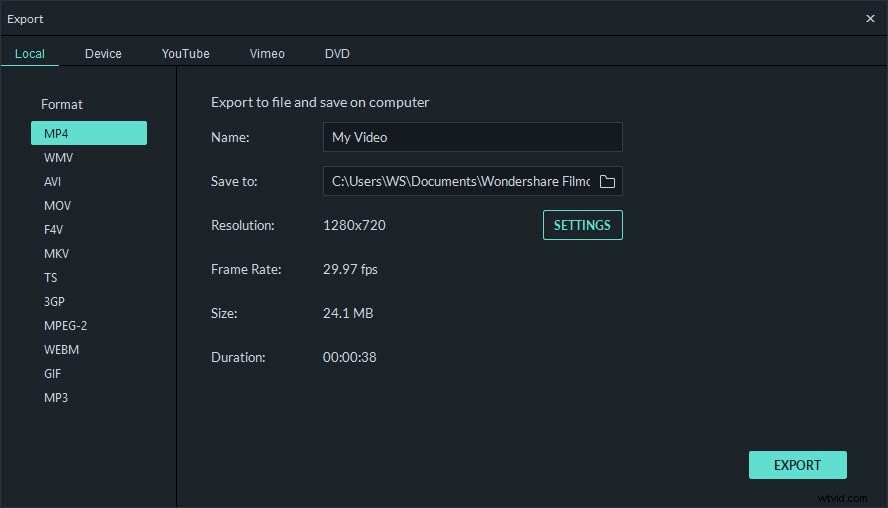
If you're satisfied, click "Export" to save the changed media files. Here're several options for you:
- Save to fit the devices such as iPhone, iPad, Apple TV, Samsung Galaxy, Google Pixel, Xbox 360, PSP.
- Save as various formats such as WMV, MOV, AVI, MKV, MP4 and more.
- Directly upload to YouTube/Vimeo or burn to DVD.
You see, it's just so easy to increase volume in the media files with the above detailed guide. Besides increase volume, Wondershare Filmora can even split video, merge videos into one , rotate video, trim and crop video, add image to video and more. Just get this ideal video editing tool and enrich your video world.
Quick Tip 1: How to increase video volume in Windows Movie Maker for free?
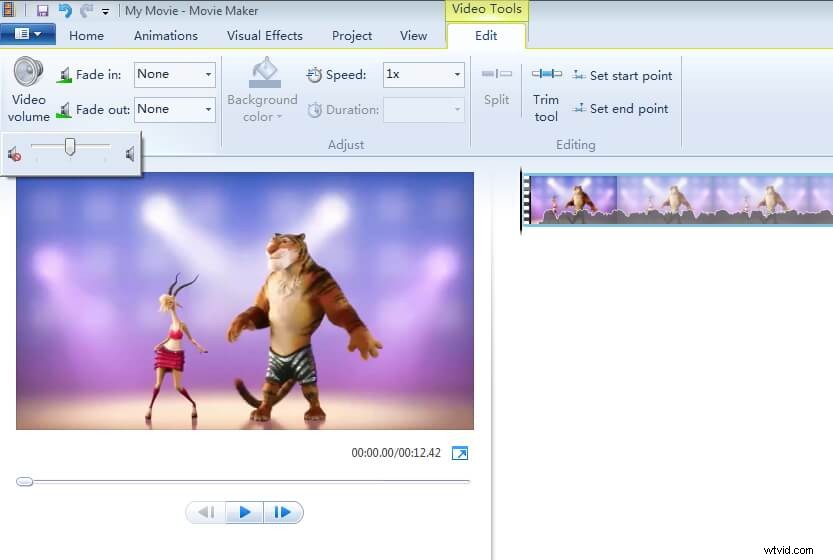
In case that you are using Windows Movie Maker, you can adjust the video volume for free. After adding videos, click the video that you want to change the volume of and then go to Edit tab. You will see the Video Volume in the left side, click it and then drag the slide bar to right to increase the volume of the video.
Quick Tip 2: How to increase volume with iMovie for free?
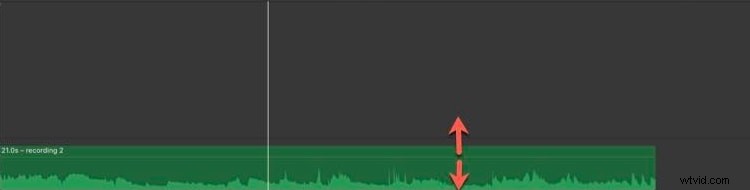
There are several ways to adjust video volume in iMovie, here I will share with you the easiest way to do that: after importing media files to the timeline, click the audio or the video clip which has audio, and then drag the horizontal line across the audio waveform up to increase the volume.
Add Voiceover to Video [Video Tutorial]