
Sometimes the audio of the media files is too loud no matter how much you lower the volume on your speakers. Sometimes it’s because the video source itself was too quiet, or it was encoded at a loud volume. Although these media files come in many different formats, the method for lower the volume is relatively simple and universal. Using a video editing program like Wondershare Filmora (originally Wondershare Video Editor), you will simply take advantage of the audio editor within the program to lower the volume. Here is a step-by-step guide to tell you how to lower volume in the media files.
Try this free software to lower the volume in the media files
Lower Volume of the Media Files Step by Step Guide
1 Add media files you want to lower volume
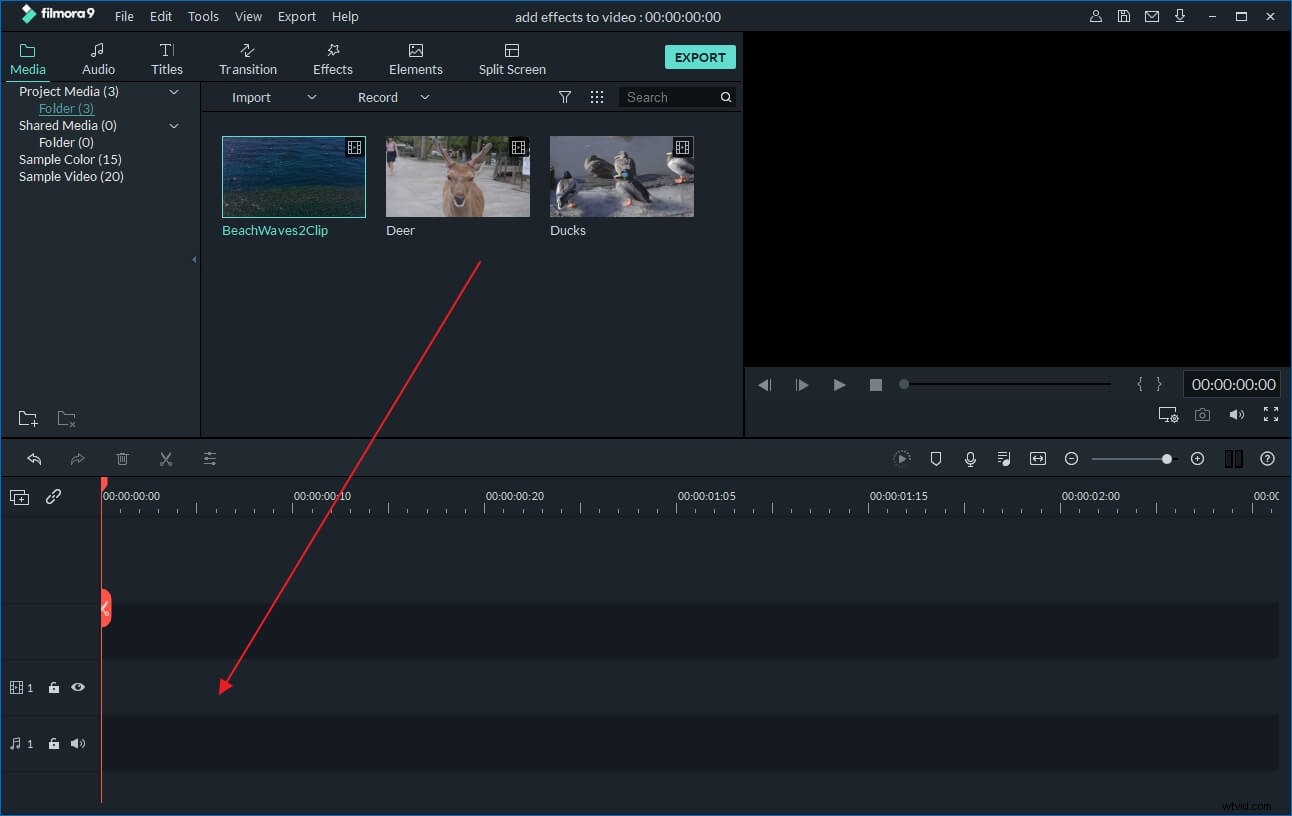
After downloading and running this program, click “Import” to begin importing the files. This process many take several seconds depending on the size of the media file. Then the file will appear in the “User’s Album” of program. Drag the imported file to the Timeline.
2 Lower volume of the media files
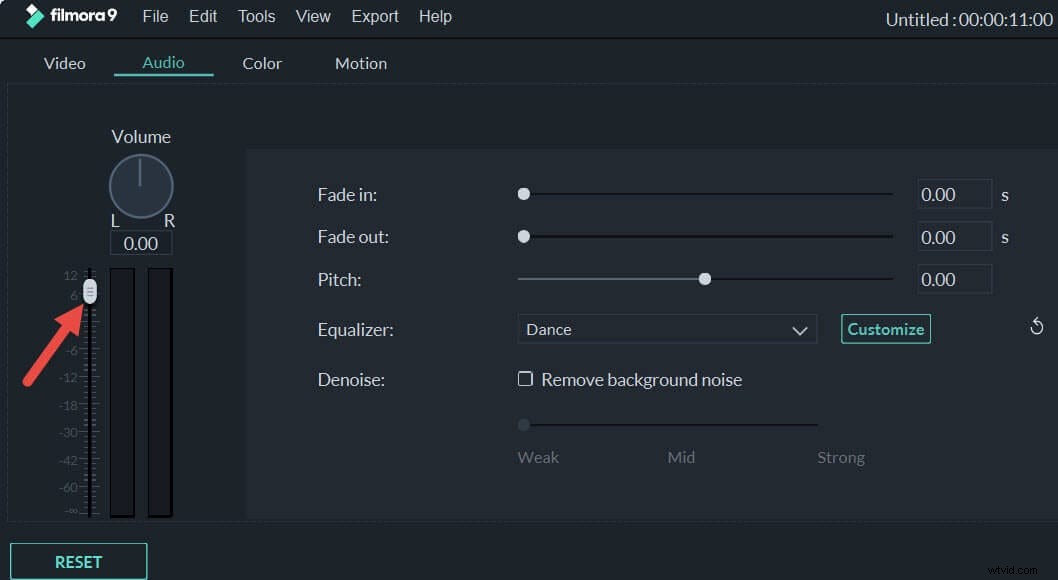
Double click the target file and the "Editing" Window will appear. Then switch to the "Audio" column, reduce volume by dragging the volume level slider left. Don't worry if you don't get the sound right the first time. You can reset the volume by clicking the "Reset" button. After adjusting the volume, click the play icon to listen to the effect.
Tip: There are more functions in this column, such as Fade in/fade out, fine tune the pitch, etc. If you want to add more effects, go to “Video” column to rotate, adjust contrast, saturation, brightness, nue and speed of the video.
3 Save the files
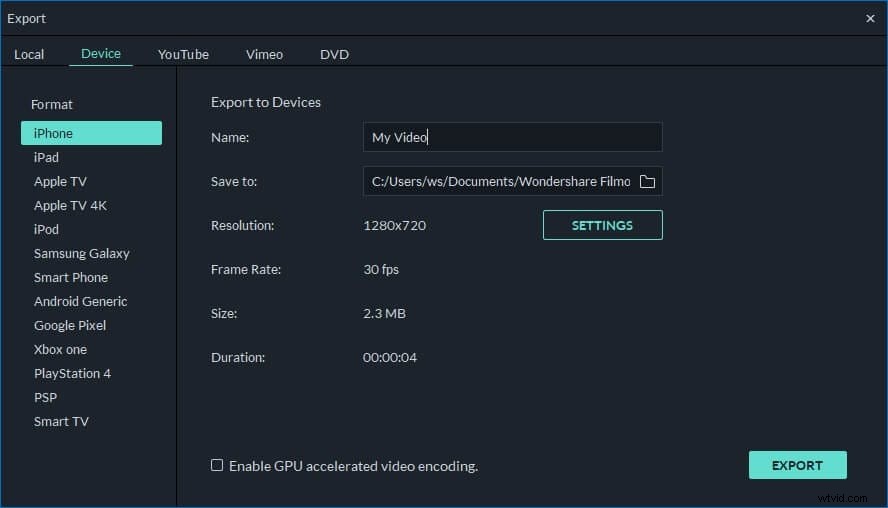
Then hit the “Create” icon to save the edited files. You can save your files to different formats such as WMV, MOV, AVI, MKV, MP4 or save to play on different devices such as iPhone, iPad, PSP and Zune. To do this, switch to the related tab, enter the preset settings and press "Create" to begin the export. The exported file should have the same video, but with louder audio. You can also burn the files to DVD or directly upload to YouTube if you choose.
See, it's so easy to lower the volume of the media files. Besides this function, this powerful video editing tool also supports trimming, cropping, adding video effects and loads more. Now just download it and explore more features of it!
Here is a video tutorial for you:
About Filmora video editor: