
I see many people ask in most forums that how to crop MKV files for removing black bars or saving space, etc. But nothing has worked there. If you’re the one who want to crop MKV videos without losing video quality, you’ll be excited about this simple and powerful MKV cropper in this article.
The great MKV cropping tool is Wondershare Filmora (originally Wondershare Video Editor). A dashed rectangle lets you crop any area from the MKV file at will and the real-time preview window can let you see the cropping effect immediately. If you’re not satisfied, just effortlessly do it again. Most importantly, there is almost no quality loss.
1 Import MKV videos to this MKV cropper
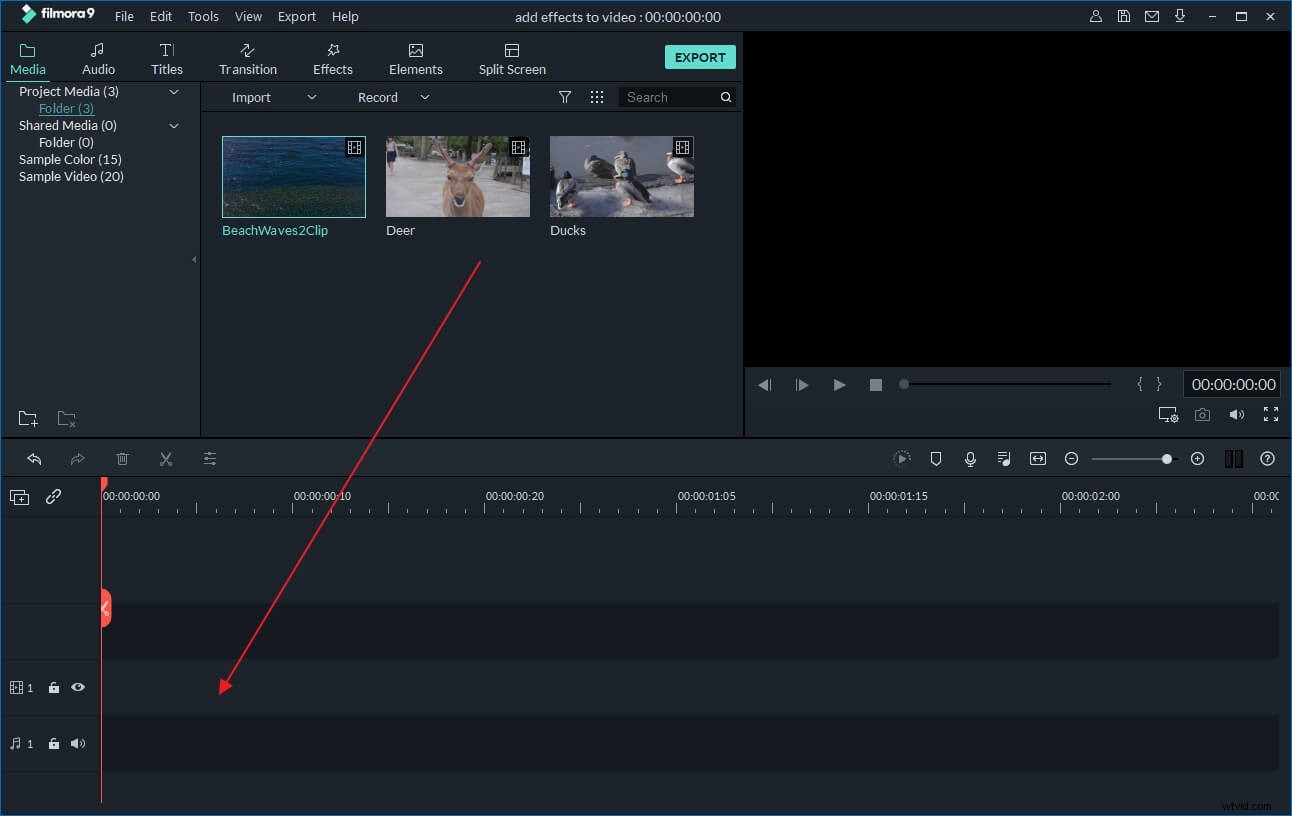
After you launch it. Choose“16:9 Widescreen” or “4:3 Standard” to open its editing interface. Next, you need to load your local MKV files to this MKV cropper. To do it, just click the “Import” option in the top-left corner of the interface to browse and import the files you want or directly drag and drop the target files from the folder to this MKV cropper. Then, you need to drag one of your MKV videos from this app’s the album to the Timeline.
2 Crop MKV video
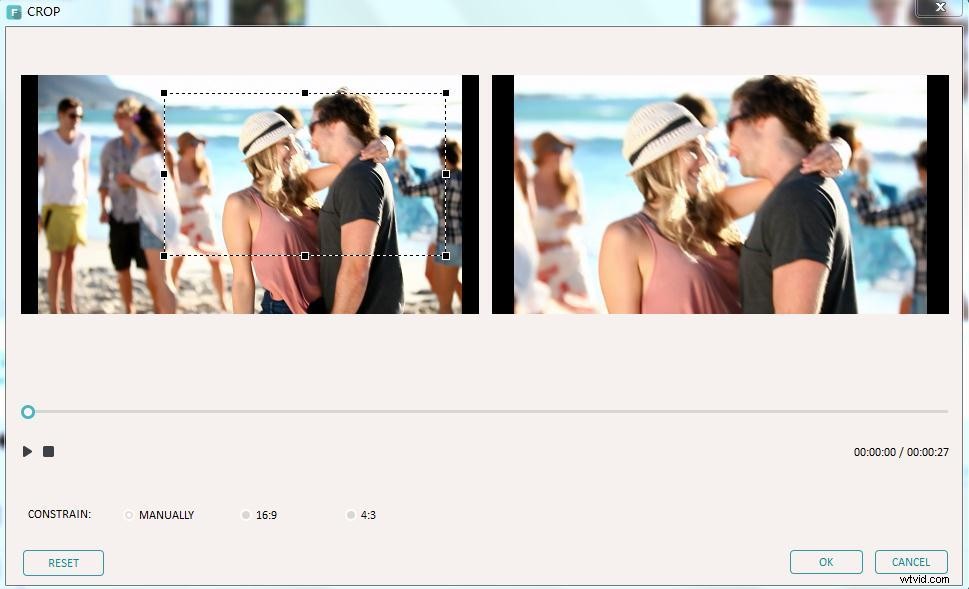
Right click the file bar at the Timeline and select the “Crop” option. Immediately, a Crop window will pop up.
Here, you can see two preview windows and the left one has a dashed rectangle. Press the “Play” button to play the file, and then drag and move any one corner of the dashed rectangle to choose any video area you want. And you can view the effect in real time on the right preview window. When everything is ok, just click “Ok” to save the setting.
3 Export the new MKV file
Hit the “Create” button to open its output format window. Here, you’re provided four output methods. If you still want to export a new MKV file, just go to the “Format” category and elect MKV as the output format. Note that this app also lets you set some other parameters like video resolution, bit rate and frame rate etc. To do it, just hit the “Advanced settings” option below to do these settings there.