
If you often download videos online, you may get lots of MKV videos on the computer, which is similar to Mark's problem:
I am looking for a program that can merge separate .MKV files as well as a program that can do the same with AVI files.
To solve that problem, you need a MKV merger or MKV video editor like Wondershare Filmora. It can automatically merge MKV files without losing any video quality. For your convenience, you can also merge the videos in another format, including: AVI, MP4, RMVB, FLV, MOV, VOB, 3GP, 3G2, F4V, M4V, MPG, MPEG, TS, TRP, M2TS, MTS, TP, DAT, WMV, ASF, MOD, TOD, etc. It's also available to burn MKV to DVD for watching on TV with subtitles. Sound good, right? Download Wondershare Filmora (originally Wondershare Video Editor) for a free trial.
Now take a look at how to merge MKV video files into a large one without a gap.
How to Merge MKV Files without Interrupts
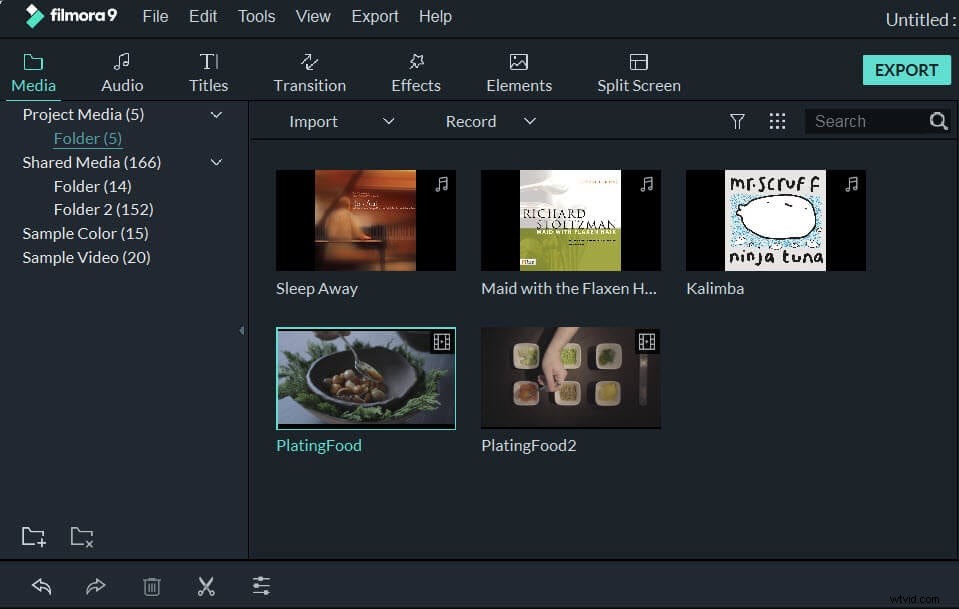
Step 1: Import MKV files to merge
You can either click "Import" button on the primary window and locate MKV files on your computer, or just drag and drop MKV files from Windows File Explorer to the media library. Then all imported MKV files will be displayed in thumbnails and be easily added to the Timeline for editing without saving changes to the original MKV files.
Step 2: Drag and drop MKV videos to merge
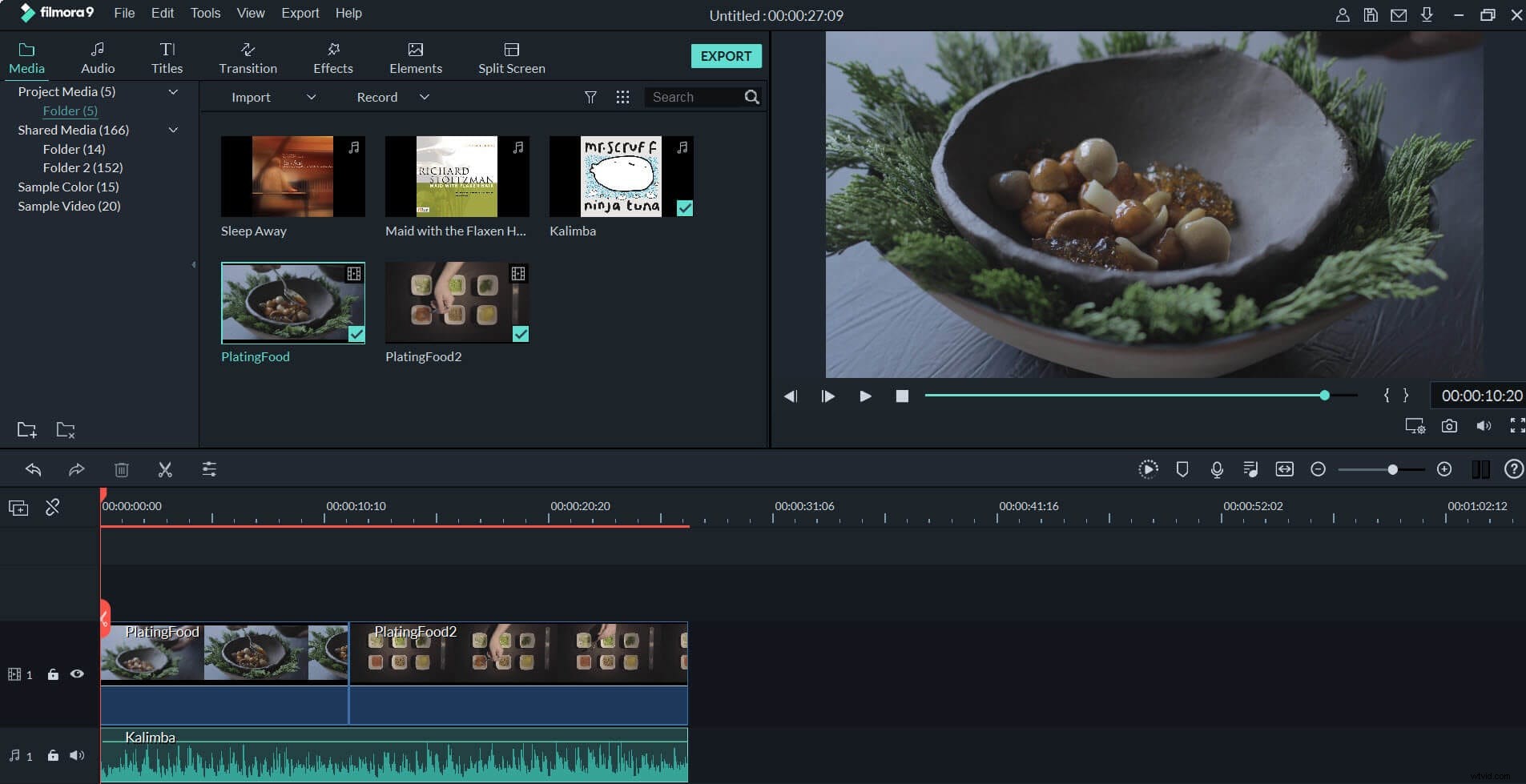
To merge MKV files, select multiple MKV files in the User's Album while holding down Ctrl (for discontinuous files) or Shift (for continuous files) key, and then drag and drop to the video track. All MKV files will be played one after another without gaps after saving to computer.
Step 3: Add transitions between MKV videos (optional)
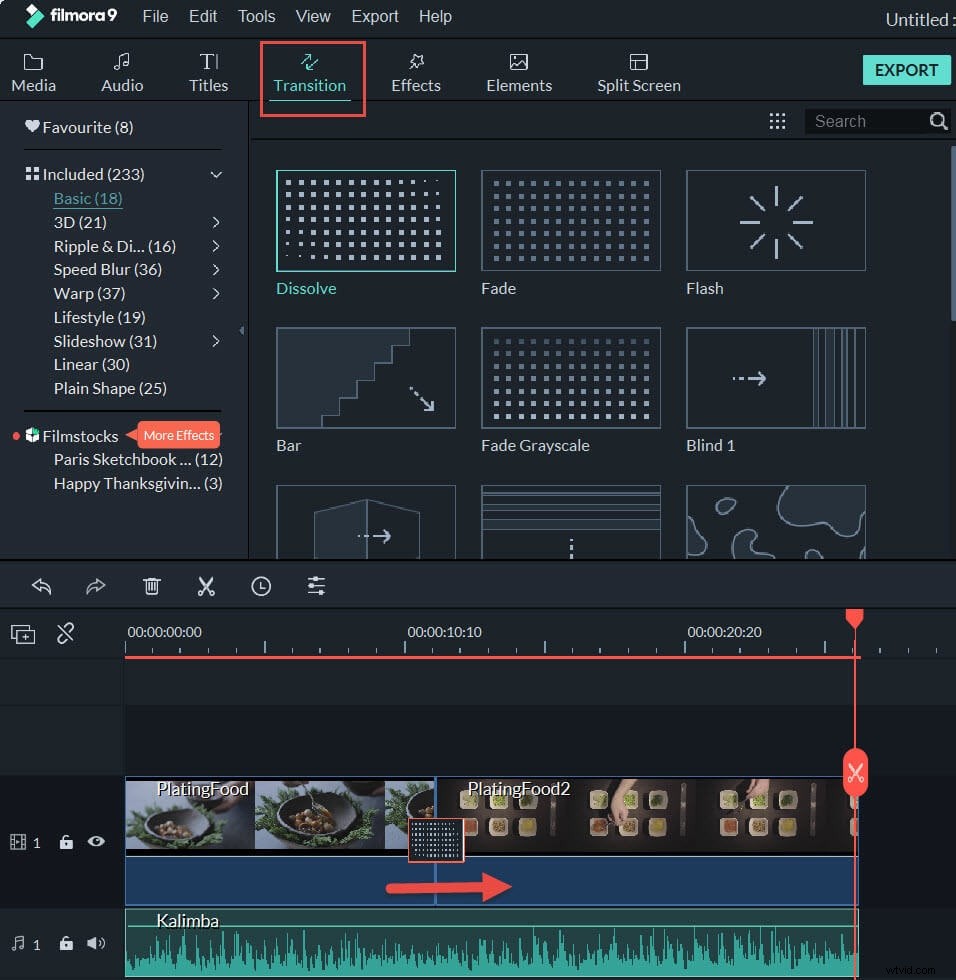
To control how the movie plays from one MKV clip to the next, you can add transitions between two clips. To do so, change to Transitions tab, and drag the desired transition to the MKV video that requires a transition. You can also right click any transition and a menu will appear. Choose "Apply to All" and "Random to All" from the menu to add the same transition to all clips, or apply transition randomly.
Step 4: Merge MKV files into one
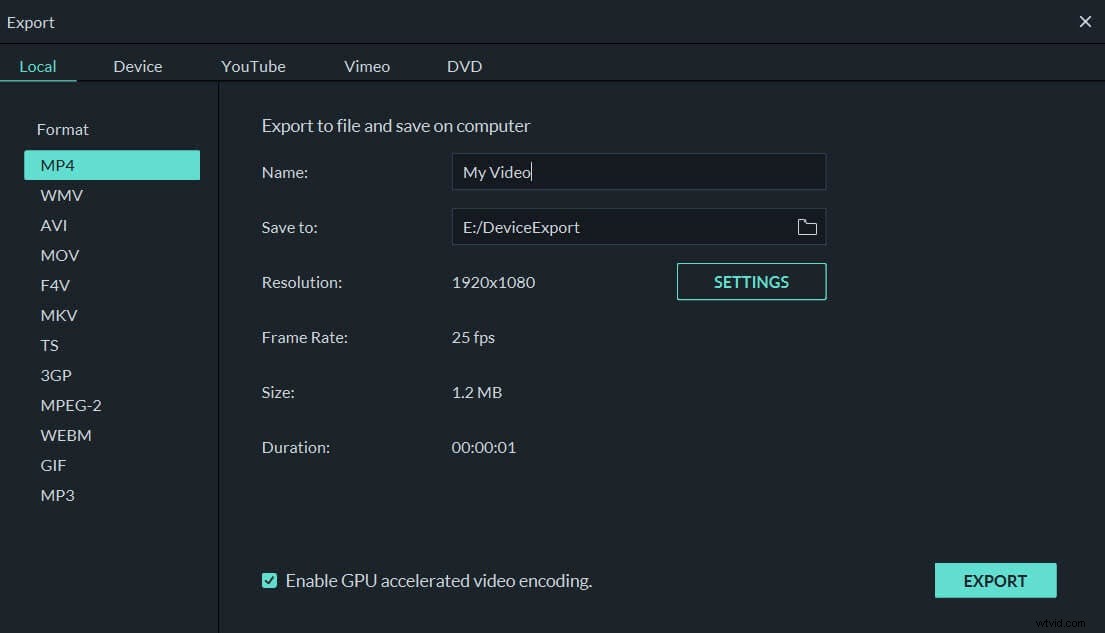
It's a good idea to preview the merged MKV video by clicking Play button. If you are happy with the result, click "Export" button to merge MKV files into a single video. In Format tab, select any format you want from the list. All popular video formats are supported. But in this case, MKV format works if you want video still in MKV format. To play the merged MKV files on iPod, iPhone, iPad, choose "Device" and select a target device. You can also directly upload the combined video to YouTube with your account, or burn to DVD to play with your home DVD player.
More Features in Wondershare Filmora
Now get Wondershare Filmora to merge MKV files. You'll also benefit from its various features as below.
- Fine-tune options including Contrast, Brightness, Saturation, Hue, etc.
- Add transitions between scenes/clips from 48 effects
- Edit video with comprehensive editing tools like Split, Trim, Crop, Rotate, etc.
- Includes more than 50 visual effects to enhance your videos
- Easily make a Picture-in-Picture video (another way to merge MKV files)
- Add background music or replace the original audio
- Add titles with animated effects