
You may shoot a video to capture a particularly important moment but the lighting isn't exactly what it could be, thus result in a muddy, low-contrast video that is difficult to see. To help you preserve an important memory and avoid disappointing results, Wondershare Filmora (Latest Filmora version 9) is a good helper. Just follow some simple steps below to easily increase the brightness of video.
1. Import the video you want to increase brightness
After running Wondershare Filmora, click the "Import" button and the import media item window will open and display the files on your hard drive. Select your video and then a thumbnail of the video will appear in the program's media area. Drag the thumbnail to the bottom of the window and position it on the Video Timeline.
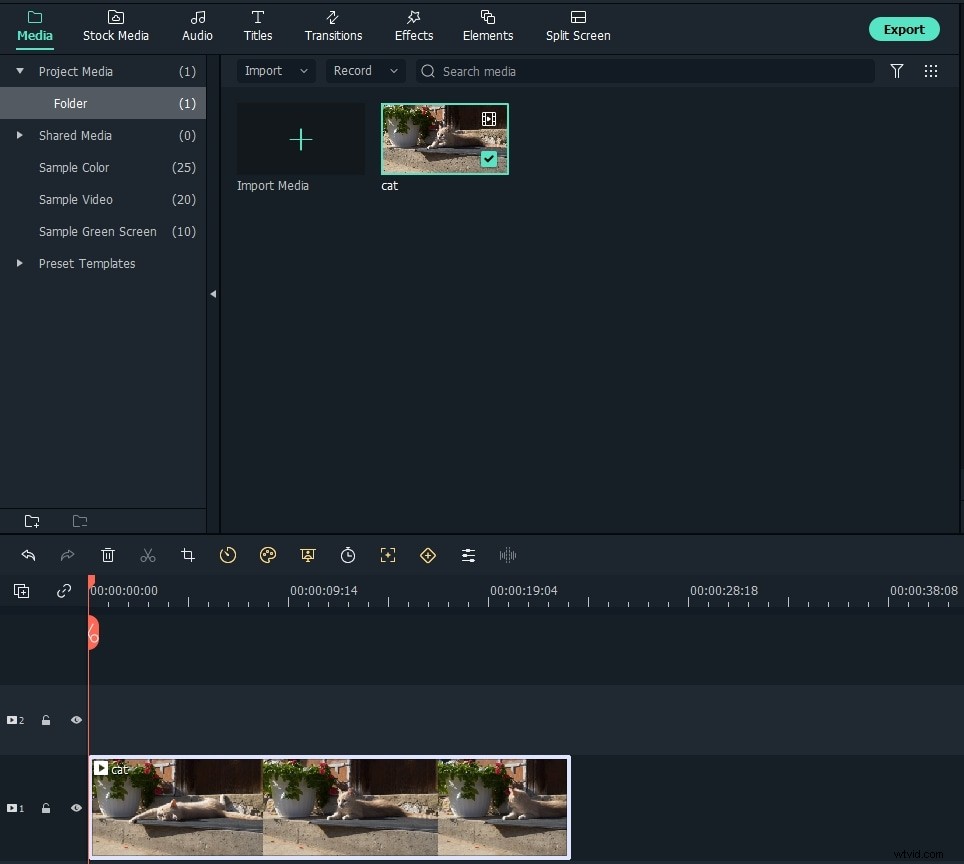
2. Increase brightness of video
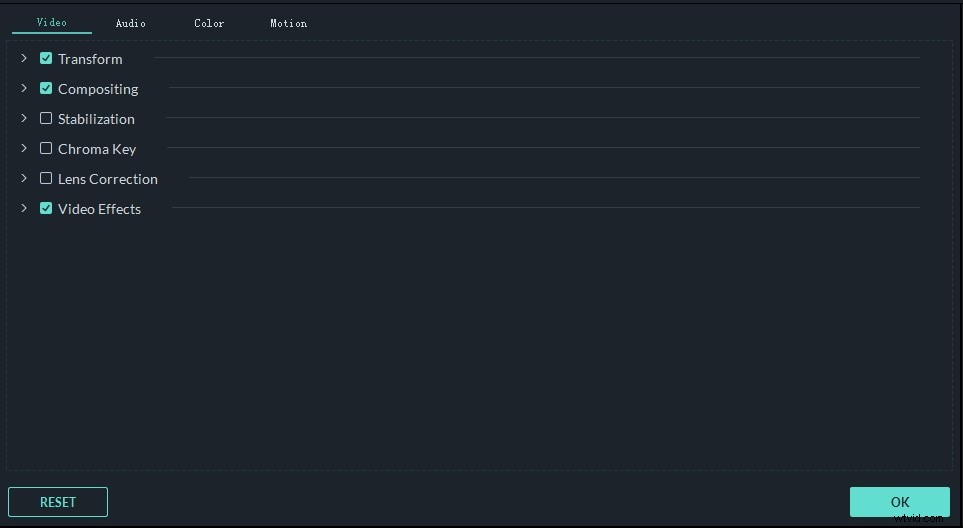
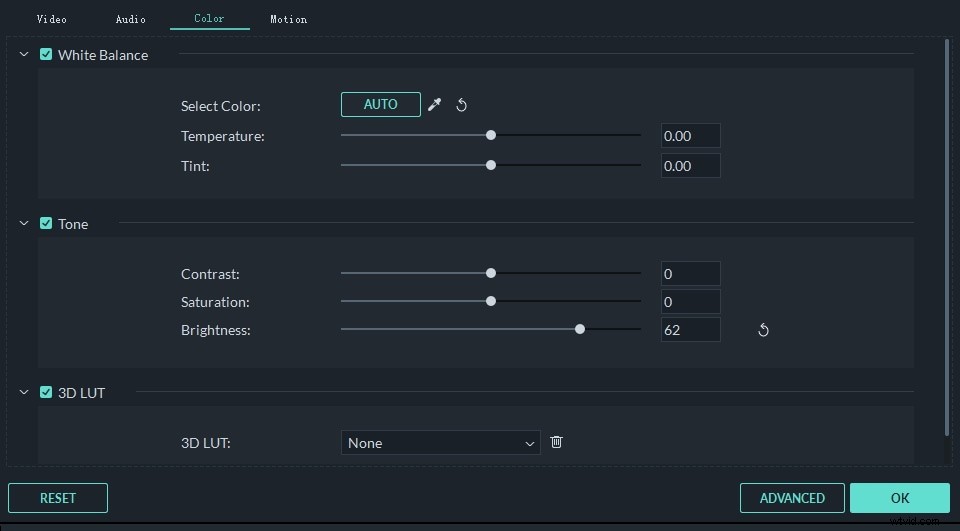
Double click the video in the Timeline and then you will see the editing interface which you can switch between Video, Audio (if it has), Color and Motion tabs. In the Video tab, you can change the clip transform with the Rotate, Flip, Scale and Position Settings. Switch to the Color tab, you will find the White Balance, Tone and 3D LUT options.
To increase brightness of the video, go to Tone option and drag the Brightness slider to right to increase. To preview the real-time result, just click the spacebar to play the video. You will see the video appear brighter because of your operation. If the video is still too dark, repeat the previous step. Each time you increase brightness and contrast of the video, it will get brighter.
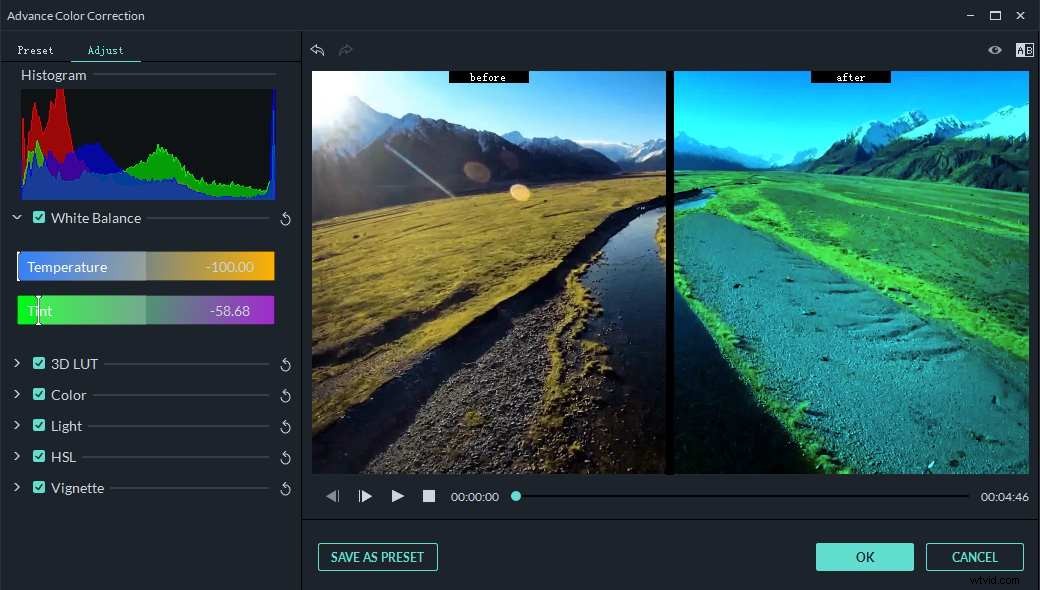
Besides adjusting Brightness of video, you can also use Filmora to adjust Contrast, Saturation, Hue, Saturation, Tint and Temperature, appy 3D LUT effects from Hollywood movies to videos with ease. You can also do some advanced color correction in the Advance Color Correction window.
Tip: To achieve the desired level of brightness, you should begin slowly and gradually increase the brightness and contrast. If you want to reset the settings, click the “Reset” button and it will bring back the original settings.
3. Save or share the brighten video
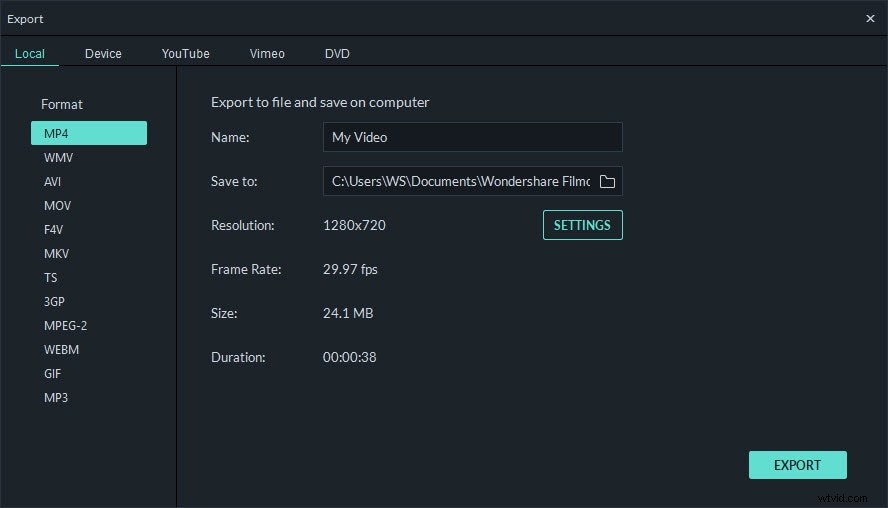
When you are happy with the result, click "Export" to save it. You can go to “Format” tab to export video in any popular formats like AVI, FLV, MKV, MP4, M4V, PSP, 3GP, MOV and more. If you want to play the video on mobile devices such as iPhone, iPad and iPod, click "Device" and select a device from the list. You can also directly upload video to YouTube and Vimeo or burn to DVD discs as you like.
Besides increase brightness of video, Wondershare Filmora can do more for your video. Want to enrich your video world? Now download this powerful video editing tool and have a try!