
I have a video in which many people are shown, so I have to distort the faces of them. You know like in documentations, person wants to stay unknown... How can I do that?
Well, sometimes you may need to distort face in video in order to protect the privacy. To help you achieve that, Wondershare Filmora can be a good choice. This powerful video editing tool allows you to distort someone's face in various formats such as MOV, MP4, AVI, and FLV by applying the "Face off" function to each frame of the imported video.
While working frame by frame like this is potentially time-consuming, you’ll find Wondershare Filmora is really easy-to-use. Now follow the steps below to see how you can easily distort face in video.
1. Import your videos to the program
Run this video editor. In the interface to click the "Import" button to browse your file folder, find the target files and click "Open" to add them to the program. You can also drag and drop the file directly into the primary window. When all the files have been successfully loaded, they will be shown as thumbnails in the left pane. Then drag and drop them into the timeline below.

2. Start distorting face in video
There are two ways to distort face in a video: Face off and Mosaic
Face off: After the files being placed into the timeline, click the "Effects" panel and locate "Utility" in the "Filters" menu. In the right window, go to the “Face Off" submenu and drag it to the timeline over the clip.
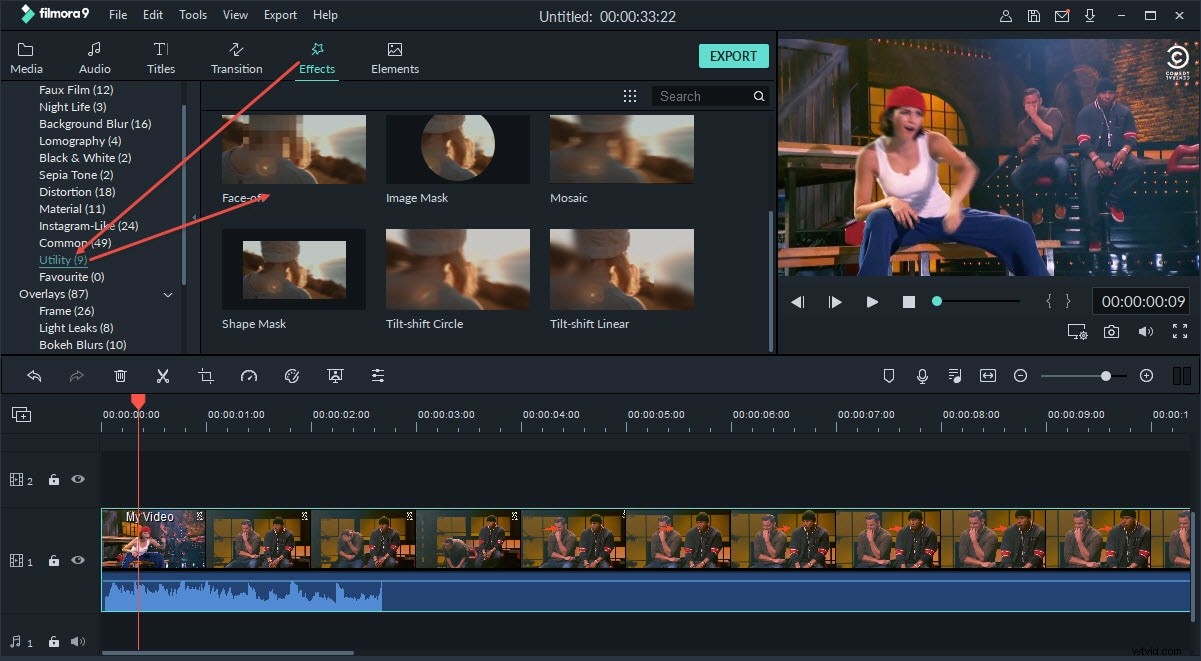
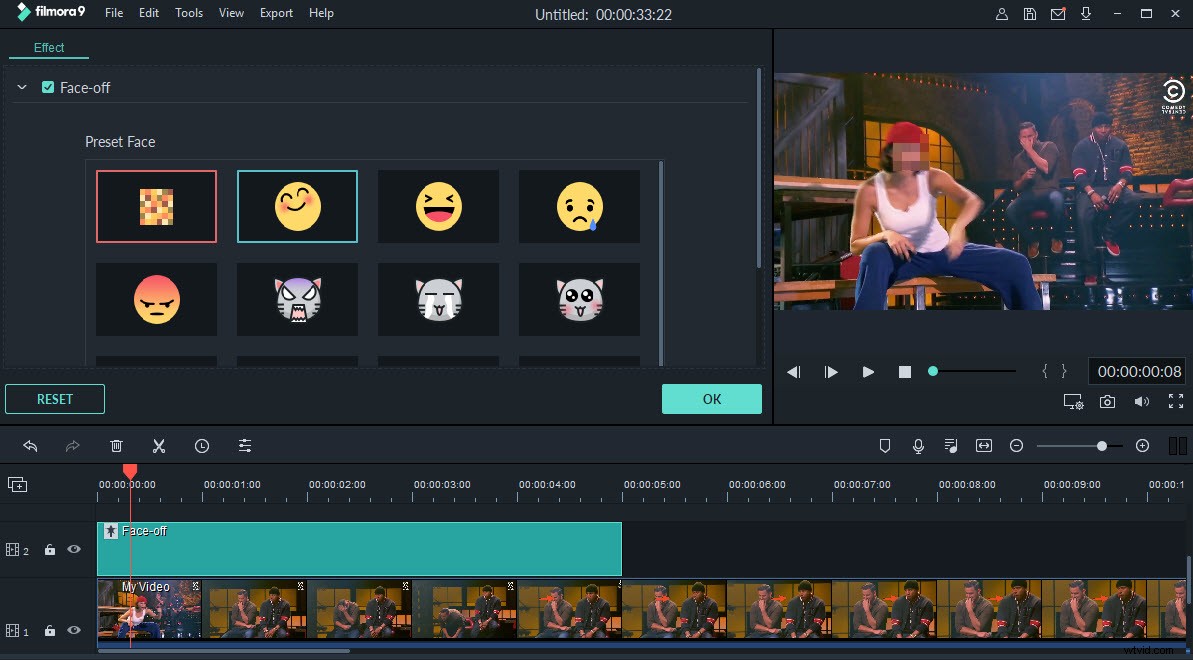
Double click on the Face-off effect in the timeline to choose one of the face off effects from the list. Click OK to confirm the settings. Then the program will automatically distort face in your video.
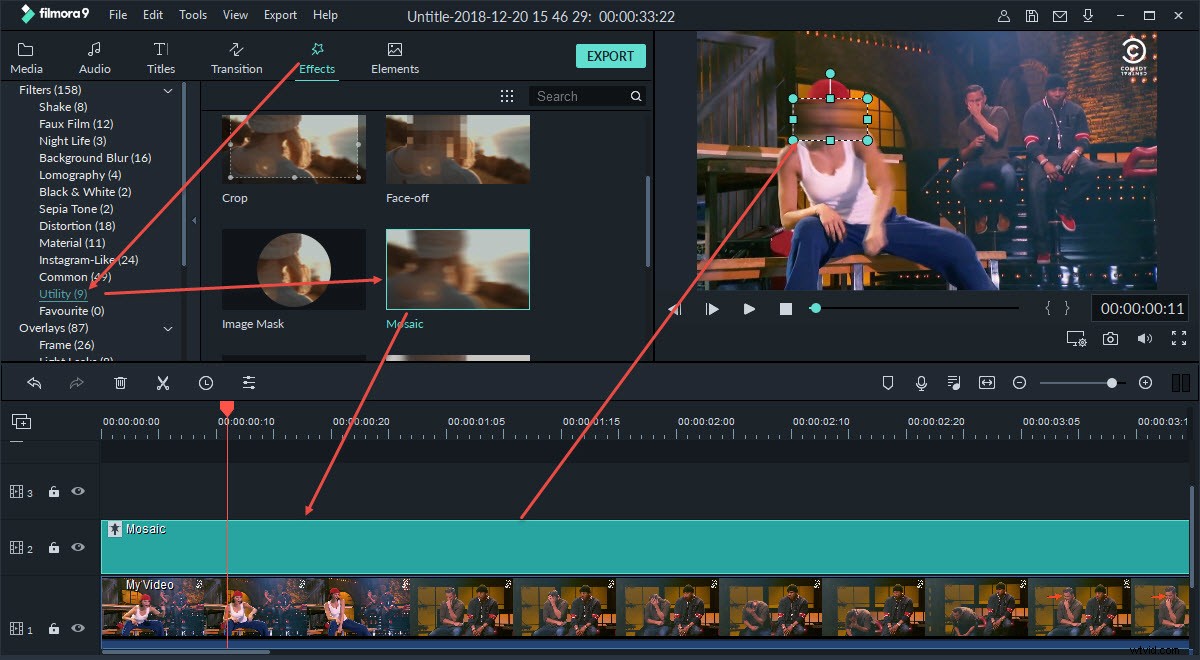
Mosaic: Sometimes the face detection function might not be 100 percent accurate due to factors like the angle, lighting, obstructions and video quality. To solve this problem, switch to the “Mosaic” tab and draw a square to distort face. You can change the location of the masaic by dragging the square in the Viewer panel.
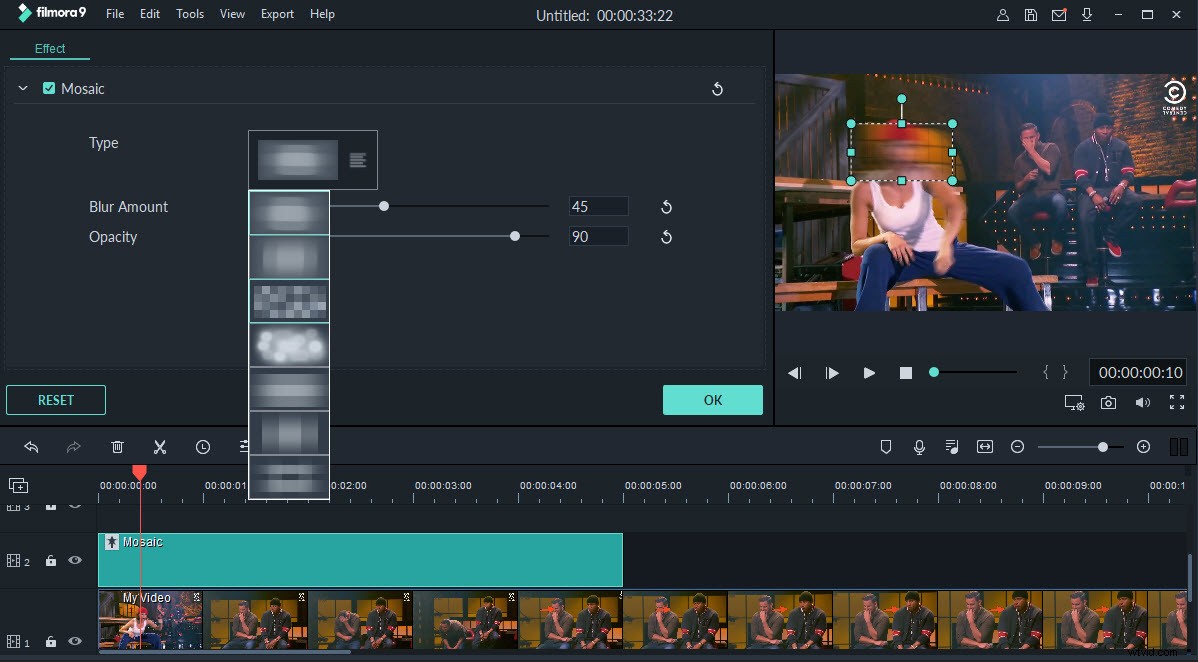
Double-click on the "Mosaic" effect in the timeline to adjust the type and level of the effect.
3. Export the new file
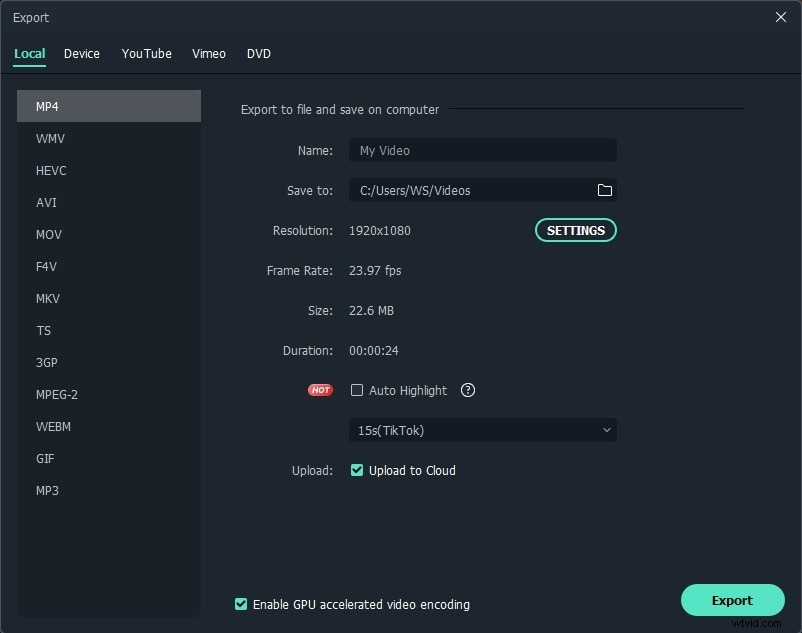
Now you're able to export the new file and share with others. Here you can choose from several output methods according to your needs:
- Go to the “Format” tab and save video to your computer in any format you want.
- Choose the “Device” tab if you want to play videos on your mobile devices.
- Upload to YouTube and your website without leaving the program.
- Directly burn your video to DVD for watching on TV with your home DVD player.
Conclusion
It is so easy to distord face in a video, right? If you want to know more details, here is also a video tutorial. Check it out!