
What do you do when someone wanders into your video, and you don’t have permission to include them? In order to protect privacy, you should block the face out in videos. But most of video editing programs available in the market today don’t allow you to blur only a small portion of the screen. You either blur the entire video or you blur nothing.
If you want to block face out in video, you'll need to use a different video editing tool. The easiest tool I've found for blocking face out in video is Wondershare Filmora. It automatically tracks the position and rotation of the face in your video, which lets you block out face without any hassle. Now check out the steps below to see how to block face out in video using the steps below.
1Import the target video
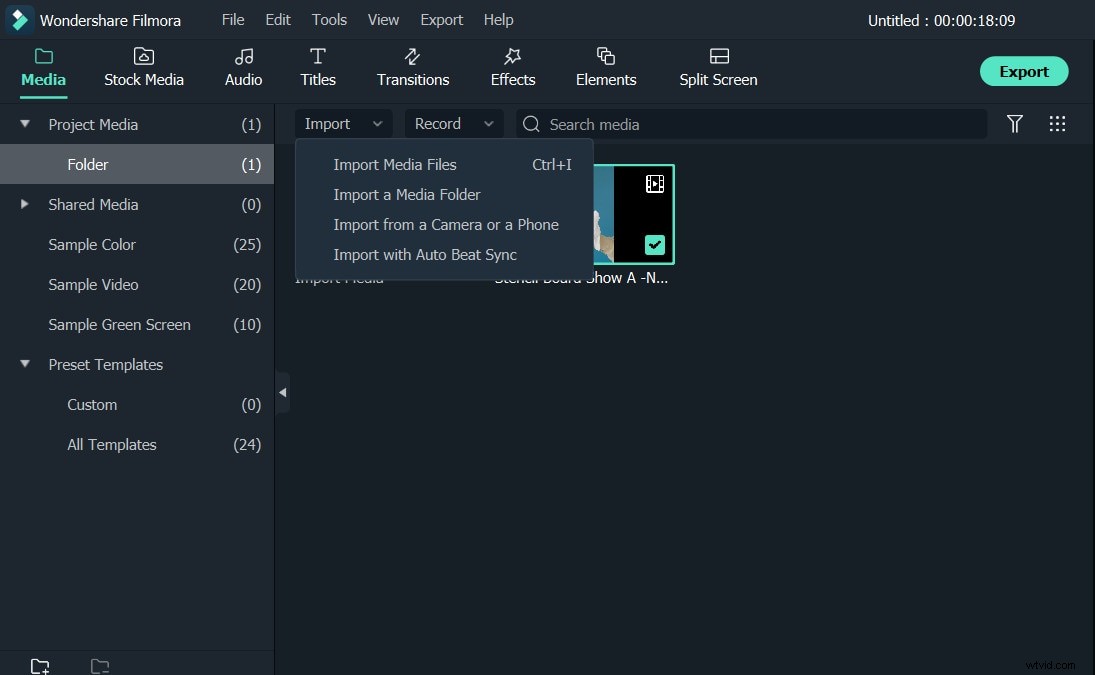
Install and launch Wondershare Filmora. Click the Import button, then navigate to and double-click a video file. You can also directly drag and drop the video to the program. Wondershare Filmora (originally Wondershare Video Editor) supports various video formats like FLV, MKV, MP4, MOV, MPG, MPEG, VOB and will automatically load the video for you to edit.
2Start blocking face out in video
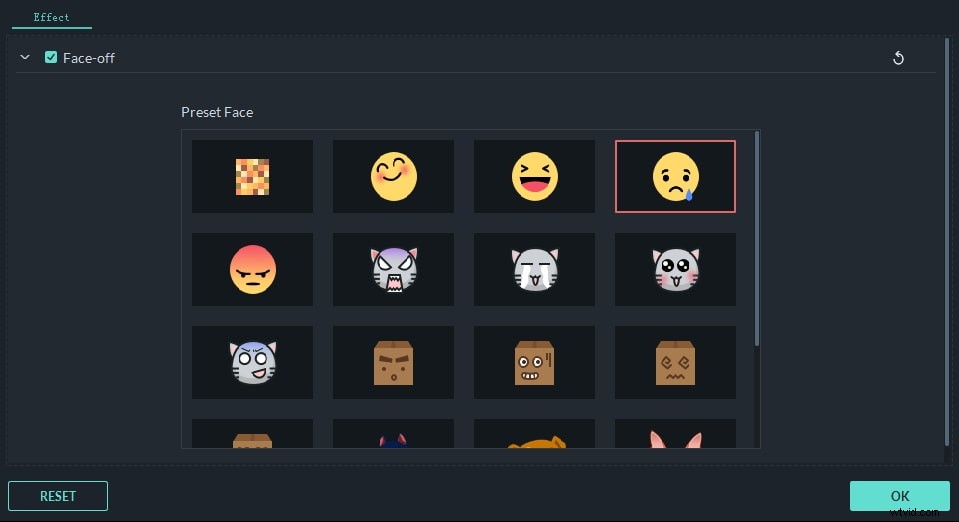
After that, highlight the video and drag and drop it to the video track of the timeline blow. Go to Effects at the top. Select Utility under the Filters. Choose Face-off. Right click and choose Apply. As you can see, there is a effect clip in the timeline. Double click on it, and then you can either pick the simple mosaic effect or other funny marks as you like. Once you choose, the program will immediately put the effect on the face it detected.
Note that the face detection might not be 100 percent accurate. Sometimes certain faces will not be blocked out. To make it up, select Mosaic in Utility and apply it to timeline. Draw a box over the faces that need to be blocked out- all is done.
3Save the new file
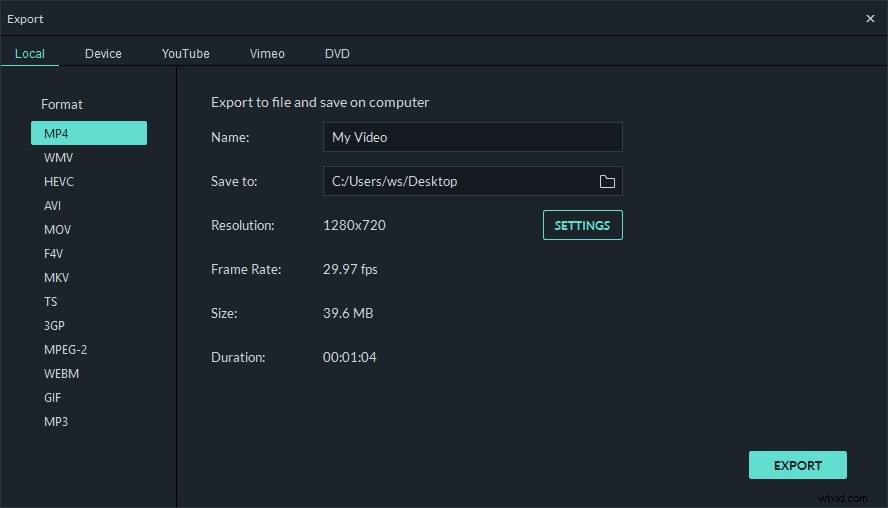
After that, click the Play button to see the result. If satisfied, hit the EXPORT button and choose one of the output methods in the pop up window. Here you can choose to save in a certain format, burn to DVD or directly share the new video on YouTube or Vimeo.
Conclusion
As you can see, it is so easy to block face out in Wondershare Filmora. If you want to have a try now, download Filmora!