
I want to blur a picture in my video, I know it's a lot of work, but I would like to know the best way to do this. Can someone recommend an application that's not too difficult to learn to give good results?
Encounter the same dilemma? Since the picture may contain content you need, you can't simply delete/cut it. Don't worry. Here's a picture blur tool you can use: Wondershare Filmora. It's capable of covering up any part of the image to hide improper information or protect your privacy. The best part is you can do this with a simple click, with no hassle. Check the video tutorials about how to blur pictures in videos first.
You May Also Like: How to Blur Faces in YouTube Video >>
Preparation: Download and install Wondershare Filmora on your computer:
This program is cross-platform; please download the right version for your operating system. The following guide explains how to blur a picture in Windows, but Mac users can follow the same steps because two versions share the same features.
1. Import your video
Launch this program, click "Import" to pop up a browser window, select the files you need when all files are displayed as thumbnails in the left item tray, drag and drop them to the Video Timeline.
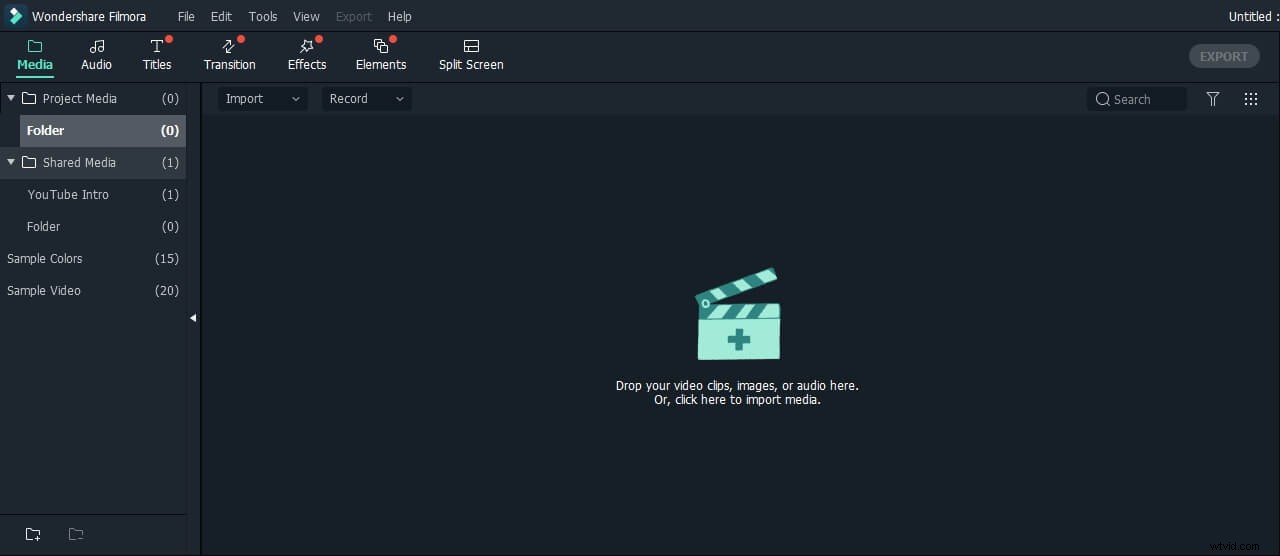
2. Blur pictures with a click
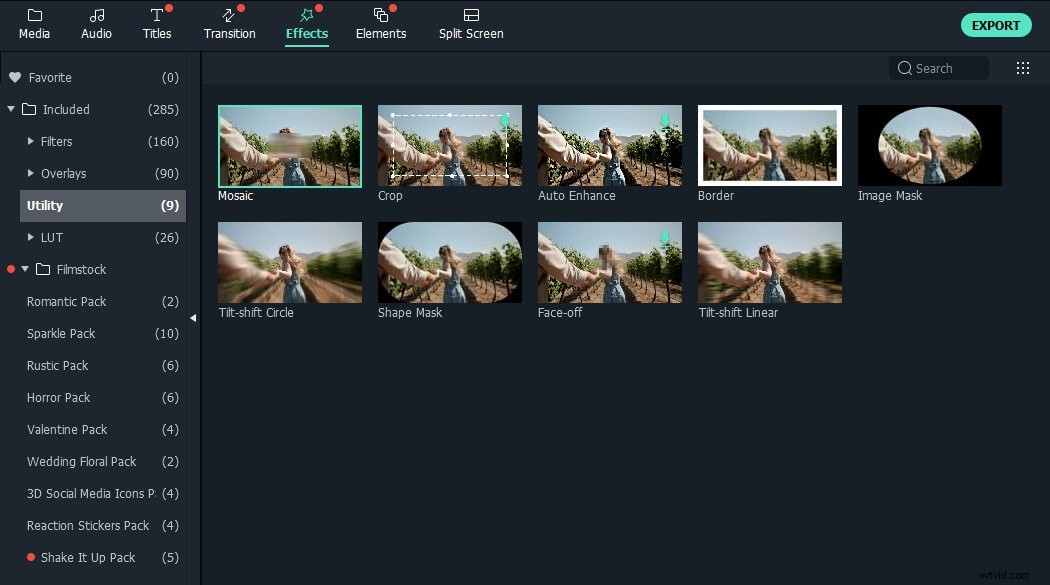
Go to the Effects tab at the top and click the Utility option. There will be about nine presets, including Mosaic, crop, auto-enhance, etc.
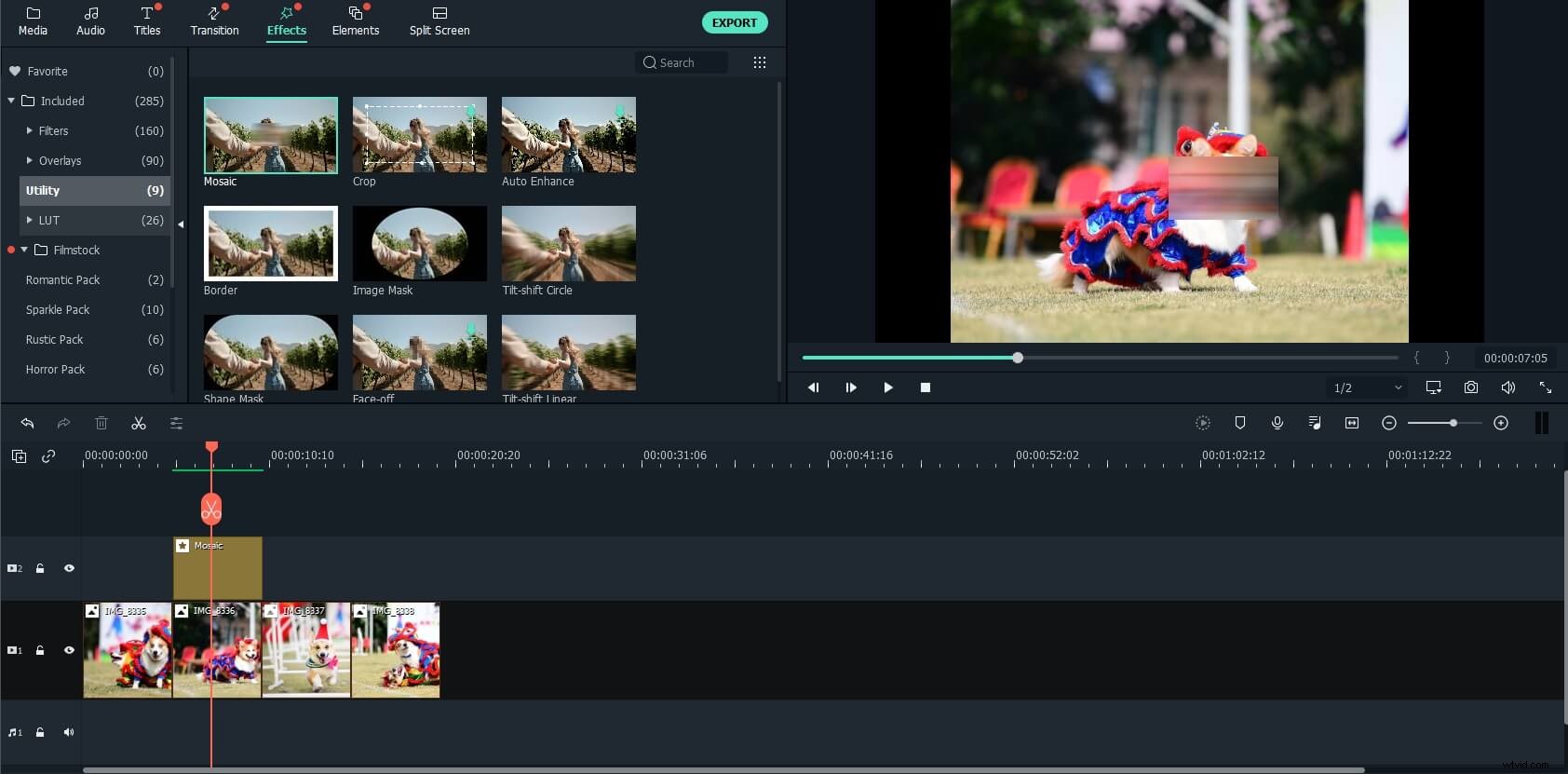
Now you can see the mosaic effect on the preview window. Drag and drop the Mosaic preset to the track above it to blur the image. Drag the rectangle to modify the blurring size and position as you like. You can also adjust the percent to achieve the best picture blurring effect if needed.
Tips: If you want to cover only some part of the clip instead of the whole duration of your movie, you can split your video first by auto scene detection or the splitting function provided.
3. Save the blurred video
You've successfully blurred out part of a picture. Now click "Create" to export your finished video. You can select a video format to save to desktop or publish it directly on YouTube, Facebook, or Twitter in the output window. Also, you can burn a DVD from your video in minutes with excellent quality.
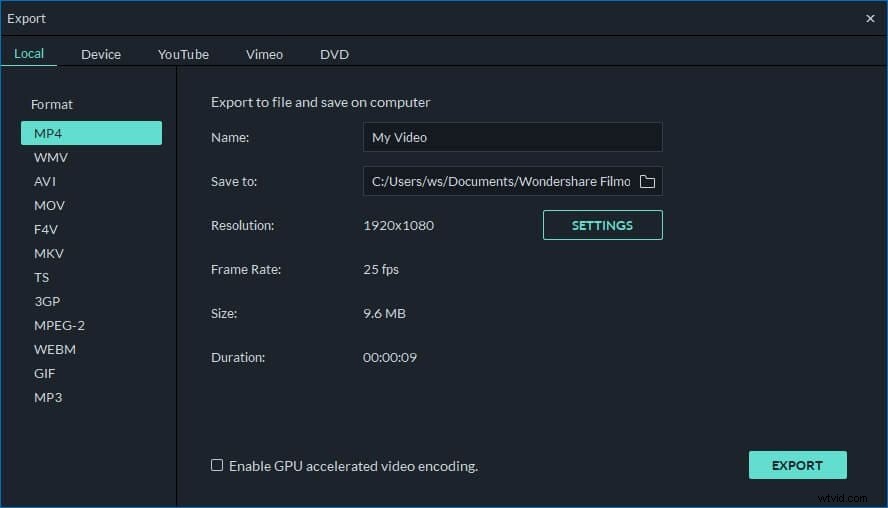
More about Wondershare Filmora :
Besides enabling you to blur a picture in your video, this picture blurring editor is also a great helper to remove audio from video, add background music, record voice-over, brighten your video, rotate to the correct angle, and more. Since the video blur software has so many amazing features, why not download it and have a try right now?