
Looking to flip a video but can’t seem to find a tool that’s easy-to-use?
You don’t want to watch a tutorial…
… or go through several steps to do something as simple as this.
Isn’t it ironic that you have to pay and download a professional video editing software, and spend hours learning it when all you’re looking for is to flip your video?
We feel you.
That’s why we compiled this list of free, easy methods you can use to quickly flip your video in 2020.
All the methods listed here are simple but based on your computer setup or nature of work, you can pick a method that suits you the best:
Flip online using Animaker
Flip on Mac using Quicktime player
Flip on Mac using iMovie
Flip on Windows using Windows Movie Maker
How to Flip a Video using Animaker: The Easiest Way
Animaker’s the quickest way to flip your video. Simply click a button to flip it horizontally and/or vertically.
The best part is it’s totally free and doesn’t slap an ugly watermark on your flipped videos.
Let me show you how:
- Open Animaker’s Video Flipper and click the Start Flipping button.

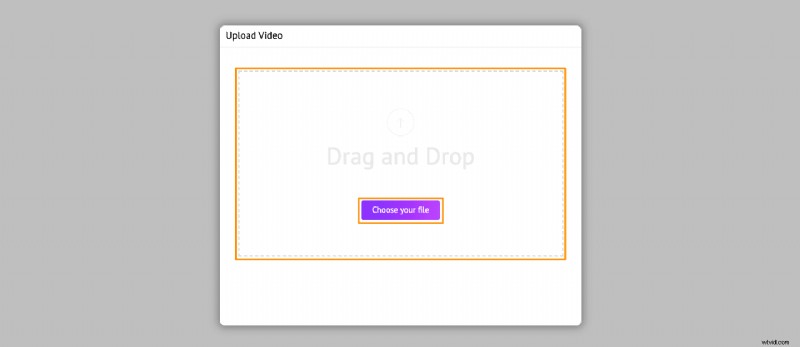
- Now upload the video you want to flip.
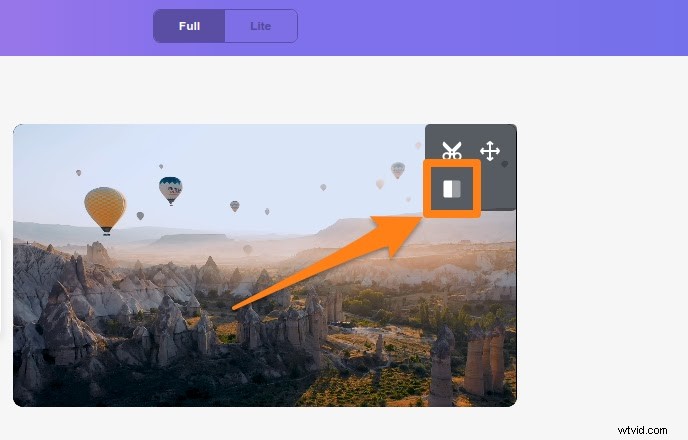
- Next, click on the Flip icon in the top right corner of the canvas to flip it horizontally or/and vertically.
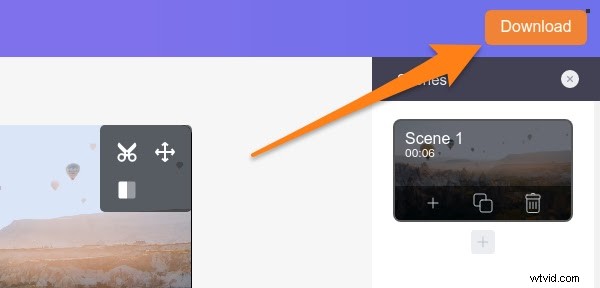
- Now click the Download button in the top right corner to start processing the video. Once done, you can download it to your local computer.
It’s that simple.
Are you a mac user? Below, we show you how you can use a preinstalled mac app to do the same.
How to Flip a Video on Mac using Quicktime Player
If you’re using Mac OS, you can use Quicktime player to flip your video. You probably already use it to play videos or record your screen. The following steps show you how to flip using Quicktime player:
- Open the video you want to flip using Quicktime player.
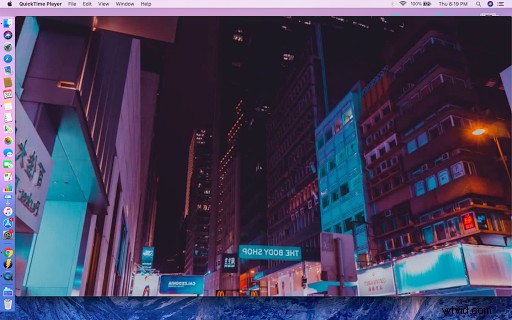
- Go to the “edit” menu in the app’s menu bar and select Flip Horizontal or Flip Vertical from the drop down menu.
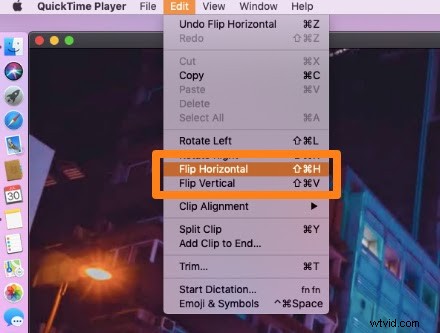
- Save the flipped video by hitting Command + S or go to the file menu in the menu bar and select Save from the dropdown menu.

And you’re done! Did you know that there’s another way to do this on Mac? We show you how in the following section.
Flip using iMovie on Mac
You can use iMovie, a preinstalled Mac app, to flip your video. If you aren’t familiar with the tool, I’d suggest you use Quicktime Player instead.
To flip your video vertically, follow the below steps:
- Add the video to your timeline and select it. You’ll know it’s been selected if it’s highlighted in yellow.
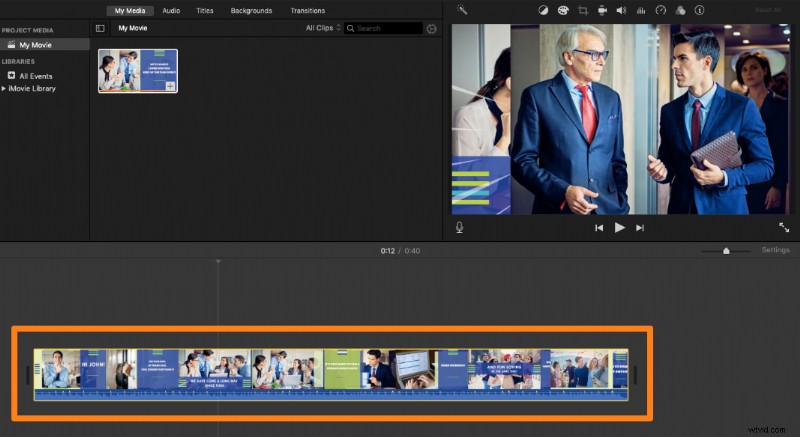
- Click the Cropping button above the Viewer panel, and click on one of the rotate buttons twice to flip it vertically (as shown in the screenshot below).
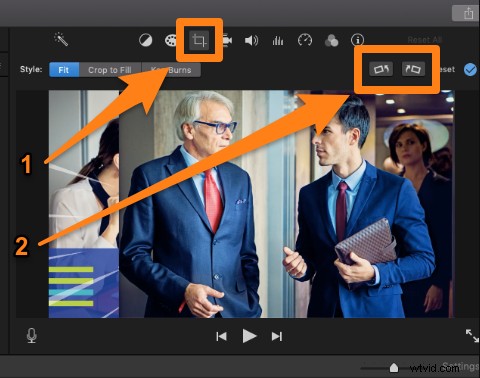
Here’s how to to flip your video horizontally:
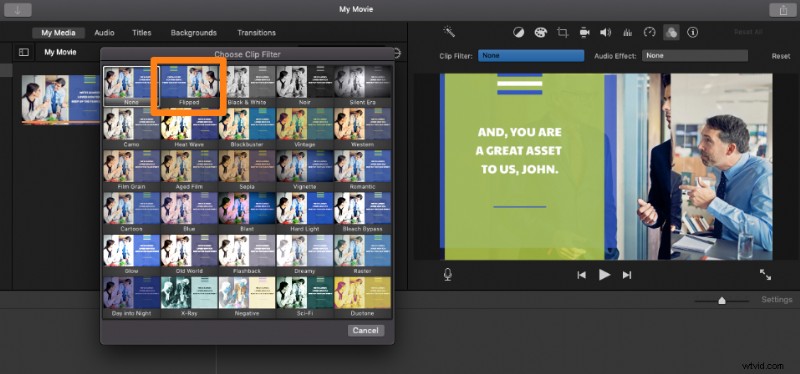
- Select your video from the timeline and click on the Clip filter and audio effects button above the Viewer panel.
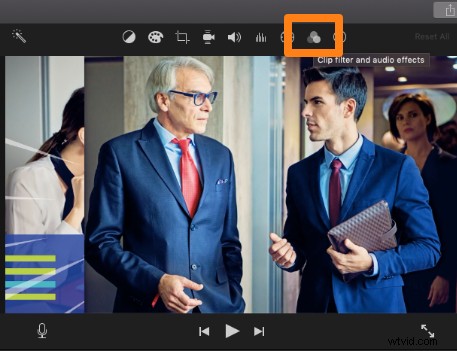
- From the Choose Clip Filter window, pick the Flipped clip filter as shown in the screenshot above.
As you can see, using iMovie isn’t the easiest way. You could opt to go with the first two methods if you’re not a user, or if you find it difficult to use.
Are you using Windows OS? Below, we show you how you can flip using a preinstalled Windows software.
Flip using Windows Movie Maker on Windows OS
Windows Movie Maker is primarily used to edit films and commercial videos. You’re better off using tools on your browser that are specifically built to address this one goal.
However, if you’re an existing user, follow these steps:
- Open Movie Maker and import the video you wish to flip.
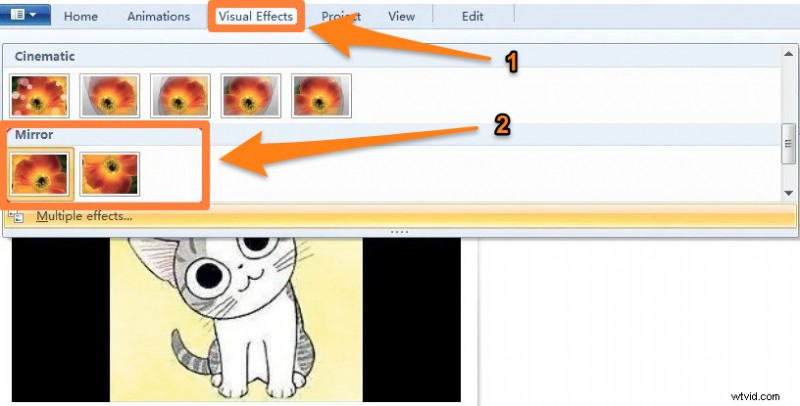
- Go to the Visual Effects tab and scroll down to the Mirror section. Now, choose Mirror Vertical to flip it vertically, or pick Mirror Horizontal to flip it horizontally as shown in the screenshot below.
Is there any other way to flip a video quickly? What tool do you use? Please let us know in the comment section.
And if you’ve been looking for an easy way to quickly edit your videos for your social media channels, feel free to check out our online video editor. It is ridiculously simple and fast. Just a few clicks and you’re done. Say goodbye to clunky, bloated video editing software.