
Downloaded an FLV video but unable to play it? To open and play it, you need to convert your FLV video to MP4 format.
MP4 format is compatible with nearly every device out there.
In this post we’ll show you quick, free ways to convert your FLV video to MP4, specifically, we’ll look at how to:
Convert Online using Animaker
Convert Online using CloudConvert
Convert on Windows and Mac
How to Convert FLV to MP4 using Animaker
Animaker’s FLV to MP4 converter lets you quickly convert your FLV video file to MP4 format online, for free.
Unlike other converters that are complex and require local installation, it’s a simple and lightweight app that works in your browser. Here are the steps:
1. Open Animaker’s FLV to MP4 converter and click the Start Converting button.
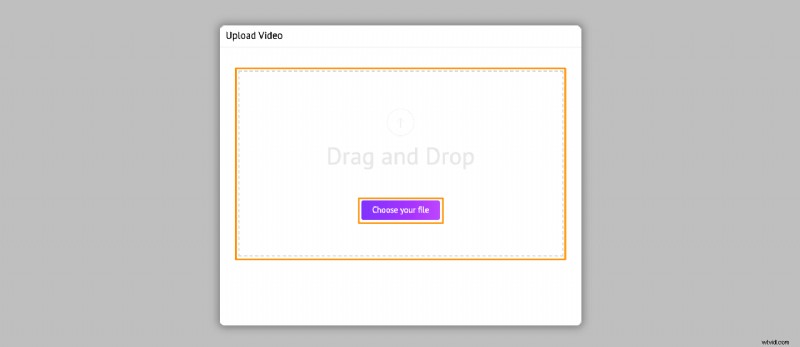
2. Now upload the MOV file you want to convert to MP4.
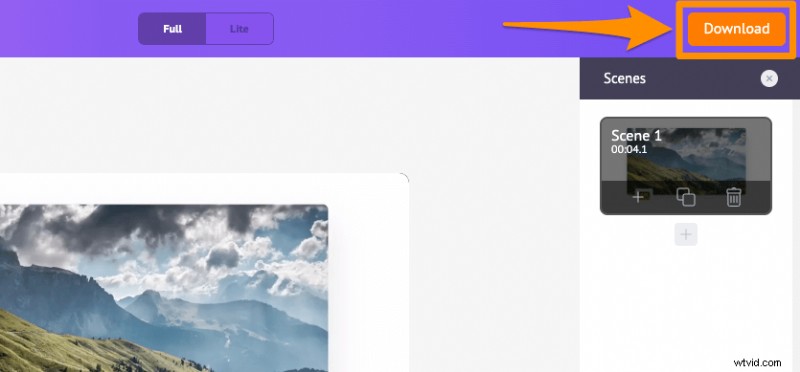
3. Once the video’s uploaded, click the Download button in the top right corner to download the video in MP4 format.
And you’re done! Apart from offering various video conversion tools, Animaker enables anyone to easily create live-action and animated videos from scratch.
Convert using CloudConvert
Use CloudConvert to do the same. Here are the steps:
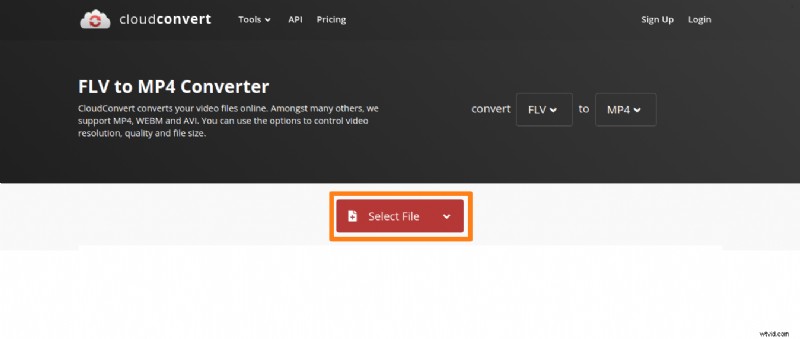
1. Launch CloudConvert’s FLV to MP4 converter, click the “Select File” button, and upload your FLV file.
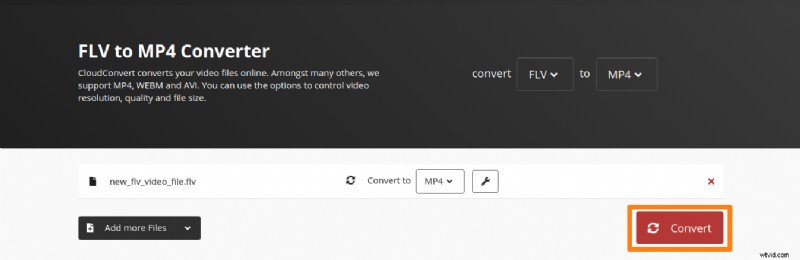
2. Now click “Convert” to start converting the FLV video to MP4.
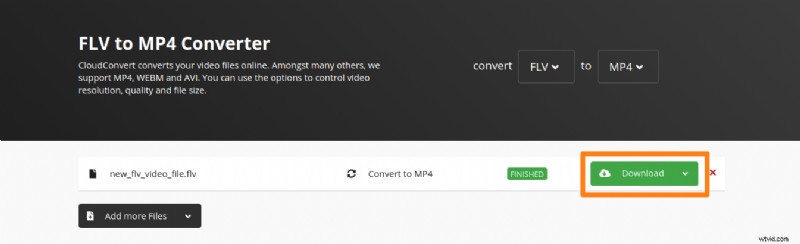
3. Once done, click the green button that says “Download” to download your video in MP4 format.
Let’s now look at how you can do this on a windows or mac computer.
Convert on Windows and Mac
Wondershare free video converter is a free desktop software that lets you convert your video to MP4 on both Windows and Mac. One downside of using it is that this free version adds a watermark to your converted video. Here are the steps:
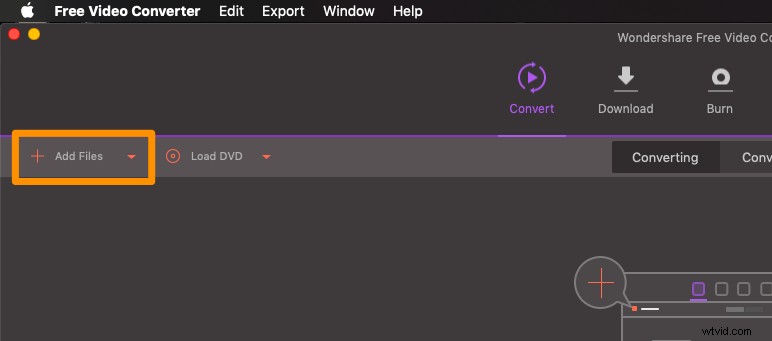
1. Install the software on your mac or windows pc and launch it. Click the Add Files button to import your FLV video from your computer. Alternatively, you can simply drag and drop the FLV file.
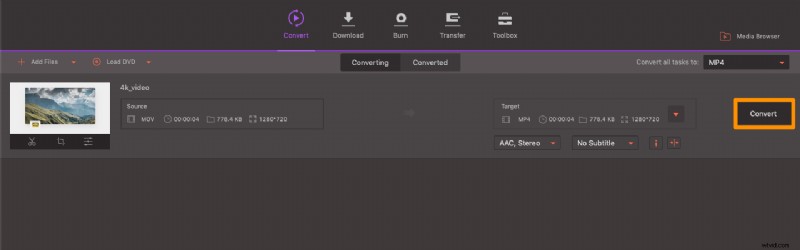
2. Once the FLV video’s imported, the target format will be set to MP4 by default; click the “Convert” button to convert the FLV video to MP4.
Know an easy way that’s not been listed here? If so, let us know in the comments below.
And if you’ve been looking for an easy way to quickly edit your videos for social media, feel free to check out our online video editor. It is ridiculously simple and fast. Just a few clicks and you’re done. Say goodbye to clunky, bloated video editing software.